
Summary:
Need to play MOV on Windows 11? You have three reliable options. AnyMP4 Video Converter Ultimate is the best one-stop solution for playing, converting, and repairing codec compatibility issues. VLC Media Player is the best free option, with built-in codec support, and the HEVC Video Extension lets you play HEVC-encoded MOV files natively in Windows Media Player.
Trying to play MOV files on Windows 11 should be simple. However, many users quickly encounter frustrating playback issues. Instead of opening normally, the built-in Media Player displays a missing codec error or refuses to play the video. These issues are common with MOV files recorded on newer iPhones, drones, and GoPro cameras, which use the HEVC (H.265) codec. If you're searching for how to play MOV on Windows 11, you're likely facing the same problem. In this post, we'll show you the best MOV player options for Windows 11. We will also explain why some MOV files fail to play and provide three proven methods to watch your videos smoothly.

| Method | Ease of Use | Cost | Fixes Codec Issues | Playback Smoothness | Best For | |
|---|---|---|---|---|---|---|
| AnyMP4 Video Converter Ultimate | Convert and play | 4.5/5 | Free & Paid |  Converts MOV to compatible formats permanently Converts MOV to compatible formats permanently |
4.5/5 | Permanent fix and batch conversion of MOV files |
| VLC Media Player | Play | 4.2/5 | Free | Built-in codecs |
4/5 | Free and reliable MOV playback |
| Media Player | Install the codec and play | 4/5 | Free | HEVC/H.265 support through codec installation |
4/5 | Built-in MOV player |
Many people assume the MOV format is the problem, but that's only part of the story. MOV is a container format that can hold video, audio, subtitles, and metadata. As for the outline question, it depends on the codec used to encode the video inside the container. The most common reason why Windows 11 won’t play a MOV file is that it’s encoded with HEVC. This video codec is the default recording codec on modern devices, particularly on iPhones. Windows 11 supports many multimedia formats, but not all installations support HEVC playback. The Media Player built into Windows supports H.265 video decoding via the HEVC Video Extension.
AnyMP4 Video Converter Ultimate is the ultimate Convert & Play fix to play iPhone MOV video on PC. It combines a media player and a high-speed converter in a single tool. It can convert Apple QuickTime files to MP4s encoded in H.264, MPEG-4, AV1, or HEVC/H.265 codec. It uses the most advanced hardware acceleration media processing to achieve 120× conversion speed. Also, you can import hundreds of MOVs and convert them simultaneously without lag and crashes.
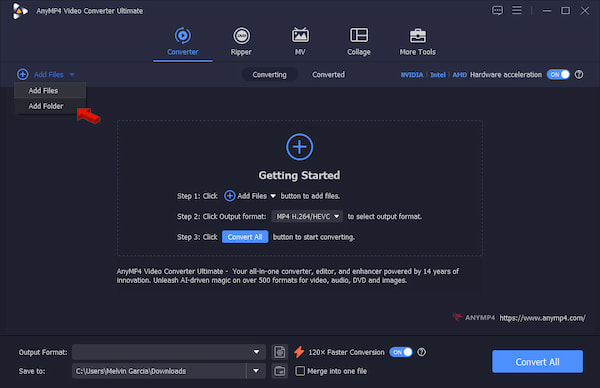
1. Download AnyMP4 Video Converter Ultimate and complete the installation. Shortly after the setup, the software opens to the Converter tab by default.
Secure Download
Secure Download
Click +Add Files to add the MOV source from your Windows 11. You can also drop an entire folder to batch import multiple video files. Remember, you can add one or more MOVs.
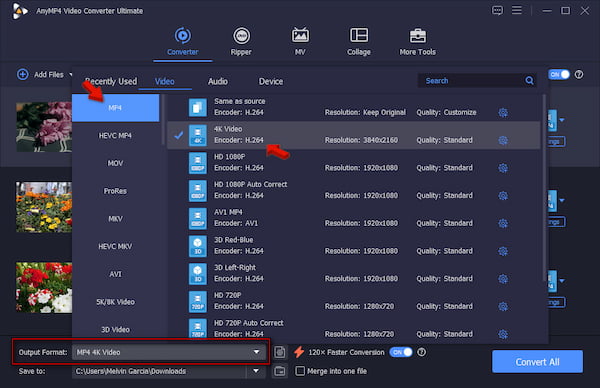
2. Go to the Output Format picker and select MP4 under the Video category. Essentially, choose a quality preset that matches your intended use. Click Custom Profile, then set the video codec to H.264 to ensure error-free playback.
3. Turn on Hardware Acceleration and 120× Faster Conversion to speed up conversions. Set the output destination folder, then click Convert All to convert MOV to MP4 in Windows 11.
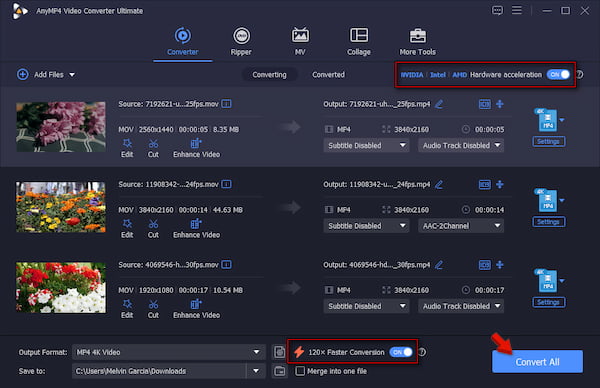
In our hands-on testing, AnyMP4 converted 55 MOV test files with varying resolutions in just 2 minutes and 8 seconds. When we play it on Windows 11 for video playback and quality assessment, the converted file plays smoothly. To learn more about the supported video formats for Windows 11, check out this article: MOV vs M4V vs MP4.
VLC Media Player has been around for many years, and even today’s OS still supports the tool. It supports almost all video formats, so you don't need to download extra codecs. Better yet, it can handle codecs like HEVC/H.265, AV1, and ProRes effortlessly. See the quick guide below to learn how to play .mov files on Windows 11.
To Play: In VLC, press Ctrl+O to load the MOV file for playback. After adding the video, VLC will decode and play it smoothly. Use the playback controls to pause, resume, stop, and adjust volume.
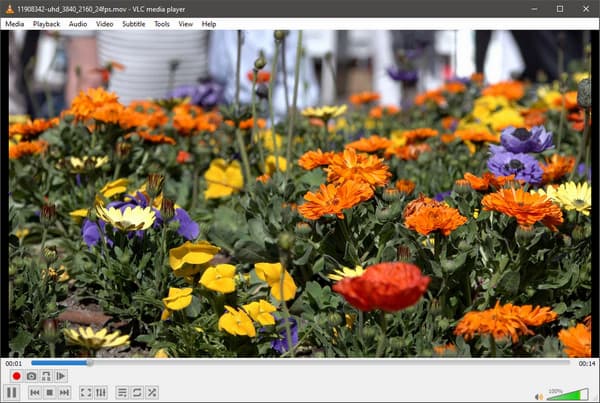
VLC played the 1080p iPhone video encoded in HEVC smoothly without buffering. However, when we attempted to play the next video (4K HEVC MOV), it glitched. If you experience the same, you can try to fix it. Go to Tools, select Preferences, and click Input/Codecs. Enable the Hardware-accelerated decoding to improve playback performance.
The built-in Media Player of Windows 11 is a good VLC Media Player alternative. With it, you don’t need to download an extra media player for MOV files. Without downloading the missing codec, the 0xc00d5212 error will appear, preventing you from playing the MOV file. Here’s how to open a MOV file in Windows 11 using the built-in Media Player:
To Play: Download HEVC Video Extension from the Microsoft Store. Go to the Folder where the MOV file is saved and double-click it to check if it’s encoded in HEVC/H.265. Play it in the Media Player; the video should play normally without codec-related error messages.

After installing the extension, all the MOV videos played flawlessly. The missing codecs could be installed as a remedy. However, downloading the codecs is not recommended. The downloaded codecs may have malware and might not work on your system.
What is the 0xc00d5212 error in Media Player?
When the 0xc00d5212 error appears in Media Player, it indicates a missing or unsupported codec. It occurs when your computer lacks the required software to decode and play a video file.
What codec is needed for MOV to play in Windows 11?
To play an MOV file on Windows 11, you need the H.264 codec. In actuality, Windows 11’s default Media Player supports most standard H.264 MOV files, but it struggles with HEVC/H.265.
What codecs are supported by the Windows 11 media player?
Windows 11 Media Player supports H.264, MPEG-4, WMV, and MOV. However, HEVC (H.265), AV1, VP9, and MPEG-2 require downloading separate extensions from the Microsoft Store.
You’re now equipped with multiple ways to play MOV on Windows 11. VLC is a reliable program that lets you view MOV files for free. However, if you want to stick with Windows Media Player for MOV file playback, installing the extension will help with any codec issues. For permanent solutions, AnyMP4 Video Converter Ultimate is a good choice. It can both play and convert MOV files without any codec errors.
 Posted by Riley Mitchell to Player, Convert Video
Related Articles
 How to Open & Play MOV on Windows Media Player Without Error
Learn how to fix QuickTime MOV playback issues. Play MOV on Windows Media Player using media converters, third-party playback software, or codec packs.
 10 Best MOV to MP4 Converters in 2026 (Fast & Lossless)
MOV files are unplayable? Read our honest, hands-on review of the top 10 MOV to MP4 converters, including desktop, online, and mobile tools to get the best one.
 5 Best MOV Recorders to Capture A Video in MOV Format for PC/Mac
When you want to capture a video in MOV file format on your PC or Mac, you should learn more about the 5 best MOV recorders to record the desired files.
 5 Best MOV to MP3 Converters (2026): Pro Quality & Speed Tested
Extract 320kbps MP3 from MOV files with our top 5 tested tools. Features detailed reviews, batch guides, and expert tips for lossless audio extraction.
 Add your comments to join the discussion here