Shutter Encoder Review 2026: Is This Free FFmpeg Converter Right for You?
Quick Answer:
Shutter Encoder (v20.x, ~173 MB Windows setup file) is a free, open-source FFmpeg GUI built by French video editor Paul Pacifico. It runs on Windows, macOS, and Linux. You see zero ads and pay $0. In our tests, it is the top free pick for Apple ProRes, DNxHR, H.265, HDR to SDR fixes, and fast lossless cuts. The dense Java screen has a steep learning curve, though. Want 500+ ready device presets, DVD tools, and up to 70x faster GPU speed in one click? Try AnyMP4 Video Converter Ultimate.
You have a video file that won't open in your editing app. Or you need to turn a large MOV file into a smaller MP4. Maybe a client wants a ProRes file, but your current converter doesn't offer it. Then you start looking for a free video converter, and find Shutter Encoder. It can convert video and audio. It can cut clips, change codecs, add subtitles, and work with formats such as Apple ProRes and DNxHR. It also uses FFmpeg, so it has many more options than a basic MP4 converter. Sounds good, right? But the app has a lot of settings. Some are hard to understand if you are new to video work. You may also wonder if it's safe, how fast it can encode, and whether it's better than HandBrake. That is why this Shutter Encoder review come in. Check it to look at the main features, the setup process, common tasks, and known limits.
What Is Shutter Encoder? A Quick Look
What Can Shutter Encoder Do?
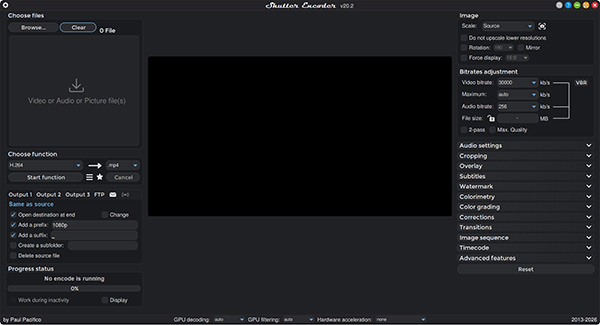
Shutter Encoder is a free video and sound tool. French film editor Paul Pacifico built it. It runs on FFmpeg. It works on Windows, Mac, and Linux. You pay $0 to use it. There are no ads. There is no sign-up limit. Here are some of its main functions:
| Task | What You Can Do |
|---|
| Video conversion | Convert video to H.264, H.265, H.266, VP8, VP9, and AV1 |
| Editing codecs | Export Apple ProRes, DNxHD, DNxHR, and CineForm |
| Audio conversion | Convert WAV, FLAC, MP3, AAC, ALAC, and more |
| Video cutting | Cut clips, including cuts without re-encoding when supported |
| File handling | Rewrap, merge, extract, and replace audio |
| Subtitles | Add, edit, or burn subtitles into video |
| Color tools | Adjust color and convert HDR to SDR |
| Video checks | Run VMAF, cut detection, black detection, and other checks |
| DVD and Blu-ray | Use the listed burn and rip functions |
| Batch work | Add files to a render queue |
Who Should Use Shutter Encoder?
Shutter Encoder may suit you if you:
- • Need Apple ProRes or DNxHR files.
- • Work with H.264, H.265, AV1, or broadcast formats.
- • Need to cut or rewrap video files.
- • Convert many files in one queue.
- • Want to use FFmpeg tools without typing commands.
It may not be the best choice if you only need to convert a video for your phone.
Hands-On Shutter Encoder Review: Install, First Launch, and Real Tests
I got the Windows 64-bit file (version 20.x) straight from the main site. The setup file is about 173 MB. Setup took less than one minute. No sneaky toolbars popped up.
Open the app. You see a dark gray panel. To be blunt, it looks like a plane cockpit. You won't see big icons for iPhone or TikTok. You see a file drop box, a tool list, and bitrates.
The app runs on Java. So I checked my RAM use during this Shutter Encoder review. At rest, it used 320 MB of RAM. When I turned a 1080p MP4 clip into H.264, RAM hit 680 MB. It ran smooth. It did not crash. On Windows or Shutter Encoder for Mac, it works like a tank once you learn the buttons.
Pro Codecs and Lossless Tools: Shutter Encoder ProRes, H.265, and HDR Tests
Most free tools freeze or crash on raw camera files. Shutter Encoder opens them right away. You can turn choppy phone clips into files that play fast in your editor. It works with Apple ProRes, DNxHR, DNxHD, and CineForm. In my test, a 1-minute 4K MP4 converted to Apple ProRes 422 in 28 seconds.
Web formats are strong too. You can export to H.264, H.265 (HEVC), H.266, VP9, and AV1. Not sure which one shrinks files best? Read these H.265 vs. H.264 compression differences first.
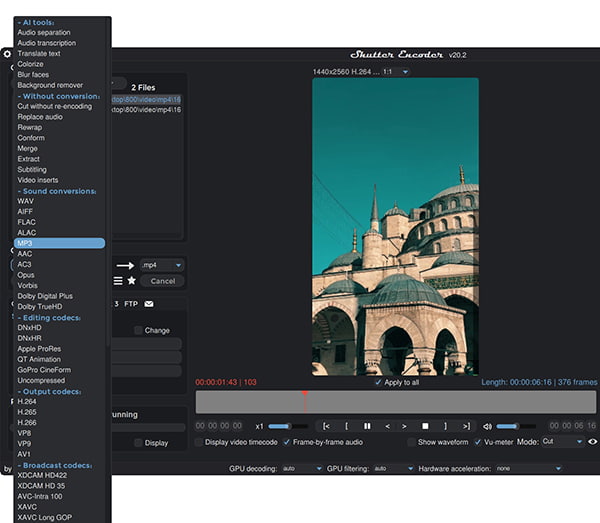
Need TV or archive formats? It makes XAVC, XDCAM HD422, AVC-Intra, and FFV1 files out of the box. You can also run HDR to SDR color fixes. That stops 10-bit phone clips from looking flat on a normal screen.
The best part is the zero-loss tools. You can cut clips or swap sound tracks without re-encoding. You can also remux MKV to MP4 in seconds. On my SSD, a 2 GB MKV turned into an MP4 in 3 seconds flat. The picture stays 100% untouched. You can even check VMAF scores and sound levels right inside the app.
Extra Tools Beyond Video: Audio, AI Features, and Batch Queues
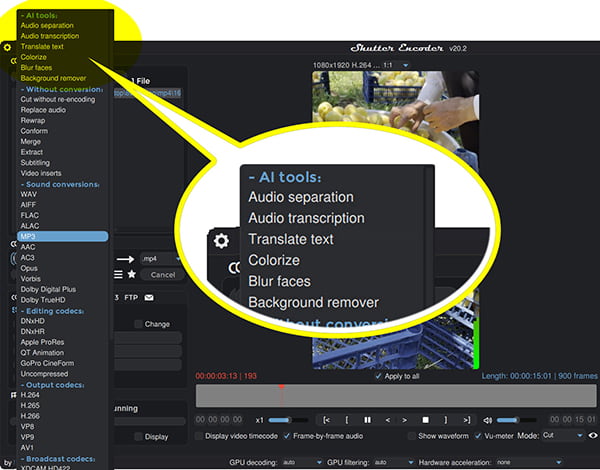
Shutter Encoder does much more than video work. You can turn soundtracks into WAV, FLAC, ALAC, MP3, or AC3. Just want the song from a clip? You can separate audio from video in two clicks.
New builds also pack local AI tools on your PC. You can split voice from music. You can turn speech into text or blur faces. You can even add color to old black-and-white film. All work stays on your own drive. Your files never go to the cloud. Need to fix 50 clips at once? Drop the whole folder into the list. That builds a batch queue. Set custom rules for each clip. Then let it run while you sleep.
How to Use Shutter Encoder: 5-Step Beginner Guide
Learning how to use Shutter Encoder takes ten minutes once you know the layout. Follow these six steps for your first clean export.
1. Go to shutterencoder.com. Get the main setup file for Windows, Mac, or Linux (about 173 MB on Windows). Skip third-party file sites so you stay free of junkware.
2. Drop your clip into the top box. Or click Browse to pick a file from your drive. Your clip name, time, and size will show up in the queue list.
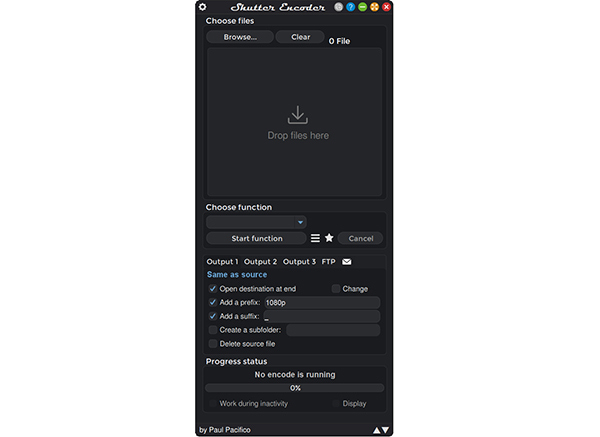
3. Click the Choose function box under the file list. Pick H.264 for a standard MP4 file. Or pick Apple ProRes for smooth video editing. Next to it, click the file type box and pick .mp4 or .mov.
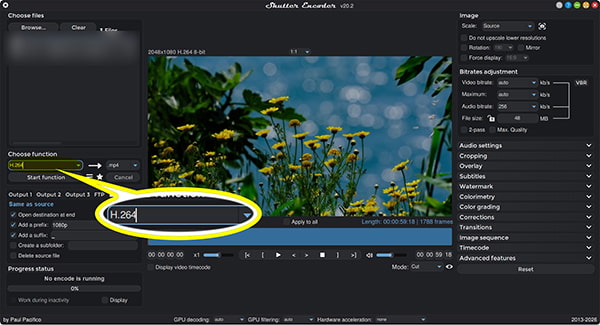
4. Open the Bitrates adjustment tab on the right side, where you can adjust the file size or sharpness. You can ignore it and get a safe and default export. Finally, click Change at the bottom right side to save your final file.
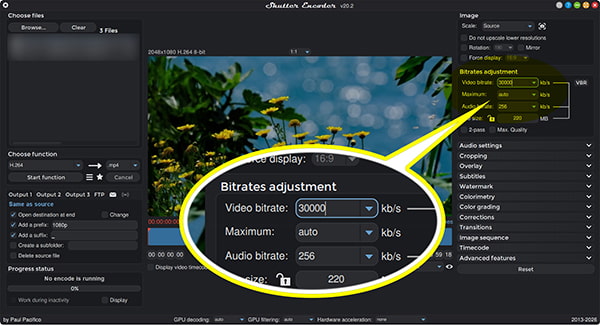
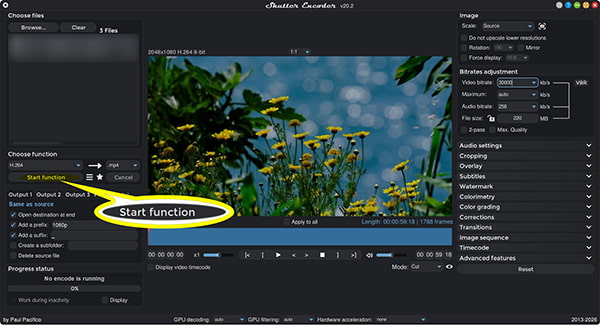
5. Click Start function to run the job. Watch the green bar at the bottom fill up. When it stops, open your new file. Check the picture and sound.
Shutter Encoder vs HandBrake vs FFmpeg vs AnyMP4 Video Converter Ultimate
Picking between these four tools comes down to control vs. speed. Comparing Shutter Encoder vs HandBrake is a classic choice. Meanwhile, FFmpeg and AnyMP4 Video Converter Ultimate sit at total opposite ends when it comes to ease of use.
|
Price & License |
Platforms |
Core Engine |
Target User |
Consumer Codecs |
Pro Editing Codecs |
Lossless Cut & Remux |
HDR to SDR & VMAF |
One-Click Device Presets |
DVD Output & Ripping |
Batch Queue |
GPU Acceleration |
Ads or Bundled Junk |
Learning Curve |
| Shutter Encoder |
Free, donationware (GPL-3.0) |
Windows, macOS, Linux |
FFmpeg GUI (Java) |
Editors & video pros |
H.264, H.265, H.266, VP9, AV1 |
Yes (ProRes, DNxHR, CineForm) |
Yes, built-in GUI tools |
Yes (built-in tone-map & VMAF) |
No (codec-first workflow) |
Basic/complex |
Yes |
Yes (NVENC, QSV, AMF, Metal) |
None |
Steep (dense pro layout) |
| HandBrake |
Free, open source (GPL-2.0) |
Windows, macOS, Linux |
FFmpeg-based |
Home users & hobbyists |
H.264, H.265, AV1, VP9 |
No |
No |
Limited HDR tone-mapping |
Basic web/device presets |
DVD ripping only (no burn) |
Yes |
Yes (NVENC, QSV, AMF) |
None |
Easy to moderate |
| FFmpeg (CLI) |
Free, open source (LGPL/GPL) |
Windows, macOS, Linux |
FFmpeg command line |
Developers & scripters |
All FFmpeg codecs |
Yes (via CLI flags) |
Yes (CLI) |
Yes (CLI) |
None |
No |
Yes (scripts) |
Yes |
None |
Very steep (text commands) |
| AnyMP4 Video Converter Ultimate |
Free trial, paid license |
Windows, macOS |
Proprietary + GPU accel |
Beginners & casual users |
500+ formats (manufacturer spec) |
No (consumer focus) |
Lossless trim/merge tools |
Basic HDR conversion |
Hundreds of ready presets |
Yes (DVD rip & burn) |
Yes |
Yes (up to 70x speed claimed) |
None |
Very easy (guided buttons) |
Which one should you pick?
If you work with editing codecs, Shutter Encoder is worth a try.
Pick raw FFmpeg only if you love typing code scripts. Want ready iPhone, TV, or YouTube presets plus DVD burning with zero codec math? AnyMP4 Video Converter Ultimate does the job in three clicks. If you only need to convert files for phones, TVs, or social media, you may want a simpler app. AnyMP4 Video Converter Ultimate is one option. Its official page lists more than 500 formats, device profiles, DVD conversion, and video editing tools. It also claims speeds of up to 70x with supported hardware. Actual speed depends on your PC, source file, output settings, and hardware.
Our final take: Shutter Encoder is worth learning if you need control over codecs and media files. If you just want to convert a video and move on, a simpler video converter may be a better fit.
Is Shutter Encoder Safe? Open-Source Facts and the Reddit Banding Debate
Let's check the main trust question: is Shutter Encoder safe?
Yes, if you get it from shutterencoder.com. The code is open source under GPL-3.0 on GitHub. Anyone can read it. It has zero ads. It has zero spyware or hidden miners.
Why do Windows SmartScreen or Mac Gatekeeper pop up warnings? Paul Pacifico ships the app on his own. He does not pay for a pricey corporate code certificate. Unsigned Java apps often trigger false flags. Just stay away from mirror sites. Those sites can bundle fake files.
Now let's talk about the big Reddit r/editors post titled "PSA: Don't Use Shutter Encoder for Transcoding." Some editors saw color banding in dark scenes on default 8-bit exports. In my own test, low-bitrate 8-bit H.264 clips did show mild banding in dark skies. You can fix this fast. Raise the bitrate. Pick 10-bit color. Or use lossless video compression like ProRes 422 instead.
Shutter Encoder Pros and Cons
To keep this Shutter Encoder review fair, I read hundreds of posts on Reddit (r/editors and r/shutterencoder), VideoHelp, and G2. Here is what real users love and hate.
PROS
- 100% free with zero ads: Folks on VideoHelp and Reddit love the honest donation setup. There are no watermarks or paywalls.
- True pro codecs built in: You get Apple ProRes, DNxHR, CineForm, XAVC, and FFV1 for free.
- Fast zero-loss cuts: Editors love trimming, joining, and rewrapping files in seconds with zero quality drop.
- Runs on every OS: The exact same screen works on Windows, Mac, and Linux.
- Fast bug fixes: Paul Pacifico replies to Reddit threads. He ships fresh FFmpeg updates often.
CONS
- Hard for beginners: You need to know codecs and bitrates. There are no easy phone presets to click.
- Tough for beginners: You have to pick your own codecs and bitrates. There are no easy phone presets.
- Heavy on memory: Leaving the Java window open takes 300 MB to 700 MB of RAM.
- High RAM usage: Leaving the Java window open uses 300 MB to 700 MB of memory.
Shutter Encoder FAQs
Is Shutter Encoder really free?
Yes. It is 100% free donationware under GPL-3.0. There is no paid tier. There is no time limit or watermark.
Is Shutter Encoder safe to download?
Yes, from shutterencoder.com. Windows or Mac may show a warning because the Java app lacks a paid developer certificate. That is a false alarm.
Does Shutter Encoder support Apple ProRes and DNxHR?
Yes. Apple ProRes (422, LT, Proxy, 4444) and Avid DNxHD/DNxHR sit right inside the main function menu.
Can Shutter Encoder cut video without re-encoding?
Yes. Pick the Cut without re-encoding tool. You can trim clips on keyframes in seconds with zero quality loss.
Does Shutter Encoder convert HDR to SDR?
Yes. Open the Colorimetry tab on the right. Turn on HDR to SDR tone-mapping. Your 10-bit clips will look right on normal screens.
Conclusion
After a full week of tests, this Shutter Encoder review comes down to one clear split. Shutter Encoder is the best free tool for real video editors. You get Apple ProRes, DNxHR, TV codecs, VMAF checks, and fast zero-loss cuts for $0.
| Category |
Score (Out of 10) |
Test Notes |
| Pro Codecs & Lossless Tools |
9.5/10 |
Unmatched free ProRes, DNxHR, XAVC, and lossless rewrap tools |
| Price & Transparency |
10/10 |
Truly free GPL-3.0 open source with zero ads or paywalls |
| Ease of Use for Beginners |
6.5/10 |
Dense Java cockpit layout with no one-click device presets |
| Transcoding Output Quality |
8.0/10 |
Great in ProRes/high-bitrate; default 8-bit H.264 needs care |
Think of Shutter Encoder like a stick-shift race car. Learn the gears, and it beats almost everything on the road. Want an automatic car that gets you home fast? Look at simpler Shutter Encoder alternatives. Want ready device presets and DVD converting? Need up to 70x faster GPU speed (per vendor specs) with no codec fuss? Try AnyMP4 Video Converter Ultimate.


 Add your comments to join the discussion here