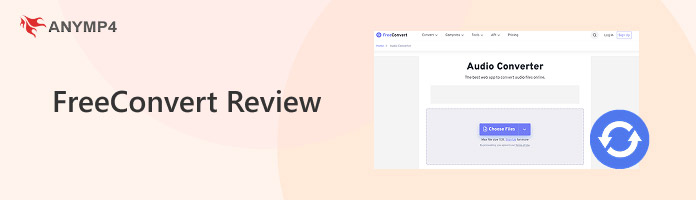
FreeConvert Review: Is This Free Converter Worth Your Files?
Summary:
FreeConvert is an online file converter supporting 1,500+ conversions, advanced settings, and no-account access. However, the free plan has a 1 GB file-size limit, 20 minutes per day, conversion limit, and 10 operations daily. It's suitable for occasional tasks, while AnyMP4 Video Converter Ultimate is better for frequent, large, and offline media conversions.
Converting files online sounds simple until you encounter file-size restrictions, daily conversion limits, and long processing queues. Free online converters promise convenience, but free plans come with limitations that eventually become frustrating. In this FreeConvert review, we'll examine the free-tier economics, security practices, supported formats, conversion quality, batch processing, and overall performance. We’ll also compare it with online and offline alternatives to help you decide whether an online converter is enough or you need a more capable alternative.
Part 1. The Real Free-Tier Economics: Minutes, Operations and the 1 GB Ceiling
What Is FreeConvert?
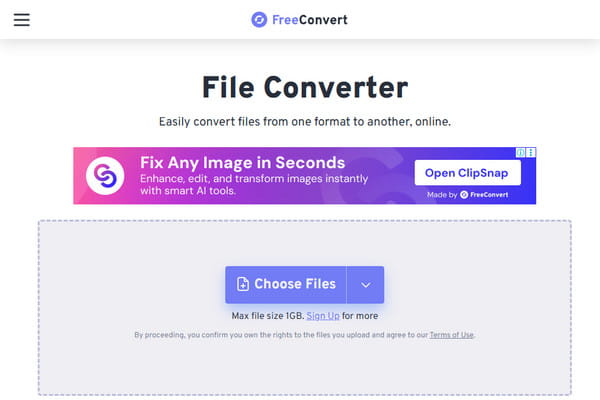
FreeConvert is a browser-based media and file converter that supports 1,500+ conversions from different categories. This includes video, audio, images, documents, and e-books. You can start converting files without installing anything or even creating an account. Like Convertio and CloudConvert, it processes files online. However, for frequent conversions, large media files, and offline processing, desktop converters are more practical.
The Minutes-vs-Operations Trap
The free plan has four main restrictions: 20 conversion minutes per day, a five-minute conversion time per file, 10 operations/day, and a 1 GB maximum file size. These limits mean you can convert around 10 small files or four to five videos daily, depending on processing time. However, FreeConvert free plan users can upgrade to a paid plan to increase these allowances.
| Plan |
Basic |
Standard |
Pro |
Scale |
| Price |
$12.99 |
$24.99 |
$29.99 |
Up to $259.99 |
| Maximum file size |
1.5 GB |
2 GB |
5 GB |
20 GB |
| Conversion minutes (per month) |
1,500 |
2000 |
4000 |
Up to 1M |
| Operation per day |
Unlimited |
Unlimited |
Unlimited |
Unlimited |
| Based video encoding |
CPU |
CPU |
GPU/CPU |
GPU/CPU |
| Priority |
High |
Highest |
Highest |
Highest |
Part 2. Privacy & File Handling: Is It Safe to Upload?
FreeConvert offers several privacy protections, including 256-bit SSL encryption for file transfers, AWS S3 storage in Ireland, and file deletion after eight hours. It also allows manual deletion of uploaded files at any time. FreeConvert is safe to use, but encryption and automatic deletion do not eliminate every privacy risk.
Part 3. Formats, Quality & the Compression Toolbox
As mentioned, the tool supports more than 1,500 conversions from video, audio, images, documents, and e-books. It also provides advanced settings for adjusting codecs, resolution, aspect ratio, and frame rate. Beyond media and file conversion, it can also compress video online, rotate to 90, 180, or 270 degrees, flip horizontally or vertically, trim, and crop.
| Category |
Format Supported |
Use |
| Video |
3GP, AVI, FLV, MKV, MOV, MP4, OGV, WEBM, and WMV |
Convert videos for different platforms |
| Video (Device Preset) |
Android, iPhone, iPad, Kindle, Mobile, PSP, and Xbox |
Convert videos for different devices. |
| Audio |
AAC, AIFF, ALAC, AMR, FLAC, M4A, MP3, OGG, WAV, and WMA |
Extract audio from video and change formats |
| Image |
BMP, EPS, GIF, ICO, JPG, JPEG, ODD, PNG, PSD, SVG, TGA, TIFF, and WebP |
Optimize images for sharing and websites |
| Documents |
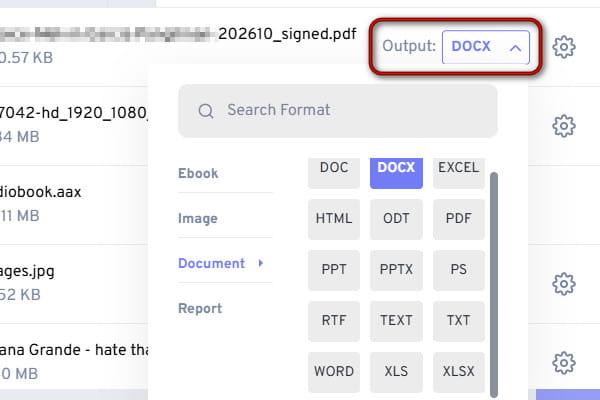
DOC, DOCX, EXCEL, HTML, ODT, PDF, PPT, PPTX, PS, RTF, TEXT, TXT, WORD, XLS, and XLSX |
Convert PDF to WORD or other documents for editing |
| E-book |
AZW3, EPUB, and MOBI |
Adapt e-books for compatible reading apps |
Part 4. How to Use FreeConvert
If you have never used an online converter, FreeConvert allows free MP4 to MP3 conversion easily. You can also convert multiple media and file types simultaneously. Here’s how to complete a basic conversion:
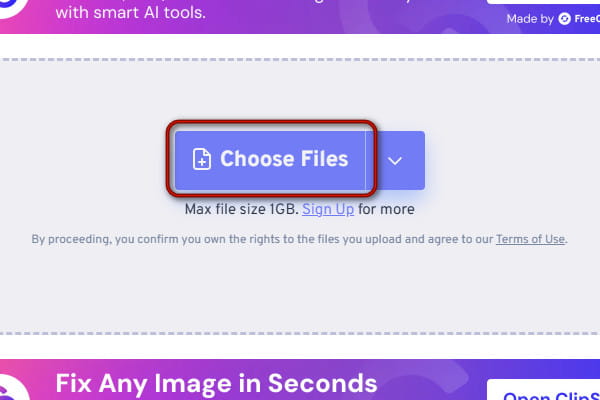
1. Go to the official site in any browser and click Choose Files to add the source file. You can import a video, audio, image, document, e-book, or a combination of them.
2. After your file is uploaded, navigate to the Output picker and choose your preferred format. Media and file formats are organized under their designated categories.
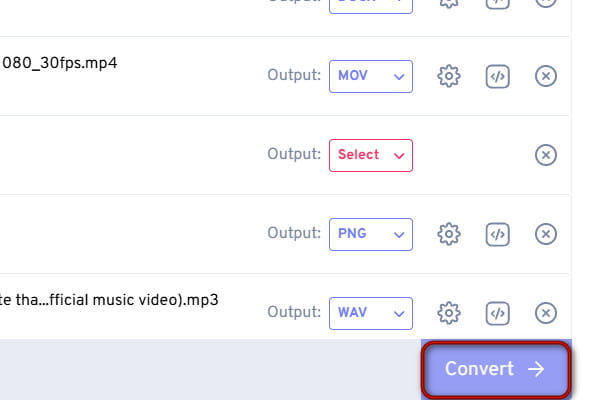
3. Click Convert to upload and process your file on its servers. When the conversion is complete, click Download for each media/file to save it locally.
That’s how to use FreeConvert! Regardless of whether you import video, audio, images, documents, or e-books, the tool can process them easily. However, the tool is limited to 20 conversion minutes per day, 5 minutes per file, 10 operations/day, and a maximum file size of 1 GB. To bypass these restrictions, use AnyMP4 Video Converter Ultimate.
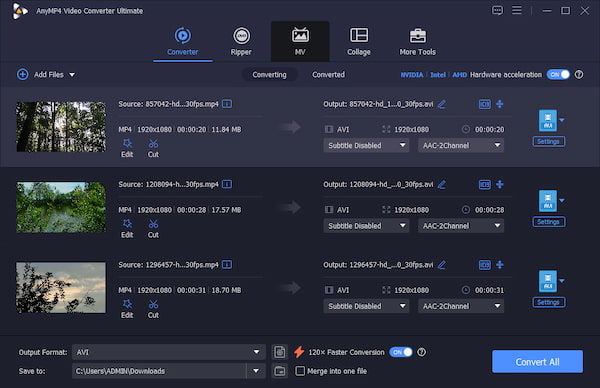
It is an offline video converter that ensures upload privacy. It can convert hundreds of video and audio files into over 500 formats without lag or crashes. It uses the most advanced hardware-accelerated media processing to achieve 120× speed. This software also supports DVD-to-MP4, video-to-MP3, and audio-to-audio conversions.
Part 5. Batch & Power-User Workflows
FreeConvert supports batch convert; users can upload more than one file without handling each file separately. Media and files can be uploaded from the local drive, cloud storage (Dropbox, Google Drive, and OneDrive), or even using a URL. Also, the tool includes presets that help maintain consistent output settings across all projects.
Part 6. FreeConvert vs CloudConvert vs Convertio vs AnyMP4 Video Converter Ultimate
|
FreeConvert |
Convertio |
CloudConvert |
AnyMP4 Video Converter Ultimate |
| Category |
Online converter |
Online converter |
Online converter |
Offline converter |
| Platform |
Browser |
Browser |
Browser |
Windows and Mac |
| Format coverage |
1500+ |
300+ |
212 |
500+ |
| Free credits per day |
20 mins/day |
10 conversions/day |
10 mins/day |
Unlimited |
| Batch & queue |
Up to 5 files and shared queue |
Up to 2 files (100 MB each file or less) and shared queue |
Up to 5 files and shared queue |
No number of files limit with no queue |
| Max file size |
1 GB |
1 GB |
1 GB |
No cap |
| Privacy model |
Upload to AWS S3 (IE), and FreeConvert files are deleted after 8 hours |
Upload, GDPR, files deleted after an hour |
Upload, auto-delete after 24 hours |
100% local (nothing is uploaded to external servers) |
| Batch/concurrency |
5 |
2 |
5 |
Unlimited batch |
| Speed |
Server-side |
Server-side |
Server-side |
Up to 120× faster |
| DVD/disc support |
|
|
|
Rip DVD to digital media format |
| Ads & prompts |
|
|
|
|
| Price |
Starts at $12.99 |
Starts at $6.99 |
Starts at $17 |
Starts at $18.75 |
Part 7. Honest Pros & Cons
PROS:
- FreeConvert supports 1,500+ media and file conversions from 5 categories.
- No installation or account required for basic use.
- Adjustable codecs, resolution, aspect ratio, and frame rate.
- Supports cloud (Google Drive, Dropbox, and OneDrive) imports or via URL.
- Uses 256-bit SSL encryption for file transfers and deletes files after 8 hours.
CONS:
- The 1 GB file size restriction does not allow large files to be converted.
- Free users get 20 conversion minutes and 10 operations per day.
- Queues, waiting times, and ads affect the experience.
- Files must be uploaded before conversion.
Part 8. FAQs about FreeConvert
What is FreeConvert's max file size?
The maximum file size limit on the free plan is 1 GB. However, when you upgrade to a paid plan, you will be able to unlock larger file limits of up to 5 GB and unlimited daily usage.
FreeConvert vs CloudConvert: which is better?
CloudConvert is better because it offers a cleaner, ad-free interface and provides higher security. FreeConvert, on the other hand, has more intrusive ads despite higher daily free limits.
What is the best FreeConvert alternative offline?
For an offline alternative, AnyMP4 Video Converter Ultimate is the best option. It can convert files at high speed with no daily limits, no file size caps, and supports unlimited batch conversion.
Conclusion
This marks the end of our FreeConvert review. FreeConvert is an online converter for small and occasional conversions. You don’t need to install or register anything here; it lets you perform more than 1,500 conversions and automatically deletes files after 8 hours. But a maximum file size of 1 GB, 20 minutes per day, 10 conversion operations in the queue, a shared queue, and advertisements make it less convenient for frequent users. Files must also leave your device for cloud processing. For larger, private, and batch media processing, use AnyMP4 Video Converter Ultimate. It can convert any media files you throw at it to over 500 formats locally at 120× faster speed.