CloudConvert Review: A 212-Format Browser-Based Converter
Summary:
CloudConvert is a browser-based media and file converter that supports 212 formats from 11 categories. The free plan offers daily conversion credits, but the file size cap and processing time restrict frequent use. For unlimited media conversion with no file size limit, AnyMP4 Video Converter Ultimate is a handy alternative.
Need to convert a video to MP4, turn a PDF into an editable Word document, or change an audio file into a format that your device supports? Installing a separate tool for every file type is inconvenient. CloudConvert solves this problem by allowing you to upload a file, choose an output format, and download the result from the browser. This CloudConvert review explores its features, supported media and file types, free plan, pricing, security, and actual restrictions. We’ll also compare it with alternatives, including desktop software for processing large videos.
Part 1. What Is CloudConvert & Where It Fits
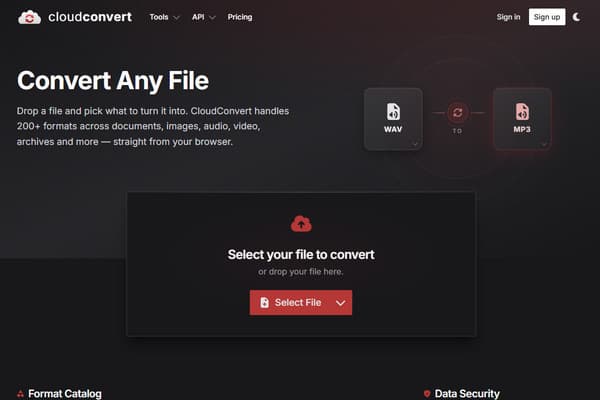
CloudConvert is a browser-based media and file converter founded in Germany by Lunaweb. The service supports 212 formats from 11 categories, including archive, audio, CAD, document, ebook, font, image, presentation, spreadsheet, vector, and video. It allows changing media and files between formats without installing anything on the computer. It serves casual users needing quick conversions, office workers handling documents and PDFs, and developers requiring API integrations.
Part 2. The Real Cost of Free: Daily Quotas, Credits & File-Size Limits
The service is free to start, but the free plan has restrictions for converting files regularly. Here is what CloudConvert’s free conversion per day actually offers:
| Daily Credits |
10 |
| File Size Limit |
1 GB |
| Processing Time Limit |
Maximum 5 minutes per conversion task |
| Concurrent Tasks |
Up to 5 concurrent tasks |
| Priority Level |
Low processing priority |
| Credit Reset |
Daily |
Each conversion consumes a baseline number of credits, depending on the format. Then, an additional 1 credit per minute of processing time will be deducted after the first minute.
| Conversion Type |
Base Credit |
| General conversions |
1 |
| Office/iWork to PDF |
2 |
| PDF to Office |
4 |
CloudConvert pricing credits start at $17 for 1,000 credits. These are one-time purchases. You buy a set number of credits, and they never expire. You can also opt for a subscription-based plan, which has a fixed monthly credit allowance at a lower per-credit price. However, unused credits expire at the end of the billing period and do not roll over.
Part 3. Hands-On Test: Converting Real Files
Test 1: Document Conversion (PDF to DOCX)
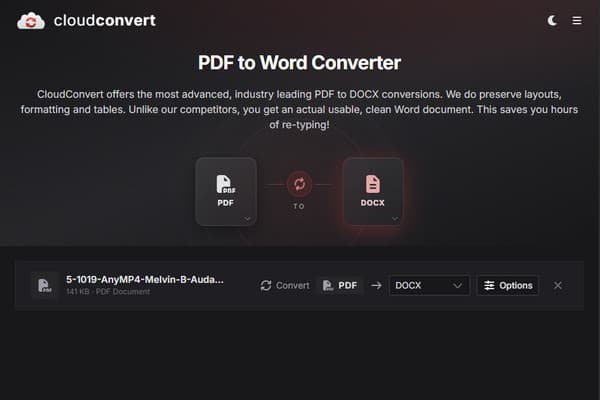
Paragraphs, tables, pictures, highlights, and page breaks stay where they originally were. The text can be edited in Microsoft Word without having to recreate the document layout. The tool preserved both the structure and readability of the original PDF.
Test 2: Video Conversion (MP4 to MOV)
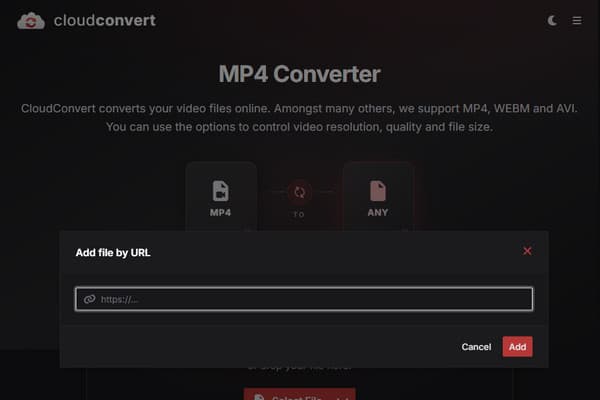
For the video test, we tried converting a URL to MP4 in CloudConvert free version. However, it returned a No File Found error. Since direct video URL conversion did not work in our test, we proceeded with a regular MP4-to-MOV conversion. The video retained its original frame rate, duration, and audio synchronization, but its resolution and visual clarity were reduced.
Test 3: Audio Conversion (MP3 to AAC)
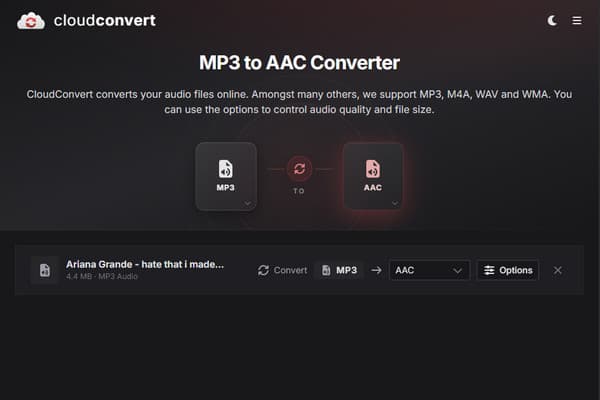
We converted the MP3 to AAC, and then the file was played alongside the original. Issues such as distortion, missing bits, and volume changes were checked. There were no issues in playing the converted audio file.
Part 4. The Privacy Question: What Happens to Your Files?
Is CloudConvert safe? Yes.
According to its security documentation, files are deleted after conversion and no permanent storage is maintained. A German company operates the service and follows GDPR and German data protection requirements. It also supports OAuth 2.0 authentication for API access. However, these protections do not mean uploading files is completely risk-free.
Part 5. How to Convert Video Without Uploading
AnyMP4 Video Converter Ultimate is a safe and secure media conversion software for confidential or private videos. Unlike CloudConvert with a file size limit and daily allowance, it can convert hundreds of media files to more than 500 formats without restrictions. It uses advanced hardware-accelerated media processing to achieve a 120× conversion speed.
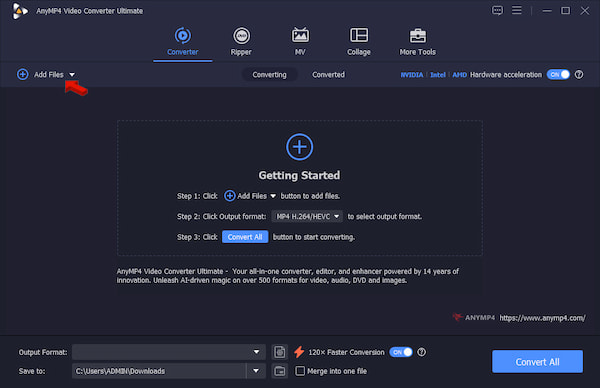
1. Download the offline converter and complete the installation.
After setup, the software opens to the Converter tab. Click +Add Files to import the MP4 file.
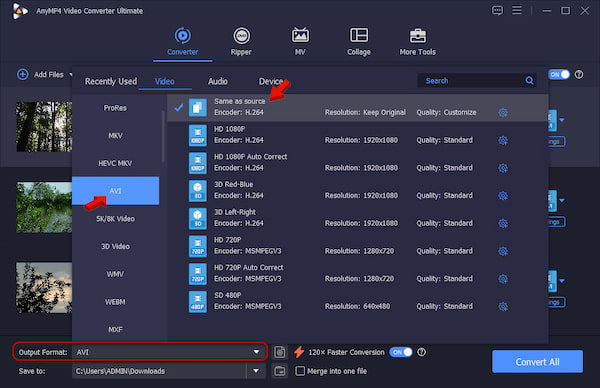
2. Go to Output Format and select AVI under the Video category. Select Same as Source as your quality preset to maintain the original resolution, aspect ratio, and frame rate.
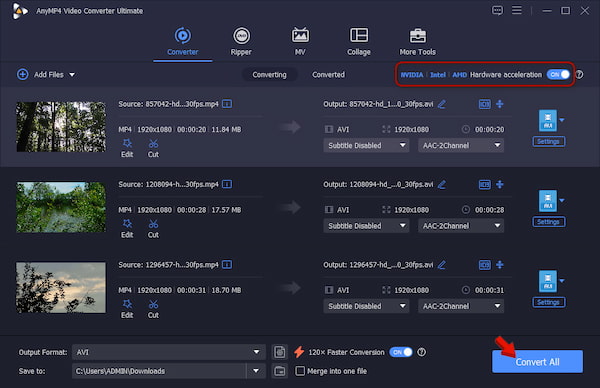
3. Back to the main interface and enable Hardware Acceleration to speed up the conversion. Set the output folder, then click Convert All.
With AnyMP4 Video Converter Ultimate, you can convert video to MP4 without uploading to external servers. This software ensures your files remain safe from online risks. It is useful when working with 4K video conversion or repeated batches.
Part 6. Beyond the Web App: The CloudConvert API for Developers
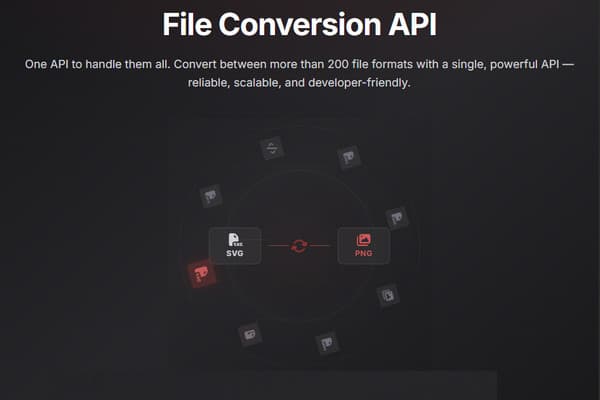
The REST API uses job/task model. Here, a job contains all operations executed to accomplish a file conversion, whereas tasks are responsible for importing, converting, and exporting files. Endpoints for managing jobs and their statuses are available via the API, and you can use webhooks to receive notifications about a job’s completion or failure. Additionally, the service offers a Job Builder tool to create and test jobs. Nevertheless, the CloudConvert API requires some technical expertise, and credit-per-minute pricing can make your usage more expensive.
Part 7. CloudConvert vs Zamzar vs Convertio vs AnyMP4 Video Converter Ultimate
|
CloudConvert |
Zamzar |
Convertio |
AnyMP4 Video Converter Ultimate |
| Category |
Online converter |
Online converter |
Online converter |
Offline converter |
| Platform |
Browser |
Browser |
Browser |
Windows and Mac |
| Format coverage |
212 formats from 11 categories |
50+ formats from 5 categories |
300+ formats and 25,600+ conversion combinations for media and file types |
500+ formats from 3 categories, including 4K/8K and device presets |
| Free Tier |
10 conversions/day |
2 conversions per day |
10 conversion credits per day |
No limits on number, provided videos are not longer than 5 minutes |
| File-Size Limit |
1 GB (Free tier) |
50 MB |
1 GB (Free tier) |
No file size limit |
| Batch & Queue |
5 concurrent conversions |
2 concurrent conversions |
2 concurrent conversions |
Unlimited batch with no queue |
| Internet Required |
|
|
|
|
| Privacy of Files |
Upload-based |
Upload-based |
Upload-based |
Files never leave your PC |
| Speed (video) |
Depends on queue and upload size |
Depends on queue and upload size |
Depends on queue and upload size |
Local GPU acceleration (up to 120× faster) |
| API / automation |
REST API, Jobs/Task, SDK, Webhook, and Job Builder |
REST API, Job, Task, Webhook, and SDK |
REST API, Webhook, Callback, and SDK |
|
| DVD & Extras |
|
|
|
DVD Ripper and additional 20+ editing tools |
| Best For |
Cross-type jobs and dev automation |
Email-based conversion |
Quick web conversion |
Regular batch conversion, large files, and file privacy |
Part 8. The Honest Pros & Cons
PROS:
- Handles 212 different file formats from 11 categories.
- Use it instantly on any device with a web browser.
- Does not add a watermark to the converted media or file.
- Uploaded data is handled securely and deleted afterward.
- Developers can automate conversion and integrate it into their own apps.
- Straightforward interface with minimal buttons.
CONS:
- The free plan provides 10 conversion credits per day.
- Different conversions consume different amounts of credits.
- Large files are equivalent to longer processing times.
- No permanent file library and requires an internet connection.
Part 9. FAQs about CloudConvert
Is CloudConvert free?
No, it is not a completely free tool. It only offers a free tier with usage limits. Free users have 10 free conversions per day, with a 1 GB file size per conversion.
Are my files deleted after conversion?
Yes, your files are automatically deleted from their server. All uploaded and converted files are permanently and automatically deleted from their servers within 24 hours at the latest.
How do CloudConvert credits work, and why was I charged a base amount?
The service charges a minimum base amount of credits per conversion type plus additional credits based on total processing time. Usually, 1 credit per minute past the first, depending on the format.
Conclusion
That’s the end of our CloudConvert review. CloudConvert is definitely a good tool for converting media and files without having to install anything on your computer. Nevertheless, due to limits on credit usage and file size, it is not the most practical choice for constant or bulk conversions. When converting media files frequently, we recommend using AnyMP4 Video Converter Ultimate. It supports hundreds of media formats, unlimited and batch conversion, and offline processing.