
When it comes to file management, metadata is one of the first advanced concepts that users have to learn to effectively handle a large number of files. However, files that are properly labeled with metadata may affect your privacy if they are accessed by unwanted elements. In this case, learning how to remove metadata in MP3 and other audio files holds so much importance. With that in mind, we will explore three options that you can use to clear audio files with metadata for enhanced file privacy. We will feature a tutorial for different platforms for Windows, macOS, and basic command-based file editing.

When it comes to MP3 metadata, ID3 tags are usually the container used for the information stored in these types of media files. This type of metadata contains the audio’s information about its title, artist, album, album art, genre, and other similar information.
With the help of these pieces of information, you can easily manage these files once they are imported into the music player of your choice. This is very helpful for the professional needs of multimedia editors, DJs, audio engineers, and other careers involving heavy media use.
Since metadata holds so much information, breaching your files with properly labeled ID3 tags could expose valuable information about your system. This is more prone to users who use cloud storage as their backup storage solution.
The privacy issues usually arise for other metadata viewers who can access information on your audio files since they also store information about the timeline of the program. Some of these examples include the Creation Date, Edited Date, and Last Accessed Date. To maintain your privacy, learning how to remove ID3 tags from MP3 files will be helpful.
We will start this tutorial section by featuring the easiest method to remove metadata from MP3 files with AnyMP4 Video Converter Ultimate - a cross-platform multimedia editor tool available for both Windows and Mac computers.
On top of its accessibility for different operating systems, the program is by far the easiest to use among the options on this list. This was made possible by its dedicated Media Metadata Editor tool that can encode or remove metadata of both audio and video files.
Additionally, the software is also designed to be very easy to use, as its graphical user interface was optimized to be simple and as well-labeled as possible, making ID3 tags very easy to locate and edit to ensure that its batch processing feature performs well.
Finally, the versatility of the program also makes it highly practical, as it is packed with versatile features, including a format converter, an audio and video enhancer, and other media file management tools, giving it functional usage outside simple tag removal.
With the features of the software now discussed, let us move forward to the detailed tutorial on using the software. Do not forget to download it as well to easily follow our comprehensive guide.
Secure Download
Secure Download
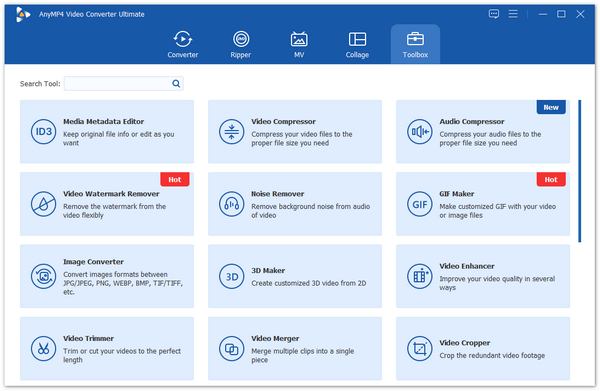
1. Open AnyMP4 Video Converter Ultimate and then proceed to the Toolbox tab. Then, select the Media Metadata Editor tool. Then, import the file you want to edit in the Add file pop-up that appears.
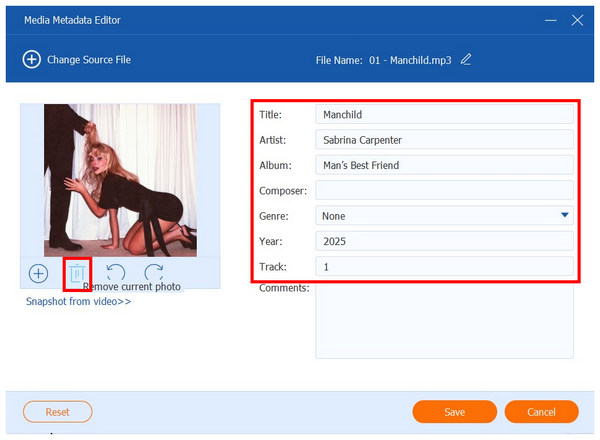
2. With the music file now added, you can remove the metadata from each Text Box and set the Genre to None. You may also remove the cover photo by clicking the Trash button under it.
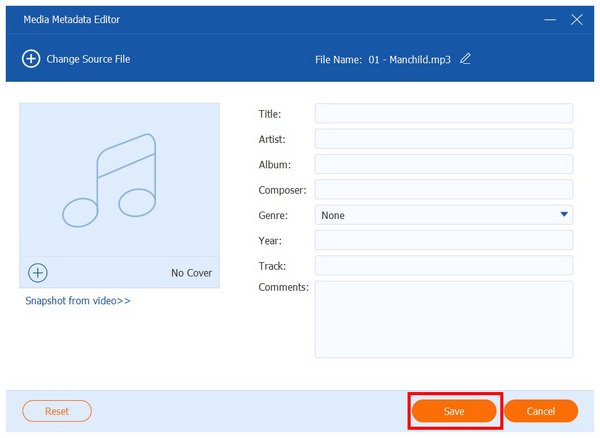
3. Now that your file’s metadata has been removed, click on Save to confirm your adjustments to the imported file.
Now that we have discussed the best third-party software to remove metadata from MP3s on Mac and Windows, we hope that you will now be able to ensure that your audio file’s security will be ensured, as you can now easily clear unwanted metadata information embedded in these files.
Moving forward, let us now proceed to the solutions to help our readers learn how to remove ID3 tags from MP3 files using built-in MP3 metadata editors on Windows and macOS computers.
Windows File Explorer (Properties > Details Tab)
When using a Windows computer, the built-in tool to change file metadata is via editing the properties tag from your File Explorer. This tool is the option to both check and adjust the metadata of your MP3 file.
If you want to learn how to remove metadata from Windows files using the Windows File Explorer, make sure to read our three-step guide below:
1. Open your File Manager to find the music file you want to have the metadata removed. Right-click on it and then select Properties.
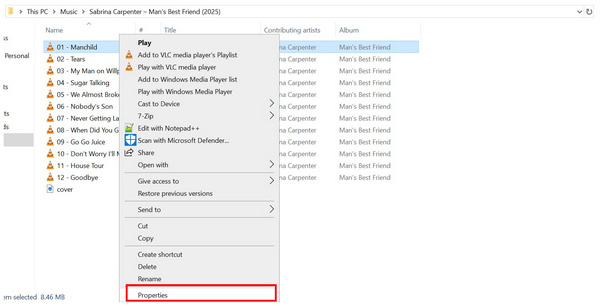
2. In the Properties menu, go to the Details tab. Then click on Remove Properties and Personal Information.
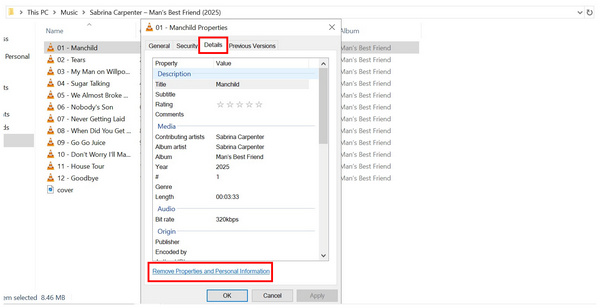
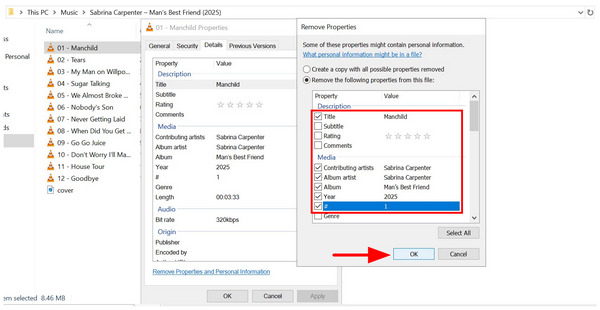
3. Finally, check the boxes beside the metadata you want to remove. In this example, the Title, Contributing Artist, Album Artist, Album, Year, and Track Number. Then, click on OK to confirm your metadata removal.
When using Windows computers, you can easily remove metadata from video and audio MP3s without online tools, as your file manager’s properties tab is more than enough to get the job done. It also helps that it is easy to use, and regular ID3 tags can be removed easily.
How to Remove MP3 Metadata on Mac (Get Info > More Info Section)
When using macOS computers, MP3 metadata editing on this operating system may be done using Apple Music. Unfortunately, this added a prior requirement for using the tool since only files imported into your Apple Music library may be edited.
To learn how to use it, please read our guide below:
1. Go to Apple Music and then right-click on the music file you want to edit. Then, click on Get Info.
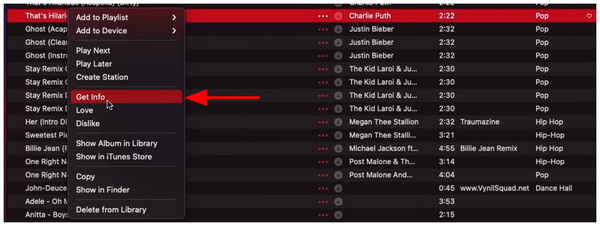
2. In the music information menu, go to Details and then remove the metadata by clicking on each text box. Click on OK to confirm your adjustments.
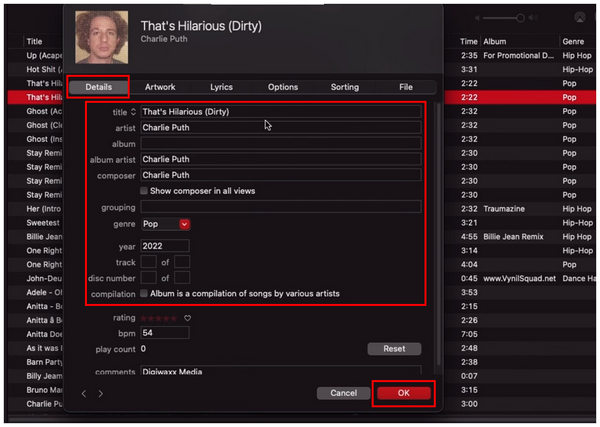
Since Apple Music has limited metadata editing options, it is normal for most Apple users to search for options to remove metadata from audio files online. Unfortunately, editing metadata online is inherently dangerous, as removing metadata is a security measure, and uploading your file online contradicts it.
Finally, advanced users with experience using the command line may gravitate towards command-based options such as FFmpeg. Among the options on this list, this software offers the fastest metadata removal option. Unfortunately, it is the hardest to use as you need prior knowledge of command lines to use it properly.
To learn the basic command line to remove metadata, please read out two-step guide below:
1. Click on your Search Bar and then find your computer’s Command Prompt. Open it.
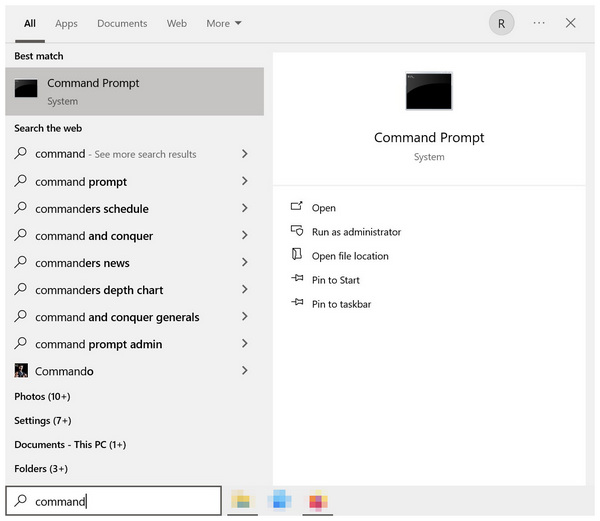
2. In the Command Prompt setting, type the following command: ffmpeg -i filename.mp3 -metadata 'Writing Library'=' ' filename.mp3.
Make sure to change the file name and format of the input and output files to the name you want them to be saved. In this tutorial, 01 - Manchild.mp3 is the input file, and Manchild-Cleared.mp3 is the output file.
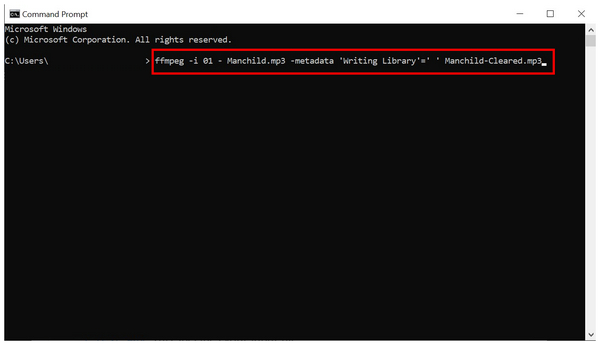
Due to the advanced nature of FFmpeg, it is not a good idea to use the software if you are a complete beginner. Using it for general use without prior command-line knowledge may affect not only your file but also your computer.
Does removing ID3 tags affect the actual MP3 audio quality?
No, it will not. Removing or editing ID3 tags will affect the audio quality. Only the background information of the file will be edited.
Is the removal permanent, or can the tags reappear?
Metadata removal is permanent. This is true regardless of what software you use. In this case, simply use the easiest option.
Can I remove only specific tags (e.g., just the album art) and keep the rest?
Yes, you can. Most metadata editors allow single data editing. This means that you can select which portion will be deleted and what will be kept.
What is the difference between ID3v1 and ID3v2 tags?
They differ in the data that can be written on them. When using ID3v1, you can only edit the data about the title, album, artist, and other basic info. On the other hand, ID3v2 offers editing of more advanced information.
Does metadata affect file size?
Yes, they do. This is because metadata is embedded in the file itself. As such, removing them will lower the file size of your audio.
With the programs we have provided, we hope that this article has provided you with useful information about which tool will be the best choice for your needs in removing metadata from MP3s. To maintain compatibility and balance, it is highly recommended to use AnyMP4 Video Converter Ultimate. You can download it using the link below.
Secure Download
Secure Download
 Updated by Mark Cristobal to Edit Audio
More readings
 3 Editors to Add and Change MKV Metadata
Looking for software to use as an MKV tag editor? Then, this article is made for you since we will present three tools that you can use for this purpose.
 Best 5 Video Metadata Editors for Windows and Mac
Changing the video metadata information can be done easily with the help of third-party programs. Learn the best five Metadata editors we included in our list.
 5 Tools to Change File Creation Date for Online Protection
Looking for a way on how to change the date created on a file? This article is made for you since we will discuss five software that can do this on your files.
 3 Proven Methods to Use Snapchat on PC [Discussed Here!]
This post will teach you how to use Snapchat on a PC in three effective ways. Access it on your PC using an emulator, screen mirroring, and the web version.
 Add your comments to join the discussion here