
Check out AnyMP4 DVD Ripper for Mac, the most professional and advanced Mac DVD Ripper ever made! This software is built with an efficient inner core that can achieve any ripping task with stunning speed and spectacular video quality, which can bring users excellent visual experience.
VOB is a container format in DVD-Video media, which can contain video, audio, subtitle, menu and navigation contents multiplexed together into a stream form. VOB is based on the MPEG program stream format.
Secure Download
Secure Download
After downloading AnyMP4 DVD Ripper for Mac, you can install the software to your selected path of your Mac PC, or just use the default installing path. Open the software and check out the interface.
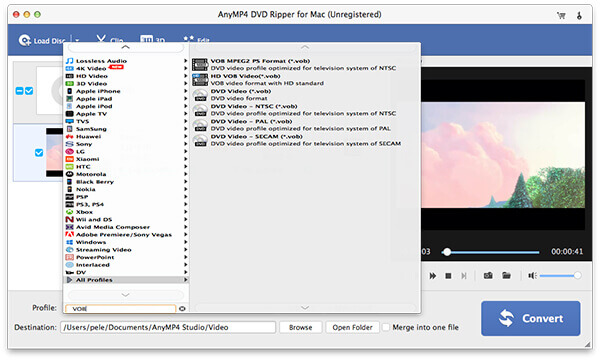
Open your DVD drive tray and put your original DVD disc in it, then click the "Load DVD" button on the toolbar of the software. After a few minutes the software will finish reading the disc and show the DVD files within the disc in the "File Name" list.
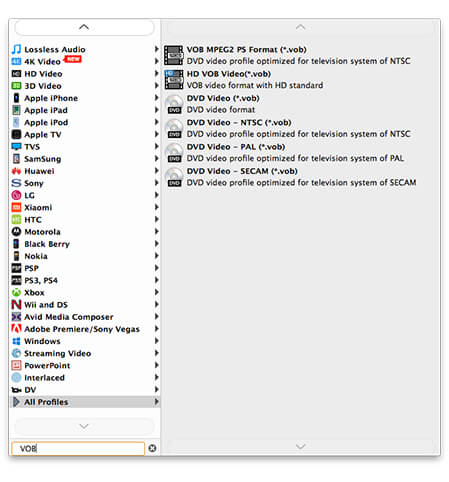
Click the "Profile" drop-down list and select VOB format, or input "VOB" in the text area to order the software to find it for you.
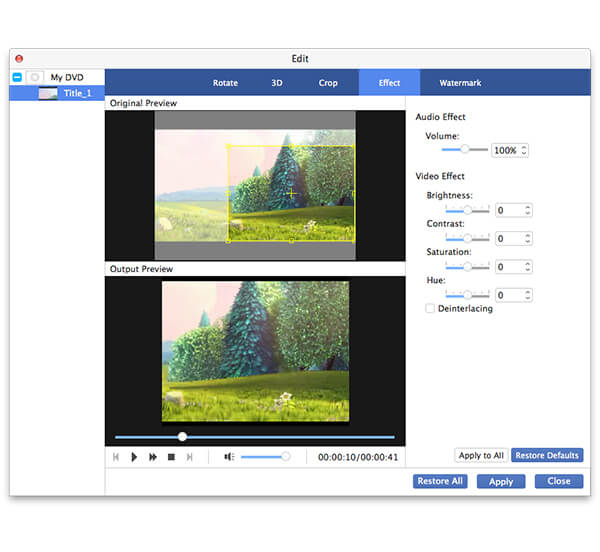
Specializing in video effect customization, AnyMP4 DVD Ripper for Mac can help you achieve your needed video effect in multiple ways. You are allowed to trim video length, crop video frame to remove black edges, merge video clips together, add watermark to personalize the video, and adjust Video Saturation, Brightness, Contrast, Hue and Volume.
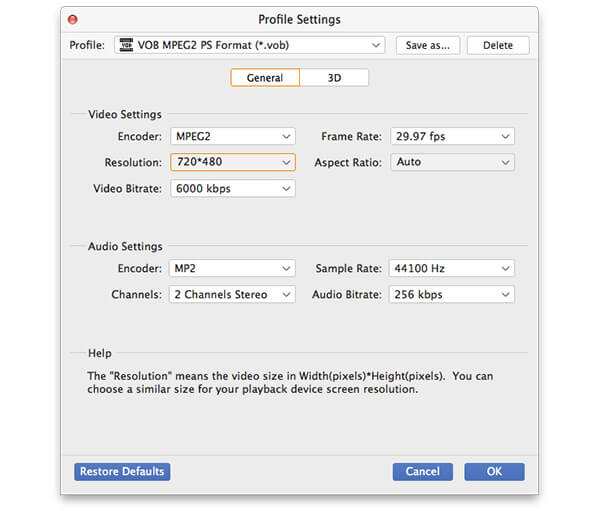
AnyMP4 DVD Ripper for Mac also allows you to conduct output parameter customization. You can try adjusting Video Encoder, Bitrate, Frame Rate, Resolution, Aspect Ratio and audio parameters such as Audio Channels, Encoder, Bitrate and Sample Rate to bring the video quality one step closer to perfection.
Many video files contain more than one audio track. You are allowed to select your preferred audio track and add subtitle to the video for more fun.

After you finish all the customizations, click the "Convert" button to start ripping DVD video to VOB format. Designed as an efficient software, AnyMP4 DVD Ripper for Mac can finish any ripping task within a short time.
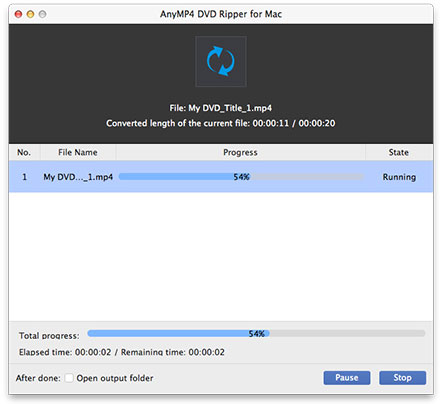
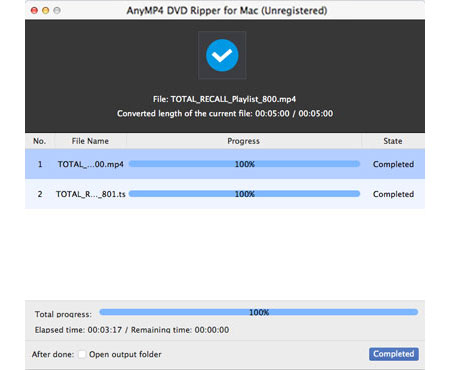
Wait for the progress bar to reach 100%, then you'll get your needed VOB video.
 Updated by Joan Aimee to DVD
Related Articles
 10 Best 4K Blu-ray Player Software and Hardware
The best 4K Blu-ray Player to play your HD movie in the comfort of your own home.
 How to Use PS3 Play Blu-ray With Perfect Effect
PlayStation 3 has the ability to play Blu-ray discs and DVDs with perfect effect.
 Things You Should Know About Blu-ray
Want to know Blu-ray and other information? You can get knowledge of Blu-ray.
 How to Fix The Issue on VLC Won't Play DVD
How to fix the problems that VLC won't play DVD or VLC DVD player not working?
 Add your comments to join the discussion here
