
Key Takeaway
To play unsupported videos on an iPad, you must convert them into iPad-compatible formats like H.264 or HEVC-encoded MP4, M4V, or MOV. You can make it quickly by using a dedicated desktop iPad video converter like AnyMP4 Video Converter, bypassing iTunes with direct transfer software, or using Apple's built-in Finder and AirDrop tools.
You finally get a heavy 4K movie downloaded, you drag it over to your tablet, and you get slapped with a This file cannot be played on this iPad error. It's incredibly frustrating. But it isn't your fault. Apple strictly limits native playback to specific container architectures, primarily H.264 and H.265 (HEVC) MP4 or M4V files. Everything else, from MKV and AVI to WMV, needs to be converted or processed before your iPad will even recognize it.
Converting the file to a native iPad compatible video format ensures you get the smoothest hardware-accelerated playback. Here are 4 proven ways to convert and transfer video to iPad.
| Summary & Quick Steps | |
|---|---|
| AnyMP4 iPhone Transfer Pro (All-in-One Auto Convert) | Best For: Users who want a seamless, one-step solution. It automatically detects unsupported formats (MKV, AVI) and converts them to iPad-compatible files during the transfer without iTunes. Quick Steps: Step 1: Connect iPad to PC via USB and launch the tool. Step 2: Click the Videos tab, then Add Item(s). Step 3: Select any video; the software will auto-convert and push it to your iPad. |
| AnyMP4 Video Converter (Heavy-Duty Conversion) | Best For: Power users dealing with massive 4K files or batch processing before using a free Apple tool to sync. Gives strict control over HEVC codecs and audio tracks. Quick Steps: Step 1 Drag unsupported videos into the software. Step 2 Choose your iPad model under the Apple Device preset. Step 3 Click Convert All to export optimized local files. Step 4 Use iTunes via Apple's official cable connection, or AirDrop with instant wireless transfer of smaller, already converted video files strictly from a Mac to an iPad |
Before you start converting or transferring files, it is crucial to verify if your video actually needs processing. Apple's iOS ecosystem is notoriously strict regarding media compatibility. An iPad does not just look at the file extension; it checks the internal video and audio codecs.
To play natively on an iPad without third-party apps, your video must meet these specific parameters:
A common frustration is having an .mp4 file that still refuses to play. Because MP4 is just a structural container, the video stream inside it might be encoded with an unsupported codec (like AV1 or VP9). If you are dealing with unsupported containers like MKV, AVI, WMV, FLV, or incompatible internal codecs, you must proceed to Phase 1 below to restructure the file into a native Apple format.
If you have an unsupported MKV, AVI, or WMV file and simply want it play on your iPad fast, AnyMP4 iPhone Transfer Pro is the ultimate solution. This tool acts as an all-in-one program to transfer between your computer and iOS device.
Its biggest hidden feature? Video auto-conversion. When you drag an incompatible video format into the software, it automatically detects the conflict, converts the video into an iPad-supported format (like MP4), and move it directly into your native TV app in one continuous motion. There is no overwriting your existing iPad data, and you never even have to open a separate converter tool.
1. Free download, install and run AnyMP4 iPhone Transfer Pro on your computer.
Secure Download
Secure Download
Connect your iPad to the machine using a secure USB cable and tap Trust This Computer on your iPad screen.
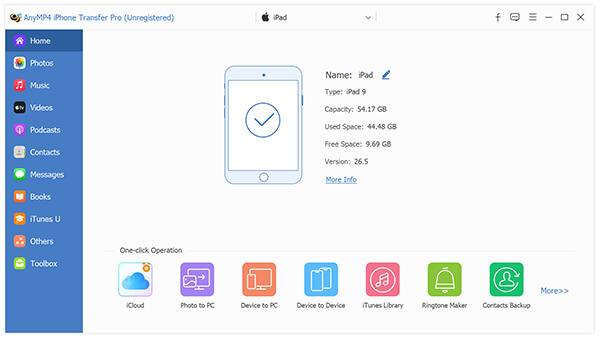
2. On the left sidebar of the software interface, click on the Videos category to view all the media currently stored on your device.
Click the Add Item(s) button at the top menu. Browse your local drive, select the newly converted MP4 files, and click Open.
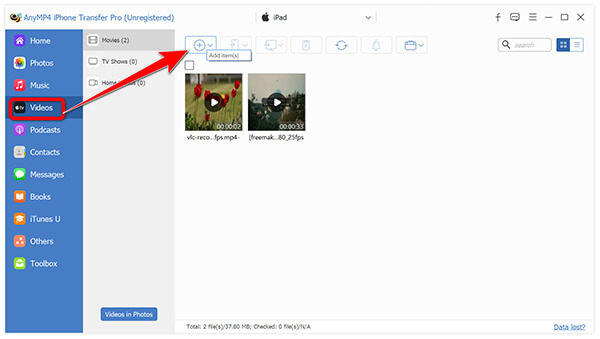
3. The software will instantly push the files directly to your iPad at maximum USB speed. Your original data remains perfectly safe, and the video is ready for offline playback.
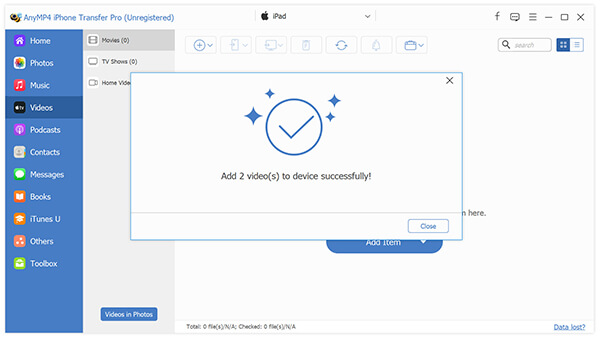
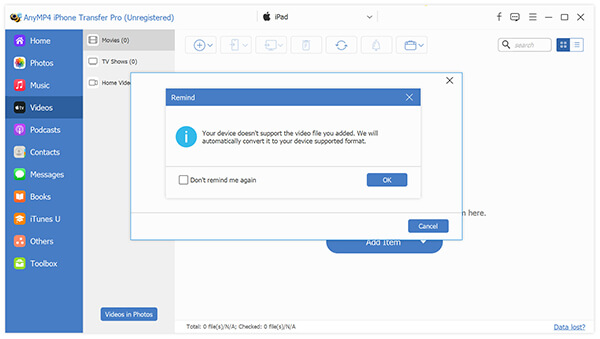
if your video format is not compatible with your iPad, it will pop up a notification to check if you are willing to convert the video format to iPad supported one automatically.
Best for: Power users processing massive 4K files, converting whole TV seasons at once, or requiring strict codec control.
While the auto-convert feature of transfer tools is great for quick jobs, dealing with massive 4K movie rips or an entire TV series demands heavy-duty local processing. AnyMP4 Video Converter Ultimate is built specifically for high-volume, performance-heavy tasks.
Unlike the slow, web-based tools, this desktop software supports GPU hardware acceleration to process batches and large local video files without crashing your system. It doesn't just change the file extension; it allows you to adjust encoding parameters, choose between H.264 for older iPads or HEVC for newer models, which will ensure maximum playback compatibility.
1. Launch AnyMP4 Video Converter Ultimate on your Windows PC or Mac.
Secure Download
Secure Download
Drag and drop your incompatible video files directly into the main interface. You can load entire folders to batch convert video for an iPad playlist.

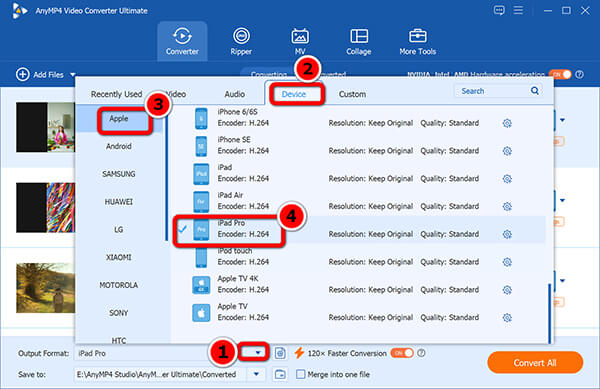
2. Click the output format dropdown on the right side of the video track. Navigate to the Device tab, select Apple, and choose your specific iPad model. The software will automatically map the optimal resolution and codec.
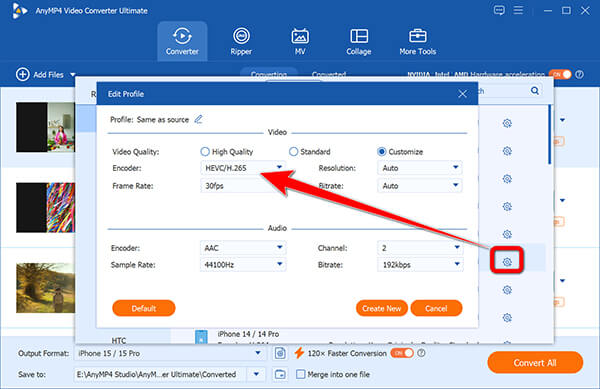
Optional: If you want to keep the file size down, click the gear icon to adjust the video bitrate or switch the encoder strictly to HEVC (H.265).
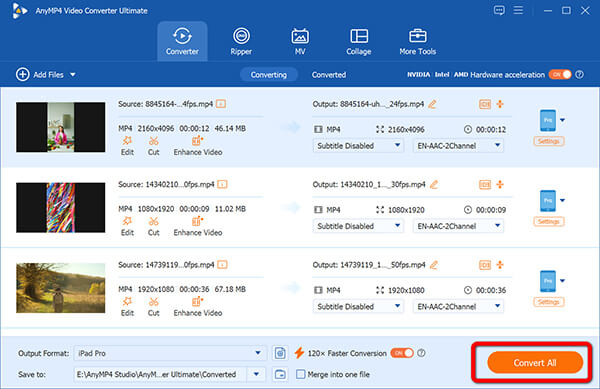
3. Hit the Convert All button. The hardware-accelerated rendering will finish a standard movie in minutes, leaving you with a perfectly optimized MP4 file ready for your iPad tablet.
Once the batch conversion is done, you can move the pristine MP4 files to your iPad using AirDrop, iTunes, or any transfer app.
Now that your video is in an iPad-supported video format, you can push it to your tablet using Apple's zero-cost built-in tools.
Option A: Sync via iTunes / Finder (For Windows & Mac)
Apple has a built-in sync tool for moving compatible videos files from computer to iPad via iTunes on Windows or Finder app on Mac computer.
1. Plug your iPad into your computer. Open Finder (macOS Catalina or later) or iTunes (Windows/older macOS) and click the iPad icon.
Before you move the next part, you need to add videos to iTunes firstly.
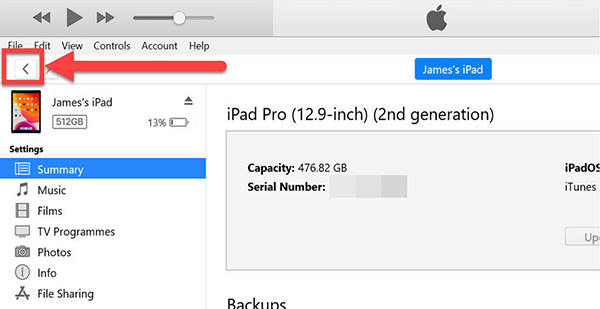
2. Navigate to the Movies tab in the sidebar.
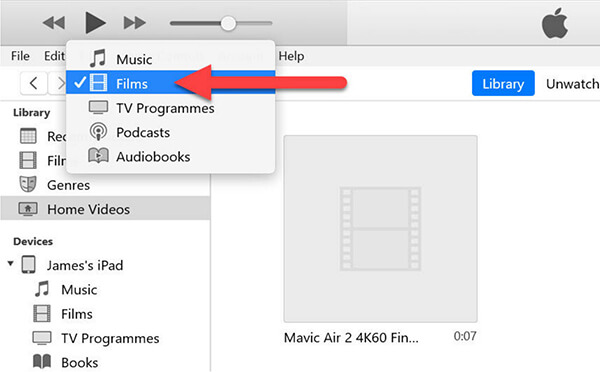
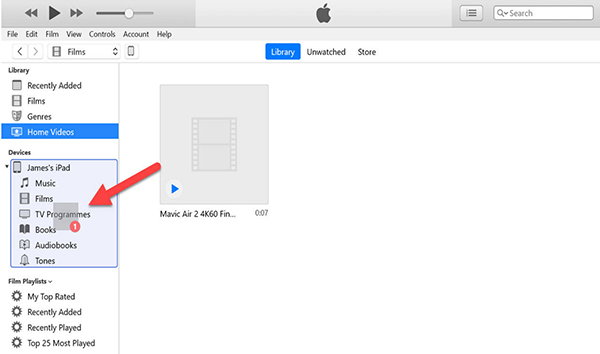
3. Drag your converted video files from your desktop into the iTunes/Finder window, then click Sync or Apply. Wait for the progress bar to complete before disconnecting.
Option B: Share via AirDrop (For Mac Only)
If you converted the video on a Mac and the file isn't overly massive, AirDrop is an unbeatable wireless transfer method that perfectly preserves file quality.
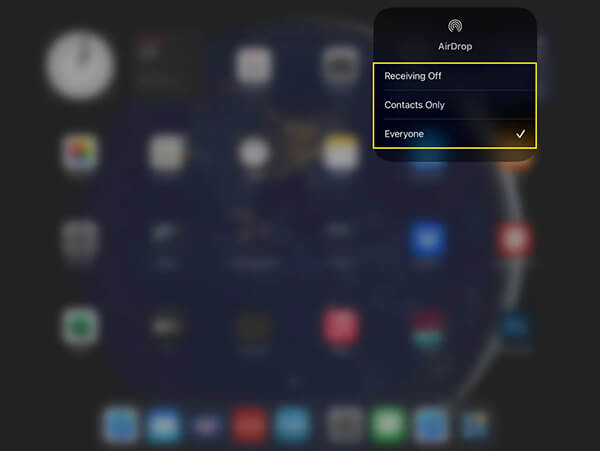
1. On your iPad, open the Control Center, enable AirDrop and set to receive from Everyone or Contacts Only.
2. On your Mac, right-click the converted video file that you want to move to iPad, select Share, and choose AirDrop.
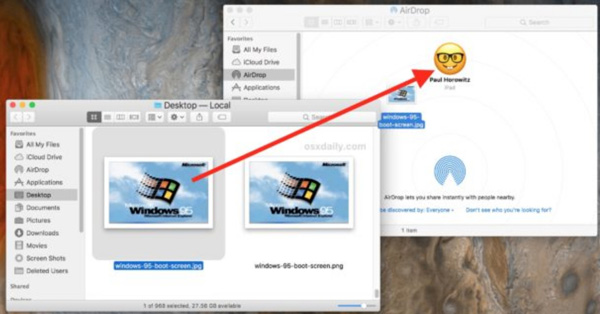
3. Click your iPad's name when it appears. The video will transfer wirelessly and automatically save to your iPad's Photos or Files app.
AirDrop is not working? Check the solutions here.
Do I need to convert video for iPad if it's already MP4?
Not always, but sometimes yes. MP4 is just a structural container. If the video stream inside that MP4 container was encoded using an unsupported codec (like AV1 or an older VP9 before hardware support was introduced), your iPad will still refuse to play it. Processing it through a tool like AnyMP4 Video Converter Ultimate ensures the internal codec is properly formatted to H.264 or HEVC.
Why won't my video play on iPad even after conversion?
This typically happens if the resolution, frame rate, or bitrate exceeds what your specific iPad generation's hardware can handle (e.g., trying to play a heavy 4K 60fps video on an older iPad mini 4). To avoid this, ensure your converter is using a dedicated iPad device preset rather than a generic MP4 output setting.
Can I transfer video from PC to iPad without iTunes?
Yes, absolutely. You can bypass iTunes completely by using direct iOS transfer tools like AnyMP4 iPhone Transfer Pro, which also auto-converts incompatible files on the fly. Alternatively, you can upload the videos to a cloud service like Google Drive or Dropbox and download them via the iPad's native Files app.
Does converting video reduce quality?
It can, but it doesn't have to. If you use a high-quality desktop converter and match the source video's bitrate and resolution, the human eye won't notice any degradation. Visually pixelated results only happen when the bitrate is aggressively dropped to save storage space.
Figuring out how to convert video to iPad formats doesn't have to be a frustrating trial-and-error process. If you want a zero-friction experience that bypasses iTunes completely, AnyMP4 iPhone Transfer Pro is the ultimate all-in-one magic pill that auto-converts and syncs your files in one motion.
For those users dealing with massive MKV or AVI batches, AnyMP4 Video Converter Ultimate is the most reliable way to enforce strict codec rules and fix playback errors without losing visual quality. Once your file formats are converted properly, you can transfer video to iPad using built-in options like Finder or AirDrop. Pick the way that fits your current setup and ensure you can smoothly play video on iPad anytime, anywhere.
 Updated by Alice Thorne to Convert Video
More readings
 [Solved] 2 Best Ways to Play MKV Files on iPad Smoothly
iPad Pro and Air devices don't support MKV files. To get the iPad MKV playback, you can read this article to play MKV files on iPad with or without converting.
 How to Screen Record on iPad With 5 Methods in 2026
Read this article for a complete guide on how to take recordings on different versions of iPad using different screen recording software for iPad, Mac, and PC.
 Step-by-Step Guide on How to Rip DVD to iPad Easily (2026)
Are you puzzled about how to rip DVDs to an iPad for watching? This article will guide you with the best DVD-to-iPad ripper and its detailed steps.
 Top 3 Tools to Convert Videos to iPhone Format in 2026
Are you looking for a solution to make your videos compatible with your iPhone device? Read this article to learn the best tools to convert to iPhone format.
 Add your comments to join the discussion here