4 Best Methods to Share the Screen of iPad in OBS Studio
Summary:
For a low-latency wired setup, connect the iPad using an HDMI cable, then add a Video Capture Device in OBS. Also, you can use AirPlay on a Mac or an AirPlay receiver on Windows for wireless connection. For straightforward screen mirroring and recording, use AnyMP4 Screen Recorder instead.
I connected my iPad to a capture card, but only OBS shows a black screen. The iPad works normally, and the capture card is detected, so what am I missing?
When you share the screen of iPad on OBS, and get a black screen, the cause might be different from what you think. Getting an iPad screen OBS setup working depends on how you connect the device. This post covers four approaches to screen-sharing an iPad on OBS, including HDMI capture cards, AirPlay to Mac, wireless receivers for Windows, and a direct recording tool.
Method 1 (Recommended): HDMI Capture Card - the Low-Latency Wired Path
An HDMI capture card is the best option for a low-latency connection. It sends the iPad's video output to your computer through HDMI, and OBS recognizes it as a video input.
Here's how to share the screen of iPad on OBS:
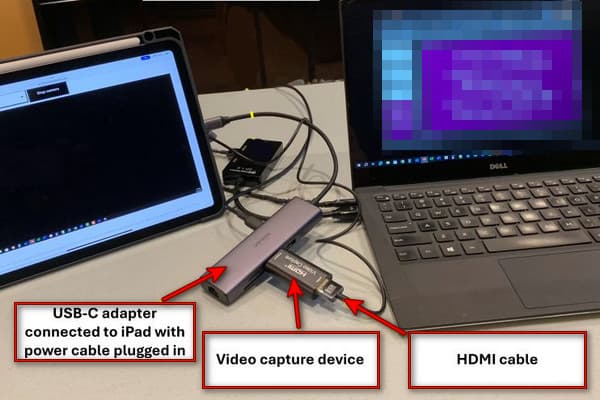
1. Establish a connection between the AV adapter, iPad, HDMI cable, and capture card to your computer.
Tip:
Use the USB-C Digital AV Multiport Adapter for Pro/Air models, or the Lightning Digital AV Adapter for older models.
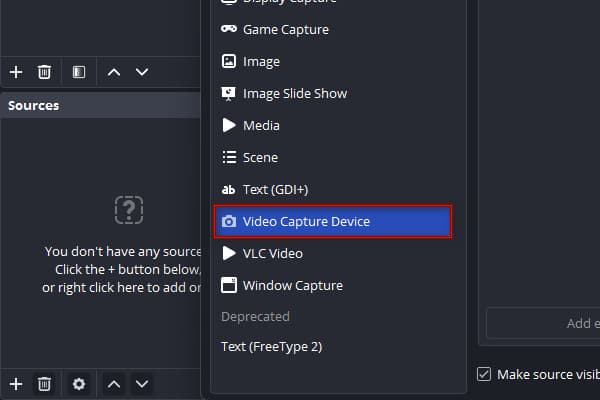
2. Open a scene in OBS, click + in the Sources panel, and select Video Capture Device to create a new source.
Note:
Don't attempt to open YouTube, as the preview will turn black due to HDCP protection. You can find the solution to fix the OBS black screen here.
Method 2: AirPlay to Mac - the Free Wireless Path (macOS Monterey+)
If you own a Mac, you can share the screen of your iPad to OBS without a capture card. Apple's AirPlay and screen mirroring features can wirelessly display the iPad's screen.
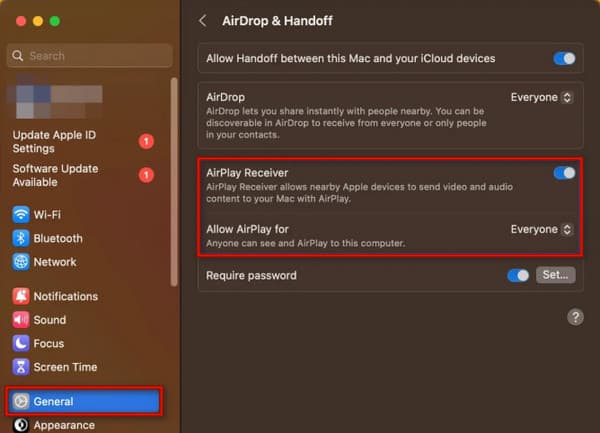
1. On Mac's System Settings, go to General, select AirDrop & Handoff, and turn on AirPlay Receiver.
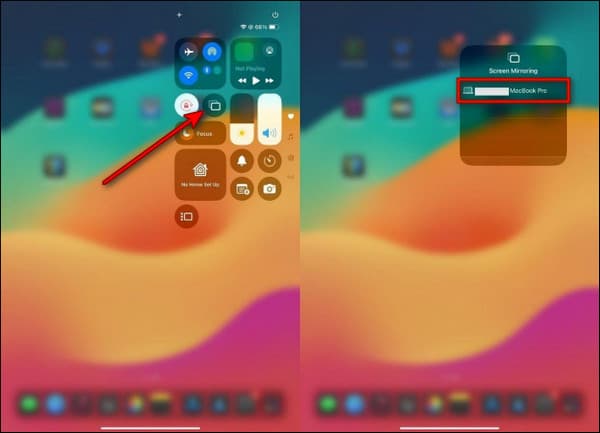
2. Swipe down from the iPad's top-right corner to access Control Center, then tap Screen Mirroring and select your Mac.
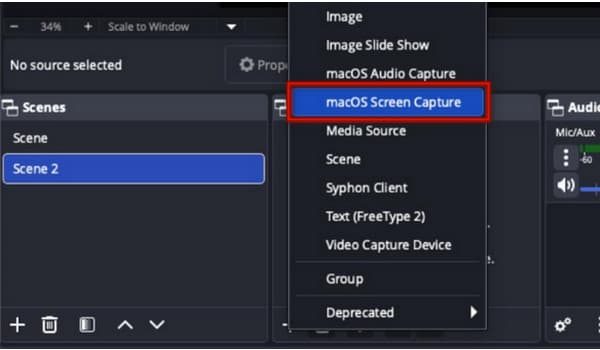
3. Open OBS, select a scene, click + under Sources, and select macOS Screen Capture to share the screen.
Note:
Close unnecessary apps to reduce the workload on your Mac if the mirrored screen stutters. If AirPlay is not showing up on a Mac, make sure both devices are discoverable.
Method 3: AirPlay Receiver on Windows - Reflector, AirServer & LonelyScreen
Windows doesn't have an AirPlay Receiver to share the iPad screen with OBS. However, you can use Reflector 4, AirServer, LonelyScreen, or other AirPlay receiver apps for Windows.
1. Install Reflector 4, AirServer, or LonelyScreen to receive an AirPlay connection.
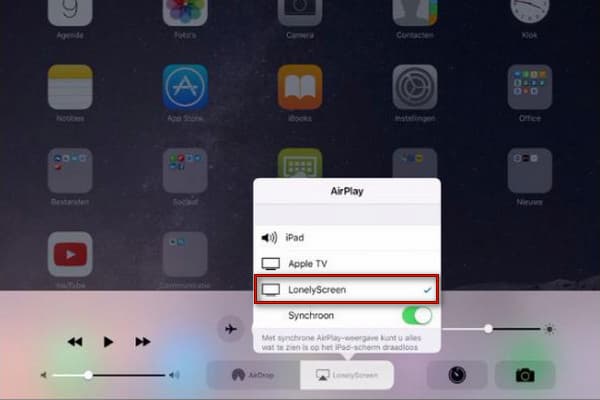
2. Open iPad's Control Center, tap Screen Mirroring, and select the AirPlay receiver app.
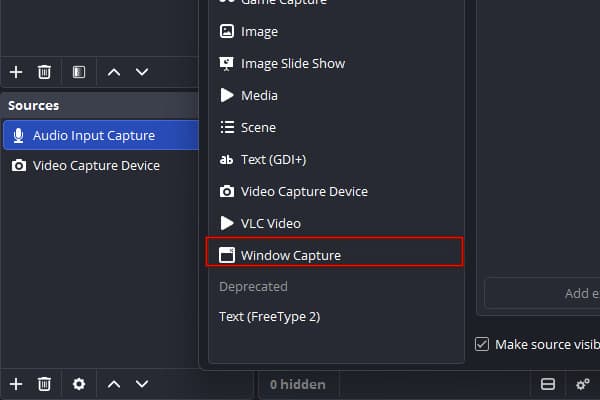
3. Click + in OBS's Sources panel, head to Window Capture, and select the app.
Note:
AirPlay Receiver apps, like LonelyScreen, require a paid license for full access. Still, these apps work as an alternative for occasional wireless mirroring.
Method 4 (Alternative): Record the iPad Screen Directly - AnyMP4 Screen Recorder Phone Recorder
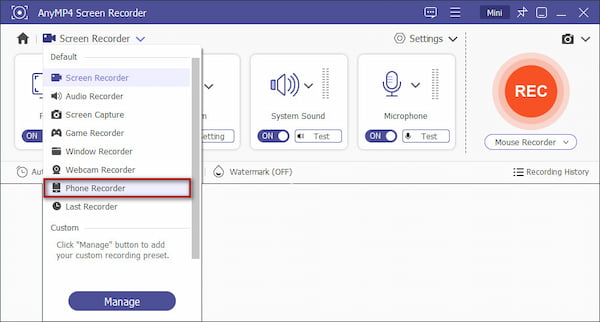
An OBS setup is unnecessary if your goal is to save a video of the iPad screen, not to stream live. AnyMP4 Screen Recorder is a recording software bundled with 7 recording modes, including Phone Recorder. You can mirror and record the iPad screen on a PC with AnyMP4 wired or wirelessly. The software also supports recording, setting configuration and live annotation.
1. Download AnyMP4 Screen Recorder and complete the installation.
After setup, select the Phone Recorder from the list of recording modes.
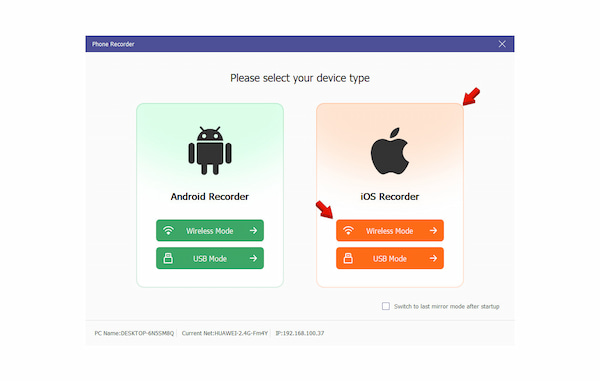
2. Select iOS Recorder as your device type and choose how you want to connect your iPad. Wireless Mode lets you connect iPad to PC wirelessly, while USB mode requires a cable.
3. Open Screen Mirroring on iPad's Control Panel and select AnyMP4 Screen Recorder. After establishing the connection, configure the following:
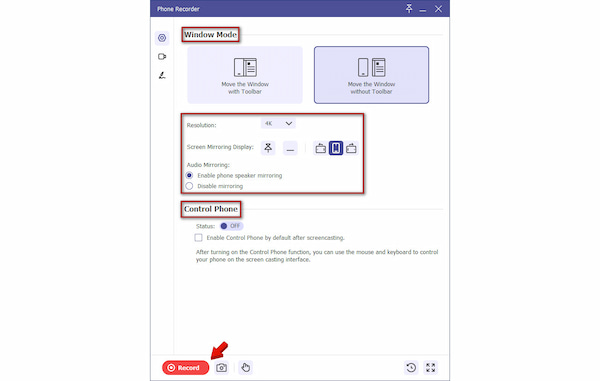
- • Select a Window Mode.
- • Set Resolution from 360p to 4K.
- • Choose a Screen Mirroring Display: Portrait or Landscape.
- • Configure Audio Mirroring.
- • Toggle Control Phone button.
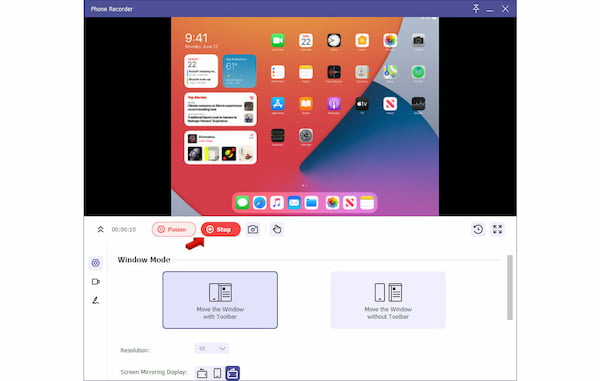
4. After configuring all the recording settings, click Record to start the recording. Once done, click Stop to end.
Disclaimer: AnyMP4 Screen Recorder is just a recording option, not a replacement for streaming the iPad screen in OBS. For Twitch or YouTube broadcasts, use the first three methods.
Capture Card vs AirPlay: Latency, Quality & the Right Pick for Your Use Case
| Capture Card |
VS |
AirPlay |
| Wired |
Connection Type |
Wireless |
| Near-zero |
Latency |
Noticeable wireless lag (100ms to 500+ms) |
| Uncompressed |
Quality |
Wi-Fi compression |
| Consistent |
Video stability |
Depends on network conditions |
| Gameplay and live demonstrations |
Best for |
Presentations and casual streaming |
Why Is My iPad Screen Black in OBS? (HDCP & the Real Fixes)
A black screen occurs when you share the iPad screen to OBS does not mean the capture card is defective. There might be connection or compatibility issues, including HDCP, that prevent OBS from displaying the iPad screen. This copy-protection technology prevents videos from being recorded via HDMI.
The fixes are:
1.Unplug the HDMI adapter/cable/capture card and replug it after 3-5 seconds.
2.Do not mirror DRM-protected streaming apps.
3.Match the resolution and fps to what your iPad adapter outputs.
FAQs About Sharing an iPad Screen in OBS
Why is my iPad screen black in OBS with a capture card?
A black screen on an iPad in OBS with a capture card occurs because of HDCP copy protection. Netflix and other streaming services apps prevent external video capture over HDMI.
Do I need a capture card to stream iPad gameplay?
Not necessarily. You can stream an iPad to OBS without a capture card by broadcasting directly from the device using screen mirroring.
How can I record my iPad screen without OBS?
You can use AnyMP4 Screen Recorder to record the iPad screen without OBS. This software lets you mirror Android, iPhone, and iPad devices to your computer and record the display at up to 4 K resolution.
Conclusion
There are two ways to share the iPad screen in OBS: wirelessly or via a wired connection. The wireless method offers a cable-free solution, while the wired method is recommended when wireless mirroring introduces delays or unstable connections. However, if you don't want a complicated setup like OBS, use AnyMP4 Screen Recorder. It lets you mirror your iPad screen, wired or wirelessly, and capture your activities at high resolution.




 Add your comments to join the discussion here