How to Mirror OBS Virtual Camera for Zoom, Meet & Teams
Summary:
Right-click the source, click Transform, and select Flip Horizontal. Then, click Start Virtual Camera to send a mirrored video to Zoom, Meet, or Teams. For a full scene mirroring, use a nested scene. Meeting apps usually mirror only your preview. For recording webcam and screen with PIP, use AnyMP4 Screen Recorder instead.
I'm using OBS Virtual Camera for Zoom, but my face looks wrong; it's reversed. I flipped the camera source, and now everyone sees me backward. How do I fix this without messing up my video?
Seeing yourself backward in a virtual camera can be confusing. The bigger problem is that a preview mirror does not always mean your audience sees the same thing. The confusing part of how to mirror a virtual camera on OBS isn't finding Flip Horizontal. It's knowing who should see the mirrored image. This post explains how to flip the OBS Virtual Camera correctly, fix an OBS Virtual Camera mirroring issue, and distinguish your self-view from what participants see.
Method 1 (Recommended): Mirror Just the Camera - Flip Horizontal on the Source
The OBS Virtual Camera sends whatever your current scene is to the meeting app. Any time you flip your source, the virtual camera flips along with it. See the quick guides below to flip the virtual camera OBS horizontally.
1. Open OBS and head to the Source panel to select your webcam source.
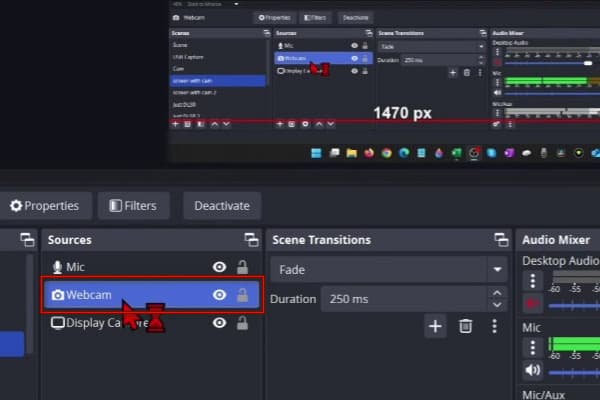
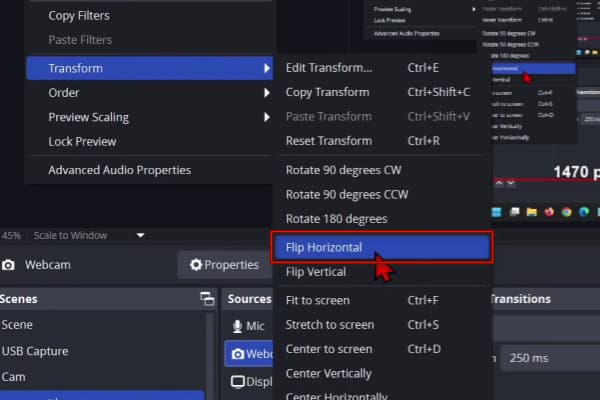
2. Right-click the scene source, click Transform from the menu, and select Flip Horizontal.
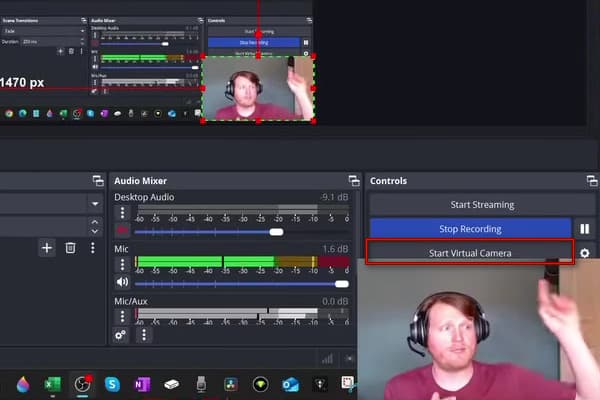
3. Click Start Virtual Camera, open Zoom, select OBS Virtual Camera, and record Zoom meeting.
This method changes the actual camera source before it reaches the virtual camera. Any text, objects, or logos visible in that source will also appear backward to viewers.
Method 2: Mirror the Entire Virtual Camera Feed - Scene-as-Source Flip (OBS 28+)
OBS cannot transform a canvas directly, but it can treat a scene as a source. You can create a second scene, nest the main scene inside it, and mirror the virtual camera OBS horizontally to that source.
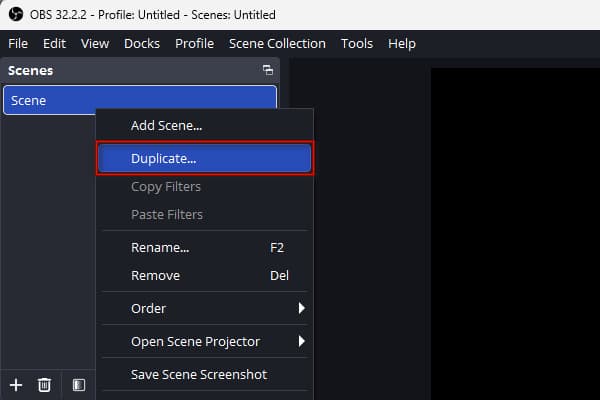
1. Right-click the main scene, select Duplicate, and name it Mirror.
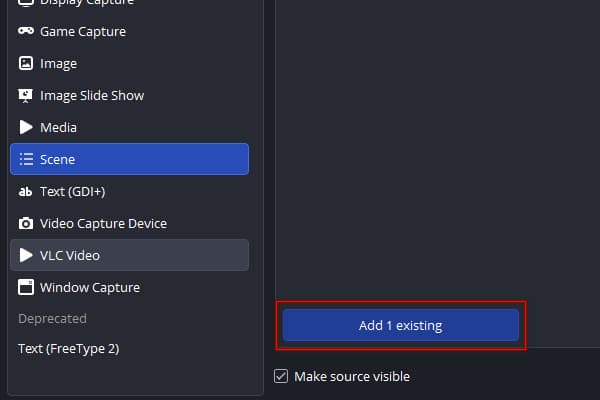
2. In the new scene, click + in the Source panel. Go to Scene, select the main scene, and click Add 1 Existing.
3. Right-click the newly added scene source, select Transform, and click Flip Horizontal.
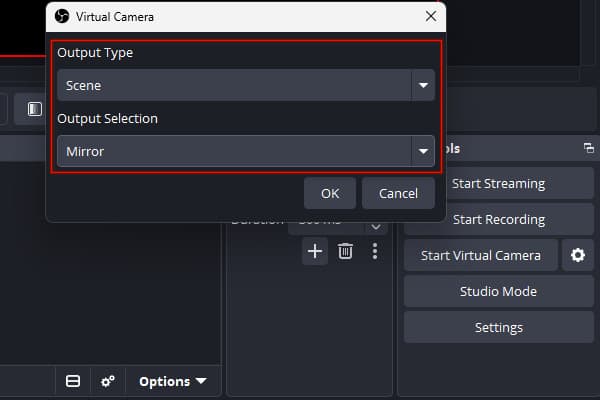
4. Open the Start Virtual Camera settings, set the Output Type to Scene, and select Mirror.
Note:
The scene-as-source transformation works with OBS versions that support nested scenes. However, the virtual camera output-selection options can vary by version. (You may also want to check how to record the screen and webcam separately with OBS.)
Method 3: Mirror Your Preview Only - Two-Source Workaround & the Plugin Trap
This method, unlike OBS virtual camera horizontal flip, separates the private monitoring view from the public virtual camera feed. With a two-scene workaround, you can achieve a similar result.
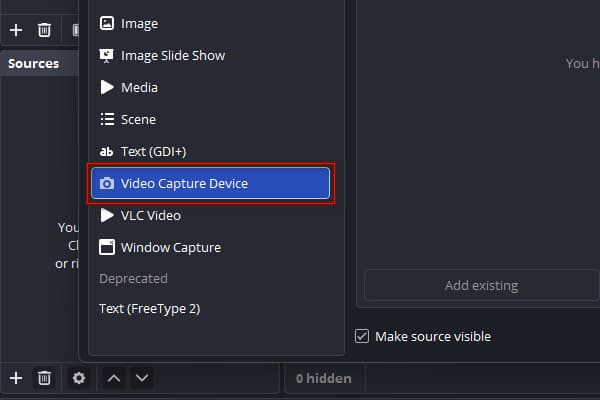
1. Click the + in the Sources panel, select Video Capture Device, and add your webcam.
2. Add the same webcam device again as a second source and rename the sources.
Tip:
Name them Cam Normal and Cam Mirrored for easy identification.
2. Right-click Cam Mirrored, go to Transform, and select Flip Horizontal.
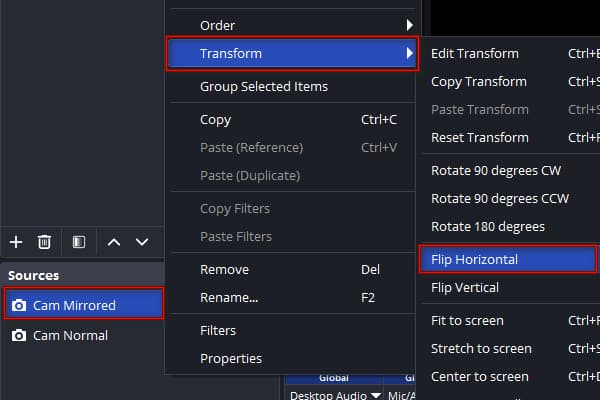
3. Create a new scene named Monitor, then add the Cam Mirrored scene.
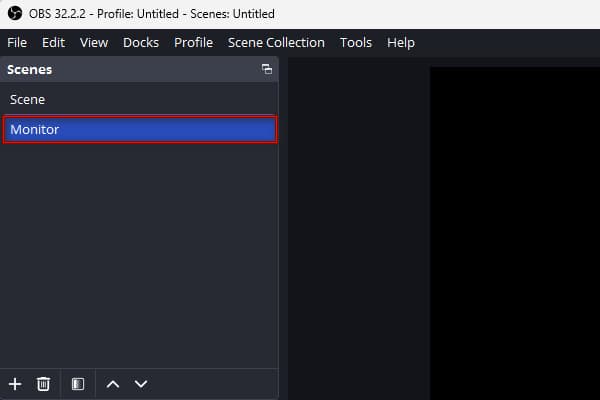
Note:
The third-party OBS-Camera plugin has a flip option that only mirrors your local preview. It means your viewers will still see the unflipped, backward feed.
Method 4 (Alternative): Record a Mirrored Webcam + Screen with AnyMP4 Screen Recorder
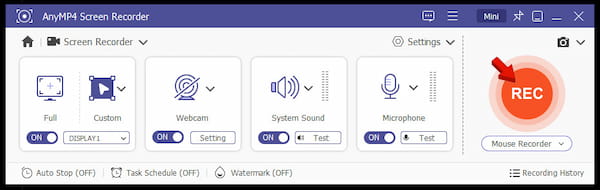
The first three methods we showed all flip OBS virtual camera for live video calls. If you're simply recording, the simplest way is to use a recorder that puts your webcam on the screen with just a click. AnyMP4 Screen Recorder is a multi-source recording tool that features 7-in-1 recording modes. The default Screen Recorder mode captures the screen with a picture-in-picture webcam overlay (with system sound and mic).
1. Download AnyMP4 Screen Recorder, install it, and complete the setup.
As soon as it launches, it opens to the Screen Recorder mode by default.
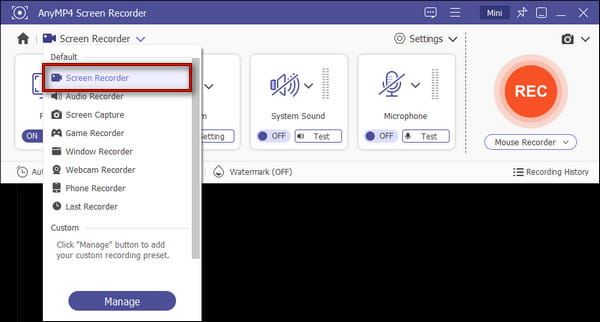
2. Select Full for full-screen recording or Custom to select the screen area you want to capture. Turn on the Webcam and position it, then set the System Sound and Microphone volumes.
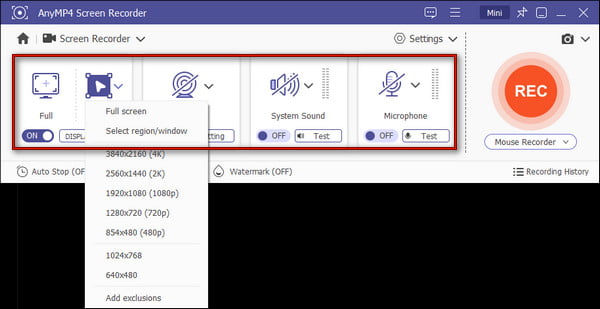
3. Click REC to start recording and do your thing. After recording, click Stop to end and preview the captured video. Use the Advanced Trimmer to remove unwanted parts of the recording and save.
Tip:
Before opening AnyMP4 Screen Recorder, check whether the webcam supports horizontal mirroring in its own software or driver. If you're using Logitech, check the camera settings for a mirror or flip option.
Mirror vs Unmirrored: Who Actually Sees What in Zoom, Meet & Teams
In Zoom, Meet, and Teams, the mirror settings only change your personal self-view. Other participants always see your unmirrored feed. Here's a brief explanation of what you see vs what others see:
- • Self-View: Moving your right hand looks like moving the right side of your screen. This results in the text appearing backward on the OBS virtual camera.
- • Participants: Raising your left hand, participants see it on the right. The text is normal and readable to them.
Zoom, Meet & Teams Have Their Own Mirror Settings - When to Use Those Instead of OBS
You do not always need to change OBS to make your webcam look natural. Meeting apps also have their own self-view options. Here's how to enable them:
Zoom "Mirror my video": In Settings, go to Video and check or uncheck Mirror my video to match your preview to what others see.
Teams "Mirror my video": Click the three dots, go to Video effects and settings, and select Settings. Then, toggle Mirror my video on or off.
Meet: It shows you mirrored in your preview by default. Meet does not have a built-in switch to turn off local mirror view.
FAQs About Mirroring the OBS Virtual Camera
Does flipping a source in OBS affect the Virtual Camera output?
Yes. The Virtual Camera captures OBS's output as it is rendered. Any flip applied to a source will be baked into the video stream sent to the meeting app.
Why does my camera look mirrored in Zoom but not in OBS?
By default, Zoom mirrors your self-view to make it feel like you are looking into a real mirror. OBS displays the video source exactly as captured, without applying an automatic flip.
Can I mirror my preview only without changing what viewers see?
No, OBS cannot mirror only the local preview without affecting the main canvas. However, you can use Zoom and Teams Mirror my video settings to change how your local preview looks.
Conclusion
Mirroring the OBS Virtual Camera depends on what you want viewers to see. This post covered several methods to mirror virtual camera on OBS. The OBS settings let you mirror your camera to meeting apps without changing screen capture or other sources. If you want a simple way to record the screen with a webcam instead of sending a live camera feed, AnyMP4 Screen Recorder offers a much simpler alternative. It captures the screen with a webcam PIP overlay, plus a microphone and sound system, without requiring technical setup.




 Add your comments to join the discussion here