
Quick Summary:
When exporting video or setting parameters, seeing the H.264 vs. MPEG-4 options can be confusing. In fact, directly comparing the two is like comparing a V8 engine to a whole car. H.264 (also known as AVC) is a high-efficiency video encoder that focuses on balancing video quality and file size through advanced compression algorithms. It can be compared to the most popular child in a family, while MPEG-4 is a broader family of standards. Understanding their connections and differences is the key to obtaining files with the best quality and size. This article will explore and compare these two, helping you choose the most suitable one for your video creation in 2026.

To understand H.264 vs. MPEG-4, you must first distinguish between a standard and a codec.
Think of MPEG-4 as a broad family or container. Launched by the Moving Picture Experts Group, it’s an industry standard that encompasses various methods for compressing audio and video data. It acts as an umbrella for many different technologies, including the common MP4 container.
If MPEG-4 is the family, H.264 (also known as AVC) is its most successful and popular child. It is a specific video codec: the actual math used to shrink video files. It was developed to provide incredible video quality at much lower bitrates than previous generations.
| Feature | H.264 (AVC) | MPEG-4 |
|---|---|---|
| Compression | High, up to 2x more efficient than MPEG-4. | Moderate, relies on simpler algorithms. |
| Video Quality | Superior (supports 4K/8K) | Good for low-res, loses detail in high-motion/4K. |
| Compatibility | Universal (modern standard) | Universal (older devices) |
| File Size | Significantly smaller, saves about 50% storage space. | Files will be larger to maintain quality. |
| Encoding | Requires more processing power (CPU/GPU). | Very fast, even on weak hardware. |
| Streaming | Optimized, the industry standard for web streaming. | Prone to buffering at high resolutions. |
| Hardware Support | Universal, natively supported by almost all CPUs/GPUs. | Limited to older DVD players/early smartphones. |
Compression: The biggest win for H.264 is its ability to shrink a video to half the size of an MPEG-4 file without perceptible loss of quality.
Compatibility: While MPEG-4 was revolutionary for early internet video, it is now considered a legacy format. H.264 has effectively replaced it across all platforms, including YouTube, Netflix, and mobile devices.
Processing capacity: If you have an extremely old computer, MPEG-4 might encode faster because its math is simpler. However, modern hardware acceleration makes H.264 encoding faster on current machines.
To find the best tool, I took a 1GB 4K video file encoded in an older MPEG-4 format and tested how fast and accurately these tools could convert it to a highly compressed H.264 file.
AnyMP4 Video Converter Ultimate is a professional-grade video converter. It stands out for its balance of speed and simplicity, utilizing hardware acceleration (GPU) to convert videos up to 70x faster than standard encoders. It supports resolutions up to 8K and ensures zero loss of quality. Besides, its intuitive interface is very friendly for beginners.
Secure Download
Secure Download
Follow the steps to convert:
1. Download and launch the software. Then, click Add Files to import your MPEG-4 or H.264 videos. It depends on which one you want to convert to.

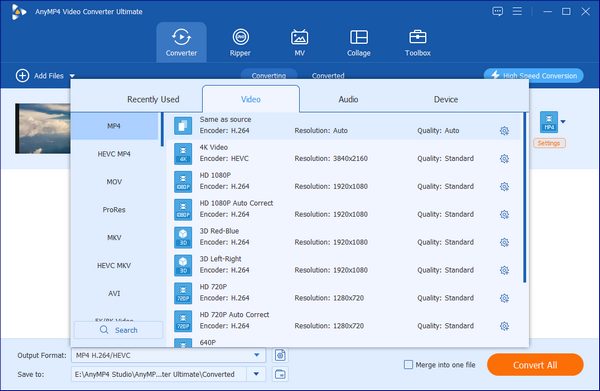
2. Click the Output Format option, choose H.264/AVC or MPEG-4 from the dropdown list, then click the Video tab. You can also click Custom Profile to set parameters like quality, resolution, frame rate, and more.
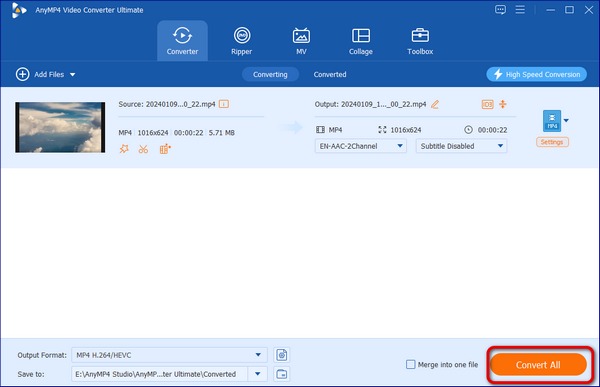
3. Select your destination folder, then click Convert All in the lower-right corner to process the file instantly.
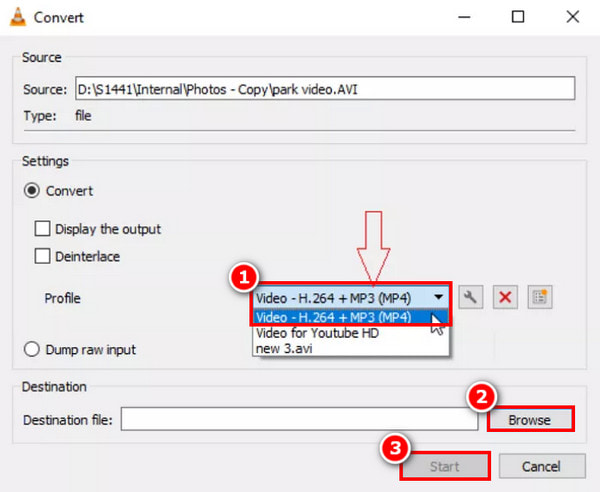
VLC Media Player is a free, open-source, and cross-platform media player. It is widely popular among users, as most of them have installed it on their devices. While primarily a player, it includes a hidden conversion engine. However, the process is clunky, lacks batch processing, and can crash when handling large 4K files.
Follow the steps to convert:
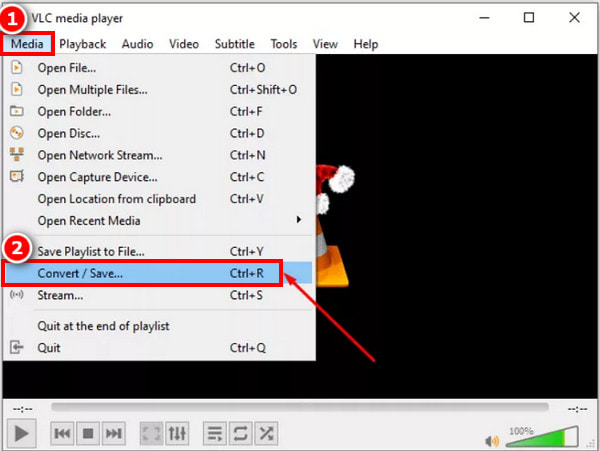
1. Go to Media > Convert / Save in the top menu, or you can also press Ctrl+R.
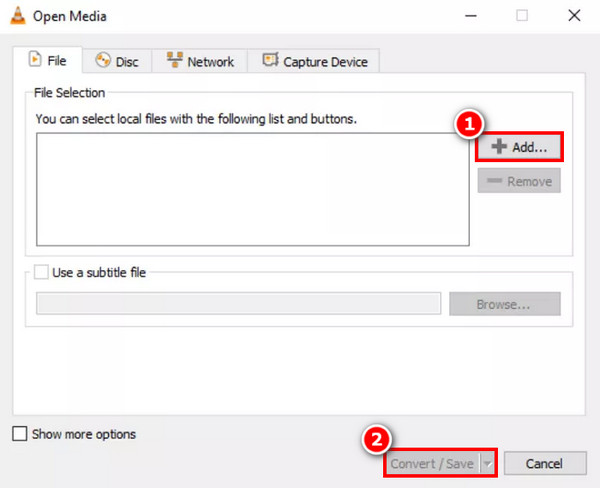
2. Click Add... to select the file you want to convert, and then click the Convert / Save button at the bottom.
3. Choose Video - H.264 + MP3 (MP4) to configure. Then, set a destination for the converted file and click Start to begin the transcode. Once finished, it will appear in your destination folder.
Is H.264 the same thing as MP4?
No. MP4 is the box/container, H.264 is the item/codec inside the box.
Which provides better quality: MPEG-4 or H.264?
H.264 provides superior quality at a much smaller file size.
Can older MPEG-4 players play H.264 videos?
Older MPEG-4 players may not always play MPEG-4 files. You may need to convert H.264 to an older MPEG-4 codec using a converter.
Is H.264 or MPEG-4 better for YouTube?
YouTube explicitly recommends the H.264 video codec inside an MP4 container.
Why is my H.264 video file still so large?
Discuss Bitrate resolution settings affecting file size, regardless of the codec.
The final verdict on H.264 vs. MPEG-4 is clear: for optimal compression and streaming, H.264 is superior. While MPEG-4 laid the groundwork, H.264 provides the efficiency modern creators need. For a seamless conversion with professional results, AnyMP4 Video Converter Ultimate is the clear recommendation. You can choose from them based on your needs. Hope this article is helpful to you!
Secure Download
Secure Download
 Updated by Alice Thorne to Glossary
More readings
 How to Trim H.264 Without Re-encoding - H264 Video Cutter
How do I trim an h.264 file? Which is better, H 264 or H 265? What is the best H264 video cutter? You can get an H264 cutter to trim H.264 without re-encoding.
 [Solved] How to Fast Convert DVD to H.264 with High-Quality
Do you know what H.264 is and how to convert DVD to H.264? This post will answer these questions and offer 2 good methods to help you realize it.
 7 Best MPEG to MP4 Converters in 2026 (Free, Paid & Online)
Looking to convert MPEG to MP4 without losing quality? Compare the 7 best free, paid, and online converters for Windows & Mac. Fast, secure, and easy to use.
 Top 7 Methods to Convert MP4 to MPEG
This guide shows you the best MP4 to MPEG converter and other free online solutions to convert MP4 to MPEG easily and quickly on Windows and Mac.
 Add your comments to join the discussion here