3 Ways to Rip DVD on Mac (2026 Guide)
In this digital age, converting valuable DVD collections into digital formats has become a trend for many people. Whether it is to save storage space, to facilitate viewing experience on different devices, or to back up and prevent DVD corruption, it is particularly practical to rip DVDs to your Mac computers. Today, we will show you how to rip DVDs on Mac to get better compatibility with more devices and platforms.

We rip DVD files to MP4 format on Mac with the above three tools, and here is a simple comparison of their conversion effect.
The test result is based on an encrypted DVD (2.5 GB) and homemade DVD (1.8 GB).
- AnyMP4 DVD Ripper Mac
- HandBrake
- MacX DVD Ripper
|
DVD Decryption
|
Bypass DVD Region Code
|
Conversion Quality
|
Ripping Time
|
Output Formats
|
Cost
|
Best for
|
| CSS, APS, CGMS, and more. |
|
Lossless |
20 minutes |
MP4, MKV, MOV, HEVC, and 500+ formats |
Paid |
Users who want versatile editing tools (cropping, watermarks, 3D) alongside ripping. |
|
|
Good |
50 minutes |
MP4, MKV, WebM |
Free |
Users who want a free tool to rip DVDs on Mac. |
| CSS, UOP, RCE, Sony ARccOS, APS, etc. |
|
Good |
35 minutes |
MP4, HEVC, MOV, and more |
Paid |
Quickly digitizing heavily encrypted or 99-title commercial discs. |
You can see AnyMP4 DVD Ripper Mac and MacX DVD Ripper perform well in decrypting DVDs. With GPU acceleration, AnyMP4 DVD Ripper Mac can attain a 50× faster speed than other DVD rippers. Relatively, HandBrake doesn't support ripping DVDs with copyright. Fortunately, if you download and install libdvdcss, it's simple to get HandBrake to work with encrypted DVDs and rip them on your Mac devices.
All in all, we especially recommend AnyMP4 DVD Ripper Mac, which is no doubt the best choice for ripping DVDs on Macs.
Part 1. Hardware Preparation: Choosing an External DVD Drive for Mac
- • Confirm your Mac model: Check if your Mac has a built-in optical drive. If not, you need to purchase an external optical drive. You can choose Apple SuperDrive, which is Apple's official external optical drive that works well with Macs. There is also the option to buy a third-party brand of optical drive, but make sure it is compatible with your Mac.
Note: Apple Macs that used to have a built-in optical drive mainly included the early MacBook Pro, some iMac, and Mac mini series, but since 2013, Apple has gradually eliminated the built-in optical drive in its Mac product line.
- • Prepare DVD ripping software: Choose a professional DVD ripper, such as AnyMP4 DVD Ripper, HandBrake, etc. Make sure the software supports common video formats, such as MP4, MOV, and others.
- • Back up important data: Before ripping a DVD, back up important data on your Mac. Because the ripping process may occupy a lot of system resources, resulting in slow or unstable computer operation. At the same time, it can prevent data loss due to unexpected circumstances during the ripping process.
- • Choose a proper external optical drive: When selecting an external DVD drive for your Mac, prioritize USB-C compatibility or ensure you have a reliable adapter for USB-A models. Opt for a bus-powered, 'Plug and Play' device to avoid external power bricks, and stick to reputable brands like Apple, LG, or ASUS to ensure seamless integration with macOS.
If you want to transfer DVD to hard drive without recoding, just only copy the VIDEO_TS folder to Mac directly.
Next, follow us to see how to rip DVDs on Mac in 3 methods.
Part 2. Rip DVD on Mac with AnyMP4 DVD Ripper (Most Reliable Choice for Any DVD)
Compatibility: macOS 10.12 or later.
AnyMP4 DVD Ripper Mac is a powerful DVD-ripping software that we really recommend. You can use this software to rip DVDs to a variety of video formats and devices, such as MP4, MOV, MKV, FLV, etc., on your Mac. Empowered by advanced decryption technologies, it can easily handle 99-title and Sony ArccOS encryption, which some free tools like Handbrake are unable to handle. Besides, you can adjust the output video parameters, like resolution, video encoder, audio encoder, bitrate, etc. It can be downloaded on many Mac devices, which can provide reliable performance on M3/M4 Macs.
With the GPU acceleration technology, the ripping speed is 50 times quicker than any other DVD rippers, which brings you great efficiency. What's more, it has many additional tools, like Rotate & Crop, Watermark, Media Metadata Editor, and even Video Enhancer, which you can use to complete all essential editions with this versatile software.
Now, download it on your Mac and follow us to see the detailed steps.
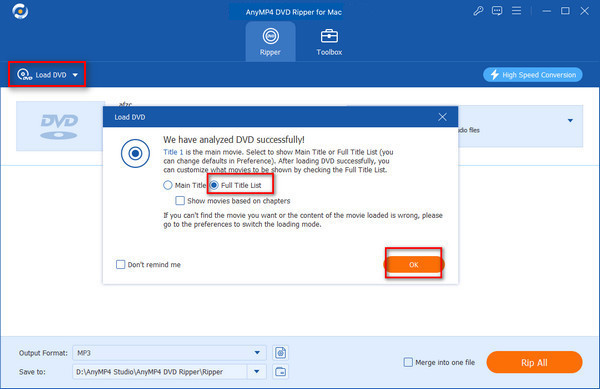
1. After installing AnyMP4 DVD Ripper on your Mac, please open it and click Load DVD/Folder/ISO at the top left to add one DVD file you want to rip.
After choosing the DVD, a window appears. Choose Full Title List and click OK.
Note: After choosing Full Title List mode, you can see the full information about the DVDs.
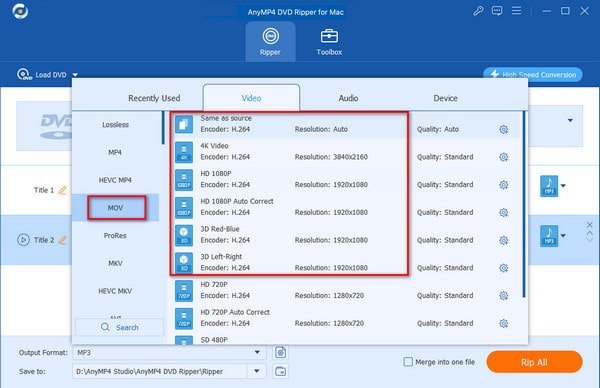
2. Then, tap Output Format > Video, and it provides many video formats. As MOV is developed by Apple and is compatible with Apple devices, choose MOV here.
There are many profiles for you to choose from: The Same as source option can maintain the original resolution and other profiles with different resolutions. To improve the DVD viewing effect, you can choose HD 1080P.
Note: You are recommended to choose the HEVC encoder, which delivers 50% space savings without compromising quality on Mac.
3. Finally, click Rip All at the bottom right to start the ripping process.
Tip: You can click on the folder icon beside the Save to option to set the converted DVD download folder.
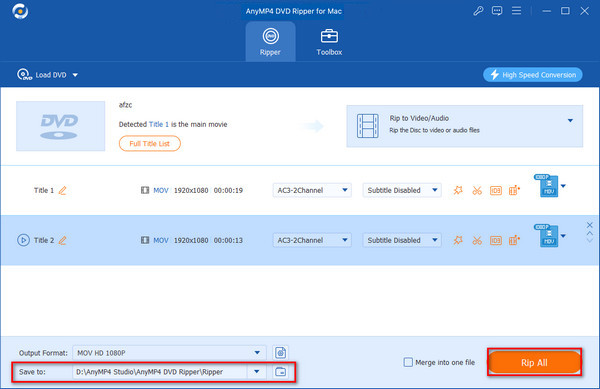
After the above steps, you can rip one DVD file to other video formats for playback on multiple Mac devices. With the free trial, you can only convert 5 minutes of each DVD. You can use the free version to evaluate the DVD ripping effect. If you are satisfied with the effect, then you can subscribe to it.
Part 3. Rip DVD on Mac with HandBrake (Best Free Way (With a Catch))
Compatibility: macOS 10.13 and later.
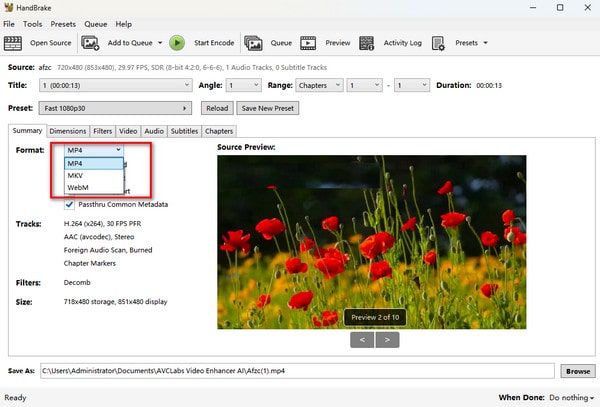
One of the greatest options for ripping DVDs on a Mac is HandBrake, which is a well-known free and open-source tool. It supports 3 video formats and many other video parameter settings for you to customize the converted DVD effect. It provides multiple presets, like Apple TV 4K, iPad Pro, etc., to facilitate the ripping process on Mac. Moreover, it supports batch input and rips DVDs to improve conversion efficiency. However, it fails to process encrypted DVDs by itself, and you can realize this by installing the libdvdcss.
Here are the steps for ripping DVDs with HandBrake on Mac.
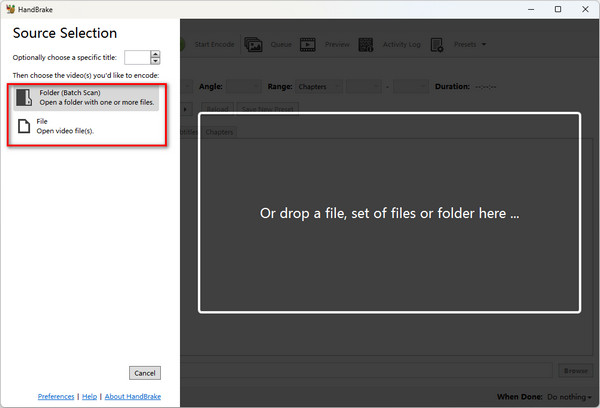
1. After downloading HandBrake on your Mac, install and open it.
Choose Folder to input a folder full of DVDs or File to load one or more DVDs.
2. In Summary > Format, there are 3 formats: MP4, MKV, and WebM, and here, choose the most often used format, MP4, as an example.
Note: You can adjust many parameters, like video encoder, framerate, and more, by editing Video, Audio, Subtitles, and more sections to meet your specific needs.
3. Set the download folder through the bottom Browse button, and click Start Encode at the top menu to begin the conversion.
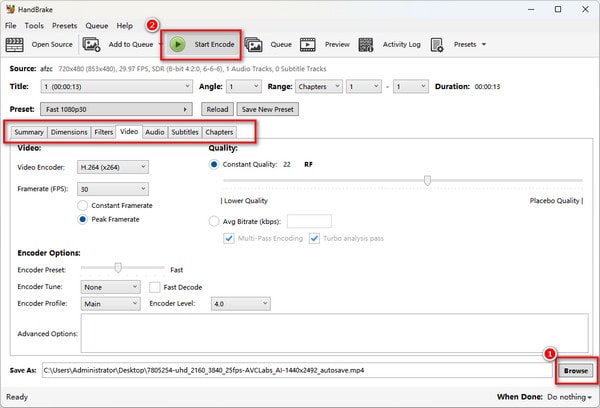
The interface of HandBrake is intuitive, and you can edit some essential settings. The operation is easy, and it also supports batch input DVDs you want to rip. The shortcoming is that it only offers 3 output video formats.
Part 4. Rip DVD on Mac with MacX DVD Ripper (The Speed Demon for macOS)
Compatibility: macOS 15, 14, 13 and earlier.
MacX DVD Ripper is one of the best DVD rippers for Mac. It can efficiently rip DVDs to AVI, MP4, MOV, and other popular video formats on Macs. This lightweight tool allows you to rip DVDs on different devices and platforms easily. Optimized for the M3/M4 generation, it utilizes Level-3 hardware acceleration to deliver the fastest conversion speeds. Moreover, the software has excellent decoding capabilities and can handle the latest encrypted DVDs, thus helping you back up your DVD collection. It is stable on macOS Sequoia (15). It also features powerful recovery and read capabilities for old or damaged DVDs.
1. Go to the official MacXDVD website to download and install the MacX DVD Ripper on your Mac devices, including iMac, MacBook Pro, etc.
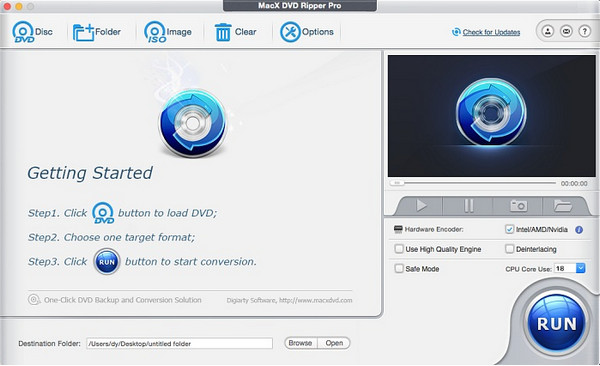
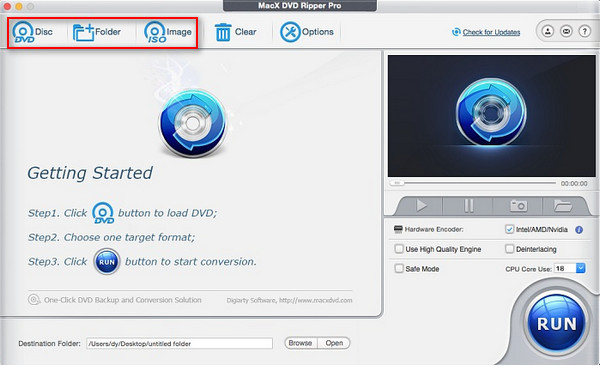
2. Launch it and click Disc/Folder/Image on the top menu to load a DVD you want to rip.
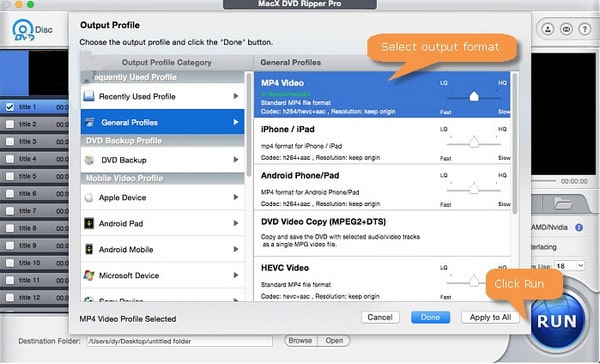
3. In the pop-up window, choose output formats from the General Profile. There are MP4, AVI, MOV, and many other formats. Here, you can choose the common video format, MP4.
4. You can check the Use High Quality Engine option to improve the converted video quality. Then, click Browse beside the Destination Folder to set the download folder. Click Run to start the conversion.
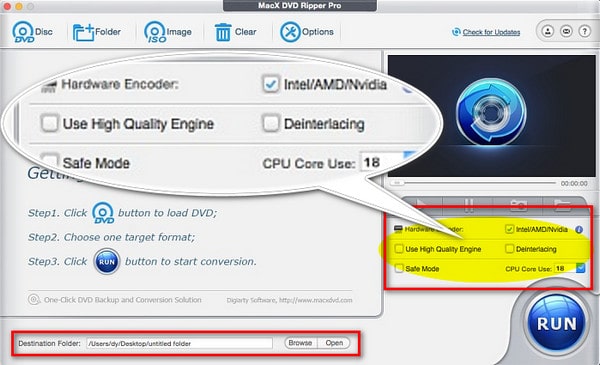
With the easy 4 steps, DVDs are successfully converted to MP4 format. Besides the basic DVD ripping function, it also offers a range of useful editing tools. You can crop, merge, adjust video parameters, and make many editions of the DVDs. What's more, this tool can be compatible with all Mac devices.
Part 5. FAQs of Ripping DVDs on Mac
Is it legal to rip a DVD for personal use on a Mac?
Legality depends on local laws (e.g., Fair Use in the US). Generally, it is advised for personal backup only. Do not distribute or share the files.
Can I rip a DVD on a Mac without a disc drive?
No. You need an external USB drive. Recommended Mac-compatible models:
Apple USB SuperDrive
ASUS ZenDrive (U9M)
LG Slim Portable DVD Writer
Why is Handbrake giving me an error when ripping a DVD?
Handbrake cannot bypass encryption (CSS/DRM) on its own. You need a dedicated decrypter or a library like libdvdcss to read protected commercial discs.
Can MacX DVD Ripper handle 99-title DVDs?
Yes. It is specifically built to bypass strong protections like 99-title and Disney X-project DRM by identifying the correct movie title automatically.
Is Handbrake safe for Mac?
Yes. It is a safe and open-source DVD ripping tool. Always download it from its official website to avoid malware from third-party sites.
Conclusion
Here, we introduced the detailed steps for ripping DVDs on Macs in 3 methods. After reading this article, we believe you can convert DVDs to digital formats on a Mac by yourself. AnyMP4 DVD Ripper Mac supports abundant video formats, HandBrake is totally free, and MacX DVD Ripper has extra video editing tools.
Try them, and you can share your user experience in the comment section!






 Add your comments to join the discussion here