5 Easy Ways to Rip Copy-protected DVDs on Windows and Mac

Ripping a copy-protected DVD requires a decrypter to bypass encryptions like CSS (Content Scramble System), Region Codes, and Disney X-project. The best way is to use a professional DVD ripper that supports auto-decryption, or HandBrake with libdvdcss.
Please note that ripping encrypted DVDs should be done exclusively for personal backup or educational purposes in accordance with local fair use laws.
Currently, DVDs on the market are encrypted with various encryptions to protect the creators' copyrights. So, for some users who want to back up their DVDs or play DVDs anywhere and on any device, using a DVD ripper to rip copy-protected DVDs is a good idea. This article will introduce you to three desktop DVD rippers that can help you rip DVDs with copy protection to other formats so you can play them on devices other than DVD players. If you are interested in it, continue to read on!

| Feature |
AnyMP4 DVD Ripper |
MakeMKV |
HandBrake |
VLC Media Player |
|---|
| Decryption Capability |
Strong: Handles CSS, Region Code, Sony ARccOS, and Disney 99-title. |
Strong: Native support for AACS, BD+, and most DVD protections. |
None / Limited: Requires libdvdcss plugin for basic CSS only. |
Limited: Handles basic CSS/Region codes natively; fails on newer DRM. |
| Output Formats |
500+: MP4, MKV, MOV, AVI, HEVC (H.265), H.264, etc. |
MKV only |
3 Formats: MP4, MKV, and WebM. |
Many: MP4, MKV, AVI, WMV, TS, etc. |
| Ripping Speed |
Fastest: Uses GPU acceleration (NVIDIA/AMD/Intel) for up to 50x speed. |
Fast: Limited by drive read speed (no re-encoding) |
Slow: Depends on CPU power (requires full re-encoding). |
Very Slow: Effectively "records" or streams the content to a file. |
| Compression |
 (High/Customizable) (High/Customizable) |
 (1:1 lossless copy) (1:1 lossless copy) |
(High/Customizable) |
(Basic) |
| Ease of Use |
High |
Moderate |
Moderate |
Low |
| Price |
Paid (Free trial limited to 5 mins) |
Free (while in Beta) / Paid license |
Free & Open Source |
Free & Open Source |
What and Why You Need to Rip Copy-protected DVDs
Why Do You Need to Rip Copy-protected DVDs
Why do people want to rip copy-protected DVDs? Ripping a copy-protected DVD creates a digital backup so you don’t lose content to scratches, disc rot, or accidental damage. It also enables playback on devices without optical drives (phones, tablets, laptops, smart TVs) and lets you stream your own files via home servers like Plex or Kodi, making your collection accessible across devices and locations.
Here are some common reasons:
- • Preservation: convert aging discs to files to avoid permanent loss.
- • Compatibility: play movies on devices that lack DVD drives.
- • Convenience: carry a single digital library for travel and offline viewing.
- • Region freedom for personal use: remove region locks so legally purchased discs from other markets play at home.
- • Home-server streaming: store files centrally to stream across your network.
What is DVD Copy Protection
DVD Copy Protection refers to various Digital Rights Management (DRM) technologies designed to prevent unauthorized copying, playback, or distribution of commercial discs.
- • CSS (Content Scramble System): A basic and widely used DVD encryption method that scrambles video with a 40-bit cipher. DVD players must use secret keys to unlock them. Although cracked in the late 1990s, it’s still required for commercial DVDs.
- • AACS (Advanced Access Content System): Used for Blu-ray and HD DVD, not standard DVDs. It’s a stronger successor to CSS, using 128-bit AES and allowing revoked keys so compromised players can be blocked from playing new discs.
- • Region Code: A geographic lockout system dividing the world into eight regions. Discs only play on players from the matching region, letting studios control release timing and pricing across markets.
- • Disney 99-Title Protection: A disc-structure trick that creates 99 fake movie titles. Only one is the real film; the rest are scrambled or out of order. This often confuses ripping software, causing wrong-title selection or crashes due to impossible file sizes.
Method 1: The All-in-One Solution (AnyMP4 DVD Ripper)
AnyMP4 DVD Ripper is a powerful all-in-one DVD ripping solution. In just 5 minutes, it can easily handle any copyrighted or copy-protected disc, bypassing region codes and even the latest Disney 99-title protection. With support for MP4, MKV, AVI, and over 500 other formats, it lets you enjoy DVD content freely on Android phones, iPhones, Windows PCs, Macs, and virtually any device without limitations.
Equipped with cutting-edge CPU/GPU acceleration and advanced video processing technology, it delivers ripping speeds up to 50 times faster than competitors while preserving the original image and sound quality. Designed for simplicity, even beginners can use it effortlessly. Plus, its rich editing features allow you to flexibly customize DVD movies, giving you complete control over your viewing experience.
The following are its detailed steps:
1. Download and Open AnyMP4 DVD Ripper
Download and install AnyMP4 DVD Ripper by clicking the Free Download button below and launch it on your computer.
2. Insert and Load DVD
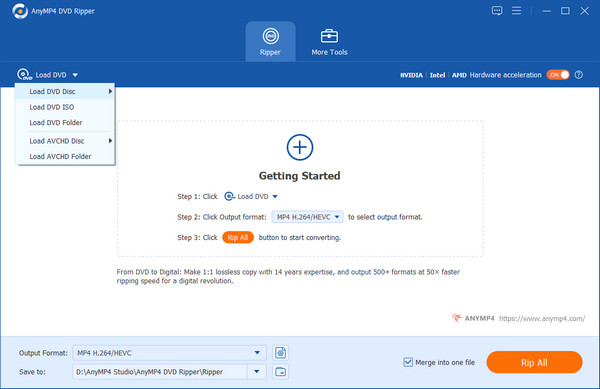
Insert the DVD into the DVD drive, and then click Load DVD to choose Load DCV Disc, Load DVD ISO, or Load DVD Folder from the drop-down options.
3. Select DVD Titles
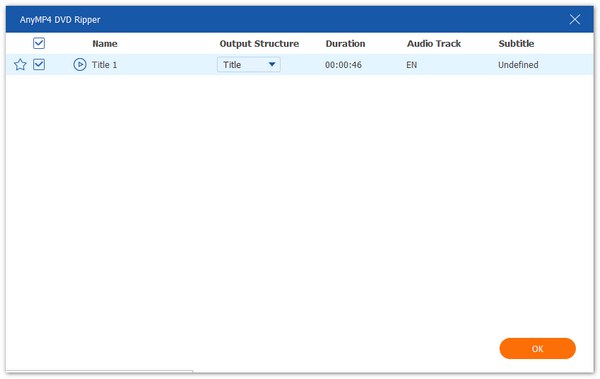
After that, it will load the main title of the DVD files automatically. You can also load the selected titles by clicking Full Title List. Then, check the box of the titles you want to add, and click OK to confirm.
4. Select DVD Titles
Select the output format from the three options: Rip to Video/Audio, Rip to DVD Folder, and Rip to DVD ISO File, according to your needs.
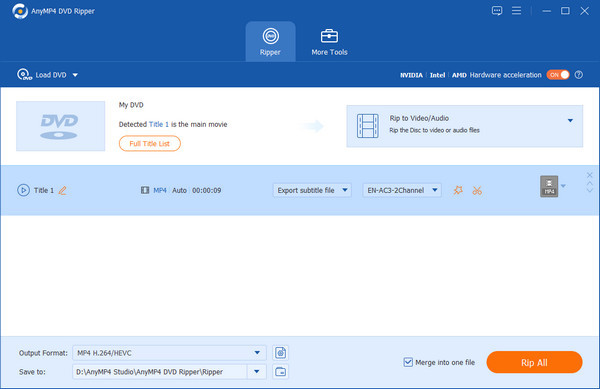
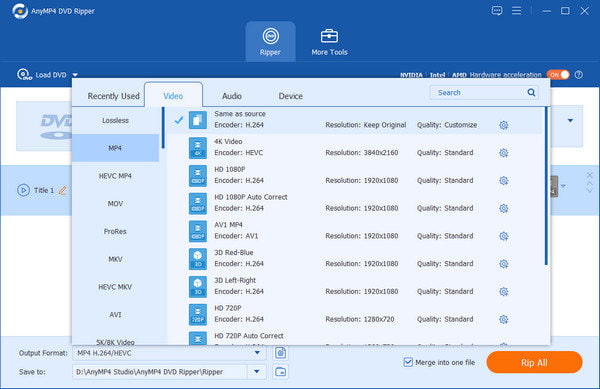
Tip: If you want to rip the DVD to a digital format, such as MP4, MOV, WMV, etc., you can also select it from the drop-down menu of the Output Format option.
For the best results, this tool allows you to select HEVC (H.265) during the process, which is a high-efficiency codec that strikes the perfect balance by maintaining superior visual quality while significantly reducing file size compared to older standards.
5. Start the Ripping Process
Choose the destination and click Rip All at the bottom right corner to rip the DVD with copy protection when the output file is customized.
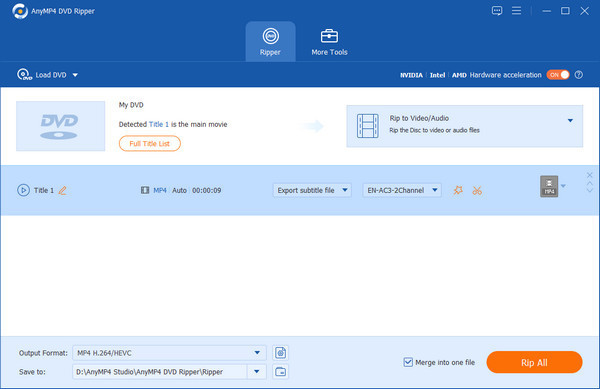
This tool offers quick ripping speed and excellent DVD decryption ability, which is the best choice for you to use. However, it is a paid software with a limited free version for you to try.
Method 2: The Lossless Choice (MakeMKV)
MakeMKV is an excellent DVD ripping tool to convert multiple DVD movies to digital while maintaining the original video and audio quality. It acts as a clever decryptor that uncurls the CSS or Disney 99-title protection and places the exact data stream from the disc into a modern MKV container. Because it does not re-encode the video, the resulting file is a bit-for-bit match of the original disc, preserving every pixel, subtitle track, and high-fidelity audio channel without any generation loss.
Here are the steps of using it to rip copy-protected DVDs.
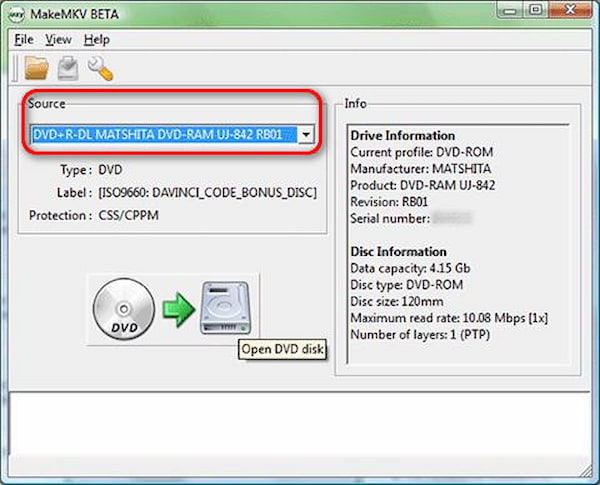
1. Open MakeMKV and Load DVD Disc
Insert the DVD disc you want to decrypt and rip into the optical drive. Click the Optical Drive icon to scan the disc, and the tool will automatically bypass copy protections and display the available titles.
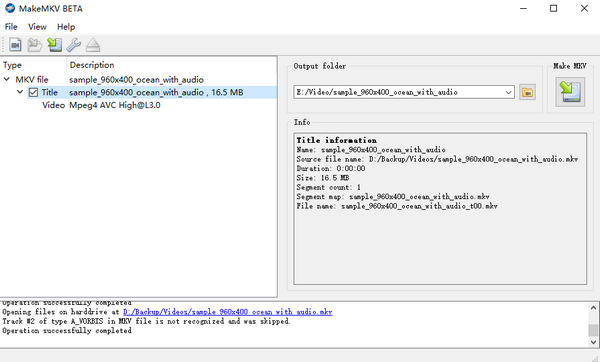
2. Select Titles and Tracks
Check the boxes for the content you wish to save.
3. Rip DVD to MKV
Choose your output folder and click the Make MKV button. All processing happens entirely on your hardware.
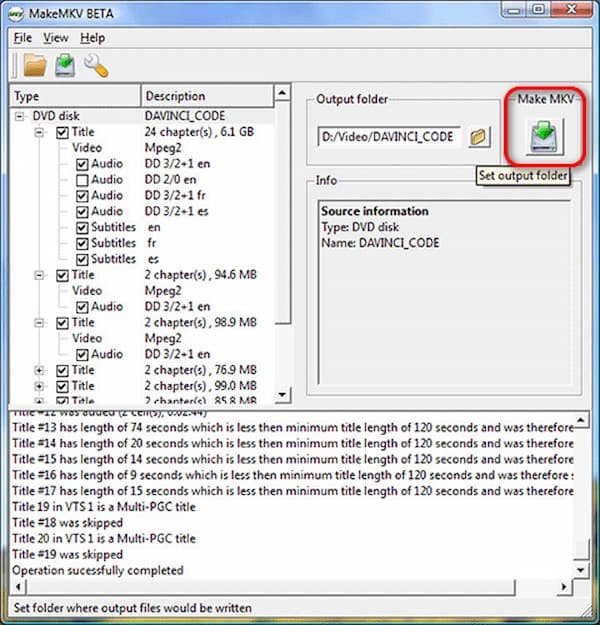
Now, you have learned how to use this powerful tool to rip copy-protected DVDs to MKV without quality loss. You can use it to back up your DVD collections with ease. But you should know that this tool can only output MKV files, and these files are of large sizes.
Method 3: The Open-Source Way (HandBrake + libdvdcss)
HandBrake is a well-known, open-source tool for converting videos into modern formats. Moreover, it also performs as a DVD ripper. On its own, it doesn’t handle copy-protected DVDs, if you pair it with additional libdvdcaa libraries on their system, it can read more types of discs. When everything is set up, HandBrake becomes a convenient way to turn the video from your DVDs into smaller, high-quality files like H.265, all in one step and entirely on your own computer. This setup is popular because it’s free, efficient, and works well for organizing or backing up video you’re legally allowed to convert.
1. Open HandBrake and Install Libdvdcss
Before ripping, you need to install lbdvdcss on your HandBrake.
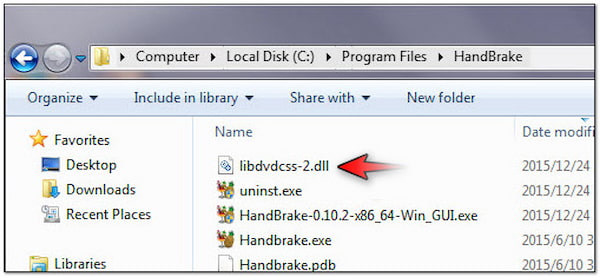
1. Download the DLL: Visit the official VideoLAN libdvdcss repository and navigate to the latest version (e.g., /1.4.3/).
- • Download libdvdcss-2.dll for win64 (most modern PCs) or win32 to match your HandBrake version.
2. Locate HandBrake Folder: Open File Explorer and go to the HandBrake installation directory. By default, this is: C:\Program Files\HandBrake.
3. Move the File: Copy the downloaded libdvdcss-2.dll and paste it directly into that folder.
Note: You may be prompted for Administrator permission; click Continue.
4. Restart HandBrake: If HandBrake was open, close and restart it. It will now automatically detect the library when you load an encrypted DVD.
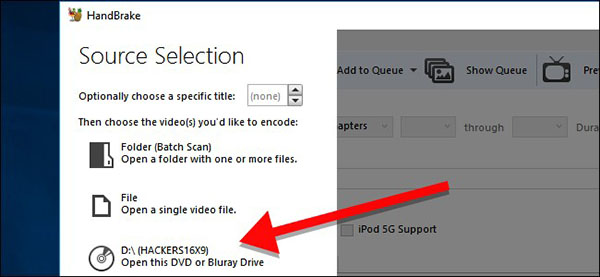
2. Insert and Load DVD
Insert the copy-protected DVD disc you want to rip into the optical drive, and click the detected DVD on HandBrake.
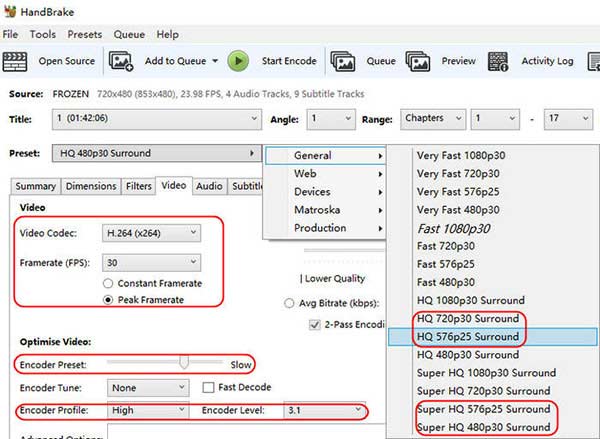
3. Adjust Output Settings
Then, you can configure the output settings as you need, like video codec, framerate, and others. In addition, it provides many presets for you to use directly.
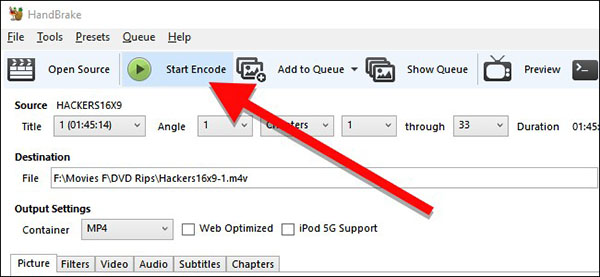
4. Start Ripping DVD
Lastly, set the download folder at the bottom, and click the Start Encode button at the top menu to begin the ripping process.
This free and open-source tool is a popular choice for people to rip encrypted DVDs. With versatile features, you can customize the output profiles with ease. Since HandBrake compresses the video, there is technically a loss in quality compared to the original disc.
Method 4: The Quick Fix (VLC Media Player)
VLC is the ultimate 'quick fix' for DVD ripping because most people already have it installed, making it a convenient, no-download-required solution for simple tasks. By using the Convert/Save feature, you can quickly turn a physical disc into a digital file without needing specialized technical knowledge. While it lacks the deep customization of professional software, it’s perfect for a one-off project where you just want to get the movie onto your hard drive fast. Best of all, it handles the basics right in the box: you can select your preferred audio track and even choose the HEVC (H.265) preset during the conversion to ensure your new digital copy looks sharp while taking up very little space.
1. Open VLC
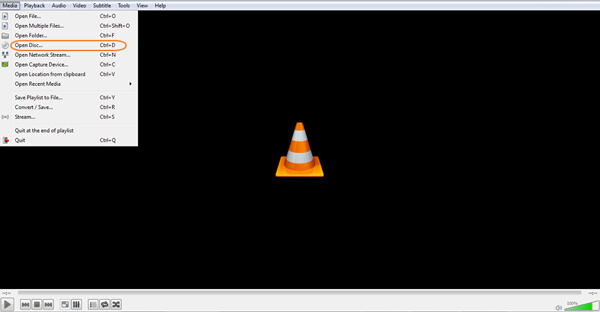
Download and open VLC on your computer. Insert a DVD disc you want to decrypt and rip into the optical drive.
Click Media > Open Disc to open the new window.
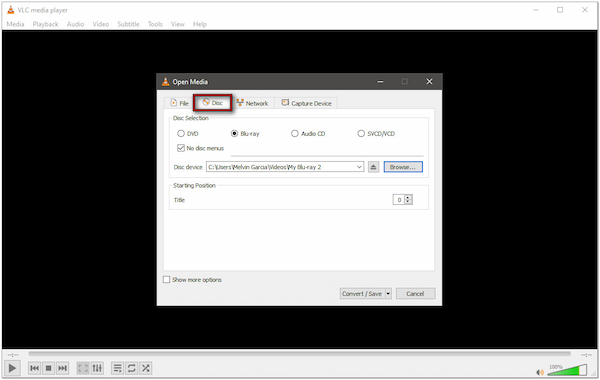
2. Load the Copy-protected DVD
Under the Disc section, choose DVD and click Browse to load the inserted DVD. Then, click the bottom Convert/Save button to proceed.
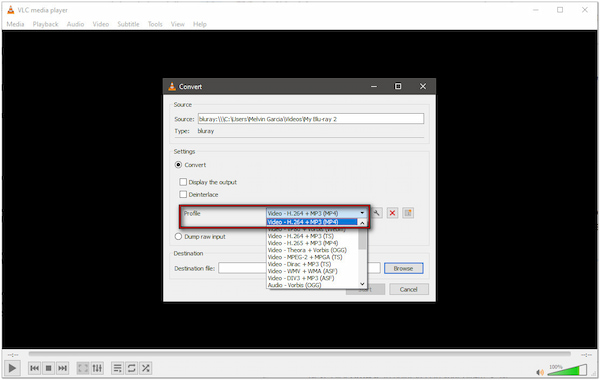
3. Choose the Output Format
Next, select one desired output option from the Profile. You can choose the 'Video – H.264 + MP3 (MP4)' option, which is a good choice.
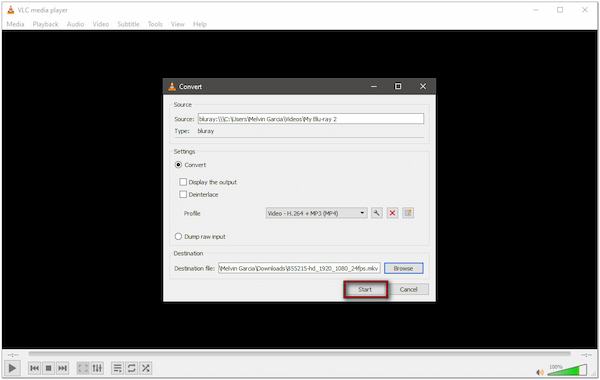
4. Start DVD Ripping
Lastly, click the Start button to begin converting the DVD to digital.
VLC is a free tool for quick and occasional DVD ripping. It is available for Windows, macOS, and Linux, making it a universal solution. However, it is not a professional tool, so the ripping speed is a little slow.
Method 5: Copying vs Ripping (WinX & DVDFab)
Besides, you can try other modern DVD copying tools to duplicate the copy-protected DVDs with ease, like WinX DVD Copy Pro and DVDFab DVD Copy.
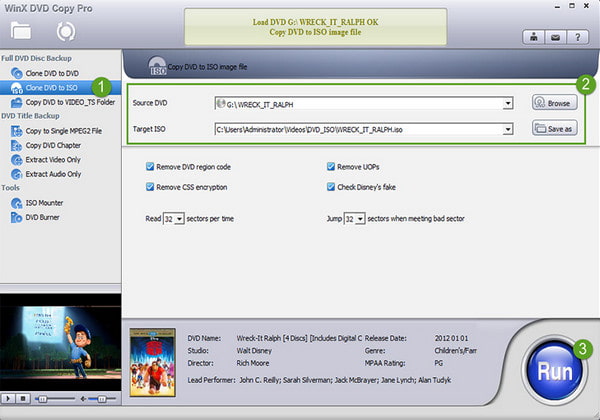
WinX DVD Copy Pro is another good DVD cloner that bypasses DVD copy protection. It is easy to use and fast and can copy DVDs without quality loss. In addition, it has an intuitive interface, multiple copy modes, a wide range of DVD-type support, and so on. Unfortunately, it is only supported on Windows PCs and has no video editing functions.
DVDFab DVD Copy is also a good DVD copy software. It is compatible with Windows and Mac and powerful enough to provide six copy modes, 1:1 lossless copying, and multiple output formats to meet users' different copying needs. In addition, it can automatically detect and remove DVD copy protection. But since it doesn't have hardware GPU acceleration, it may take a little longer to copy.
Here are the steps on how to copy a DVD using DVDFab DVD Copy:
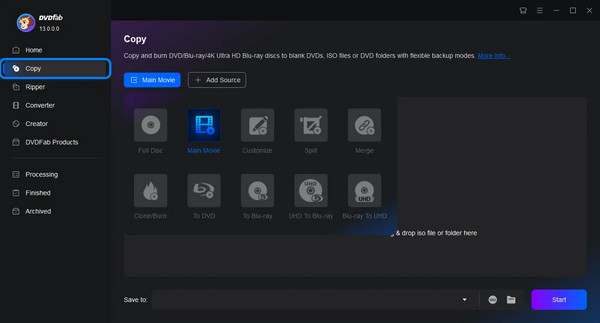
1. Download and launch DVDFab Copy, then select the Copy option from the left sidebar. Insert the DVD into your CD drive, and the program will start loading the disc from the drive automatically.
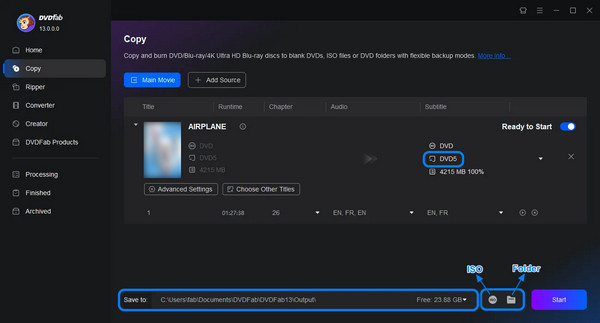
2. Select the copy mode and the DVD size (DVD-5/9) as needed, and you can also change other copy settings. Then, choose output as an ISO file or folder at File Output Location, or click the ISO button to select the location directly.
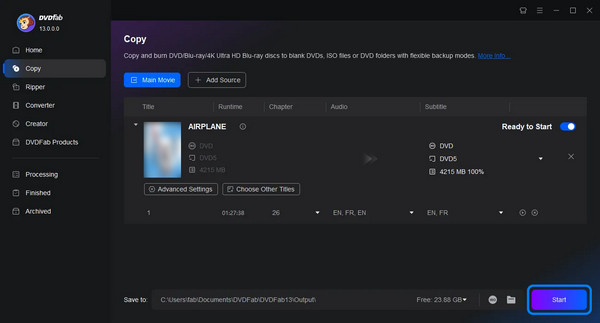
3. After completing the above settings, click the Start button in the lower right corner to copy the protected DVD freely.
FAQs of Ripping Copy-protected DVDs
Is it legal to rip a copy-protected DVD?
In many regions, ripping for personal backup is considered a "fair use" gray area, but bypassing DRM for commercial distribution is illegal. Always check local laws.
Can HandBrake rip copy-protected DVDs?
Not natively. You must download and install the libdvdcss file into the HandBrake folder to enable it to read encrypted discs.
Why do some DVDs show 99 titles and fail to rip?
This is a common protection (Disney X-Project) designed to confuse rippers. Use a tool like AnyMP4 that can automatically identify the correct "Main Title".
Conclusion
This article mainly introduces three ways to rip copy-protected DVDs via desktop programs, which can help. If you want the easiest and most powerful option, AnyMP4 DVD Ripper is your best bet because it handles all the tricky copy-protection and gives you tons of formats to choose from. If you don’t want to spend money, HandBrake is the most popular free tool, though you might need to download an extra libdvdcss to help it read protected discs. For those who want the highest possible quality, MakeMKV is the go-to as it copies everything from the disc perfectly without shrinking or ruining the picture and sound.
If you feel this article is helpful, please like us and leave a message in the comment section.






 Add your comments to join the discussion here