Audacity vs REAPER: Free Audio Editor or $60 Premium DAW?
Summary:
REAPER is ideal for tasks like music production with virtual instruments, MIDI editing, multitrack recording, and non-destructive editing. For recording podcasts and voiceovers, basic audio editing, and quick cleanups, Audacity is a good starting point. To convert/export the final audio to any format, AnyMP4 Video Converter Ultimate covers 500+ formats.
Choosing an audio tool can be confusing when both options offer multitrack recording, basic audio editing, audio capture, and export of finished audio. The true difference isn’t about free versus paid software. It is actually about whether you need a straightforward editor or a customizable DAW. This Audacity vs. REAPER comparison explores their best features, audio-handling differences, learning difficulty, and more.
Part 1. Meet Audacity: The Free Editor Everyone Starts With
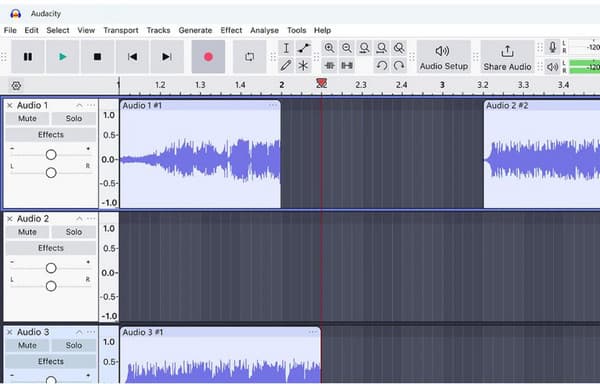
When comparing Audacity vs. REAPER for audio handling, Audacity is more straightforward. It is an open-source GPL audio editor for Windows, Mac, and Linux managed by Muse Group. It is used for podcasts and voiceover recordings, and quick edits. However, it does not offer a MIDI editor or virtual instruments. It supports VST3, VST, LV2, AU, LADSPA, and Nyquist formats.
Part 2. Meet REAPER: The $60 DAW You Grow Into
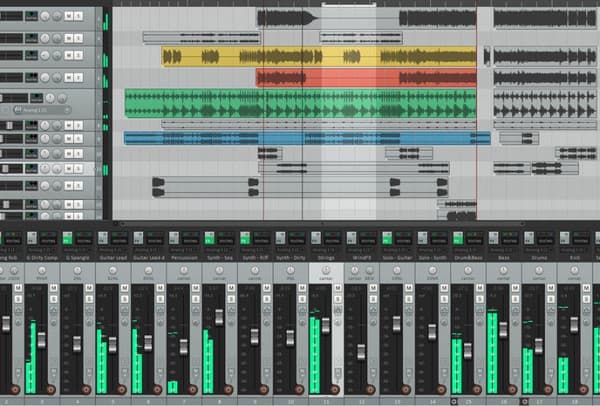
Cockos REAPER, created by WinAmp developer Justin Frankel, features unlimited tracks, full MIDI, a routing matrix, and support for VST, VST3, AU, CLAP, and JSFX plugins. However, REAPER is not free software; it operates under a one-time license. $60 for a discounted license and $225 for a commercial license. Purchasing guarantees free upgrades through version 8.99.
Part 3. Head to Head: Workflow, Multitrack & Extensibility
REAPER vs. Audacity comes down to how each software handles recordings within projects. Audacity makes the process of audio editing easy, while REAPER offers better tools for it.
Same-Take Recording Test
Audacity will place your voiceover takes on separate tracks, but this can clutter the timeline. In contrast, REAPER will record all takes on a single track and let you switch between them.
Additionally, you can see how to record voiceover while playing music here.
Take/Comping vs. Flat Tracks
Audacity uses flat tracks, which means you have to cut, drag, and fade tracks manually to create a compilation. REAPER has a built-in automated comping system, where you can choose preferable parts of various takes.
Routing Matrix
On comparing Audacity vs REAPER for music production, Audacity has limitations in terms of input/output functions. REAPER offers a graphical routing matrix through which any audio, MIDI, or sidechain signal from any track can be routed to another track.
Plugin Formats
Audacity is compatible with VST3, VST, LV2, AU, LADSPA, and Nyquist plugin formats, but it has stability issues. On the other hand, REAPER can use VST, VST3, AU, CLAP, and JSFX plugins. REAPER's plugin sandboxing feature allows it to isolate plugins when needed.
MIDI & VSTi
Audacity is only for editing recorded audio; not for composing music with virtual elements. REAPER comes with a MIDI editor and integrates with compatible external MIDI hardware.
Macros/ReaScript vs. Nyquist
If you compare scripting and automation frameworks of REAPER vs Audacity for recording, Audacity features basic macros and Nyquist scripts. REAPER takes customization further with custom actions, macros, and ReaScript.
Part 4. How to Use Both: Record, Edit & Export Your First Audio
While Audacity and REAPER have similar functions and capabilities in terms of being able to record audio from a computer and mic, edit, and export, the two programs differ in how they handle audio. Audacity is best for beginners for recording and clean-up, while REAPER is more suited for multiple takes and mixing.
1. Download both applications from their official websites and install each tool. Plug in your microphone and be sure your computer recognizes it.
2. How to use Audacity? Open Audacity and select your microphone. Choose Mono Recording and adjust the input level to −12 dBFS. Click Record, speak for 30 seconds, and click Stop.
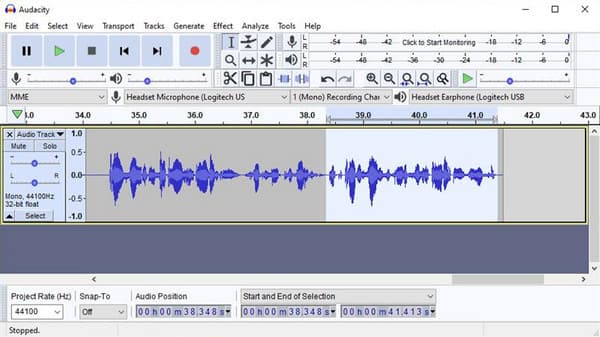
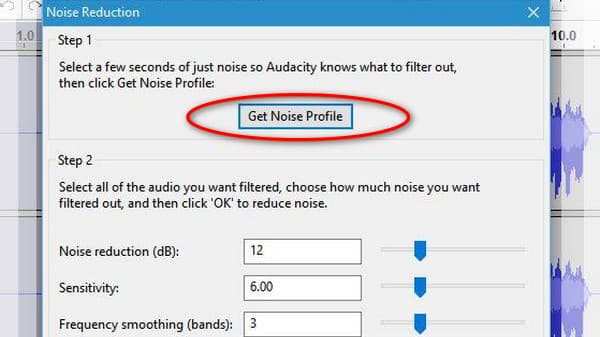
3. Select a section containing background noise, open Effect, and select Noise Reduction to capture a noise profile. Apply noise reduction, then use Amplify to adjust the volume. Then, export the audio project to WAV.
4. Make a new project and put in a track. Choose your microphone, turn on Record Arm, and record the same 30-second speech.
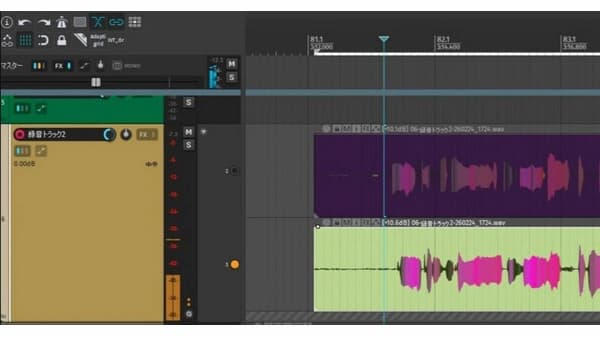
5. Click the track's FX button and add ReaEQ to adjust frequencies and ReaComp to control volume differences. Open File, click Render, and choose WAV as the output format.
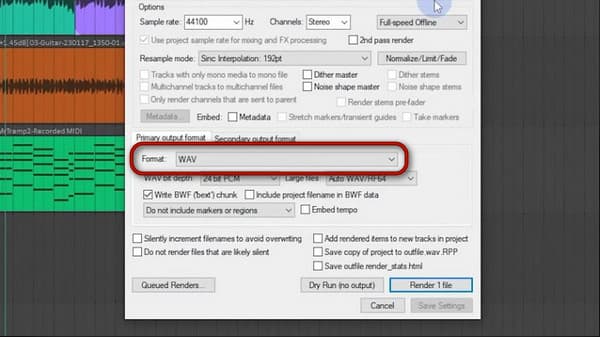
That’s how to use REAPER and Audacity to record, edit, and export audio. Both apps can export WAV, a good format for preserving an uncompressed copy. However, a finished audio project sometimes requires a different format for podcast platforms, mobile playback, or editing. That’s where AnyMP4 Video Converter Ultimate steps in.
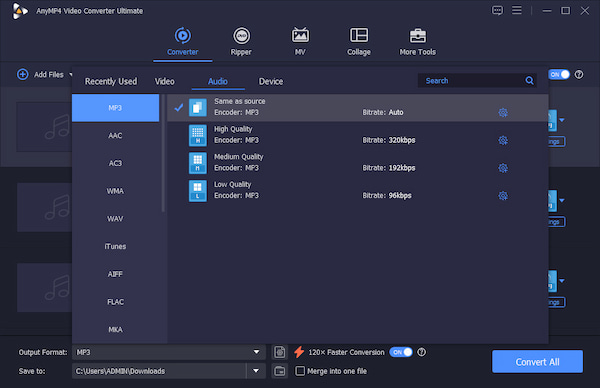
The software isn’t just for video-to-video conversion. AnyMP4 can also handle audio conversion and basic editing. It can convert hundreds of exported WAV files to more than 500+ media formats. It uses the most advanced hardware-accelerated media processing to achieve a 120× conversion speed. Beyond audio conversion, you can explore the toolkit to access the noise remover, audio compressor, volume booster, and audio sync.
Part 5. The Comparison Table: Audacity vs REAPER vs AnyMP4 Video Converter Ultimate
|
Audacity |
REAPER |
AnyMP4 Video Converter Ultimate |
| Category |
Open-source Audio Editor |
Professional DAW |
Media Converter |
| Price |
$0 |
$60 (Discounted), $225 (Commercial) |
Starts at $18.75 with a free trial |
| Evaluation/License |
GNU GPL |
60-day trial |
Free trial with feature limits |
| Platforms |
Windows, Mac, and Linux |
Windows, Mac, and Linux |
Windows and Linux |
| Recording & Multitrack |
|
|
|
| MIDI & Virtual Instruments |
|
|
|
| Plugin Formats |
VST3, VST, LV2, AU, LADSPA, and Nyquist |
VST, VST3, AU, CLAP, and JSFX |
|
| Editing Model |
Destructive |
Non-destructive |
|
| Extensibility |
Nyquist scripts and community plugins |
ReaScript, Lua, Python, and custom themes |
|
| Export/Render |
WAV, AIFF, MP3, Ogg Vorbis, MP2, M4A (AAC), AC3, WMA v2, and FLAC |
Render Matrix: WAV, MP3, FLAC, OGG/Opus, AIFF, video, MIDI, and stem options |
MP3, FLAC, ALAC, WAV, AAC, and 500+ other formats |
| Learning Curve |
Low |
High |
Very low |
| Best For |
Spoken audio recordings and quick edits |
Full music production, multitrack audio recording, and routing |
exporting/converting audio to different formats for universal playback |
Part 6. FAQs about Audacity vs REAPER
Is REAPER free?
No, REAPER is not free. It offers only a 60-day free trial with no feature restrictions. After 60 days, a startup nag screen appears asking you to purchase a license.
Does Audacity support VST plugins?
Yes, Audacity supports VST effect plugins, including VST3 support starting with version 3.2. You can load and use audio effect processors such as EQs, compressors, reverbs, and limiters.
Audacity vs REAPER for podcasting: which is better?
It depends. Audacity is recommended if you are doing one-man shows on tight budgets. But if you require more than one microphone, guests, music beds, and FX chains, go for REAPER.
Conclusion
Not sure whether to pick Audacity vs REAPER? Choose a tool based on your audio project. Audacity is a free audio editing tool that supports cleanups and basic podcast production. But if your project demands multitrack recording, multiple takes, advanced effects, MIDI composition, and detailed mixing, use REAPER. After editing, both tools can export WAV files. However, WAV may not be the best format for every platform or device. Use AnyMP4 Video Converter Ultimate to convert exported WAV files to MP3 and 500+ other formats.


 Add your comments to join the discussion here