Record Audio from Turntable into Audacity to Digitize Vinyl
Summary:
USB turntable connects directly. Select the turntable in Audacity using WASAPI/MME. If you don't have a USB, use the Line output or a phono preamp. Set to 44.1kHz, set peaks at -6 to 3dB, then record. Normalize, reduce noise, remove clicks, and export WAV/FLAC. AnyMP4 Screen Recorder also offers direct audio capture.
I bought a turntable to digitize vinyl records, but I'm stuck. I connected it to my computer, opened Audacity, and clicked Record. The result? I only get a thin, constant buzzing sound. Am I missing a setting?
This kind of question is common when trying to record audio from turntable into Audacity. The problem is that you're missing a setting and need another piece of equipment. This post shows the correct way to record vinyl to a computer with Audacity turntable setup. So that you can digitize vinyl collections and play them anywhere.
Method 1 (Recommended): USB Turntable → Audacity - Plug & Record
Most USB turntables already include a built-in phono preamp and USB output. When connected, Windows recognizes the device as a USB audio input. See below how to record turntable into Audacity:
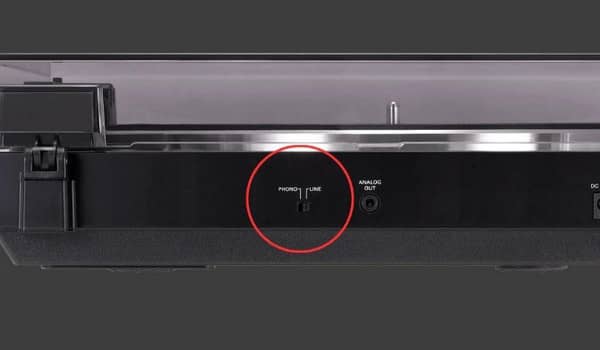
1. Connect the turntable's USB cable to your PC. If it has a Phono/Line switch, set it to Line.
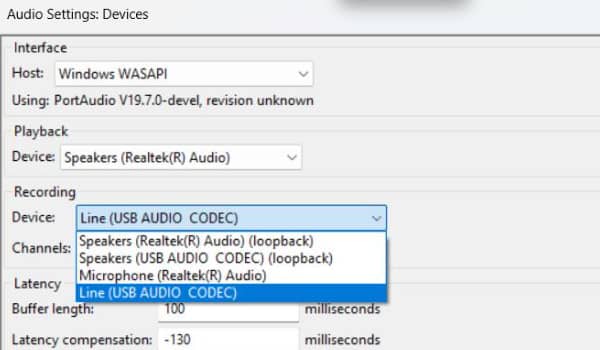
2. In Audacity, go to Audio Setup and set Host to Windows WASAPI or MME. Under Recording, click Device and select your turntable.
3. Set the Project Rate to 44.1 kHz and 2 (Stereo) for Recording Channels. Play the loudest part and then turn the input slider up until the peaks are around -6 to -3 dB.
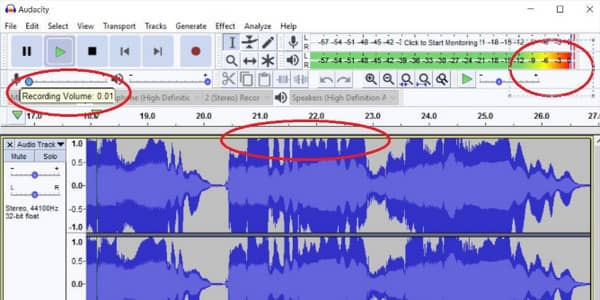
4. Click the red Record button, lower the needle, and let the entire side play before clicking Stop.
If the vinyl records sound clean, proceed to Method 3. If you hear a persistent hum, check the Turntable Hum & Ground Loops section. You may also want to check Audacity audio recording.
Method 2: Line-In Path - Phono Preamp, the Phono/Line Switch & Grounding
Do I need a phono preamp to record vinyl? Yes.
Turntables can produce weak phono-level signals, and computers expect line-level audio. You need a phono preamp to boost the signal and apply RIAA equalization. Without it, recordings sound thin, quiet, and lacking bass.
1. Check the Phono/Line switch on your turntable and set it to Line to activate the preamp.
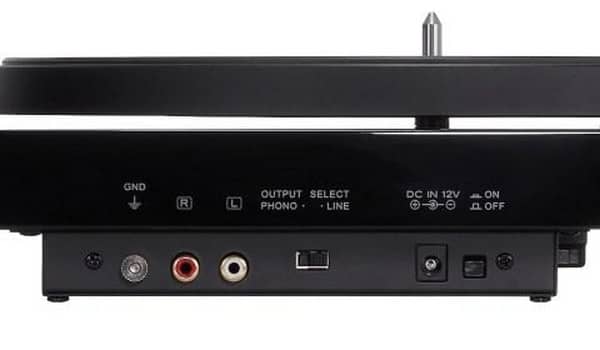
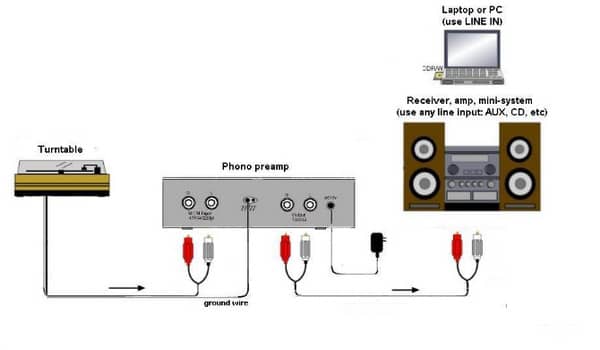
2. If your turntable has no built-in preamp, connect the Turntable RCA OUT to an external phono preamp, then to the PC Line-In or a USB Audio Interface.
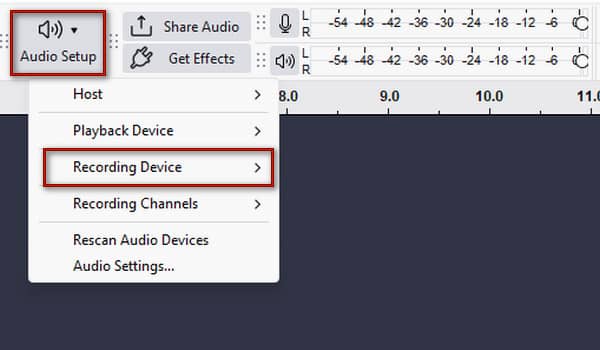
3. Open Audacity, go to Audio Setup, and select Recording Device. Select Line In, your USB audio interface, or the connected input.
4. Play the loudest passage and adjust the input level until peaks reach -6 to -3 dB. Record vinyl in Audacity and check the result through headphones.
Tip:
If you hear buzzing, connect the turntable's grounding wire to the preamp's ground screw. Most importantly, keep RCA cables away from power cables.
Method 3: Clean Up the Take - Normalize, Noise Reduction & Click Removal
Vinyl recordings need some cleanup after capture. You can remove the background noise in Audacity to make the recording sound normal.
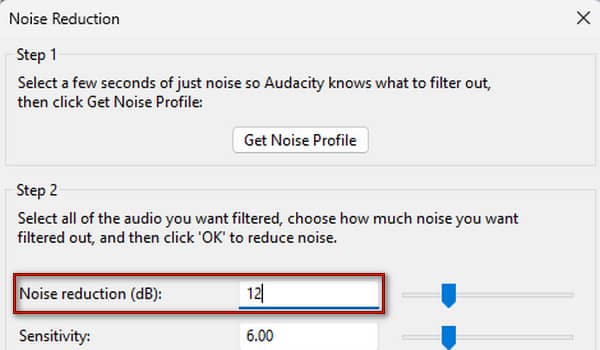
1. Select the entire track and open Effect. Go to the Noise Removal and Repair, select Noise Reduction, and set it to 12-18 dB
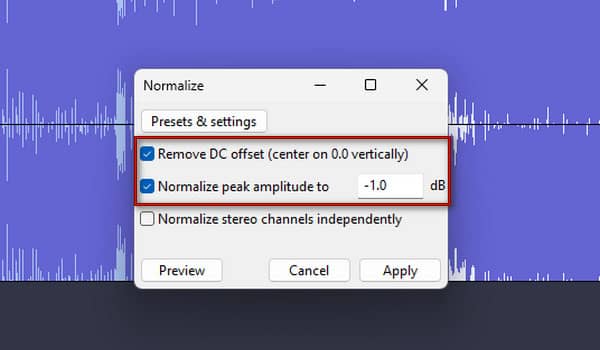
2. Again, select the track, go to Effects, and select Volume and Compression. Click Normalize, set the Normalize peak amplitude to -1 dB, and keep DC offset removal enabled.
3. Navigate to File, click Export Audio, and select:
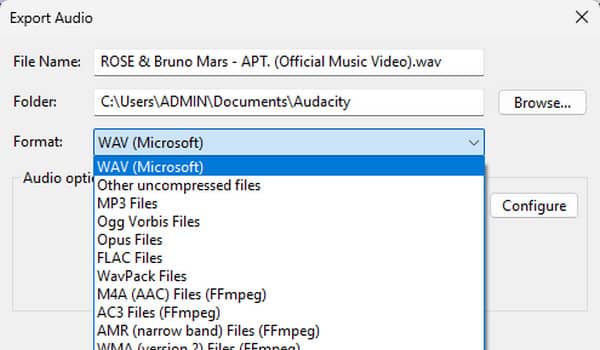
- • WAV (Microsoft) for uncompressed archive.
- • MP3 Files for smaller files.
- • FLAC Files for lossless and smaller audio files.
Note:
Heavy Noise Reduction can do more harm than good. A 30 dB reduction made vocals sound hollow, while around 15 dB kept the music natural while reducing the background hiss.
Method 4 (Alternative): Record the Turntable Directly - AnyMP4 Screen Recorder Audio Recorder
You can record turntable to the computer using Audacity, but if you don’t need Audacity’s editing tools, use AnyMP4 Screen Recorder instead. This software isn’t limited to screen recording; it offers 7-in-1 recording modes. It comes with an Audio Recorder mode that can capture the turntable’s input directly and save it as MP3, M4A, WMA, AAC, OPUS, FLAC, or WAV. The same rules apply, just without the project setup.
Note:
Same hardware as Methods 1 and 2: USB turntable, or line-in via the Phono/Line switch/external preamp.
1. Download AnyMP4 Screen Recorder and complete the installation.
After setup, change the default recording mode to Audio Recorder.
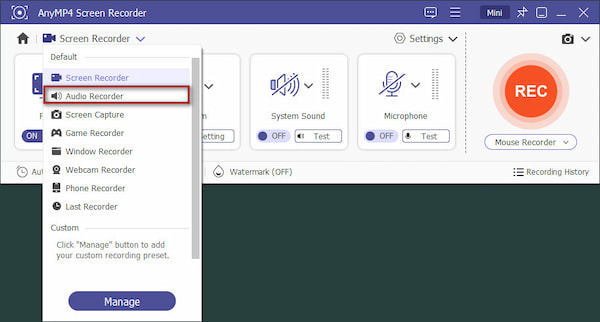
2. Turn on the Sound System and select the turntable or connected audio interface as the input source.
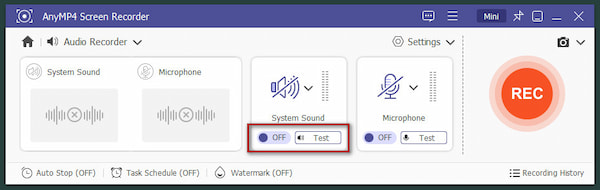
3. Click REC to record vinyl to the computer, then let it play. Stop the recording when the side finishes. Trim unwanted silence at the beginning or end, then save the file.
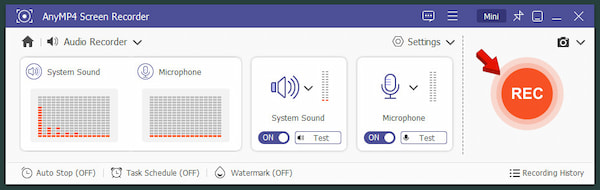
AnyMP4's Audio Recorder captured the turntable input straight to MP3 in one take. You can also use the Screen recorder mode to capture a close-up of a record player with the audio synced for a vinyl wall video.
Turntable Hum & Ground Loops - Why Your Recording Buzzes (And How to Kill It)
A low humming or buzzing noise in a turntable setup comes from a missing ground connection, a ground loop, or physical vibration feedback. Here's how to fix Audacity turntable hum:
- • Connect grounding wire: Connect the turntable's ground wire to the GND terminal on the preamp.
- • Check RCA cables: Check that the left and right connectors are plugged in.
- • Separate power cables: Keep audio cables away from power adapters and electrical equipment.
- • Avoid grounding paths: Connecting multiple grounded devices incorrectly can create a ground loop.
- • Check PHONO/LINE switch: Using the wrong setting can cause extremely quiet or distorted audio.
Mono vs Stereo & 44.1k vs 24-bit - Archiving Vinyl the Right Way
Choosing the right recording settings helps preserve your vinyl without creating unnecessarily large files. For the best settings for recording vinyl with Audacity, consider the following:
| Setting |
Recommendation |
| Channels |
Stereo |
| Sample rate |
44.1kHz |
| Bit depth |
24-bit |
| Format |
WAV or FLAC |
| Peak level |
-12 to -6 dB |
FAQs About Recording Turntable Audio in Audacity
Why is my turntable recording buzzing or humming in Audacity?
A buzzing or humming sound during a turntable recording is caused by hardware grounding issues or electrical interference, not by Audacity. However, Audacity captures and exposes the noise floor.
What sample rate and bit depth should I use when recording vinyl?
For recording or digitizing vinyl, use a 24-bit depth and a 44.1 kHz sample rate. 24-bit is the standard bit depth for recording, while 44.1 kHz matches the standard CD/streaming delivery rate.
Can I record my turntable without Audacity?
Yes, you can record a turntable without Audacity using AnyMP4 Screen Recorder. The process is more straightforward, and you can save the vinyl recording to both lossy and lossless formats.
Conclusion
To record audio from a turntable into Audacity, start with a USB turntable or use a phono preamp with a line-in connection. Then clean the capture with Noise Reduction, Click Removal, and Normalize. For simpler one-take captures, AnyMP4 Screen Recorder can record the turntable directly. This software isn't just for recording screens; it can also capture high-quality audio using the Audio Recorder mode.



 Add your comments to join the discussion here