Audacity vs FL Studio: Two Audio Giants, Two Different Jobs
Summary:
Audacity is best for free audio recording, noise reduction, waveform editing, and podcast cleanup. However, FL Studio excels at beatmaking, MIDI composition, arranging, and music production. You can use both together to clean recordings and produce complete tracks. For converting the output to a universal audio format, use AnyMP4 Video Converter Ultimate.
Deciding between Audacity vs. FL Studio can be confusing because both handle audio, but they solve different problems. If you need to remove background noise, trim a recording, or restore old audio, Audacity is the best choice. FL Studio, on the other hand, is not built for that job. It creates beats, composes melodies, arranges instruments, and produces complete songs. In this post, we will explore these tools further to understand their purpose better.
Part 1. Audacity, the Repair Room: What a Free Editor Does Best
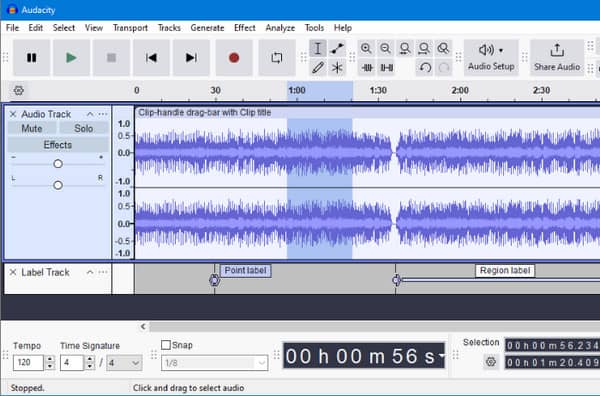
Audacity is a long-running free, GPL-licensed audio editor that has been active since 2000. It operates on the v3.7 line on Windows, macOS, and Linux. It can record unlimited tracks, remove background noise, restore audio, and features spectral editing. It has over 114 million FossHub downloads, is completely free, and supports VST3, AU, and LV2 effects plugins.
Part 2. FL Studio, the Creation Studio: What a DAW Does Best
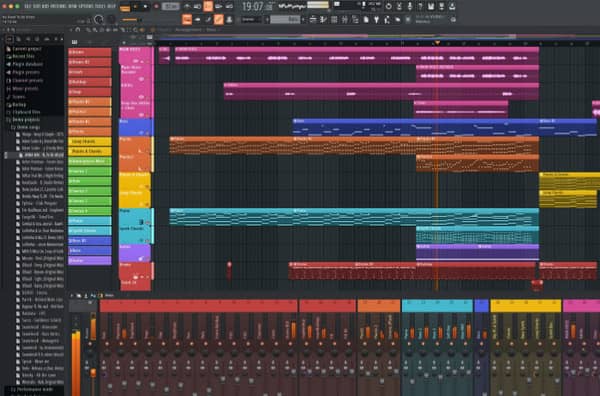
When comparing FL Studio vs Audacity, FL Studio, launched in 1997 as FruityLoops, is a powerhouse DAW. It features an iconic step sequencer and piano roll. Its editions range from Fruity ($99) to All Plugins ($499), with the $199 Producer Edition adding audio recording. It is fully compatible with Windows and macOS and includes lifetime free updates.
Part 3. Deep Comparison: Same Genre, Different Jobs
| Versus |
Audacity |
FL Studio |
AnyMP4 Video Converter Ultimate |
| Core category |
Editor and recorder |
Digital audio workstation |
Media conversion |
| Primary job |
Record, cut, clean, denoise, and restore |
Compose beats, arrange songs, and mix & master |
Batch audio and video conversion and basic audio editing |
| Price model |
100% Free |
$99 to $499 (one-time license) with lifetime free updates |
Starts at $18.75 with free trial |
| Platform |
Windows, Mac, and Linux |
Windows and Mac |
Windows and Mac |
| Lineage |
Launched in 2000 |
Launched in 1997 |
Launched in 2014 |
| Multi-track recording |
|
|
|
| Noise reduction & repair |
|
|
Noise reduction |
| Instruments / MIDI |
|
|
|
| Beat-making workflow |
|
|
|
| Mixing & mastering |
|
|
|
| Effects & plugins |
|
|
|
| Format support & conversion |
|
|
Batch converts 500+ media formats with GPU acceleration |
| Learning curve |
Takes weeks to master |
Takes months to master |
Takes days to master |
| Best For |
Podcasters, voice actors, and quick cleanups |
Hip-hop/EDM producers, beat-makers, and composers |
Formatting, audio sharing, and file optimization |
Part 4. How to Use Audacity & FL Studio Together: The 6-Step Record → Produce Workflow
How to use Audacity and FL Studio together? Use Audacity for recording and cleanup, then FL Studio for composition and production. The following workflow works well for vocals, podcast intros, sampled instruments, and original songs.
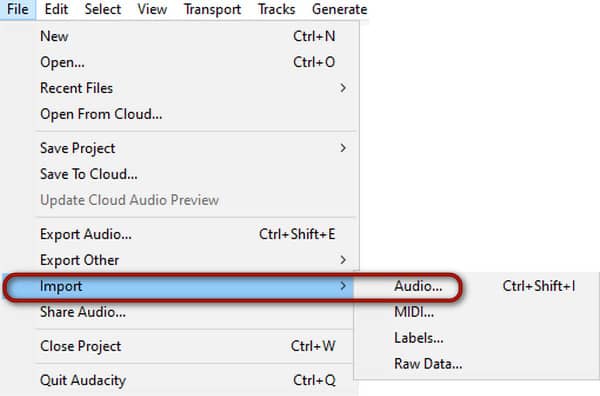
1. Set your audio input, choose 24-bit depth, and record your voice. Alternatively, go to File, click Import, and select Audio to import an existing audio file.
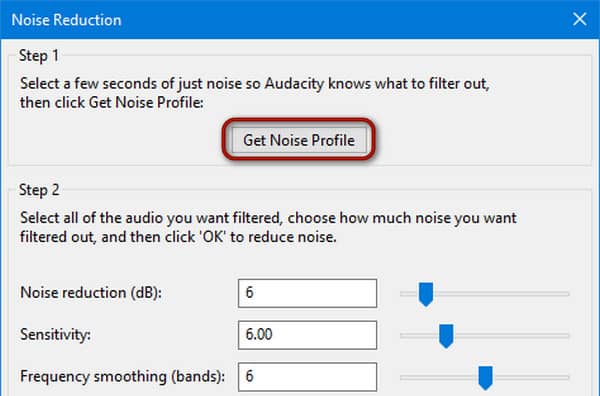
2. Select a silent noise-only profile, then go to Effect, then Noise Removal and Repair, select Noise Reduction, and click Get Noise Profile to clean and repair the audio.
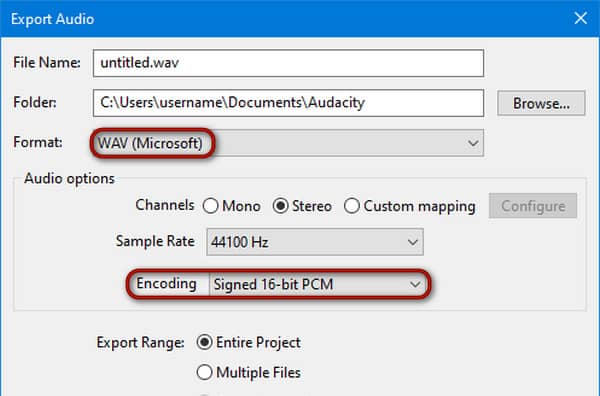
3. Navigate to File, select Export Audio, then set the Format to WAV (Microsoft) and Encoding to Signed 24-bit PCM.
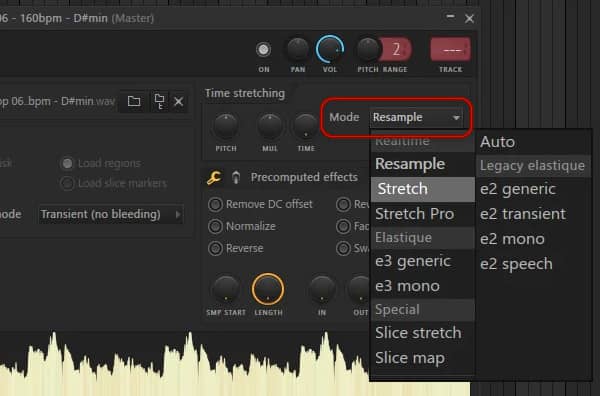
4. Drop the WAV file into the FL Studio Playlist to load. Double-click the audio clip, find the Time stretching section, and ensure the Mode is set to Resample or Stretch.
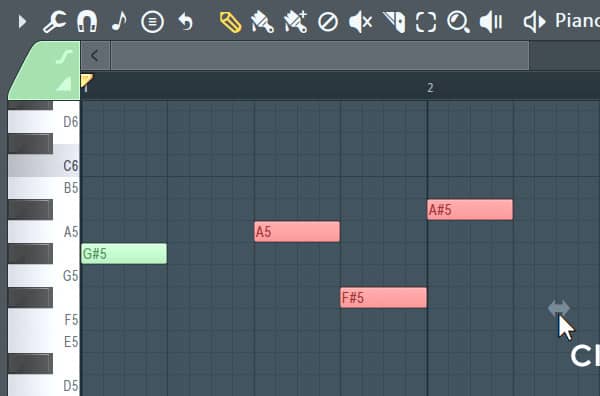
5. Use the Channel Rack / Step Sequencer to build your drum patterns. Then, use the Piano Roll to program melodies, chords, and virtual instruments.
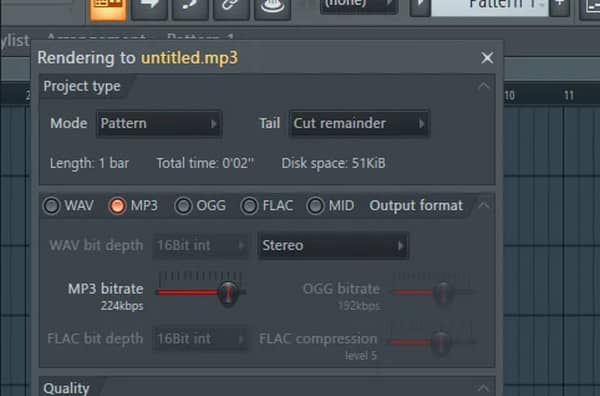
6. Route your audio tracks and instruments to the Mixer and apply levels, panning, EQ, and compression. Then, head to File, select Export, and choose a format to render.
Part 5. When the Collaboration Pays Off
Voice + Beat Hybrids: Record and clean the voice in Audacity first, then export the recording as WAV. After that, import it to FL Studio to adfd beats.
Podcast Intros & Jingles: Bring the cleaned voice from Audacity into FL Studio to combine it with music, transitions, and sound effects.
Sample Packs: Use Audacity to trim recordings, isolate sounds, and remove silence. Export individual samples and load them to FL Studio's sampler or arrange them into patterns.
Live Recordings to Produced Songs: Use Audacity to clean up the source audio, then import it into FL Studio to add supporting instruments, arrange sections, and mix the final track.
Part 6. Decision Guide: Which You Tool Should Pick?
Choose Audacity if:
- • You need to record clean audio, cut mistakes, apply audio compression, and save in common audio file types.
- • You want to trim an audio file, denoise an audio recording, increase the volume of the recording, or merge multiple tracks.
- • You need a 100% free tool that runs on almost any computer without hogging resources.
Choose FL Studio if:
- • You want to compose e-music, hip-hop, EDM, or pop tracks using loops, synthesizers, and drum patterns.
- • You plan to use MIDI keyboards, sequence arrangements, and third-party VST plugins.
- • You need a mixer routing system, automation clips to change effects, and a mastering tool.
Which is easier, Audacity or FL Studio? No matter which software you choose, you will eventually run into limitations with niche file formats. Audacity struggles with proprietary media tracks, while FL Studio’s export options may not always align with your final upload requirements. You’ll need a perfect tool companion to address these gaps.
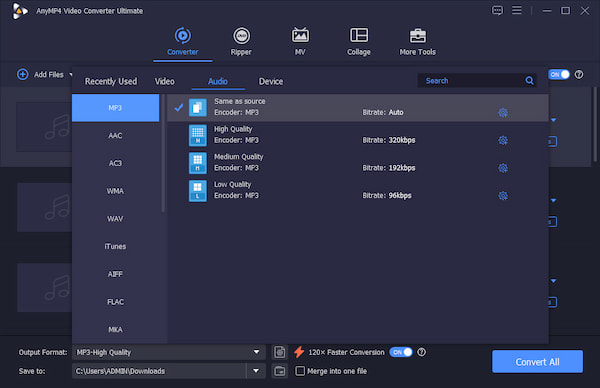
AnyMP4 Video Converter Ultimate isn’t just built for video conversion. With it, you can convert any audio format you name to more than 500+ digital formats. AnyMP4 supports converting hundreds of audio files in batches without lag or crashes. It uses the most advanced hardware-accelerated media processing to achieve a 120× conversion speed. Besides audio conversion, it can also extract audio from video, remove background noise, compress large audio, boost sound, sync audio to video, and more.
Part 7. FAQs about Audacity vs FL Studio
Is Audacity better than FL Studio?
Neither Audacity nor FL Studio is better because they are built for different purposes. Audacity is an open-source audio editor and waveform recorder, while FL Studio is a paid Digital Audio Workstation.
Is Audacity really free forever?
Yes, Audacity is truly free and open-source forever under its GNU General Public License. It has no paywalls, hidden trial periods, or subscription fees.
Can FL Studio replace Audacity?
Yes, FL Studio can replace Audacity if you are making music, beats, or full multi-track audio productions. However, it may be overkill if you only need quick, simple voice or podcast edits.
Conclusion
When choosing between Audacity vs FL Studio, the answer is simple. Use Audacity for recording and editing and proceed to FL Studio for music production. However, if your audio projects need to blend vocals with beats, use both Audacity and FL Studio. After exporting your projects, AnyMP4 Video Converter Ultimate can help to convert your audio into more compatible formats for universal use.





 Add your comments to join the discussion here