
WebM is universally accepted by online video fans from all over the world since it possesses high video quality and small file size, especially on video websites such as YouTube, but uploading multiple WebM video clips one by one to the Internet could be very tiring. Designed to solve that annoying problem, AnyMP4 Blu-ray Ripper can merge video clips together and output them as a single WebM file.
WebM is an audio-video format designed to provide a royalty-free, open video compression format for use with HTML5 video. Known as the newest and most promising online video format, WebM video possesses incredibly high video quality and small video size, which is very suitable for online video fans to share it on the Internet.
Secure Download
Secure Download
After downloading AnyMP4 Blu-ray Ripper from our website, you must install it to your local disk. If the installation is successful, the software should be ready for you to operate.
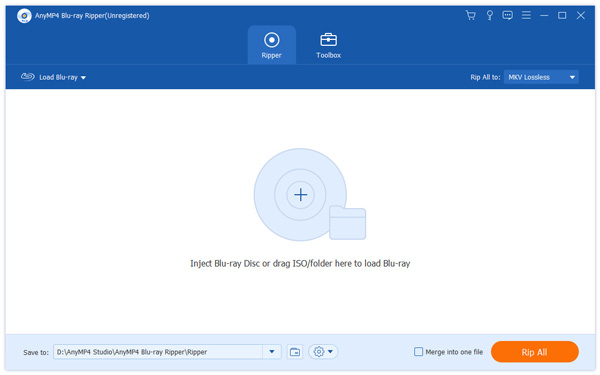
Put the Blu-ray video clips you need to join in a folder. Click the "Load Blu-ray Folder" button to load several Blu-ray video clips at one time.
Select the Blu-ray video clips you need to join and click the "Merge into one file" button. After a short time the video clips will be merged into one single Blu-ray video.

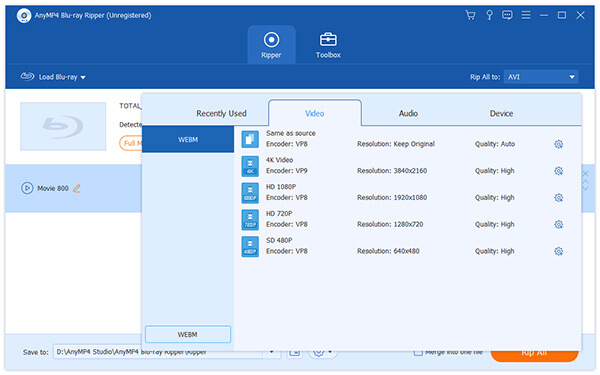
Click the "Profile" drop-down list to select WebM profile. If you cannot find it, click the text area below and input "WebM". You can then rip Blu-ray video to WebM or even HD WebM format.
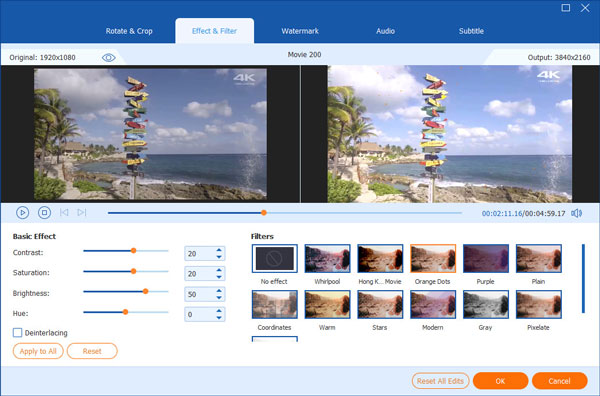
Then you shall start customizing the Blu-ray video effect according to your needs. AnyMP4 Blu-ray Ripper enables you to set 3D settings, crop video frame, adjust the audio and add text/image watermarks to the video as well as adjust Video Brightness, Contrast, Hue and Saturation.
In order to bring the video effect one step closer to perfection, you can also adjust output parameters such as Video Encoder, Resolution, Bitrate, Frame Rate, Aspect Ratio as well as audio parameters such as Audio Encoder, Channels, Sample Rate and Audio Bitrate.
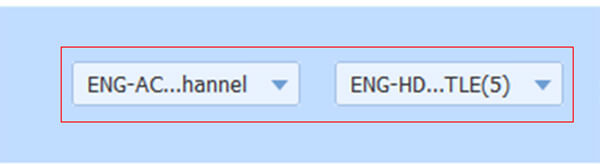
AnyMP4 Blu-ray Ripper enables you to choose your preferred audio track and subtitle if they are optional.
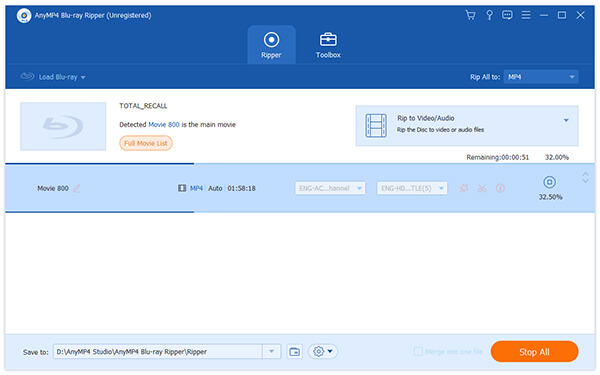
You are also allowed to adjust specific preferences to apply next time. Click the "Rip All" button and the ripping progress will be started.
 Updated by Joan Aimee to Blu-ray
Related Articles
 How to Use PS3 Play Blu-ray With Perfect Effect
PlayStation 3 has the ability to play Blu-ray discs and DVDs with perfect effect.
 Does Wii U Play Blu-ray Disc and Movie
Being disappointed owing to you cannot watch Blu-ray movies on your Wii U like PS3 does?
 How does Xbox One Play Blu ray Disc and Movie
You can play Blu-ray disc on your Xbox One. Learn about the way to play Blu-ray on Xbox One.
 How to Play Blu ray with VLC on Windows and Mac
How VLC Blu-ray play encrypted Blu-ray? Here's the detailes to play Blu-ray with VLC.
 Add your comments to join the discussion here
