
Ripping Blu-ray discs to ASF file format allows you to digitize your collection and store the content on your computer or other media devices. ASF is a container format that combines audio, video, and subtitle tracks into a single file, offering convenience and flexibility for playback and storage. In this guide, we will explore how to rip Blu-ray to ASF, providing you with the steps to convert your Blu-ray discs into digital files.

AnyMP4 Blu-ray Ripper is the best Blu-ray ripping program that supports the direct ripping of Blu-ray discs, folders, and ISO files and converts them into more than 500+ digital output formats, including MP4, MKV, AVI, MOV, WMV, and more. It allows users to choose the desired format based on their requirements and compatibility with different devices.
Moreover, it offers extensive customization features to enhance the output files according to the user's preferences. Users can adjust parameters, such as resolution, bitrate, frame rate, and more, to achieve their desired output quality and file size.
PROS
CONS
1.Beforehand, download the AnyMP4 Blu-ray Ripper; hit the Free Download button below. Install it and follow the instructions and run it afterward.
Secure Download
Secure Download
Remember, placing the Blu-ray disc on your drive before launching it is necessary.
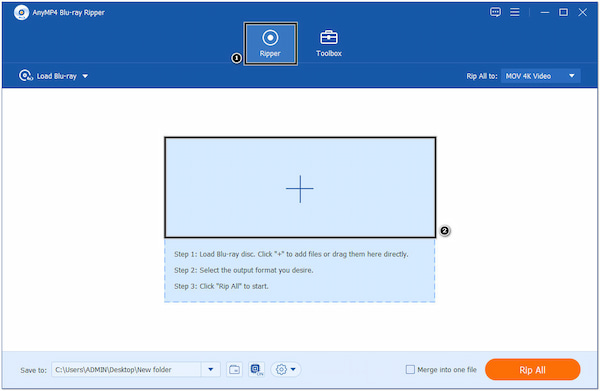
2.After opening the program, you will be directed to the main interface with two tabs. Maneuver your cursor over the Ripper tab, and hit the Plus icon to load the Blu-ray disc.
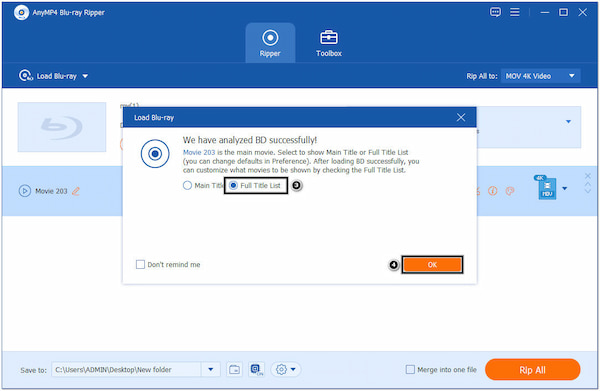
3.After the program analyzes the Blu-ray disc, choose the Full Title List to show all the titles and click the OK button to proceed.
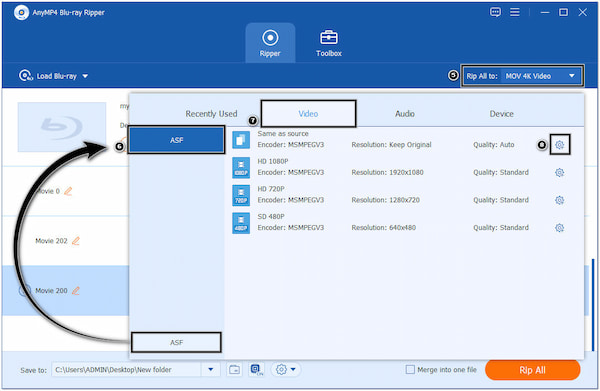
4.Hover your cursor over the Rip All to dropdown button and look for the ASF format. Next, head to the Video tab and hit the Gear icon to adjust the video and audio parameters like Resolution, Frame rate, Bitrate, etc.
5.Moving forward, go through the Save to dropdown button and choose Browse and Select Folder. Select your file destination to locate the ripped file easily after the conversion. Once done, click the Rip All button to convert your Blu-ray to ASF format.
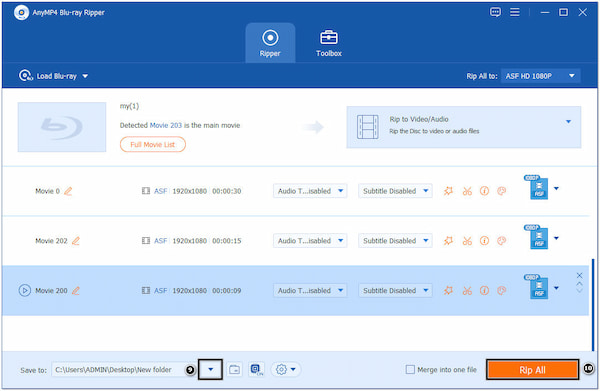
AnyMP4 Blu-ray Ripper can easily rip your Blu-rays and convert them into the desired format by following the instructional guides above. On top of that, it allows you to merge your multiple titles into a single file by checking the merge into one file box.
Pavtube ByteCopy is a Blu-ray and DVD ripping software which allows users to rip Blu-ray and DVDs to various formats, such as MP4, MKV, AVI, and more. It can extract content from discs, including the main movie, subtitles, audio tracks, and bonus features.
PROS
CONS
1.To start with, download Pavtube ByteCopy and install it on your computer. Insert the Blu-ray disc you wish to rip into your drive and run it afterward.
2.Click the Load file(s) button to load the Blu-ray disc as the source. The program will analyze the disc and display its contents.
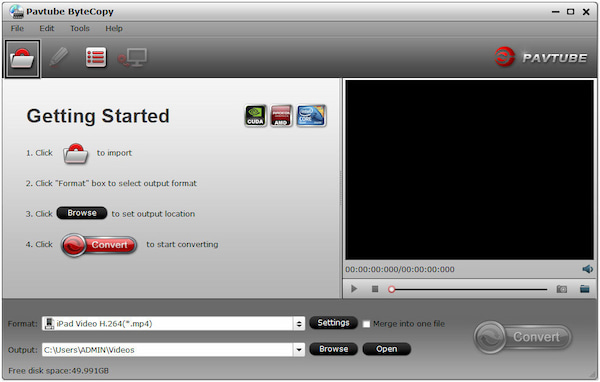
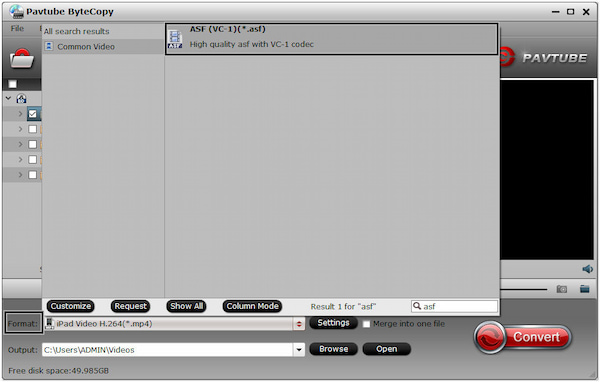
3.Select the ASF as the desired format from the list of supported output formats.
4.Choose a destination folder where you wish to save the ripped ASF file. Click the Convert button to start converting the Blu-ray disc to ASF format.
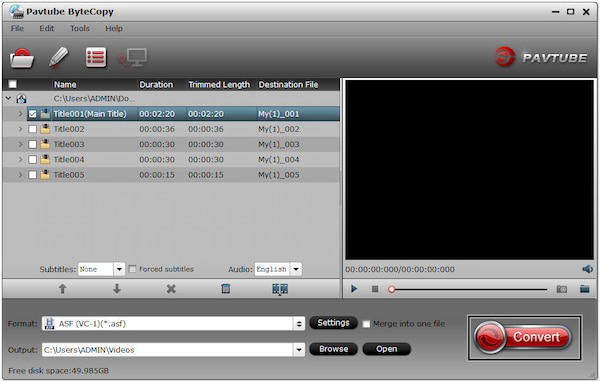
Pavtube ByteCopy offers advanced features for Blu-ray ripping, including support for ASF output format. By following the guides above, you can successfully rip your Blu-ray discs to ASF files using it. However, navigating the various options and settings may require a learning curve and patience.
VideoByte BD-DVD Ripper is another Blu-ray and DVD ripping program that allows users to rip Blu-ray discs, DVDs, VIDEO_TS folders, and ISO files into standard digital formats. It can turn Blu-rays into digital media formats, including ASF, MP4, MP3, MKV, and AAC.
PROS
CONS
1.To begin with, download and install VideoByte BD-DVD Ripper. Put the Blu-ray disc you want to rip into your drive, then launch it.
2.Click the Plus icon to load the Blu-ray files. VideoByte BD-DVD Ripper will analyze the Blu-ray and display the titles.
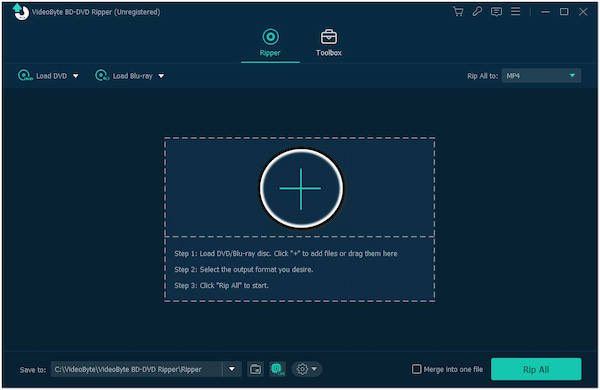
3.Click the Format icon and select ASF as the new format from the selection of formats.
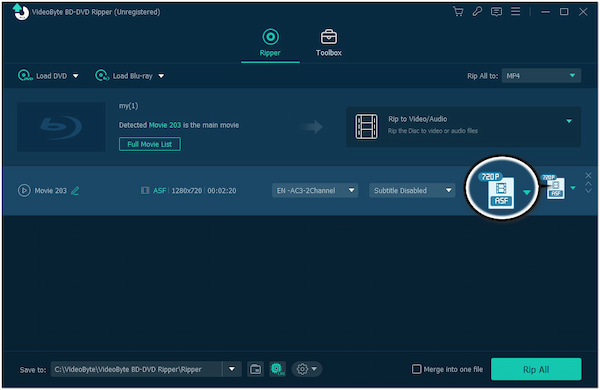
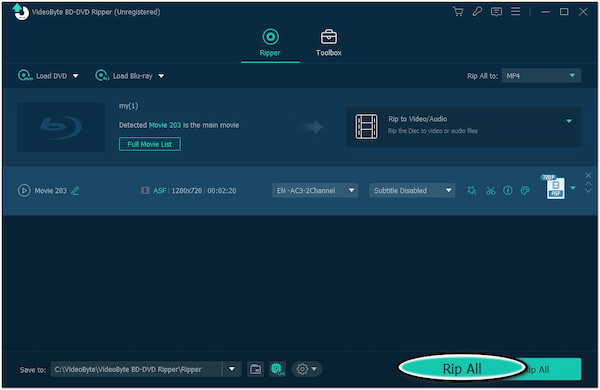
4.Choose your file destination where you want to keep the converted ASF file. Click the Rip All button to convert the Blu-ray disc to ASF format.
What is the ASF format?
ASF, or Advanced Systems Format, is a digital multimedia container developed by Microsoft. It is primarily used for streaming media and supports various codecs, including video codecs like WMV and audio codecs like WMA.
Can I convert multiple Blu-ray discs to ASF format at once?
Definitely YES! You can simultaneously convert multiple Blu-ray discs to ASF format using dedicated Blu-ray ripping software. AnyMP4 Blu-ray Ripper supports batch conversion, allowing you to load and convert multiple Blu-ray discs in a single operation.
Does converting Blu-ray to ASF may lead to a quality loss?
It depends! Some quality loss is expected when converting Blu-ray to ASF or any other format. But with a careful selection of software and settings, you can minimize the impact and achieve satisfactory results for your intended use. It would be best if you consider using AnyMP4 Blu-ray Ripper, as it retains the original quality of the ripped/converted file. Also, you can upscale the ASF video to a higher quality with some third-party software after ripping it.
Ripping Blu-ray discs to ASF format provides a convenient and flexible way to digitize your collection. By converting the discs into ASF files, you can create a digital library, stream the movies to different devices, or have a backup copy of your movies. The process becomes straightforward and efficient with the help of reliable Blu-ray ripping software, such as AnyMP4 Blu-ray Ripper. Enjoy the convenience of accessing your Blu-ray content anytime, anywhere, without physical discs.
 Posted by Ted Klarso to Blu-ray
More readings
 ASF Recorder – How to Record ASF Stream Video on Your Computer
Read and get the best ASF recorder to record ASF stream video and audio. You can use an online or offline ASF stream recorder to screen capture on computer.
 Blu-ray to Android Converter: How to Convert Blu-ray to Android Device
This guide helps you rip homemade Blu-ray to your Android supported file, so you can enjoy high-definition Blu-ray video anytime and anywhere.
 The Quickest Way to Turn Blu-ray to AVI With No Quality Loss
This post will help you understand why you need to convert Blu-ray to AVI, how to convert Blu-ray movies, and how to choose the best software.
 3 Methods to Convert Blu-ray to MP4 Effortlessly
Tired of looking for the best software to convert Blu-ray to MP4? Come and find out the three Blu-ray ripping software and the best way to rip Blu-ray to MP4.
 Add your comments to join the discussion here