3 Fast Methods to Cut Out an Image Without Losing Quality
Quick Summary:
Learn three proven ways to cut out an image with pixel-perfect results: AnyMP4 Free Background Remover Online for fast AI-powered cutouts, iOS/Android native tools for quick mobile edits, and Adobe Express for professional-grade control and high-res output.
I’ve spent years editing photos, and the most tedious task was always the manual cutout. I carefully lassoing around every edge, adjusting for shadows, and ensuring nothing got clipped. Today, that process has been transformed by AI. I tested this tool and discovered that what used to take 10 minutes can now be done in just 5 seconds; zero-cost, browser-based, and requiring no technical skills. With advanced AI edge detection, these tools deliver pixel-perfect results and instant transparency.
In this post, I’ll show three proven ways to cut out an image efficiently. I will highlight methods that combine speed, precision, and flexibility. This way, we can help you achieve professional-quality cutouts without the frustration of traditional editing. By the end, you’ll know how to remove backgrounds cleanly and seamlessly, using tools that anyone can master.
How to Cutout an Image: 3 Proven Methods for Pixel-Perfect Results
What is an Image Cutout?
An image cutout is the process of isolating a foreground from its background to create a transparent PNG or replace the backdrop. Using AI-driven image segmentation, creators can now extract precise foregrounds in seconds without manual tracing.
Method 1: The Quickest AI Solution (AnyMP4 Free Background Remover Online)
AnyMP4 Free Background Remover Online is an image background cutout tool to remove bg for free. It uses the advanced AI Auto-Detection to instantly identify the main subject the moment an image is uploaded. In just seconds, it will deliver clean cutouts with smooth edges. For finer control, it includes Keep and Erase brush options for real-time edge refinement. These tools allow you to manually correct intricate details such as hair strands, fur, or small objects.
Beyond removing background images, AnyMP4 Free Background Remover Online also supports background replacement. It lets you change the removed background with a solid color or a custom image. In terms of trust and usability, it emphasizes privacy and security, with uploaded images deleted after processing. This makes it a reliable and efficient solution for quick, professional-looking AI image cutouts.
Why We Recommend it for Beginners
- • 100% Free & No Installation: Accessible on any desktop and mobile devices with a browser. No subscriptions, no software installation, no hassle.
- • Advanced AI Auto-Detection: The AI automatically identifies the subject and intelligently removes the background, leaving perfectly clean edges.
- • Real-Time Edge Refinement: Refine edges in real time with manual brush tools to keep or erase areas for a perfect selection.
- • Built-In Customization: Keep the image transparent, apply a solid background color, or upload a custom backdrop without leaving the page.
- • Privacy & Security: Images are securely processed and promptly deleted to protect user data.
Step-by-Step Guide
Here’s how to cut out an image using the quickest AI cutout tool:
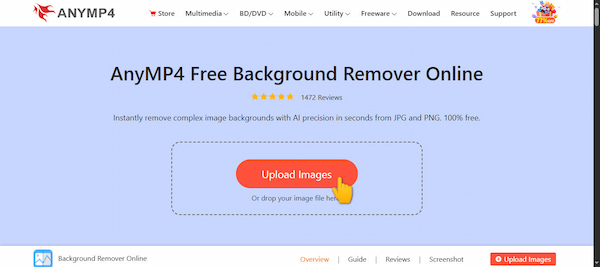
1. Reach the official AnyMP4 Free Background Remover Online site through the provided link. On the homepage, click Upload Images to import an image, or drag and drop your JPG or PNG file directly into the upload box. Upon uploading, the AI will begin processing immediately.
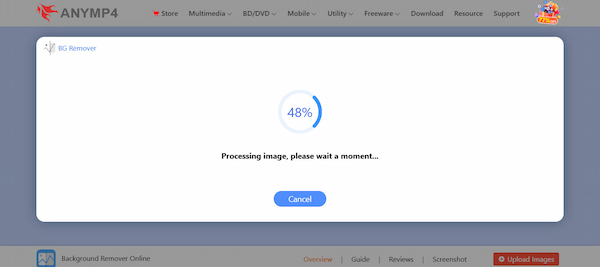
2. During the process, the intelligent AI automatically detects your main subject and removes the background. It will create a transparent cutout, and in seconds, you’ll see a preview with the background already removed.
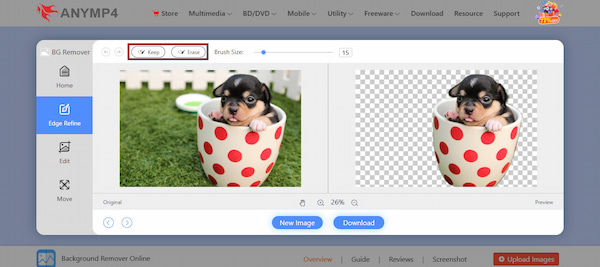
In the Edge Refine tab, use the Keep and Erase brush options to paint areas you want to retain or remove. You can adjust brush size for precision around hair, edges, or fine details. This real-time edge refinement helps ensure a clean, professional cutout.
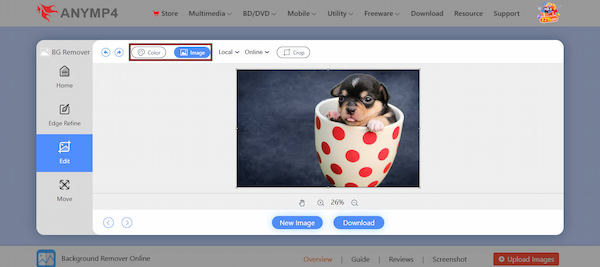
3. After refining your subject, move to the Edit tab to customize the background. You can replace the background to a solid color, such as blue, red, white, or black. Alternatively, upload a new background image as a replacement. For PNG use in other designs, leave it transparent.
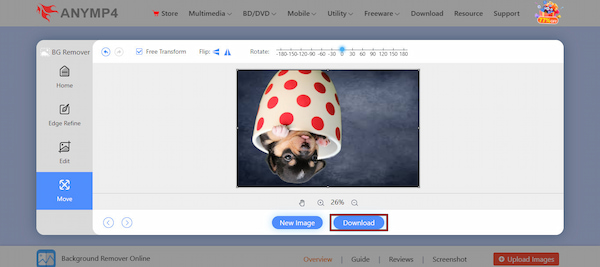
4. Optionally, switch to the Move tab for quick visual corrections. Here, you can flip the subject image horizontally or vertically and rotate it. When you’re done with the customization, click Download to save your processed image as a PNG.
In our testing, we found that AnyMP4 Free Background Remover Online’s AI excelled at Sub-pixel refinement. When cutting out a subject with wispy hair against a busy city background, the tool maintained 95% of the edge detail without the halo effect common in older AI models. AnyMP4 Free Background Remover Online is an exceptional tool to remove background from an image online.
Method 2: The Native Mobile Shortcut (iOS/Android Built-in Tools)
Native mobile tools on iOS and Android offer a convenient shortcut to cut out image background. Apple’s Photos app uses on-device AI to instantly isolate subjects from photos. On the other hand, Google Photos’ AI-powered Magic Eraser on Android devices removes background distractions. These built-in tools are ideal for a quick subject cutout on your phone.
How to 'Lift' Subjects on iPhone and Android
iOS: Photos App
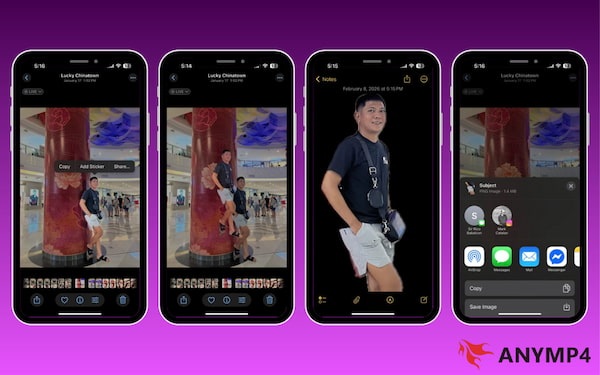
1. Open the Photos app and tap a photo to view it in full screen. Then, touch and hold the subject in the center of the image.
2. When an outline appears around the subject, choose one of the following actions:
- • Keep holding the subject, then use another finger to open another app and drop it.
- • Save the cutout as a sticker for use in Photos, Messages, or Mail.
- • Send it via AirDrop, Messages, Mail, or other apps.
- • Paste it into emails, messages, or documents.
Android: Google Photos
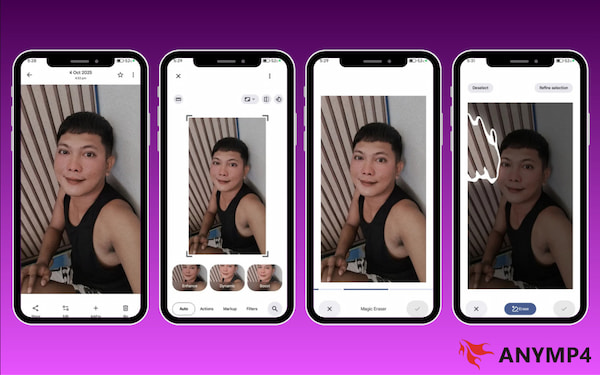
1. Launch the Google Photos app and open the image you want to edit. Select the Edit option, switch to the Actions tab, and tap the Magic Eraser option. Let the AI scan the image and suggest background distractions.
2. Tap Erase All to automatically remove suggested objects. If no suggestions appear, manually circle or brush over unwanted background elements. Tap Done, then choose Save Copy to keep the edited image.
iOS and Android native tools are fast and convenient, but their functionality is limited. If you have a Galaxy S23 or newer, use the Image Clipper. On iOS, you can isolate subjects, but there is no advanced background editing. Meanwhile, Google Photos focuses on erasing objects rather than fully isolating and replacing backgrounds. For a true bg replacement, you need a dedicated app to change the picture background.
Method 3: The Professional Choice (Adobe Express or Photoshop)
Adobe Express is a professional-grade editing platform from Adobe that includes an image segmentation feature. This image-cutout service uses AI to isolate the foreground and remove the background instantly.
1. On the Adobe Express page, click Upload Your Photo to choose the image you want to edit. As soon as your image is uploaded, it detects the subject and removes the background.
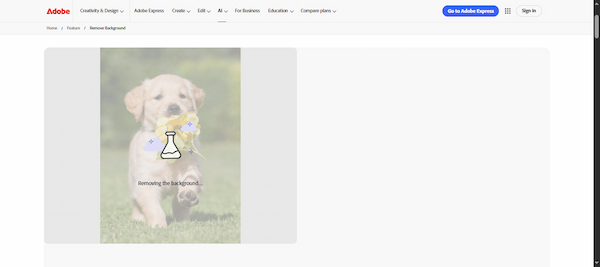
2. Once the background is removed, open the image in the Adobe Express editor to add new backgrounds. You can replace the background with a solid color, gradients, or stock assets.
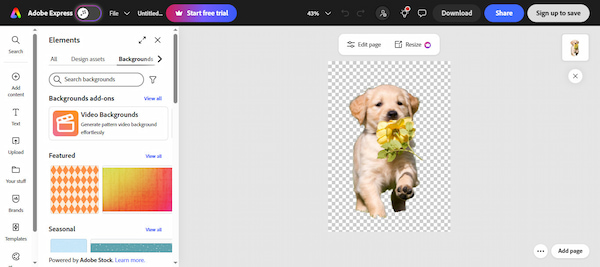
Adobe Express is a powerful image editor that makes a transparent background with replacement support. If you want a transparent file, you can click Download directly from the homepage to save it as a PNG. Alternatively, open the image in the editor for further customization.
Best for Manual Control and High-Res Output
- • Transparent PNG Support: Export assets ready for layering into complex layouts.
- • Precision Layout Control: Refine your visuals with granular resize and repositioning tools.
- • Professional AI Cutouts: Achieve clean, accurate subject isolation for commercial-grade designs.
- • High-Resolution Exports: Maintain crisp image quality for print and large-scale marketing.
- • Integrated Design Editor: Seamlessly add backgrounds, text, and branding within a single workspace
| User Goal |
Best Method |
Usability Level |
Benefits |
| Social Media and Memes |
iOS/Android native tools |
Low |
Instant image lifting |
| E-commerce Products |
AnyMP4 Free Background Remover Online |
Low |
Clean edges |
| Pro Design |
Adobe Express |
High |
High-res and layers |
Head-to-Head: Which Cutout Tool Should You Use?
|
Automatic AI Background Removal |
Manual Refinement Tools |
Background Replacement |
Output as Transparent PNG |
High‑Resolution Export |
Mobile & Desktop Accessibility |
No Installation Required |
Best For |
| AnyMP4 Free BG Remover |
 |
|
Solid color and custom image |
|
|
|
|
Free AI cutouts |
| Photos/Google Photos |
|
 |
|
|
|
Mobile only |
|
Fast mobile subject isolation |
| Adobe Express |
|
|
Solid color, gradient, stock asset, and custom image |
|
|
|
|
Professional control and high‑res output |
Expert Tips: How to Handle Complex Edges and Shadows
Cutting out subjects with intricate edges and dealing with shadows can be challenging, even for AI-powered image cutout tools. Mastering these nuances ensures your cutouts look professional, natural, and polished. Below are expert tips to handle these tricky areas effectively:
- • Handle Shadows Separately: Shadows can confuse AI detection. If possible, remove shadows manually or adjust lighting before the cutout.
- • Use High-Resolution Images: The more detail your source image contains, the more accurately AI or manual tools can detect fine edges.
- • Work in Zoomed View: Zoom in closely on complex areas to ensure precise brush strokes and minimize accidental removal of important details.
- • Refine Edges Manually: For strands of hair, fur, or wispy objects, use the Keep and Erase brushes in AnyMP4 Free Background Remover Online.
- • Use Layered Background Replacement: Instead of completely erasing shadows, place the subject on a new background and add subtle shadow layers.
Author Note on Privacy: As an editor, I prioritize security. We recommend AnyMP4 for browser-based work because it uses SSL encryption and clears its cache every 24 hours, ensuring your personal photos aren't used for AI training without your consent.
FAQs about Cutting Out an Image
Q: Can I cut out an image for free without losing quality?
A: Yes, you can cut out an image for free without losing quality, provided you use the right tool. Many online AI background removers, such as AnyMP4 Free Background Remover Online, automatically preserve the original resolution of your image.
Q: What is the best format to save my cutout?
A: The best format for saving a cutout image is PNG. This format supports transparency, which is essential for layering your subject onto different backgrounds. It preserves crisp edges and does not introduce compression artifacts around detailed areas.
Q: Why does my cutout have jagged edges?
A: Jagged edges occur due to low-resolution images, aggressive AI removal, or insufficient edge refinement. When the background removal tool cannot accurately detect intricate details, the edges may appear pixelated or rough. This can also happen if the exported image is compressed or resized incorrectly.
Conclusion
Cutting out an image used to take 15 painstaking minutes. Today, with AI-powered efficiency and professional-grade tools, that task has become almost effortless. Among the options we explored, AnyMP4 Free Background Remover Online stands out for its seamless workflow, intuitive interface, and ability to deliver a clean finish. Whether you need pixel-perfect cutouts, background replacements, or high-resolution exports, this browser-based tool lets you cut out an image in seconds. If you’re ready to save time and elevate your visuals, try it now and experience how it transforms a tedious task into a fast, precise, and professional process.





 Add your comments to join the discussion here