
Quick Summary:
Let's be brutally honest: if you are searching for information about the XviD format today, you are likely staring at a frustrating error message. You probably dug up an old hard drive full of classic movies, home videos from 2010, or downloaded an archive, only to find that your shiny new MacBook or iPhone completely refuses to open the .avi file.
The XviD video format is a ghost in the machine. It’s a legacy codec living in a 4K, HEVC-dominated world. But it refuses to die completely. In this guide, we are going to strip away the complex engineering jargon. We'll look at the first principles of how XviD works, why it's technically brilliant but practically outdated, and exactly how to deal with these files when you encounter them in the wild. No fluff, just the exact information you need to make your video playable again.

Before we dive deep, check the extension of your file. If it says .avi, remember that AVI is just the "box" (the container). XviD is the "engine" (the codec) inside that box. Changing the .avi to .mp4 by simply renaming the file will not magically change the XviD engine to an H.264 engine. You need conversion software for that.
To understand the XviD file, you have to understand the era it was born in. Storage was incredibly expensive, and internet bandwidth was painfully slow. The goal of XviD was to provide the highest possible visual fidelity at the lowest possible file size, completely free of the licensing restrictions that plagued its main rival, DivX.
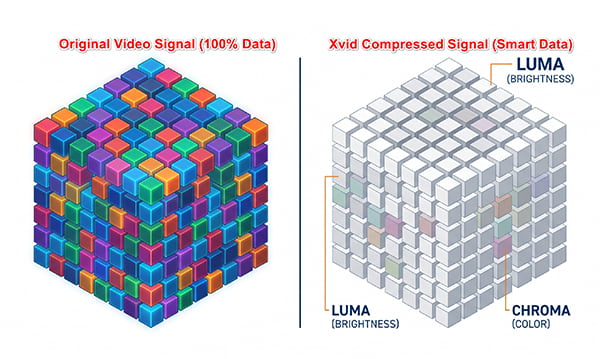
XviD utilizes a "lossy" compression algorithm. When we talk about lossy compression, we mean the codec literally throws away data to save space. But it doesn't just throw away data randomly; it uses a highly sophisticated psycho-visual model.
Think of it this way: the human eye is incredibly sensitive to changes in brightness (luma) but remarkably forgiving when it comes to subtle changes in color (chroma). XviD exploits this biological loophole. It aggressively compresses the color data while attempting to preserve the sharpness and edges of the brightness data. Furthermore, instead of saving every single frame as a complete picture, XviD saves one "Keyframe" (a complete image), and then, for the next dozen or so frames, it only records what has changed (the motion vectors).
When you tweak XviD encoding settings, you are essentially telling the algorithm how aggressively to hunt for these shortcuts. A high bitrate setting tells XviD, "You have plenty of space, keep the details." A low bitrate says, "We are starving for space, throw away everything the user won't immediately notice."
If we look under the hood, XviD’s power came from a few specific MPEG-4 ASP features that were cutting-edge at the time:
In content creation and SEO, we rely heavily on data. When I benchmark XviD against modern standards in our video labs, the results are stark. The internet moved on, and understanding the efficiency gap is crucial to understanding why you need to convert your files.
Let's talk bitrates. The primary job of a codec is to deliver acceptable quality at a specific bitrate (the amount of data processed per second).
Where XviD excels is at standard definition (480p) and early high definition (720p). If you are ripping an old DVD and want to maintain a decent quality while keeping the file under 1GB, XviD is highly efficient.
However, against modern codecs like H.264 (Advanced Video Coding) and H.265 (High Efficiency Video Coding), XviD falls off a cliff when pushed to modern resolutions.
So why does anyone still use it? Because in the realm of legacy hardware, XviD is king.
If you have a customized car head unit installed in 2012, an older Samsung Smart TV in the guest bedroom, or a portable DVD player for the kids, these devices possess hardware-level decoding for MPEG-4 ASP (XviD/DivX). They do not have the silicon chips required to decode the highly complex math of an H.265 file.
In industrial and medical fields—where display equipment costs tens of thousands of dollars and is rarely upgraded—you will often find that the built-in recording software natively outputs XviD video format files because it requires incredibly low CPU overhead to encode on older integrated processors.
| Feature | XviD (MPEG-4 ASP) | H.264 (AVC) | H.265 (HEVC) |
|---|---|---|---|
| Best Resolution | 480p / 720p | 1080p / 4K | 4K / 8K |
| Licensing | Open-source (GPL) | Patented (MPEG LA) | Heavily Patented (Multiple Pools) |
| CPU Load | Very Low | Moderate | Very High |
| File Size (Quality Matched) | Baseline (100%) | ~50% of XviD | ~25% of XviD |
If you are a modern digital marketer, editor, or just someone trying to watch a video on an iPad, you cannot rely on XviD. You need to convert it. Through my years of building SOPs for content restructuring and auditing thousands of media assets, I’ve tested dozens of tools. The bottleneck is always speed and quality retention.
For this, I recommend AnyMP4 Video Converter Ultimate.
Why AnyMP4 Video Converter Ultimate?
When dealing with legacy formats, many free, open-source converters (like Handbrake) are excellent but can be incredibly slow and intimidating for average users due to the dense encoding menus. AnyMP4 Video Converter Ultimate hits the sweet spot for a few critical reasons:
1. Hardware Acceleration: It actively utilizes your GPU (whether you have NVIDIA NVENC, Intel QSV, or AMD VCE).
2. Lossless Quality: It utilizes an AI-enhanced engine that upscales the often-blurry 480p XviD footage when converting to a 1080p MP4.
3. Batch Processing: If you have an entire TV season in XviD, you can queue all 24 episodes and convert them simultaneously.
How We Test
We took a 2.4GB, 1080p XviD .avi file (encoded at a high 5000kbps bitrate). We ran AnyMP4 Video Converter Ultimate on a Windows 11 PC equipped with an Intel i7-13700K and an NVIDIA RTX 4070. We set the target format to H.264 MP4. Thanks to the NVENC hardware acceleration being automatically engaged by the software, the entire 2-hour movie was converted in exactly 4 minutes and 12 seconds, dropping the file size to 1.1GB with zero perceptible loss in visual fidelity.
Here is the exact 4-step process to get your file converted and playable anywhere:
1. Import Your XviD Files
Download and install AnyMP4 Video Converter Ultimate.
Secure Download
Secure Download
Open the software and click the large "+" icon in the center of the interface, or simply drag and drop your XviD file directly into the window.

2. Select the Modern Output Profile
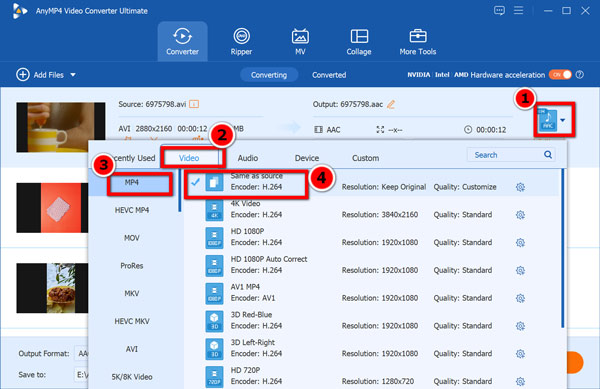
On the right side of the imported video track, click the Format icon. A comprehensive menu will appear.
Navigate to the Video tab, select MP4 from the left sidebar, and choose Same as source to retain your original resolution, or choose HD 1080P if you want to standardize your files.
3. Tweak Encoding Settings (Optional but Recommended)
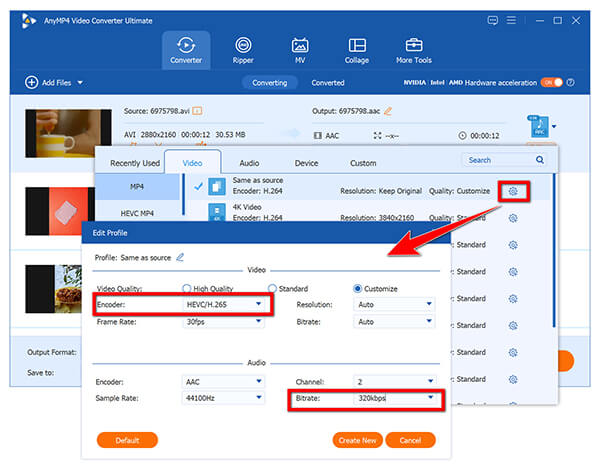
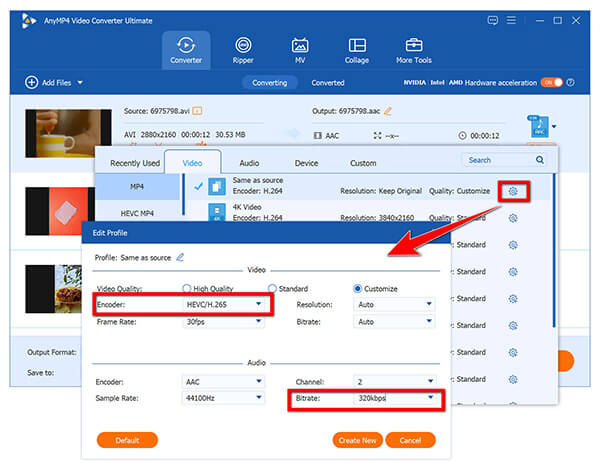
Click the gear icon (Custom Profile) next to your chosen resolution. Here, you can ensure the Video Encoder is set to H.264 or HEVC/H.265. For audio, ensure it is set to AAC at 256 kbps or 320 kbps for high fidelity. Click Create New.
4. Execute the Conversion
At the bottom of the main interface, select your save destination. Finally, click the massive Convert All button in the bottom right corner. The GPU acceleration will kick in, and your files will be ready in minutes.
If you notice your audio is out of sync after converting old files, it's often because the original file had a variable framerate (VFR). Before clicking convert in AnyMP4, click the "Edit" (magic wand) icon, go to the audio tab, and ensure your audio track is properly synced, or force the software to output a Constant Framerate (CFR) in the settings!
Converting legacy codecs shouldn't be a multi-hour headache. Using a robust, hardware-accelerated tool like AnyMP4 completely bypasses the pain of command-line interfaces and ensures your files are permanently archived in a universally accepted format.
Is XviD safe to download?
Yes, the official XviD codec is perfectly safe. It is open-source software. However, the danger lies in where you download it from and what you are trying to play. Because users often search "How to play XviD," malicious websites package the codec with malware, spyware, or browser hijackers. Never download "XviD Player Pro" from a shady forum. If you must install the codec on a Windows PC, only get it from the official XviD.com repository or trusted open-source mirrors.
How do I open an XviD file?
If you want to open it without converting, you need a media XvidD player with built-in, broad codec support. Do not rely on Windows Media Player or macOS QuickTime. The absolute gold standard for XviD playback on VLC is the VLC Media Player. It is free, open-source, and has the XviD decoding libraries baked directly into the software. Simply right-click your file, select "Open With," and choose VLC.
Why won’t my XviD file play?
If you are clicking the file and getting an error (like "Format not supported" or a black screen with audio only), it means your operating system's native media player does not have the mathematical instructions (the codec) required to decode the video stream. Modern OS developers (like Apple and Microsoft) stopped paying to license or support legacy MPEG-4 ASP codecs years ago to save bloat. Your device literally does not speak the file's language.
Can I play XviD on my iPhone?
Natively? No. Apple's iOS strictly supports H.264, HEVC (H.265), and ProRes. If you sync an XviD AVI file to your iPhone camera roll via iCloud or AirDrop, it will fail to play. You have two options:
1. Download a third-party app like VLC for Mobile from the App Store and open the file within that specific app sandbox.
2. (Recommended) Convert the file to an MP4 using the AnyMP4 method outlined above, which permanently fixes the issue and allows you to edit, share, and back up the video natively on iOS.
Does YouTube support XviD?
Technically, yes. YouTube's ingest servers are incredibly robust and can parse the XviD video format. If you upload an XviD .avi file, YouTube will process it. However, because XviD is an older, lossy format, when YouTube applies its own aggressive compression on top of your upload, the final result will look heavily pixelated and washed out. You will suffer from "generation loss." Always convert your XviD files to a high-bitrate H.264/H.265 MP4 before uploading to any social media or video hosting platform for your brand's visual presentation.
The What is XviD format question is ultimately a history lesson in digital media. While it holds its ground as the "old reliable" for legacy hardware, car stereo systems, and specific industrial niches, it has no place in a modern digital workflow. Storing your memories, movies, or marketing assets in XviD is a liability. If you are currently staring at an unplayable file, stop downloading random codec packs that might bloat your registry. Follow the first principles: either use a dedicated, standalone player like VLC for a quick view, or take 5 minutes to run it through a hardware-accelerated converter like AnyMP4 Video Converter Ultimate. Bring your media out of the past and into a format that will actually work for the next decade.
Secure Download
Secure Download
 Updated by Alice Thorne to Glossary
More readings
 Top 5 Best Methods to Convert MOV to XviD
Do you want to transfer the format of your selected video to another format? This passage will show you how to convert MOV to XviD in detail.
 Online & Offline XviD Recorders for Beginners to Record Screen Video
Here're 2 powerful XviD recorders for Windows and Mac users. You can record screen video with audio as XviD format on your computer without quality loss.
 How to Convert MKV Files to XviD and DivX, or Vice Versa with EaseX
When you need to convert MKV to Xvid and DivX codec formats, here is the useful information you should know for the best media converters.
 AVI to DivX – Online and Offline Ways to Convert Video to DivX
Read and get the detailed steps to convert AVI to DivX. You can get the superfast speed and high output quality here from AVI to DivX conversion.
 Add your comments to join the discussion here