
Quick Answer: Is DVDStyler any good?
If you want free DVD authoring software that handles basic jobs, DVDStyler is a reliable pick. It lets you create custom menus and burn videos without spending a dime. However, it’s not the fastest tool around, and the interface feels a bit stuck in the past. If you need speed, better templates, or professional support, you might want to look at an AnyMP4 DVD Creator instead.
Do you find some old family VHS tapes you digitized, or you want to watch your favorite home videos on the big screen in your living room? If yes, then you are not alone. While streaming services and cloud storage are popular for movies, there is still something special about putting a physical disc into a player and watching a movie on TV. That is why DVDStyler comes. It is one of the oldest open-source tool for your own DVDs.
But does it actually hold up today? Read this updated review to see if DVDStyler is still worth downloading on your computer.
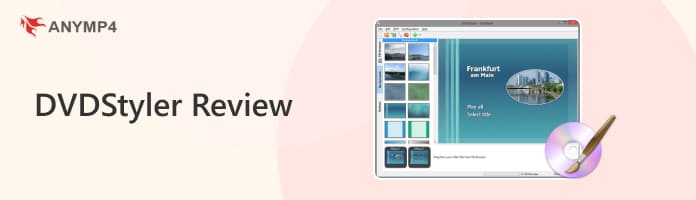
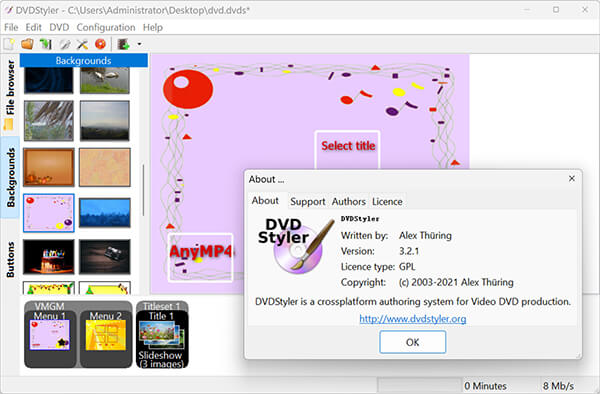
DVDStyler is a free, open-source DVD authoring application designed to help you turn digital video files into playable DVD-video discs. According to Wikipedia and the official DVDStyler website, this project has a long history. It was first launched back in December 2003, giving it over two decades of active development under its belt. Even now in 2026, it remains one of the most popular and widely downloaded free open-source DVD production tools available for everyday users.
Here is a quick spec table for a high-level overview of what you are working with:
| Software Name | DVDStyler |
|---|---|
| Developer | Alex Thüring (Open Source Community) |
| Latest Version | 3.2.1 (Released 2021-11-02) |
| Price | Completely Free (GNU GPL Open Source) |
| Platform | Windows / macOS / Linux |
| Installer Size | 33.2 MB (64-bit) / 31.6 MB (32-bit) |
| Initial Release | December 2003 (22 Years of History) |
| Downloads | Over 1.94 Million Downloads on FOSShub, 955 Reviews |
| Primary Use | Creating Interactive DVD Video Discs with Menus (DVD-5/DVD-9) |
| Input Formats | AVI, MOV, MP4, MPEG, OGG, WMV, etc. (MPEG/VOB Re-encoding Bypass) |
| Watermark | No |
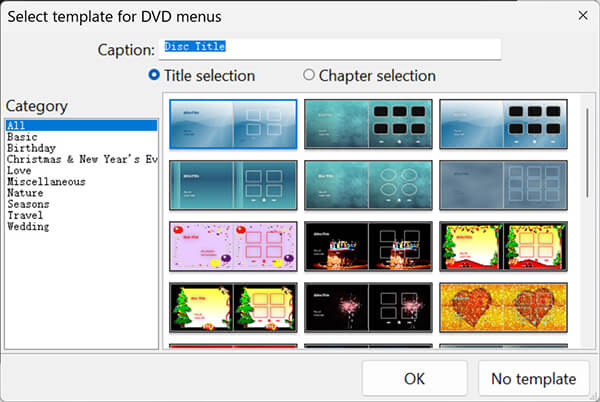
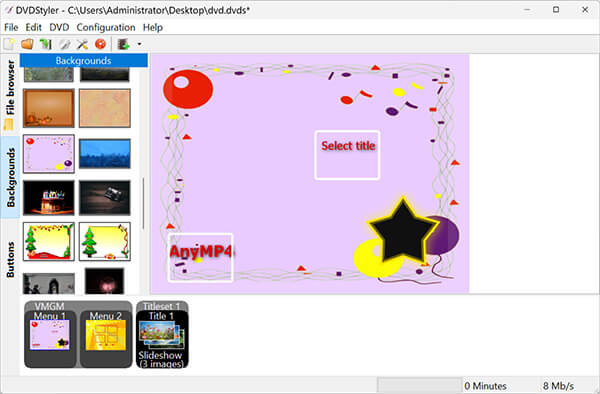
When you pop a movie into a DVD player, you usually see a menu with a play button, scene selection, and a cool background. DVDStyler gives you over 20 built-in templates to start with. You can pick themes like Birthday, Nature, or Seasons. If you don't like the templates, you can build your own layout from zero with this DVD menu maker. You can drop buttons anywhere, change text fonts, add your own photos, and pick a custom audio track to play on a loop while the menu sits there.
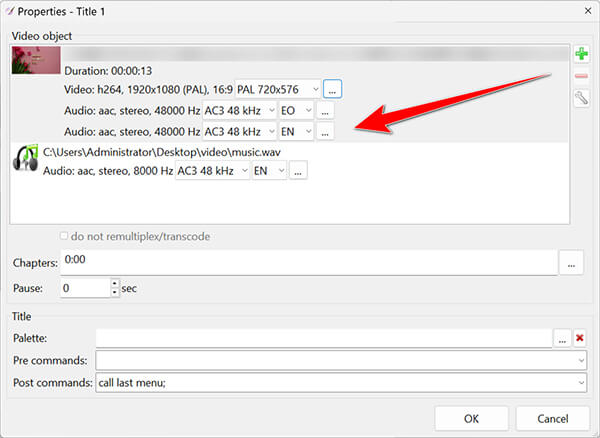
Got a movie in two different languages? Or maybe you need subtitles for a foreign film? DVDStyler lets you load multiple audio tracks and subtitle files into your project. When you play the final disc on your TV remote, you can switch between tracks easily. It is a neat feature that you usually only expect to find in expensive, paid software.
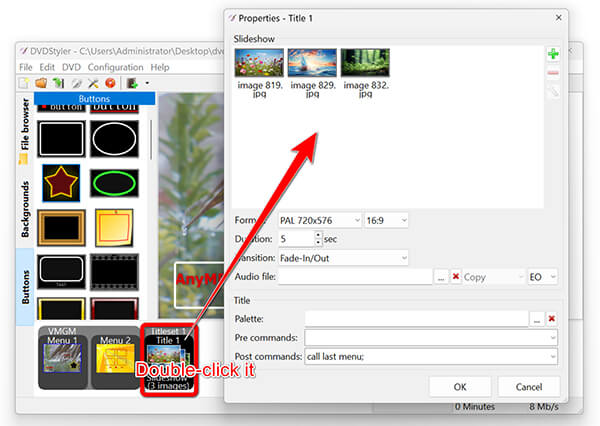
Sometimes you don't even have video files. You just want to share your holiday pictures with family members who don't use computers. The built-in photo slideshow feature lets you drop in hundreds of pictures, add transition effects, and put background music over the top. It turns your image folder into a playable video disc in just a few clicks.

The tool handles a wide variety of video containers like AVI, MOV, MP4, OGG, and WMV. A huge time-saver here is that if your files are already in MPEG or VOB format, the software can burn them straight to the disc without spending hours re-encoding everything. That saves your CPU from melting and cuts your waiting time in half.
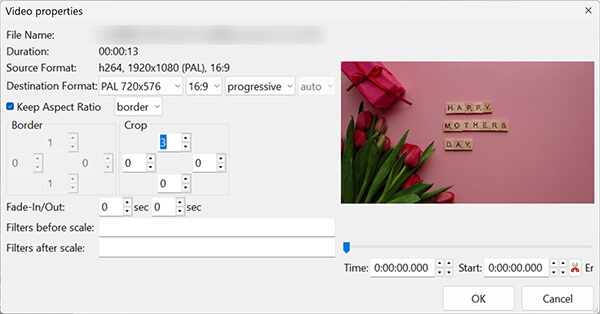
This is the big thing that separates a real DVD authoring tool from a basic file burner. You can go into the timeline and set precise chapter points. When you watch the disc, you can skip forward or backward using your remote control just like a real commercial DVD.
I wanted real data, so I set up a proper test bench. I installed DVDStyler on a Windows 11 Pro machine running an Intel Core i5-12400 processor, 16GB of RAM, and a fast 512GB NVMe SSD. I hooked up an external Asus DVD writer via USB and bought a spindle of blank DVD-R discs.
Here is what I found during my three specific tests:
• Test 1 (Menu Building)
I tried out five different pre-made templates. Putting the basic elements together took me about 4 minutes and 20 seconds. Then, I tried building a custom menu completely from zero. That took me roughly 15 minutes. Honestly, the interface is a bit clunky, and the learning curve is a bit steep if you aren't used to editing tools.
• Test 2 (Burn Speed)
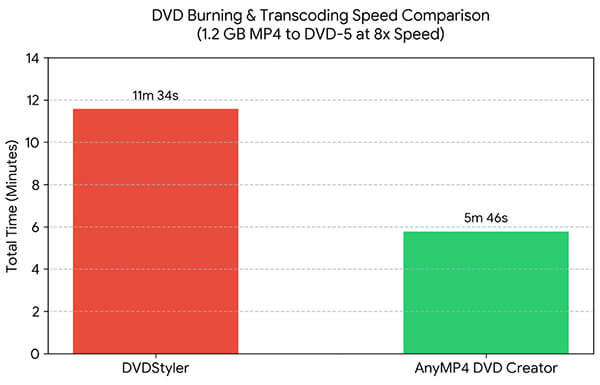
I took a 1.2 GB MP4 video file and converted it to a standard DVD-5 disc. The whole process of transcoding the video and burning it to the disc took 11 minutes and 35 seconds running at an 8x speed setting. For comparison, that is about twice as slow as what I got when testing an AnyMP4 DVD Creator setup.
• Test 3 (Player Compatibility)
I took my finished disc and tried it in three different machines: a cheap standalone DVD player under the TV, my Windows 11 PC, and an old game console. It passed all three tests and played smoothly without stuttering.
Every tool has its good sides and bad sides. Let's look at the reality of using this software:
The Good:
The Bad:
While DVDStyler is great for a zero-dollar budget, its sluggish encoding times, occasional menu glitchiness, and dated interface can wear you down if you have a tight deadline or high-definition family projects you want to look polished. That is exactly why recommending a commercial tool like AnyMP4 DVD Creator makes sense if you value speed and a modern workflow.
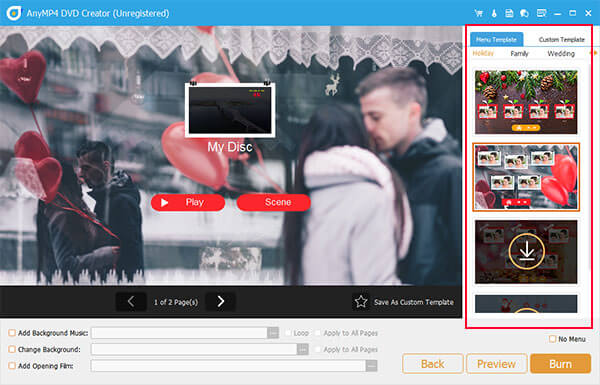
Let's look at how they stack up side by side:
| DVDStyler | VS | AnyMP4 DVD Creator |
| Free (Open Source) | Price | Paid |
| Windows, Mac, Linux | Supported Platforms | Windows, Mac |
| MP4, AVI, MOV, WMV, etc. | Input Formats | MP4, MKV, AVI, MOV, WMV, FLV, etc. |
| DVD Disc, ISO, Folder | Output Type | DVD Disc, ISO, Blu-ray, Folder |
| 20+ Basic Templates | Menu Templates | Dozens of Modern Templates |
| Basic Drag-and-Drop | Built-in Editor | Advanced Trim, Crop, and Filter Tools |
| Moderate | Burning Speed | Fast Multi-core Acceleration |
| Multi-track Support | Audio/Subtitles | Multi-track Support with Delay Adjust |
| Safe (Official Site) | Installation Safety | Clean Installer |
| Community Forums | Customer Support | Dedicated Tech Support |
If you want a fast, reliable DVD creator for Windows that won't make you wait forever while it encodes your home videos, looking at an AnyMP4 DVD Creator as the best DVDStyler alternative is usually a smart move for your sanity.
Secure Download
Secure Download
Who is this software actually meant for? Here are five types of people who will get the most out of it:
1. Family Archivists: You want to take old digital camera footage or phone videos and put them on a physical disc so your parents or grandparents can watch them easily on their old TV.
2. Open Source Fans: You prefer free software under the GNU General Public License and hate dealing with software activation keys or trial limits.
3. Linux Users: You use Ubuntu or Fedora and need a reliable disc maker that runs natively on your system.
4. Teachers and Trainers: You need to burn educational video clips with clean chapter breaks to hand out to a class.
5. Nostalgia Collectors: You love physical media and want to back up your old personal video files into physical keepsakes.
Who should skip it? If you hate slow rendering times, want a modern, clean interface, need professional tech support, or have dozens of videos to process in a batch, you will likely get frustrated. In that case, free download an AnyMP4 DVD Creator instead.
Secure Download
Secure Download
(If you are trying to handle tricky file conversions before you burn, check out this guide on dvd-burner to make sure your source files are ready to go).
Let’s walk through the basic steps to get your first project onto a disc. I've burned dozens of test discs with this tool, so let me share a few practical tips and safety nets I've learned along the way:
A quick installation warning: When you download the app from the official site (dvdstyler.org) and grab the latest DVDStyler 3.2.1 release, the installer is clean and safe. However, if you look at older versions like 2.8.0 or 2.8.1 on random download sites, Wikipedia notes that they used to bundle annoying toolbar adware. Always stick to the official source to keep your PC safe!
1. Start a New Project
Open the program. A welcome window will pop up. Give your disc a title, pick your video format (NTSC for North America, PAL for Europe), and select your aspect ratio (16:9 is standard for modern widescreen TVs).
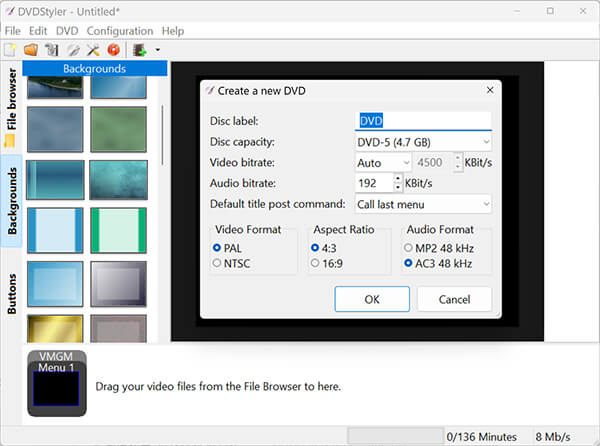
Don't skip the TV standard selection! If you pick PAL and try to play it on an NTSC home player in the US, your screen will glitch out or throw a format error. Match your region carefully.
2. Pick a Template
Choose one of the built-in menu templates or click blank if you want a plain screen that starts playing right away.
Don't go crazy customizing too many layers on your first try. The drag-and-drop button grid can snap awkwardly if you overlap text fields, leading to frozen menus later. Keep it simple.
3. Drop Your Videos In
Drag your MP4 or AVI files from your desktop straight into the bottom manager window. You can double-click them to set custom chapter stops if you want.
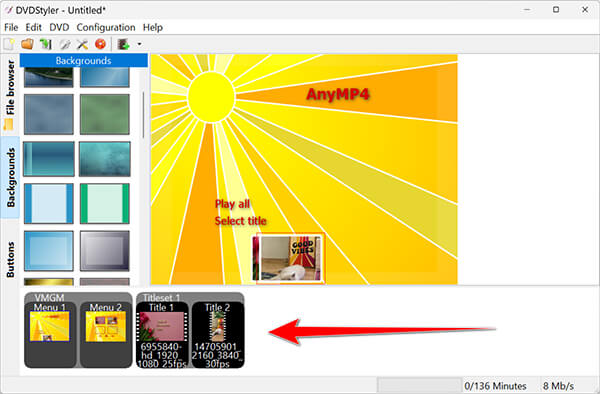
If your source video has weird variable frame rates (like a phone recording), transcode it to standard MP4 first. DVDStyler's internal encoder can choke on weird codecs and crash right at the 99% transcoding mark, and trust me, watching 30 minutes of rendering vanish at the end hurts!
4. Burn the Disc
Put a blank writable DVD into your drive. Click the File > Burn DVD option at the top toolbar, check your settings, and hit start. Walk away and grab a snack while it does the heavy lifting!
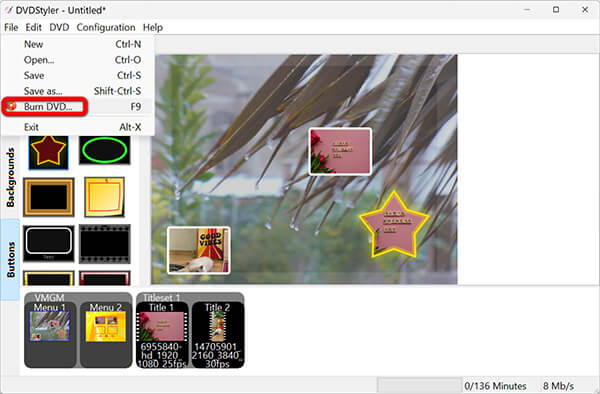
Always check the box to output to an ISO image file first before burning directly to a physical disc. That way, if the menu has a broken link, you can test it on a software player like VLC without wasting a physical DVD-R.
Is DVDStyler free?
Yes, it is 100% open-source and free DVD creator software.
Is DVDStyler safe to download?
Yes, as long as you grab version 3.2.1 from the official website. Avoid random third-party mirror links that might carry old DVDStyler adware installers.
Does DVDStyler work on Windows 11 / macOS?
Yes, it runs fine on modern Windows 11 machines as well as Mac computers.
Can DVDStyler make HD or 4K DVDs?
No. Standard DVDs use standard-definition MPEG-2 video (480p for NTSC or 576p for PAL). If you want high-definition physical discs, you need Blu-ray software.
Can DVDStyler add subtitles and multiple audio tracks?
Yes, you can load external subtitle files and extra audio tracks easily through the project properties.
How long does it take to burn a DVD with DVDStyler?
It depends heavily on your computer's CPU, but a normal one-hour video usually takes between 10 and 30 minutes to encode and burn.
Is there a good DVDStyler alternative for Mac?
If you want an easier workflow on Apple computers, you can check out guides on how to Burn DVD on Mac.
So, what is the final word in this DVDStyler review?
If you are on a tight budget, love open-source tools, and don't mind a bit of a learning curve, DVDStyler is a fantastic free utility that gets the job done without asking for a single penny. It lets you create custom menus, set chapters, and burn home videos safely as long as you download it from the right place.
However, if you value your time, want a sleek modern user interface, or need fast rendering speeds for large video projects, you might find it a bit too slow and clunky. In that case, the best DVDStyler alternative is an AnyMP4 DVD Creator. It cuts down your waiting time and gives you a much smoother experience from start to finish.
Secure Download
Secure Download
 Posted by Ted Klarso to Burn Blu-ray&DVD
More readings
 Faithful Review of iSkysoft DVD Creator and Its Alternative
Want to burn DVD? This article will show you iSkysoft DVD Creator and its best alternative, AnyMP4 DVD Creator. With them, you can burn DVD easily and quickly.
 Wondershare DVD Creator Review & Alternatives [2026]
Looking for a comprehensive review of Wondershare DVD Creator? This guide covers its features, pros, cons, and provides top alternatives.
 Cisdem DVD Burner Review and Guide: Is It the Best in 2026
This post reviews Cisdem DVD Burner from its features, pros and cons, etc., and explores whether it is a good choice for users. Read on to know more details.
 Top 4 iDVD Alternatives for Mac and Windows OS
Find the best iDVD alternatives for Mac and Windows to easily burn DVDs. This post covers various options with considerations to choose the right software.
 Add your comments to join the discussion here