4 Ways to Merge Tracks in Audacity Without Losing Originals
Summary:
Audacity has four ways to combine tracks: mix to a new track, flatten tracks, align tracks, and manually align with sync-locked tracks. After mixing, use AnyMP4 Video Converter Ultimate to batch-convert the finished audio to MP3, M4A, Opus, and 500+ other formats.
Combining tracks in Audacity refers to two things: blending tracks that play simultaneously or sequencing files that play one after another. This post covers 4 ways to merge tracks in Audacity. These include mixing new tracks, mixing and rendering, aligning tracks, and manual alignment with sync-locked tracks. Before you start, you must remember that merging can be destructive if you choose the wrong method. Know which command keeps your originals before making changes.

Method 1 (Recommended): Merge Tracks Without Losing Originals - Mix to New Track
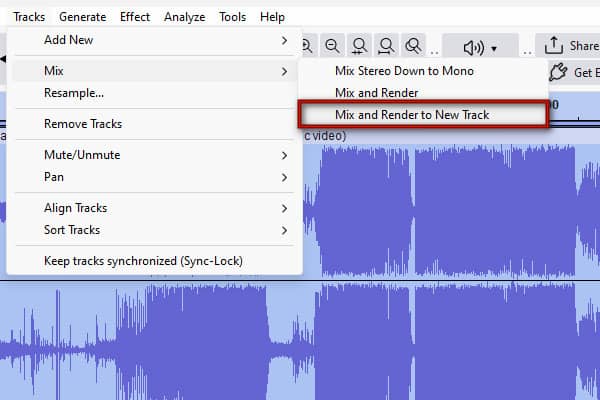
The Mix and Render to New Track lets you mix tracks together in Audacity. It allows you to merge several recordings without changing your original tracks. This method creates a separate mixed waveform instead of replacing your existing recordings.
1. Press Ctrl+A to select all the tracks you want to combine.
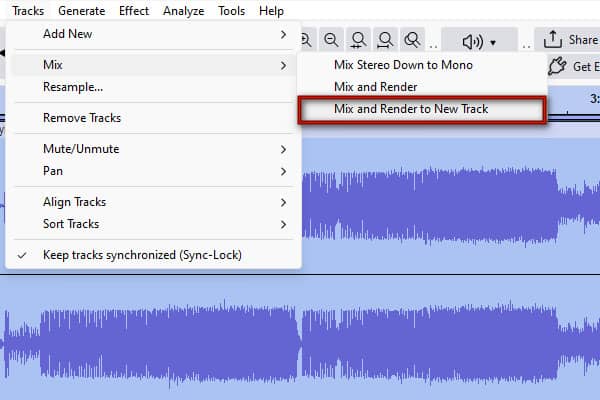
2. Go to Tracks, click Mix, and select Mix and Render to New Track.
3. You will find the new track labeled Mix below the selected tracks.
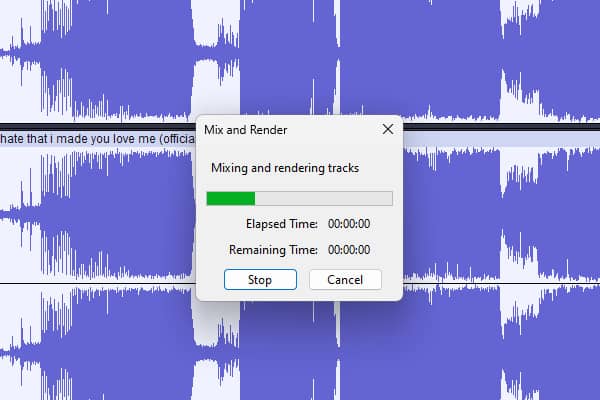
This method keeps the original recordings and lets you compare the mixed result with individual tracks. You can also increase the audio volume more easily before export.
Method 2: Mix and Render - Flattening the Project (When to Do It, When Not To)
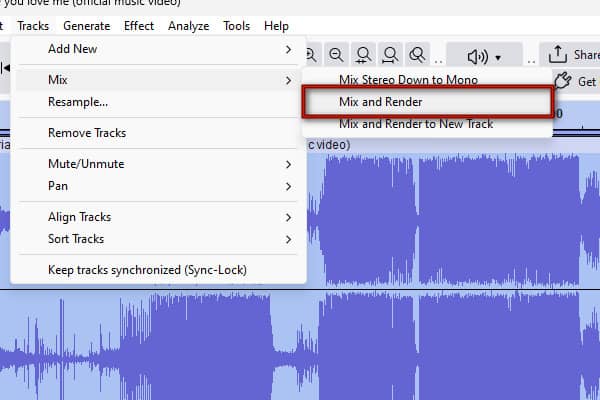
Audacity’s Mix and Render performs a similar operation, but it replaces the selected tracks with the combined result. It generates one rendered track and removes the original selected tracks from the active multitrack arrangement.
1. Select all the tracks you want to combine by pressing Ctrl+A.
2. Navigate to the Tracks menu, choose Mix, and select Mix and Render.
3. After rendering, the selected tracks become one mixed track.
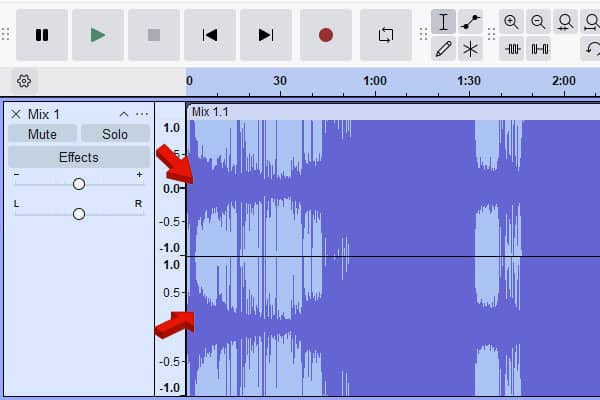
Remember that rendering does not automatically mean exporting. Your file remains an editable .aup3 project until you export the finished audio.
Method 3: Combine Audio Files One After Another (Join & Align End to End)
Align End to End in Audacity combines multiple audio into one. It arranges separate audio tracks sequentially, so they play one after the other instead of playing simultaneously. When you import multiple audio files, they stack on top of each other and start at the same time.
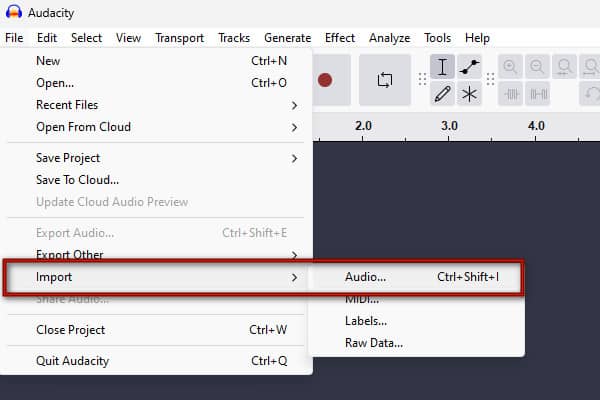
1. Head to File, click Import, and select Audio to select all the files you want to combine.
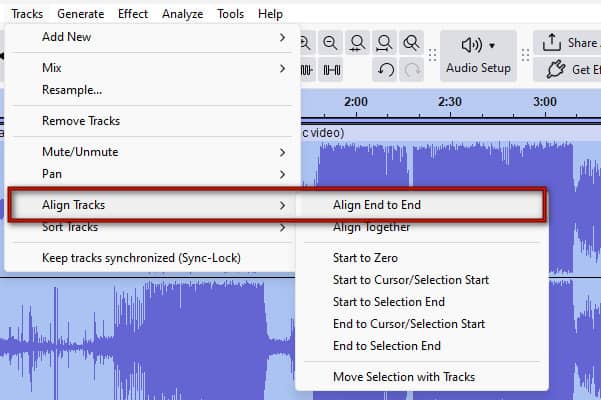
2. Select all tracks, then go to Tracks, click Align Tracks, and select Align End to End.
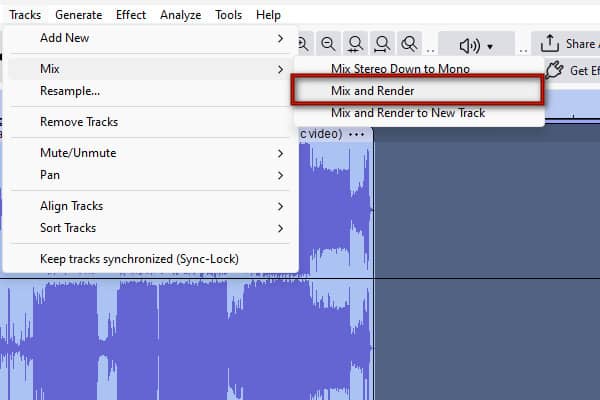
3. Highlight the arranged tracks, then use Mix and Render to merge them into one track.
In older Audacity tutorials, you may see instructions involving the Time Shift Tool (F5). However, clip movement and positioning controls in Audacity differ.
Method 4: Manual Alignment + Sync-Locked Tracks (Precision Multitrack Merges)
Combining Manual Alignment with Sync-Locked Tracks in Audacity is a two-step process. They are used to line up separate recordings with sample-level accuracy and lock them together. This way, they never drift out of time during subsequent edits.
1. Click Ctrl+Shift+I to import the audio files, analyze their waveforms, and identify any sounds within them. Adjust the audio clips so that the sound events match.
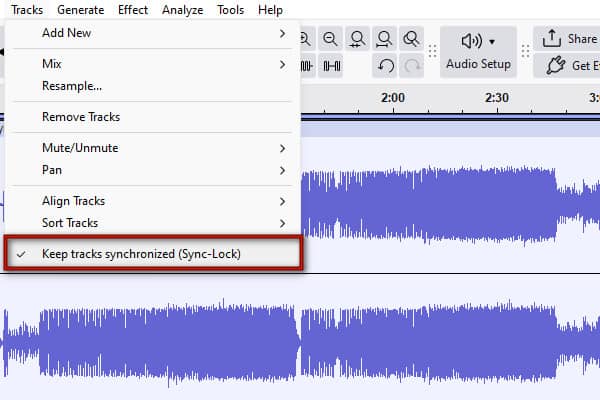
2. Navigate to Track and select Keep tracks synchronized (Sync-Lock) to prevent one recording from becoming misaligned.
3. Before mixing, check:
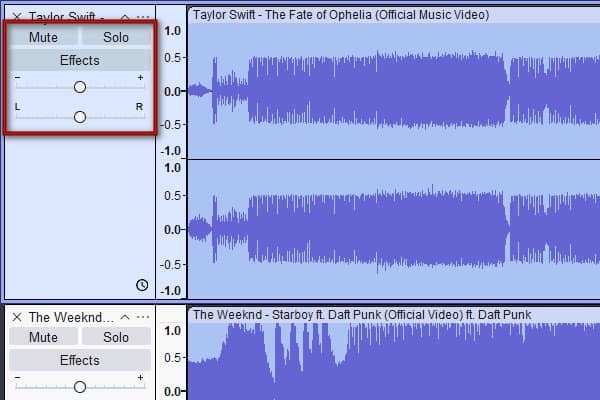
Track Gain: Adjusts the output volume level of an individual track.
Pan: Positions the audio track within the stereo field.
Mute/Solo: Controls which audio tracks play back at any given time.
Waveform: Identifies silence, unwanted noise, and synchronization points.
You can also use the Mixer Board to manage multiple tracks in a mixing console layout.
4. After synchronizing the recordings, select the relevant tracks. Then, use Mix and Render to New Track to merge them without losing originals.
Use Manual Alignment and Sync-Locked Tracks when combining multiple microphone recordings for interviews. You can also use it when editing multitrack podcasts with several speakers.
Method 5 (Recommended Companion): Deliver the Merged Master - Batch-Convert with AnyMP4 Video Converter Ultimate
Mastering how to combine tracks in Audacity lets you turn separate audio files into a single continuous track. If your merged master is saved in a WAV file and you need an MP3 version for sharing, AnyMP4 Video Converter Ultimate becomes a useful companion. It can convert any audio file you throw at it to over 500 media formats. This software can batch-convert hundreds of files without crashes or lag. AnyMP4 uses the most advanced hardware-accelerated media processing to achieve 120× speed.
1. Download AnyMP4 Video Converter Ultimate and install it on your computer.
After setup, it opens to the Converter tab. Click +Add Files to import the merged master.

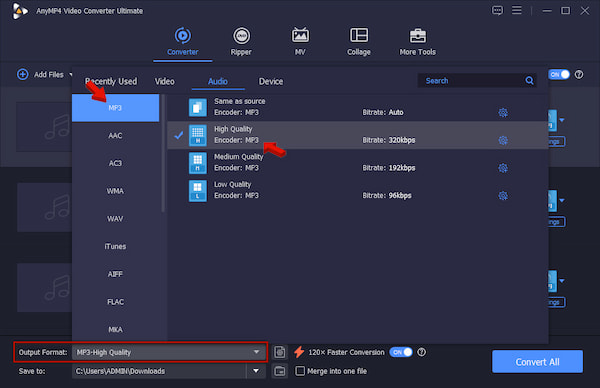
2. Navigate to the Output Format picker and select MP3 under the Audio category. Select High Quality as the quality preset, which is equivalent to 320 kbps.
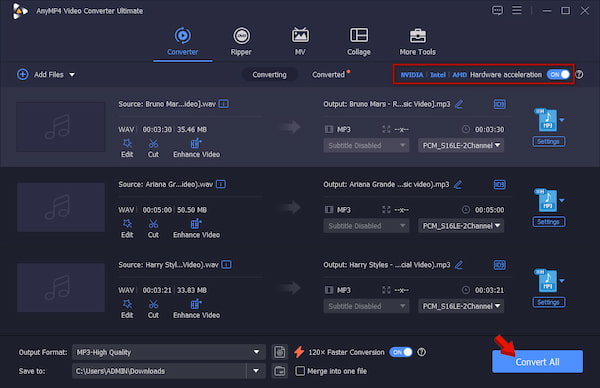
3. Back to the main interface and toggle on Hardware Acceleration to speed up conversion. Set the output folder, then click Convert All to convert Audacity merge tracks.
AnyMP4 Video Converter Ultimate cannot enhance the quality of a compressed recording. Nevertheless, it is possible to maintain the original quality when the quality preset is set to High Quality or when the FLAC format is used.
Know what FLAC is and why it is the recommended format when converting WAV files.
FAQs: Merging Tracks in Audacity
Does merging tracks in Audacity reduce audio quality?
In Audacity, merging or mixing tracks does not reduce quality, provided you handle it correctly. Quality loss can happen depending on how you combine them and what format you export to.
What is the difference between Mix and Render and Mix to New Track?
Mix and Render to New Track vs. Mix and Render work differently. Mix and Render combines the selected tracks and replaces/deletes the original tracks with a new mixed track. Mix and Render to New Track blends selected tracks into a new track without touching the original tracks.
Why does my merged track sound distorted or clipped?
When you merge, bounce, or sum two or more audio tracks together, their amplitudes add up. If the combined peaks exceed 0 dBFS, the tops and bottoms of the sound waves are clipped.
Conclusion
There are four ways to merge tracks in Audacity. Choose Mix and Render to New Track to retain the original tracks; Mix and Render to flatten an already completed project; Align Tracks to arrange audio tracks sequentially; and use manual alignment via the option Sync-Lock Tracks to maintain the lock on the relative timing of the multi-track project. Audacity already mixes tracks during export, so rendering is optional. Afterward, use AnyMP4 Video Converter Ultimate to batch-convert your merged master into more universal formats for easier sharing and playback.



 Add your comments to join the discussion here