6 Best Ways to Fix Audacity Errors When It's Not Working
Summary:
Audacity errors because of incorrect audio device settings, sample-rate mismatches, missing FFmpeg libraries, incompatible plugins, or unsupported file formats. When the problem is with importing or exporting the file, convert the source audio to MP3 using AnyMP4 Video Converter Ultimate.
Audacity suddenly stopped recording. I keep getting Error opening sound device message, and now I can't even import my audio files. What am I doing wrong?
Audacity is regarded as the industry standard for free audio editing. Still, it encounters errors and performance issues. Audacity errors fall under five categories, and these are device problems, silent playback or recording, missing libraries, crashes, and import/export failures. The good thing is that you can fix Audacity errors in just 2 minutes. This post explains how to diagnose each error and apply the right fix, so you can get back to editing right away.
Error 1. Error Opening Sound Device: Playback & Recording Won't Start
The Error Opening Sound Device in Audacity appears when it cannot establish a connection to the audio device. It can be due to a disconnected device or an incorrect audio host for your OS.
Fix 1: Unplug the audio device, go to Transport, and click Rescan Audio Devices. Check the recording and playback lists in Audio Setup to see if your device appears.
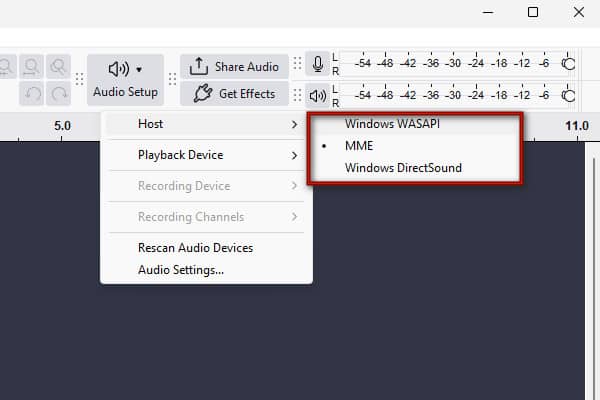
Fix 2: Open Audio Setup, click Host, and change the default audio host. You can choose WASAPI, MME, and DirectSound for Windows, or Core Audio for Mac.
Error 2. No Sound: Audacity Plays Silence (or Records Silence)
Sometimes playback produces no sound or recorded tracks contain nothing. No sound in Audacity is usually caused by an incorrect device selection or muted tracks.
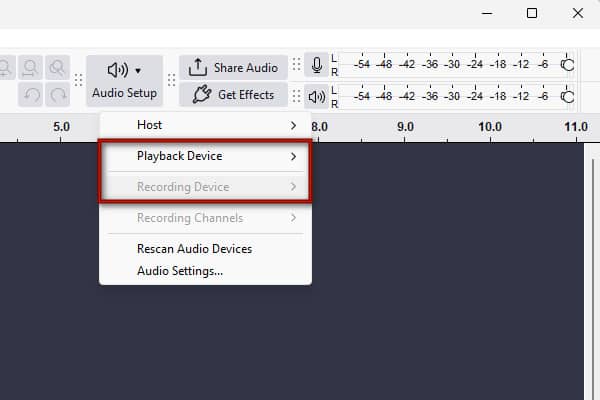
1. Go to Audio Setup, click Playback Device, and select the correct output source.
2. For silent recordings, click Recording Device in Audio Setup and check the input device. Also, don’t forget to increase the MP3 volume.
Error 3. FFmpeg Library Not Found: When It Matters (and When It Doesn't)
The FFmpeg library assists in expanding the format support capabilities of Audacity, but it is not required for popular formats such as MP3. The FFmpeg library not found message appears when Audacity cannot locate the FFmpeg library for importing/exporting formats.
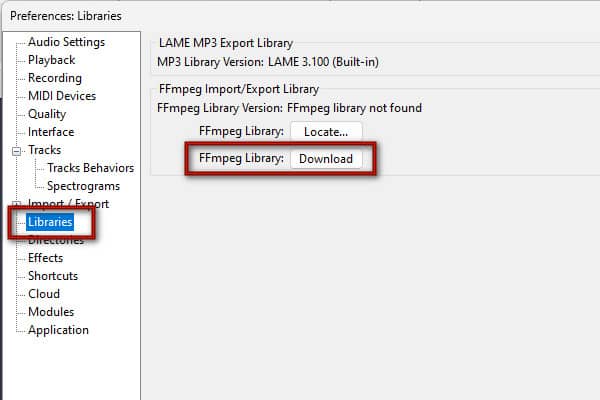
To fix Audacity’s FFmpeg library not found: Download the installer from the Audacity FFmpeg page to get the avformat version. Relaunch Audacity, head to Edit, select Preferences, and click Libraries. If the Library version line displays a number, you’re done.
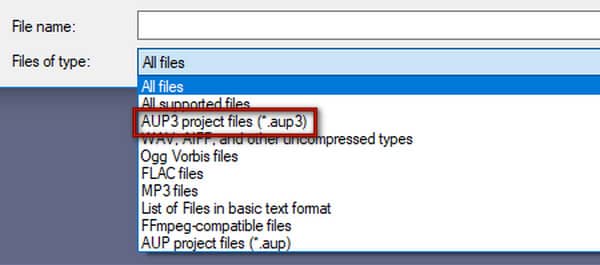
Error 4. Audacity Crashes on Startup or Won't Open Your .aup3 Project
Audacity crashes at startup or when .aup3 files are loaded due to incompatibilities with VST/plugins, audio driver conflicts, or damaged preference settings.
Fix 1: Do not open an .aup3 file created in version 4.0.2 of Audacity in version 3.7.9 of Audacity. Doing so will only cause the project to crash or fail to load. Instead, open it in the same version or export/backup from that version.
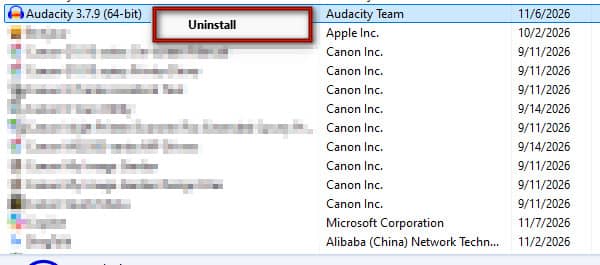
Fix 2: If Audacity crashes on startup, uninstall Audacity completely and delete folder contents. Install the latest version (4.0.2), restart your computer, then launch it without opening the previous project.
Error 5. Export Broken: MP3 Export Option Is Gone, or Export Fails
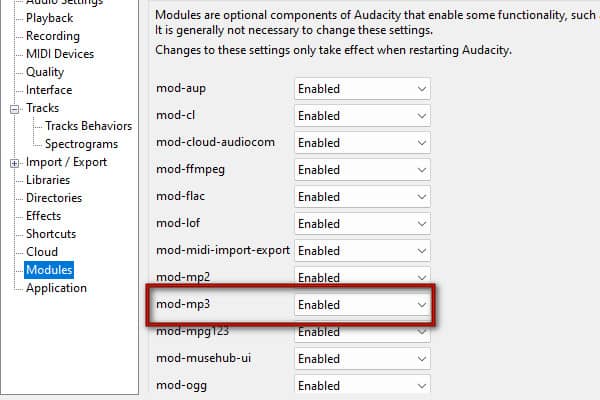
The MP3 export option might be missing or failing in Audacity because of disabled modules (mod-mp3), or you are saving instead of exporting. Older installations also require the LAME library (libmp3lame) to restore the MP3 module.
1. Click Edit, select Preferences, and go to the Module section. Find the mod-mp3 option, set it to Enabled, and restart Audacity. This helps fix the missing MP3 export option in Audacity.
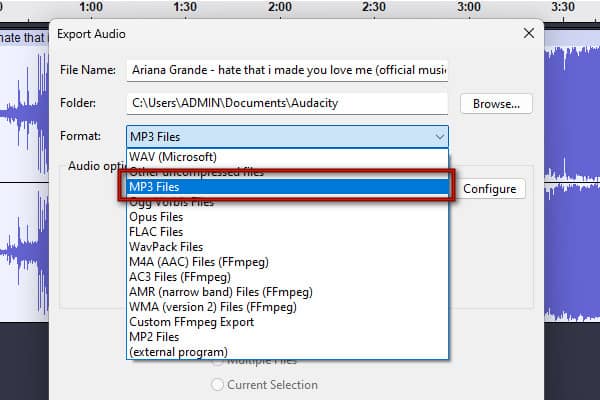
2. Go to File, click Export Audio, and select an export option (Share to audio.com or export to computer). Then, select MP3 Files in the Format picker and click Export.
Error 6. Audacity Did Not Recognize the Type of This File: Import Fixes
Audacity sometimes does not recognize the file type because it cannot read the format. It can also indicate that the actual file bears an incorrect extension.
Fix: Press Ctrl+P to open the Preferences audio settings window and select Modules. Enable any disabled mod to fix cases where Audacity did not recognize the type of this file. If the file has an incorrect extension, convert it to the correct format.
The 2-Minute Escape Route: When Audacity Can't Open or Export It, Convert It with AnyMP4 Video Converter Ultimate (Recommended)
You don’t always need to perform troubleshooting in Audacity when dealing with an unsupported codec. Format. You can use AnyMP4 Video Converter Ultimate to save time. Instead of downloading libraries, it can directly convert a file type to more than 500+ formats. It uses the most advanced hardware-accelerated media processing to achieve 120× speed. With it, you can convert hundreds of audio files in batches without crashes or lags. You can also adjust the encoder, bitrate, sample rate, or channels to your preferences.
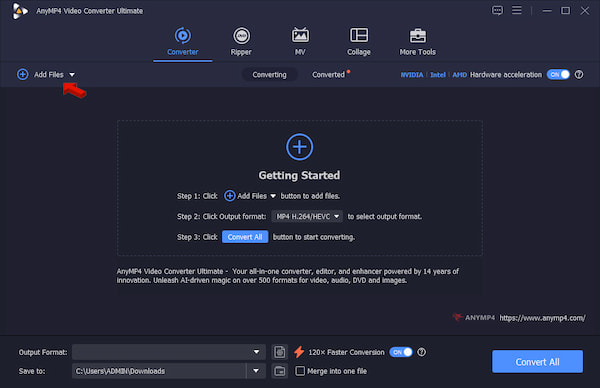
1. Download AnyMP4 Video Converter Ultimate and install it on your computer.
After setup, it opens to the Converter tab. Click +Add Files to import the source audio.
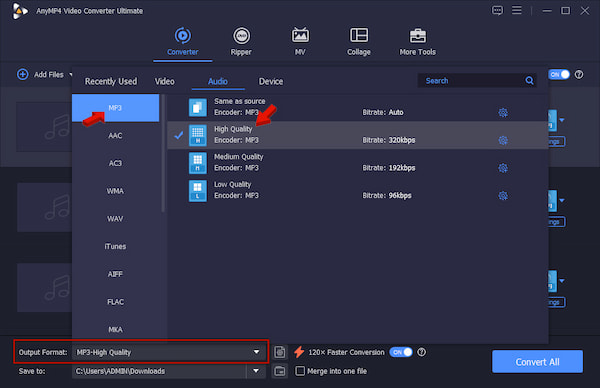
2. Go to the Output Format picker and select MP3 under the Audio category. Select High Quality as your quality preset for transparent audio quality.
3. Return to the main interface and turn on Hardware Acceleration to speed up conversion. Set the destination path, then click Convert All.
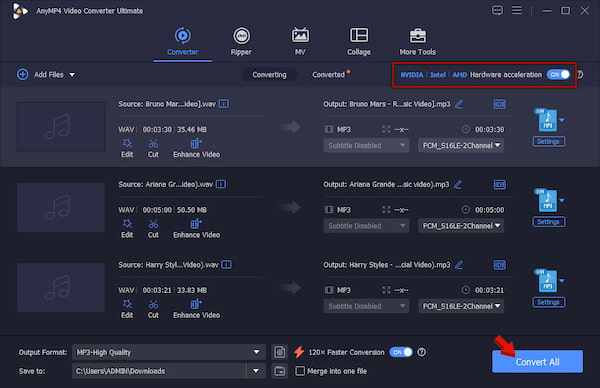
Instead of troubleshooting every unsupported codec, AnyMP4 Video Converter Ultimate can convert files into a format Audacity recognizes. After converting the incompatible audio file, you can import it into Audacity for editing without any errors.
The Sample-Rate Match: The Windows Setting Behind Half of All Device Errors
Audacity project sample rate mismatch causes playback failures, recording problems, or distorted audio. Audacity commonly uses 44100/48000 sample rates, but your audio device may support only certain rates.
1. Click Audio Setup, select Audio Settings, and check the Project Sample Rate.
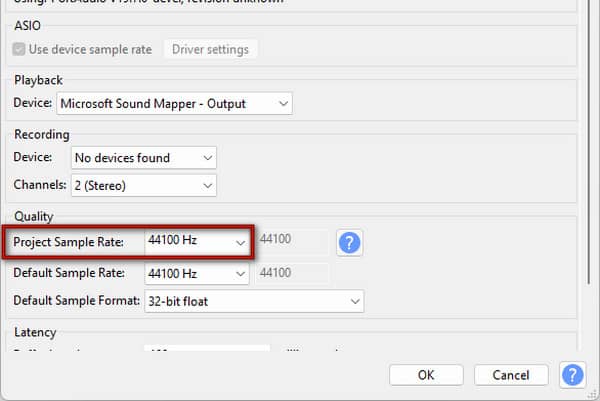
2. Next, ensure the Default Sample Rate matches your Windows sound device settings.
Audacity After Muse Group: Why Old Tutorials (and Old Fixes) Are Failing You
Ever since Muse Group acquired Audacity, the software has undergone a major redesign. The release of version 4.0+ broke backward compatibility with past tutorials, menu structures, and project files. Old tutorials are failing because the software’s framework has changed. Older fixes no longer apply to a tool that has transitioned from a basic audio editor into a complete development platform.
FAQs About Fixing Audacity Errors
Do I need FFmpeg for Audacity? Why does it say FFmpeg library not found?
You do not need FFmpeg for basic audio editing or to export standard MP3 files. However, if you want to import/export compressed formats, you need FFmpeg.
Why does Audacity crash when I open my project file (.aup3)?
Audacity crashes when opening an .aup3 project file because the SQLite database is corrupted. Another factor is when there is a version mismatch between Audacity and the project.
How do I get the MP3 export option back in Audacity?
To get the MP3 export option back in Audacity, enable the mod-mp3 option in the Modules. Click OK to apply the changes, then restart Audacity.
Conclusion
Most errors originates from device conflicts, sample-rate mismatches, missing libraries, corrupted preferences, or unsupported formats. Fortunately, there are easy ways to fix Audacity errors. Rescanning audio devices, changing the audio host, resetting preferences, updating drivers, and installing the required FFmpeg library can get Audacity working again. For import and export problems, use AnyMP4 Video Converter Ultimate. It can convert unsupported formats to 500+ formats, support batch conversion, and offer hardware acceleration and offline processing.


 Add your comments to join the discussion here