
Specially designed for DVD fans who want to colorize their mobile life, AnyMP4 DVD Ripper for Mac is the most advanced Mac DVD Ripper that can rip DVD video to any video and audio format such as AVI.
AVI is a multimedia container format introduced and developed by Microsoft, which can contain both audio and video data in a file container that allows synchronous audio-with-video playback. AVI format is popular throughout the world.
Secure Download
Secure Download
Install AnyMP4 DVD Ripper for Mac to the selected path of your Mac PC. If the installation is successful, you can open the software and check out the interface.
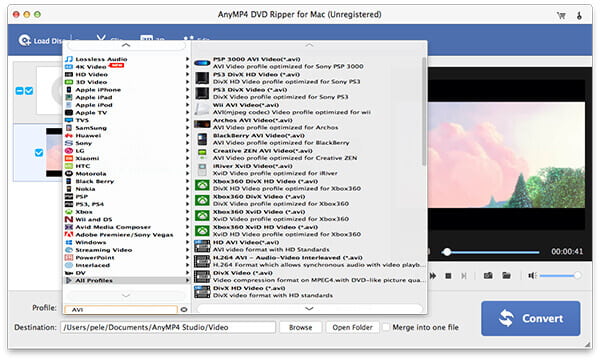
Click the "Load DVD" button on the toolbar and the software will load your original DVD disc from the DVD drive tray. If you want to remove added files from the "File Name" list, select them and click the "Remove" button.
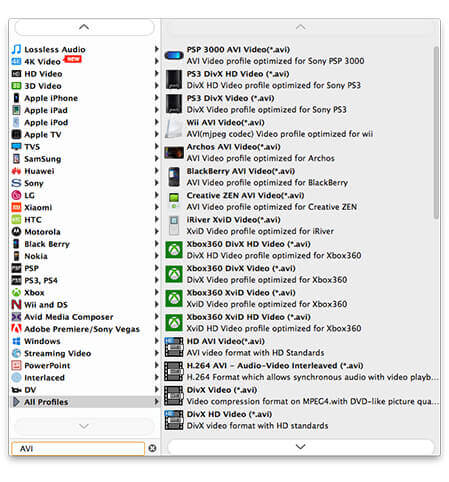
Then you must select your needed profile by clicking the "Profile" drop-down list, or input "AVI" in the text area to order the software to find it for you.
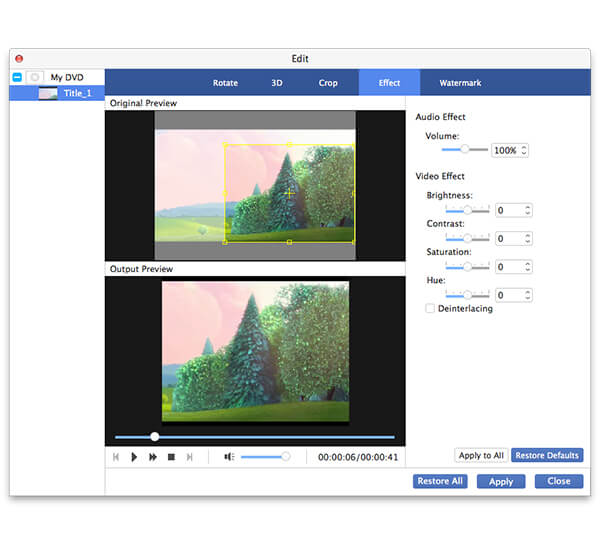
Designed for cinematic-class video effect, AnyMP4 DVD Ripper for Mac has multiple editing tools at your disposal. You can utilize these tools to trim video length, crop video frame, merge video clips into one, add watermark to the video, and adjust Video Brightness, Hue, Saturation, Contrast and Volume.
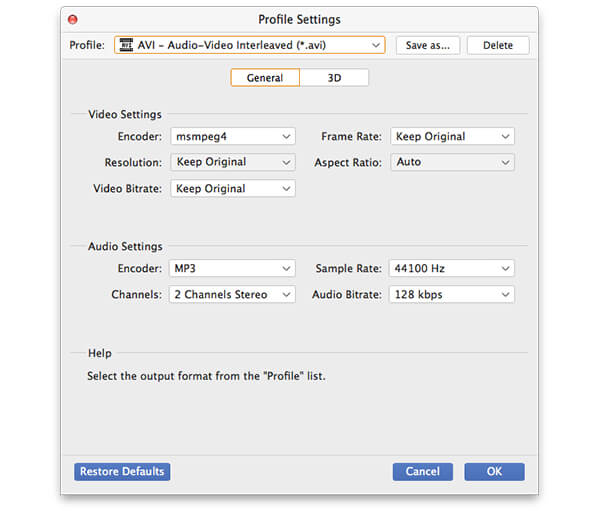
You can even try customizing output parameters such as Video Encoder, Resolution, Bitrate, Frame Rate, Aspect Ratio as well as audio parameters such as Encoder, Channels, Sample Rate and Audio Bitrate to further optimize video effect.
You should know that some video files contain more than one audio tracks. AnyMP4 DVD Ripper for Mac enables you to choose your preferred audio track and add downloaded subtitle for better enjoyment.

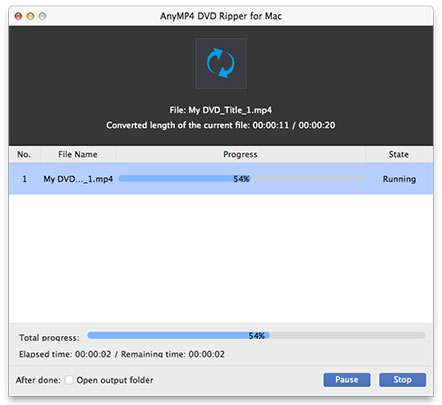
Click the "Convert" button to start ripping DVD to AVI format. AnyMP4 DVD Ripper for Mac is designed for fast speed and can complete any ripping task within a short time.
You will get your needed AVI video file when the progress bar reaches 100%. Then you can enjoy it with all kinds of video players.
 Updated by Joan Aimee to DVD
Related Articles
 Top 5 Google DVD Players to Rip DVDs to Chromecast
Top 5 Google DVD Player for you to rip and stream DVD movies to Chromecast.
 How to Fix The Issue on VLC Won't Play DVD
How to fix the problems that VLC won't play DVD or VLC DVD player not working?
 Fix the Issue in Windows Media Player Won't Play DVD
Top 5 windows media player alternatives to play dvd on Windows 8/10 with ease.
 Best WinX DVD Player to Play DVD Movies Efficiently
Here are top 4 alternative DVD Players of WinX DVD Player to Play DVD disc/movie.
 Add your comments to join the discussion here
