
AnyMP4 DVD Ripper for Mac is specially designed for DVD fans around the globe and specializes in ripping DVD video to any video and audio format with amazing speed and spectacular video quality. This guide article helps you rip DVD video to DV format.
DV is a format for recording and playing back digital video. It was launched in 1995 with joint efforts of leading producers of video camera recorders. DV enabled filmmakers to produce movies inexpensively, and is famous for its high video quality and small video size.
Secure Download
Secure Download
In order to operate AnyMP4 DVD Ripper for Mac, you must firstly install it to your Mac PC. If you can normally open the software and see its interface, it means that the software is successfully installed.
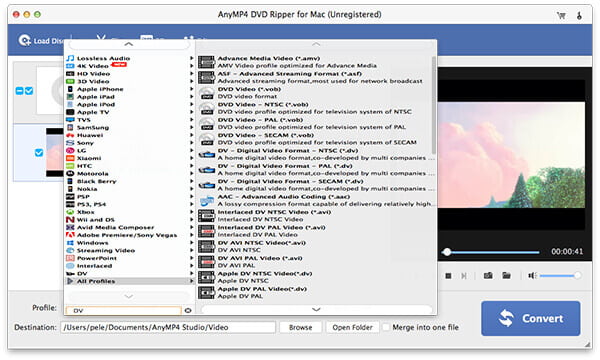
Then you should click the "Load DVD" button on the toolbar to load the DVD disc from the DVD drive tray to the software. You can also add more than one file by selecting "File > Load DVD Folder".
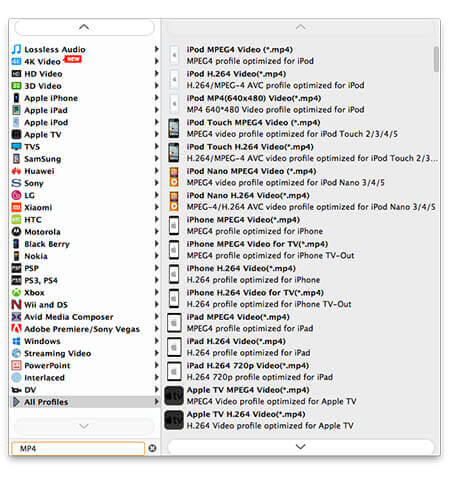
Click the "Profile" drop-down list and select DV format. You can also input "DV" in the text area and the software will find it for you.
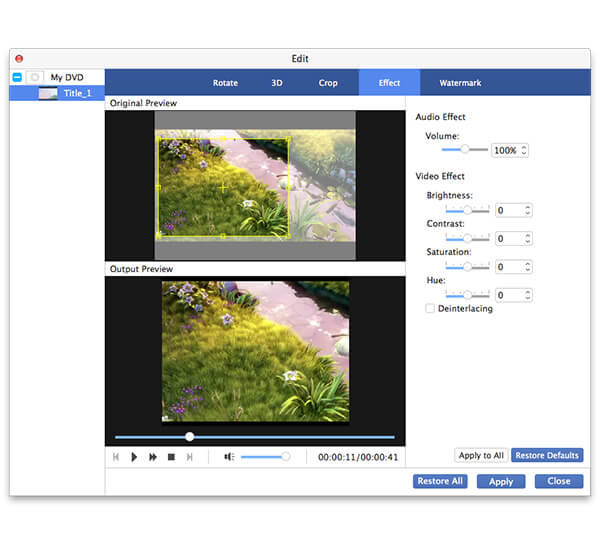
AnyMP4 DVD Ripper for Mac can help you customize video effect. You can trim video length, crop video frame to remove black edges, join video clips together and add watermark to personalize the video. You can also try adjusting Video Contrast, Brightness, Saturation, Hue and Volume.
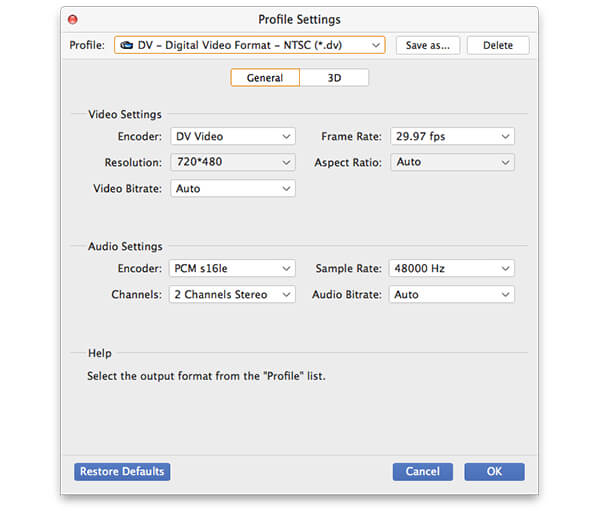
Output parameters such as Video Encoder, Resolution, Bitrate, Frame Rate, Aspect Ratio and audio parameters such as Encoder, Channels, Sample Rate and Audio Bitrate are all adjustable.
AnyMP4 DVD Ripper for Mac can help you to choose your preferred audio track if the video file has more than one audio track, and add downloaded subtitle to the video.

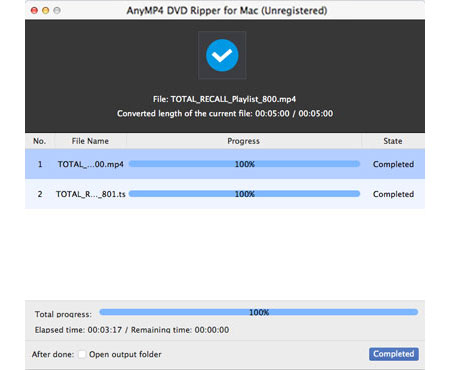
Click the "Convert" button to start ripping DVD to DV format.
When the progress bar reaches 100%, you will get your needed DV video file.
 Updated by Joan Aimee to DVD
Related Articles
 How to Play DVD on MacBook Pro With Ease
What should you do to play DVD on MacBook Pro? Here are the solutions for you.
 How to Do Split Screen/Make a Video Collage on TikTok
Want to do a split screen for your videos on TikTok? This article will show you how to do it most easily. Plus, you can learn how to make more overwhelming split-screen videos here.
 Fix the Issue in Windows Media Player Won't Play DVD
Top 5 windows media player alternatives to play dvd on Windows 8/10 with ease.
 Best WinX DVD Player to Play DVD Movies Efficiently
Here are top 4 alternative DVD Players of WinX DVD Player to Play DVD disc/movie.
 Add your comments to join the discussion here
