4 Easy Fixes to Lock Items from Moving in OBS Studio
Summary:
Moving in OBS meant three problems: accidental dragging, differing positions between scenes, and unexpected resizing. Use Padlock to prevent accidental drags, use a nested scene to keep one position across all scenes, and check Transform > Edit Transform for alignment and bounding issues. For recording-only, AnyMP4 Screen Recorder does not require switching scenes.
"Why does the OBS overlay keep moving? I set up my webcam and chat box, but after switching scenes, everything shifts. Is there a way to lock item from moving in OBS"?
OBS lets you lock individual sources to prevent accidental dragging. However, keeping an item in exactly the same position in multiple scenes requires a different approach. This post explains how to lock sources, reuse positions, fix resizing, and keep layouts consistent. We also cover an alternative solution for recording screens that requires no multiple OBS scenes.
Method 1 (Recommended): Lock the Source - the Padlock for Accidental Moves
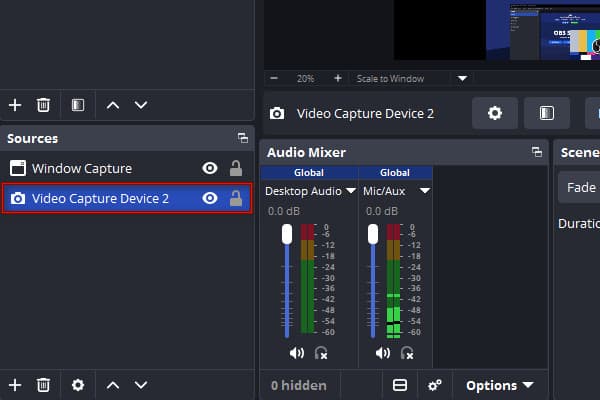
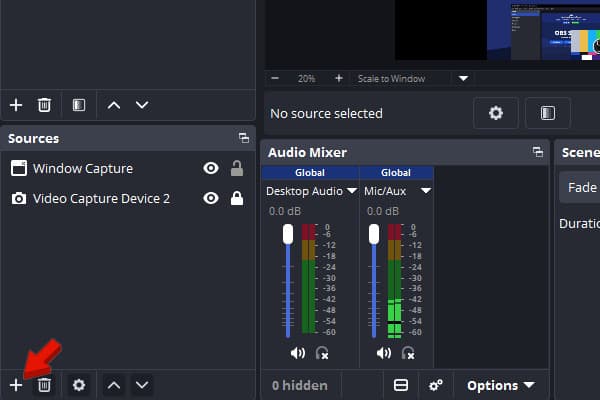
Each source in the Sources panel has a small lock icon next to it. The quickest way to stop sources from moving is to lock source in OBS to prevent accidental dragging.
1. Go to the Sources panel and select the item or layer you want to lock.
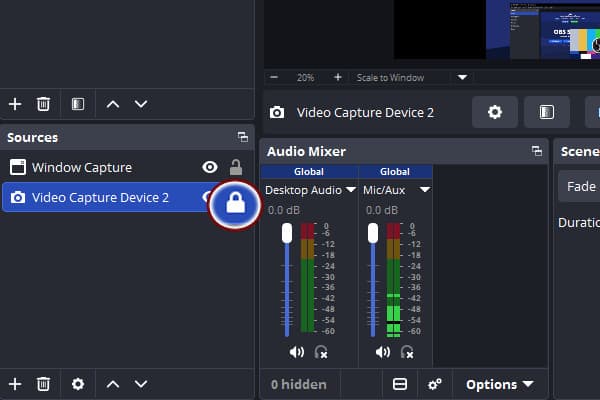
2. Click the Padlock next to the Eyeball to lock the selected source so it cannot move.
Note:
A closed lock means the item is secure and cannot be dragged. However, locking a source does not synchronize its position across different scenes.
Is OBS game capture not working? Check the 10 quick fixes here.
Method 2: Keep One Position Across All Scenes - the Nested-Scene Trick
You need to create a nested scene and add it as a source to keep source position across scenes in OBS. This allows multiple scenes to reuse one layout instead of manually positioning duplicate items.
1. Create a new scene in the Scenes panel and name it Shared Overlays.
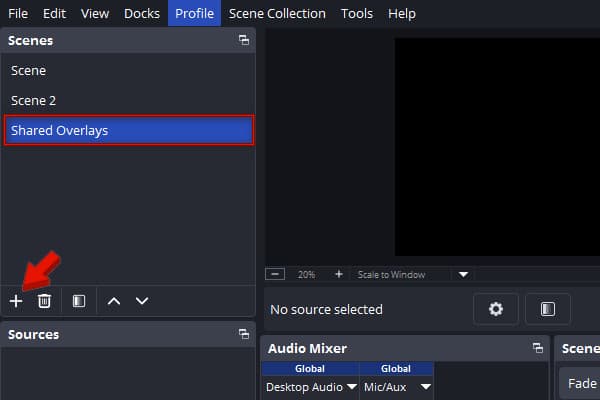
2. In the Sources, click + to place and size the items exactly how you want them to look.
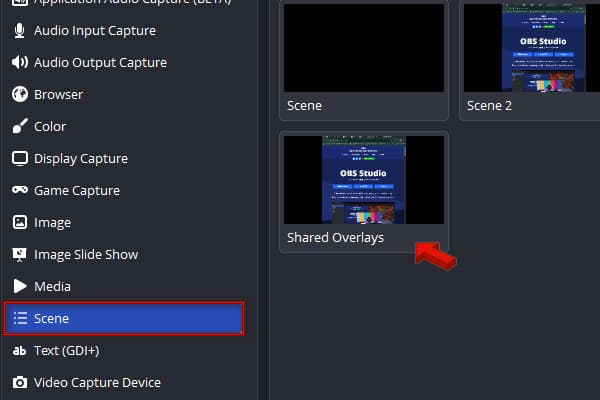
3. Return to the main scene, click + in the Sources, go to Scene, and select Shared Overlays.
Tip:
In each main scene, click the Padlock beside each source to prevent accidental movement. Repeat this process for any other scenes where you want the item to appear.
Method 3: Stop Sources Resizing on Their Own - Alignment, Bounds & Copy-Paste Transform
Sometimes a source does not actually move by itself. Instead, OBS source resizes on its own when its position or dimensions change due to transformations, alignment settings, or accidental adjustments.
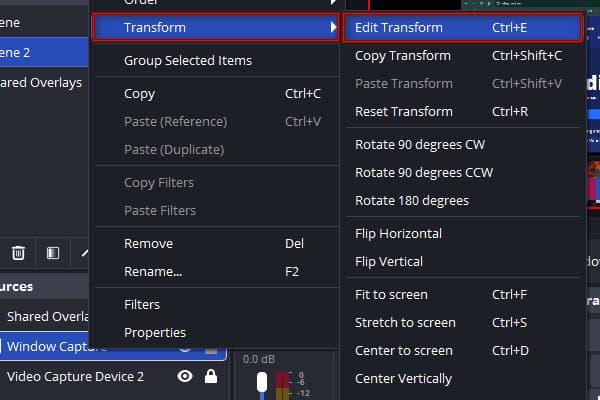
1. Right-click the affected source in the Sources panel, go to Transform, and select Edit Transform.
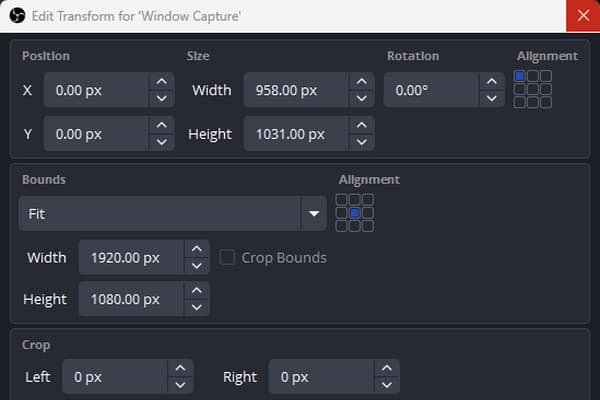
2. In the Edit Transform window, set Alignment to top-left and set the bounds type to No Bounds.
3. Right-click the positioned source, head to Transform, and select Copy Transform (Ctrl+Shift+C).
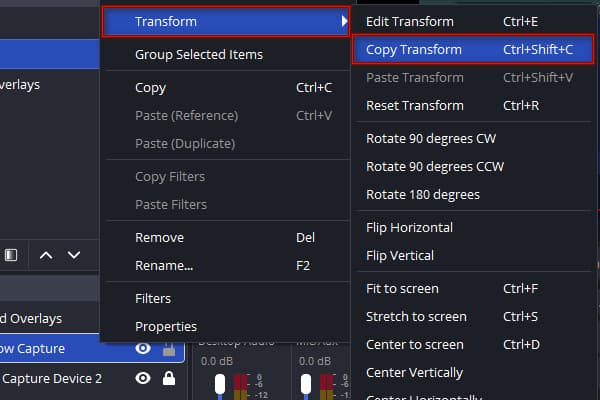
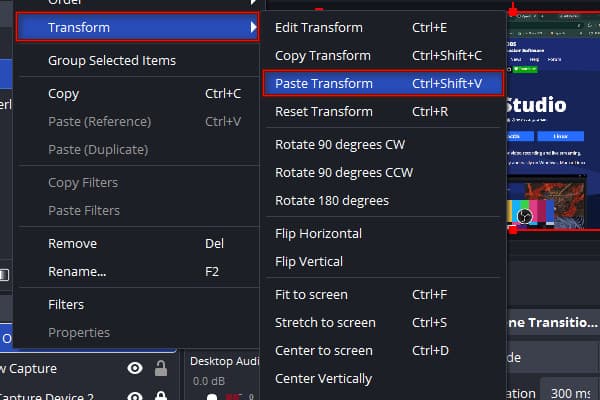
4. Switch to the target scene, select the corresponding source, click Transform, and choose Paste Transform (Ctrl+Shift+V).
Note:
The top-Left alignment in OBS Studio keeps your source anchored, while the No Bounds option removes restrictions that may affect how the source scales.
Method 4 (Alternative): Skip Scenes - Record on One Canvas with AnyMP4 Screen Recorder
The entire OBS item moves between scenes problem comes from switching between separate layouts. If your goal is simply to record a video, you can bypass multiple OBS scenes. AnyMP4 Screen Recorder is a multi-source recording software featuring a 7-in-1 recording mode. It can capture screen, webcam, mic input, system audio, and live annotations simultaneously on one canvas. Position the webcam overlay once, and it stays in place throughout the recording.
1. Download AnyMP4 Screen Recorder and complete the installation.
After setup, it opens to the Screen Recorder mode by default.
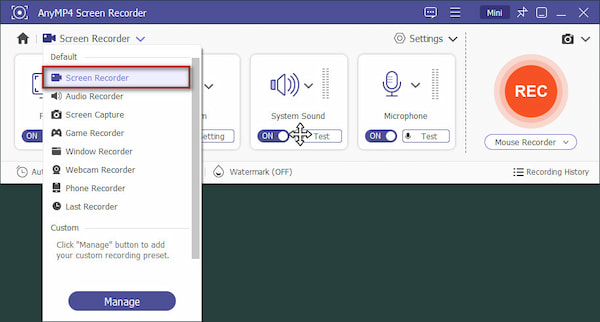
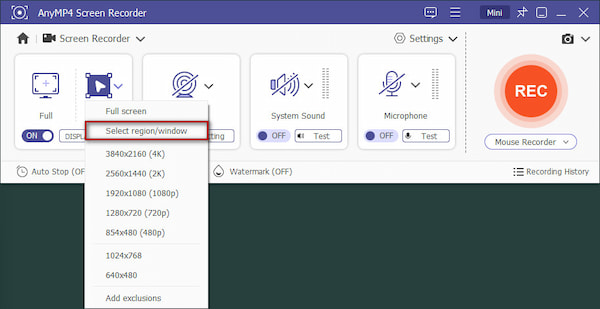
2. Click Custom, choose Select region/window, and enable Webcam to create a PIP video. If needed, toggle on the System Sound and Microphone.
Tip:
Position the webcam before recording. Since you're using one canvas, there's no need to reposition it.
3. Click REC to start the recording. During take, use the live Annotation tool to add arrows, text, and images/stickers over your screen recording.
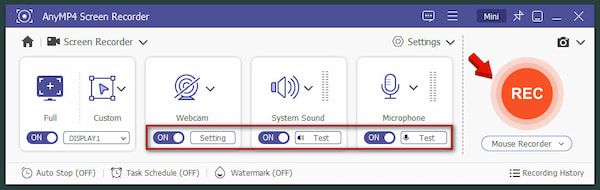
4. When finished, click Red Square (Stop). Preview the recorded video, trim any unwanted sections or dead air, and save it to your computer.
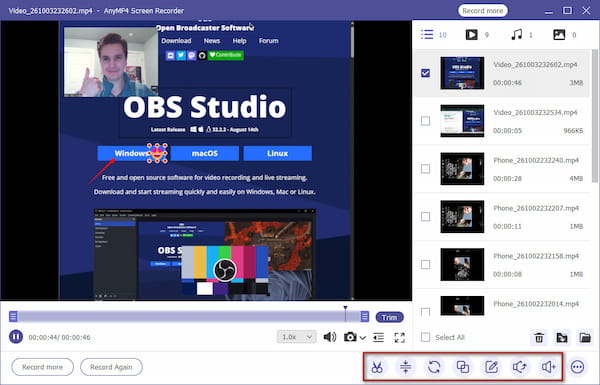
Unlike OBS, you can record the screen without OBS scenes with AnyMP4. It does not require creating and switching between multiple scene collections. But if you prefer live streaming, scene switching, and advanced production controls, use OBS Studio.
Why Does My Source Move or Resize on Its Own in OBS? (Alignment, Bounds & Updates)
Sources in OBS move or resize on their own because of mismatched bounds settings, changes in source resolution, or anchor alignment configurations.
Why it Happens:
- • If a source is set to Scale to inner bounds instead of No Bounds, OBS recalculates and scales the source dimensions.
- • Using alignment points other than Top Left can cause rounding errors or scaling shifts.
- • Sources that drop their signal or change resolution upon opening can trigger OBS's automatic scaling again.
Same Source vs Duplicate vs Nested Scene - Which One Stays Put?
| Option |
How It Works |
Position |
| Same source |
Reuses an existing source |
Transform can differ by scene |
| Duplicate source |
Creates another source copy |
Position is independent |
| Nested scene |
Reuses an entire scene as a source |
Shares the internal layout |
FAQs About Locking Items & Keeping Positions in OBS
Why does my item move when I switch scenes in OBS?
OBS item moves between scenes because it treats a source pasted on multiple scenes as a distinct instance with independent coordinate settings.
How do I keep a webcam or overlay in the same position across all scenes?
To keep a webcam or overlay in the exact same position on multiple scenes, use Add Existing for sources or set up Nested Scenes.
How do I copy a source's exact position to another scene?
Go to the scene, right-click the source, and press Ctrl+Shift+C to copy. Then, move to your new destination scene, right-click, then press Ctrl+Shift+V.
Conclusion
This guide covered several methods to lock items from moving in OBS. To prevent accidental drags, lock the source by clicking the Padlock next to Eyeball. For layouts shared on multiple scenes, use nested scenes. To stop resizing the scene on its own, use the Transform settings. But if you simply record a screen activity, AnyMP4 Screen Recorder offers a single recording canvas to capture multiple sources without a scene.





 Add your comments to join the discussion here