How to Add a Transparent Image to OBS | Full Transparency
Summary:
Drag the PNG into OBS's Sources panel, or click +, then Image, and select it to import. If a black background appears, the file has no true transparency. Re-export it with an alpha channel, or use Chroma Key/Color Key to remove the solid background.
Why does my transparent logo show as a black square in OBS? It looks fine in Photoshop.
Before blaming OBS, check the file first. An OBS transparent PNG can still contain a solid background if it wasn't exported with an alpha channel. This post shows how to add transparent image to OBS, remove image background without alpha, and use animation/video overlays. We also cover what to do when a transparent image OBS is not working.
Method 1 (Recommended): Add a True Transparent PNG - Image Source, Drag & Drop
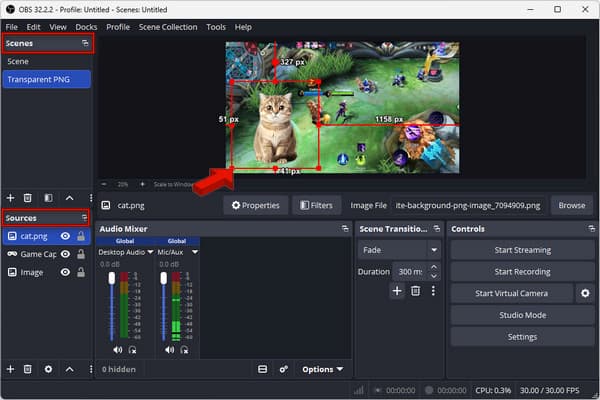
OBS natively supports transparency through the image's alpha channel. If the file has real transparency, you can overlay it on top of the source without a solid background. Here's how to add transparent image to OBS:
Select a scene and drag the PNG image into the Sources panel. Drag the image to move it around and use the red handles to resize it. To correct the image orientation, right-click the source and select Transform to rotate 90° CW/CW/180° or flip horizontally/vertically.
Note:
Check the PNG in an image editor first to verify its transparency. If it has a checkerboard background, the image is truly transparent. If the image has a solid white or black background, the background is part of the image. (Check here how to make the white bg transparent)
Method 2: Remove the Background from Images Without Alpha - Chroma Key & Color Key Filters
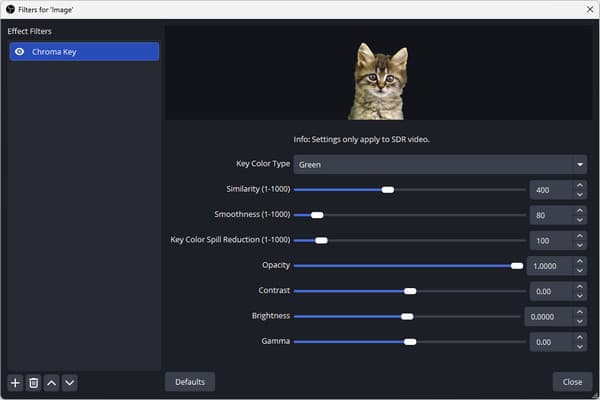
How to add an image to Green Screen in OBS? OBS's Chroma Key and Color Key can remove specific colors and make those areas transparent. This method only applies to images with a consistent background color.
1. Open your scene in OBS, then click + in the Sources panel and select Image. Add the image and position it on the canvas.
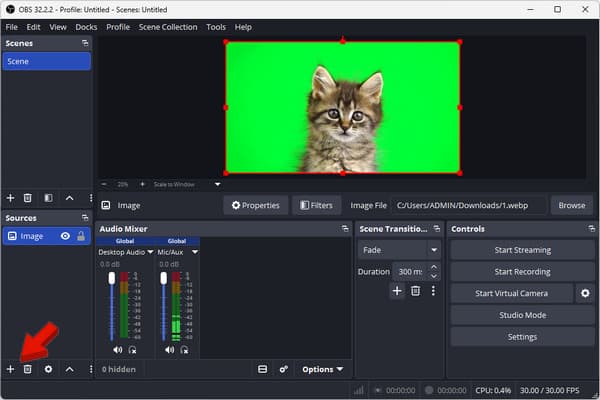
2. Right-click the image source, go to Filters, click +, and select Chroma Key. Then, select the background color you want to remove.
Tip:
If the image source has a solid white or black background, use the Color Key instead. If the background image contains multiple colors, see this guide to remove the background from a picture.
Method 3: Animated & Video Overlays - WebP Stickers, GIFs & Green-Screen Clips
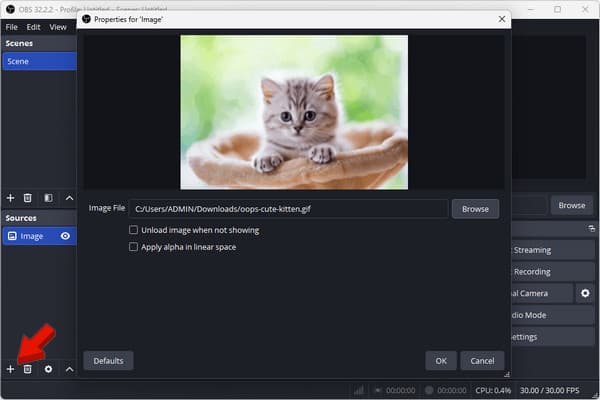
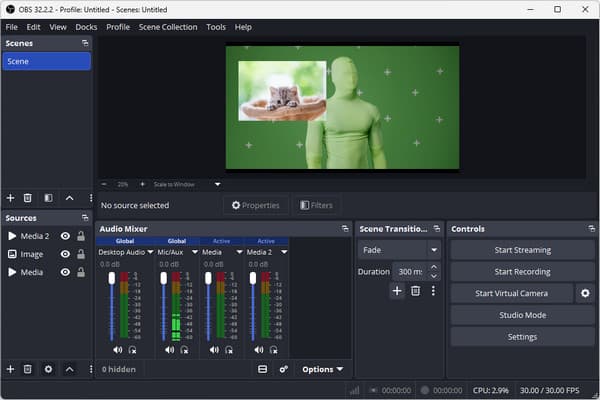
For animated overlays, you can use an Image source for WebP or GIF files and a media Source for video clips. For OBS green screen video overlay, use Chroma Key to remove the background and enable Loop to keep the clip playing.
1. Open a scene, then go to the Sources panel and click +. Select the Image option and import the WebP or GIF file.
2. Click + in the Sources panel again, but this time select Media. Add the green-screen video clip and check Loop for continuous playback.
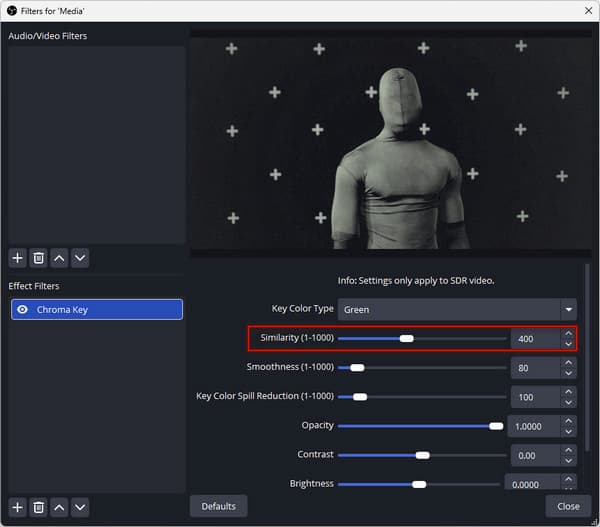
3. Right-click the Media Source, go to filters, click +, and select Chroma Key. Adjust the Similarity until the green background disappears.
Note:
For an image slide show, use OBS's Image Slide Show source instead of adding individual images manually. It allows you to cycle through multiple graphics in a single source.
Method 4 (Alternative): Record with Live Overlays - AnyMP4 Screen Recorder Annotations
OBS PNG overlay, background removal, and animated/video overlays are limited to the live scene. If you want to record screen activity with graphics or annotations, use AnyMP4 Screen Recorder instead. It is a complete capturing software that comes with a 7-in-1 recording mode. While recording the screen, you can highlight information, draw shapes, add text, and more.
1. Download AnyMP4 Screen Recorder and complete the installation.
After setup, it opens to the Screen Recorder mode by default. Select Full or Custom to specify the recording area, and enable Webcam, System Sound, and Microphone if needed.
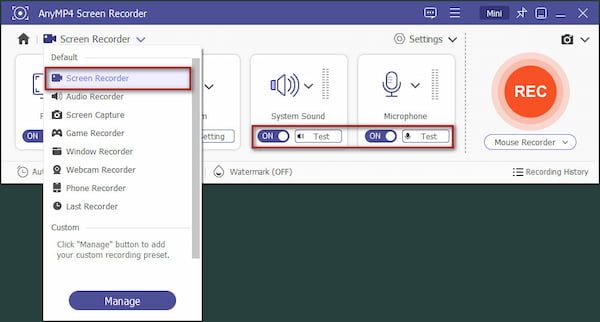
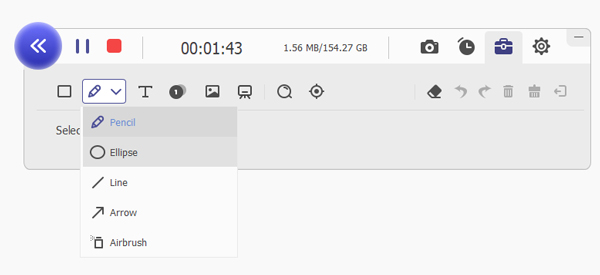
2. Click REC to start the recording. During take, click the Toolbar button to add stickers, text, callouts, highlights, lines, and more.
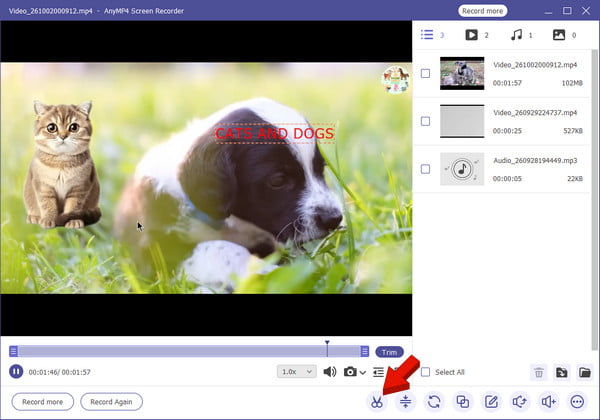
3. Click the Red Square to end the recording. In the Preview window, you can use the Advanced Video Trimmer to clip out the unwanted portion of the recording before saving.
Note:
If you want to record OBS scene with AnyMP4, the best approach is to capture the OBS preview or output window.
Why Does My Transparent PNG Show a Black Background in OBS? (3 Real Causes)
PNG Does Not Actually Have Transparency
PNG supports transparency, but the image must be exported with an alpha channel. Before importing to OBS, use an image editor and check whether the background is transparent or a solid black layer.
The Image Was Exported Incorrectly
Some image editors will flatten transparent areas to a solid background when you export. To fix this, you need to export the image again and make sure transparency is checked. Do not flatten the layers to a black background prior to saving.
No Source Below the Image
When a transparent PNG shows a black background, it means there is no layer or source below it. Drag another source below your PNG in the Sources panel, or add a background color source.
PNG, WebP, GIF, or Video? Choosing the Right Overlay Format for OBS
| Format |
Transparency |
Animation |
Best Use |
| PNG |
Full alpha transparency |
|
Logos and borders |
| WebP |
Alpha transparency |
|
Animated stickers |
| GIF |
Limited transparency |
|
animation |
| Video |
Full Alpha (Apple ProRes 4444, WebM (VP8/VP9), and HEVC (H.265)) |
|
Animated overlays |
FAQs About Adding Transparent Images in OBS
How do I add a transparent image to OBS?
You have two options to add a transparent image to OBS. Add the transparent PNG file directly as an Image source. If the image has a solid background, use a Color Key or Chroma Key filter to remove the background.
Can I add a transparent image over my webcam in OBS?
Yes, you can add a transparent image over your webcam in OBS. Add the transparent image and layer it on top of your video capture device.
What image formats support transparency in OBS?
OBS supports PNG and GIF image formats for transparency. However, PNG is the best and most common choice for a still image.
Conclusion
Before you add a transparent image to OBS, you must know the right method first. If the PNG is truly transparent, you can add it directly as an Image Source. But if the source media has a solid background color, you can use the Chroma Key or Color Key filters instead. For animated elements, WebP, GIF, or green-screen clips can work with the right source and settings. For recording screen activities with annotations without building a layered OBS scene, AnyMP4 Screen Recorder offers a simpler option. It lets you annotate to add visual highlights while recording.





 Add your comments to join the discussion here