
Pocket PC is a personal digital assistant (PDA), that runs the Microsoft 'Windows Mobile Classic' operating system. It has some of the abilities of modern desktop PCs. It possesses featured functions and excellent mobility. Since Pocket PC doesn't support DVD format, it cannot be used to play DVD video directly.
AnyMP4 DVD Ripper is the most advanced and efficient DVD ripper that can rip DVD video to all popular video formats such as MP4, AVI, 3GP, WMV, FLV and audio formats such as MP3, AAC, AC3, WAV and OGG. It is capable of ripping DVD to multiple Pocket PC compatible formats with fast speed and negligible video quality loss.
Secure Download
Secure Download
At first you must install AnyMP4 DVD Ripper to your selected path of your PC, then you can open the software and check out the interface if it's successfully installed.
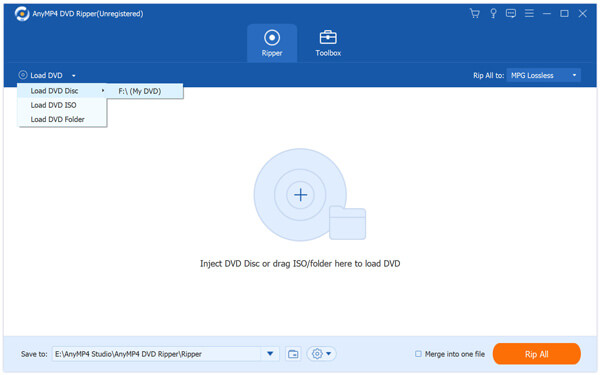
Click the "Load DVD" button to add your source DVD video. You can also select multiple DVD files by selecting "Load DVD Folder".
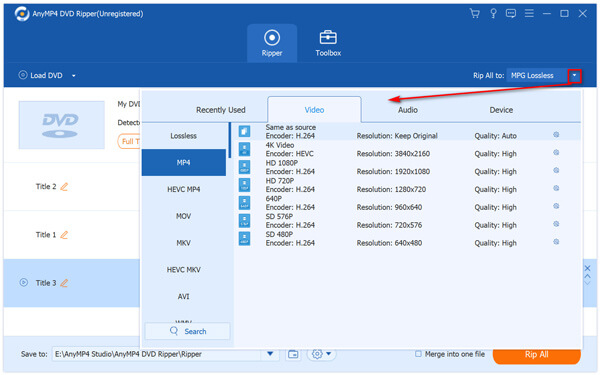
You can click the "Profile" drop-down list to choose your needed Pocket PC profile. If you have problems finding it, you can input it in the text area and the software will automatically find it for you. AnyMP4 DVD Ripper can rip DVD video to Pocket PC compatible WMV format.
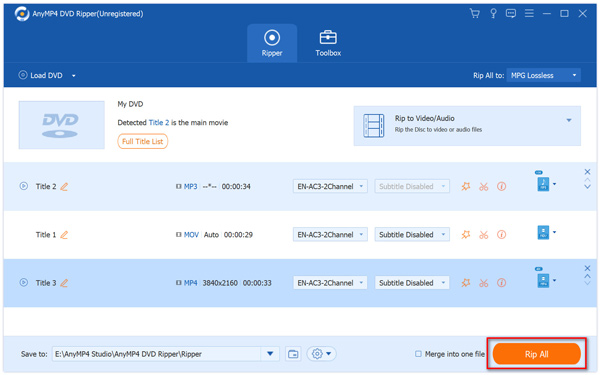
Getting tired of ripping several video files to different formats one by one? Try ripping multiple video files with the powerful "Batch Processing" function now! You are allowed to select the specific profile for each video file, select them all by clicking the check box in front of the file name, and click the "Convert" button to rip all the files with only one step. This amazing function will save you a lot of time.
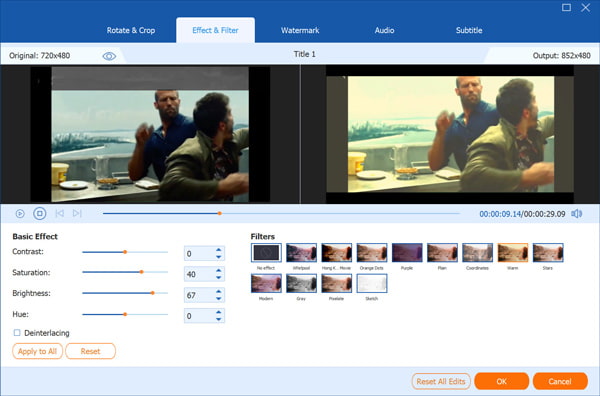
Dedicated for DVD fans all over the globe, AnyMP4 DVD Ripper is equipped with multiple editing tools that can help you conduct further customization. You are allowed to trim video length, crop video frame, merge several video clips together and add text/image watermark to video. You are also allowed to adjust Video Brightness, Saturation, Hue, Contrast and Volume.
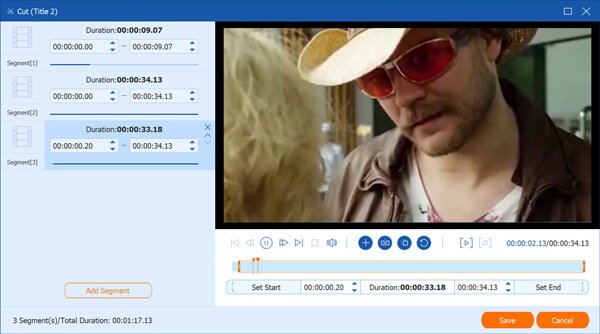
You can select the file and click the "Cut" button on the toolbar to trim video for your needed length. You can achieve that by setting the exact start and end time for the video, or by dragging the sliderbar to define the start and end time in a more intuitive way.
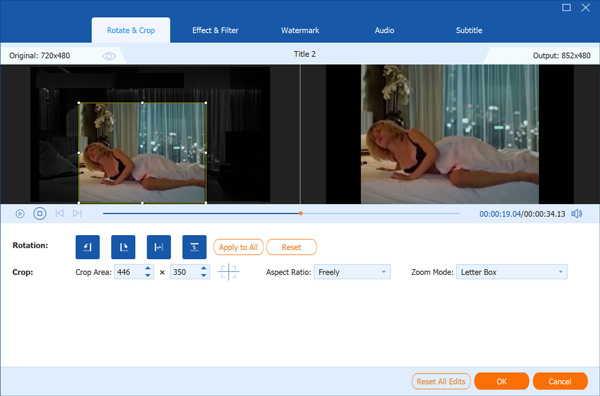
If you need to remove black edges or some unwanted parts of the frame, you can crop video frame by clicking the "Crop" button. Here you can set the exact part of the frame you need to trim, or drag the 4 edges and 8 control points of the yellow frame to select your preferred part.
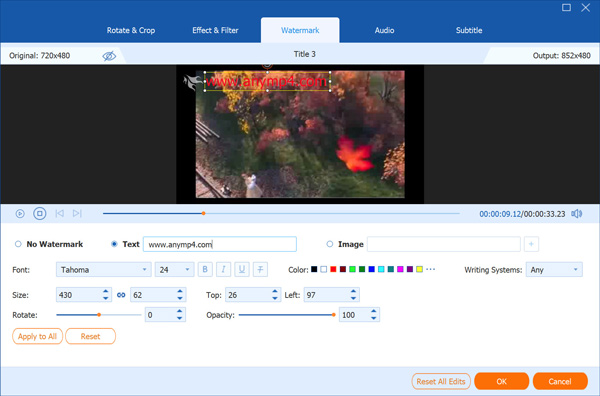
Feel free to personalize the video by adding watermark! AnyMP4 DVD Ripper enables you to add your unique signature or picture to the video by using its powerful watermarking options. You can click the "Enable watermark" check box and customize the content, position, font, color and transparency of the watermark, or you can choose adding image watermark as well.
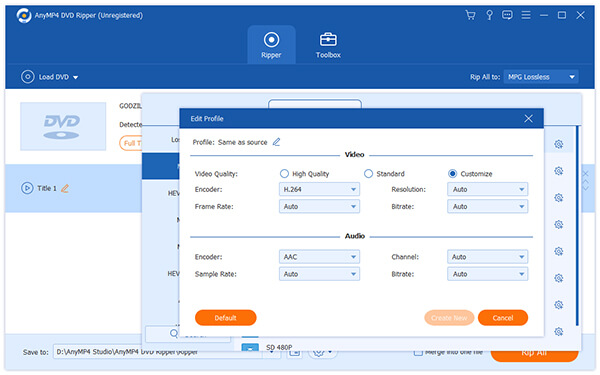
AnyMP4 DVD Ripper also enables you to adjust output parameters including Video Encoder, Resolution, Bitrate, Frame Rate, Aspect Ratio and Audio Encoder, Channels, Sample Rate and Audio Bitrate to bring the video quality one step closer to perfection.
You can select your preferred audio track and subtitle before the ripping if they are available.

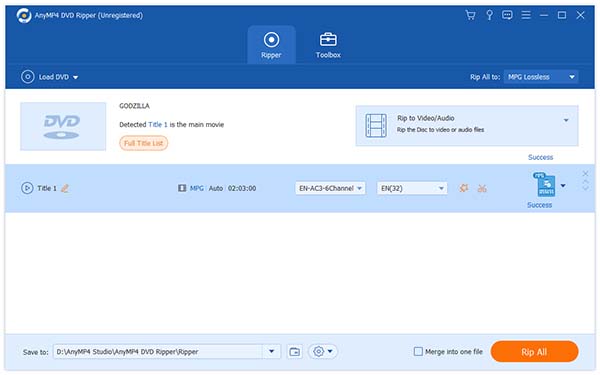
Click the "Rip All" button to rip DVD to Pocket PC compatible WMV format. The ripping operation will be completed soon.
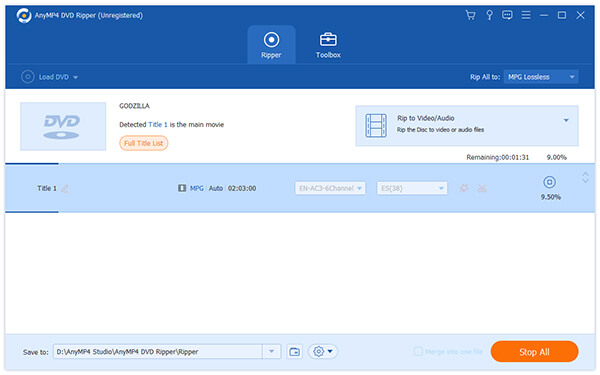
When the progress bar reaches 100%, you will get your needed video file for your Pocket PC.
 Updated by Joan Aimee to DVD
Related Articles
 How to Play DVD on MacBook Pro With Ease
What should you do to play DVD on MacBook Pro? Here are the solutions for you.
 5 Easiest ways on How to Play DVD on Windows 8
There are Top 5 different methods to help you on how to play DVD on Windows 8/8.1.
 10 Best External DVD Player on Mac/Windows
External DVD player reviews, with the guide to play DVD on PC or Mac easily.
 4 Best Free DVD Player Software for Windows 7/8
Get top 4 free DVD Player Software for Windows 7/8 to play a DVD on PC in free way.
 Add your comments to join the discussion here
