
AnyMP4 DVD Ripper possesses an advanced and efficient inner core that is designed for ripping DVD to any video and audio with fast speed and negligible video quality loss. It can rip all commercial DVD videos to video formats such as MP4, AVI, AMV, ASF, WMV, VOB, FLV, or audio formats such as MP3, AC3, AAC, OGG, WAV and FLAC.
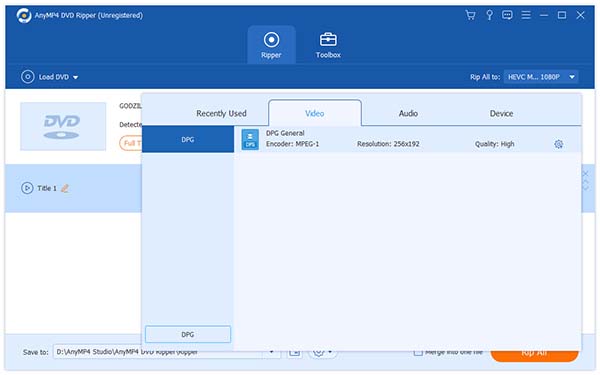
DPG is a MPEG-1 coded video format specially designed for Nintendo DS, a portable game console that is very popular around the globe.
Secure Download
Secure Download
You can download AnyMP4 DVD Ripper from our product webpage or by clicking the "Free Trial" button. If the installation is a success, you can open the software and check out the interface.
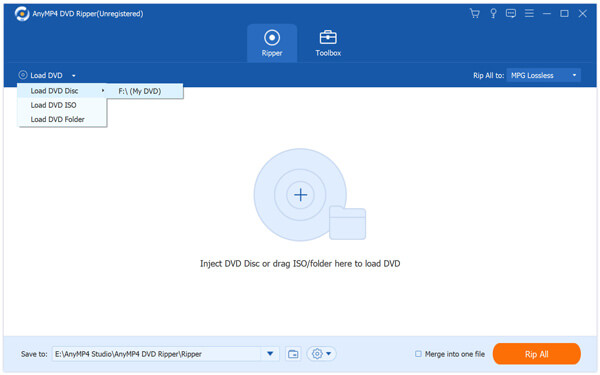
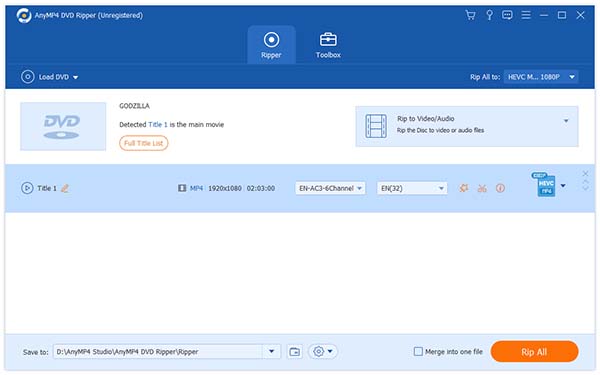
Click the "Load DVD" button to add your source DVD video. You can also select "Load DVD Folder" to add more than one DVD file to the software. If you need to remove files from the "File Name" list, select them and hit the "Delete" button on your keyboard.
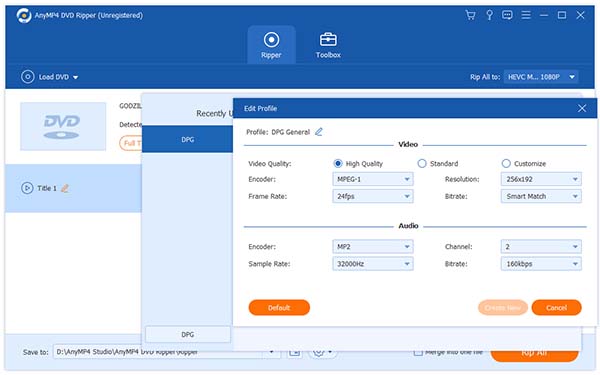
Click the "Profile" drop-down list to select DPG profile. If you cannot find it, input it in the text area below. DPG is a video format exclusively designed for Nintendo DS console to store large amounts of high-definition video and audio files.
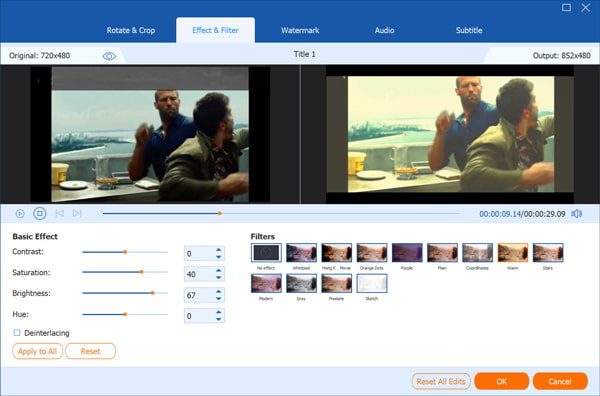
AnyMP4 DVD Ripper possesses amazing video effect customization functions that can help you optimize video effect for better enjoyment. You can try trimming video for your needed length, cropping video frame to remove black edges, joining several video clips together, adding text/image watermark to personalize the video and adjusting Video Brightness, Saturation, Hue, Contrast and Volume.
If you need to conduct further customizations, you can try adjusting output parameters such as Video Encoder, Resolution, Bitrate, Frame Rate, Aspect Ratio and audio parameters such as Encoder, Channels, Sample Rate and Audio Bitrate to bring the video quality one step closer for perfection.
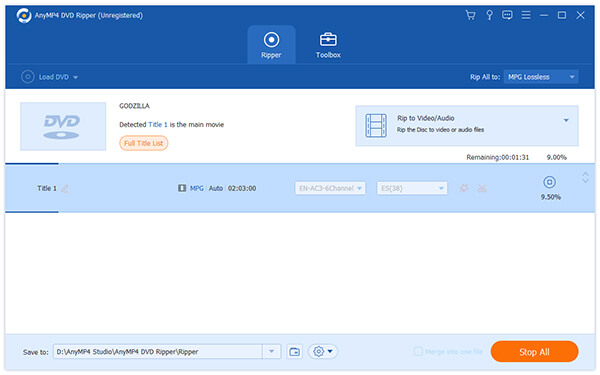
Some video files contain more than one audio track. If you need to change audio track or add downloaded subtitle to the video file, you can select them by clicking the "Audio Track" and the "Subtitle" drop-down lists.

The last step you need to do is click the "Rip All" button to begin ripping DVD to DPG format. When the progress bar reaches 100%, you'll get your needed DPG video files for your Nintendo console.
 Updated by Joan Aimee to DVD
Related Articles
 Top 5 Google DVD Players to Rip DVDs to Chromecast
Top 5 Google DVD Player for you to rip and stream DVD movies to Chromecast.
 5 Easiest ways on How to Play DVD on Windows 8
There are Top 5 different methods to help you on how to play DVD on Windows 8/8.1.
 The Easiest Way to Play MP4 on DVD Player
DVD Player can load and play MP4 video now through top 2 methods here with ease.
 10 Best External DVD Player on Mac/Windows
External DVD player reviews, with the guide to play DVD on PC or Mac easily.
 Add your comments to join the discussion here
