
In an era dominated by digital streaming and online media, physical DVDs may seem like relics of the past. However, there are occasions when you might find yourself with a cherished DVD in hand, only to realize that your laptop lacks a DVD player. Don't fret! This comprehensive guide will explore various methods and solutions that allow you to watch DVDs on your laptop, even without a dedicated DVD player.
In this article, we will present a range of methods to watch DVDs on a laptop without a DVD player. We'll discuss hardware and software options, enabling you to find the best approach that suits your needs. Whether you're a movie enthusiast, a student with educational DVDs, or someone looking to digitize your DVD collection, we have you covered.
Yes, watching a DVD without a dedicated DVD player is possible. Here are several alternative methods you can use to watch a DVD:
Some game consoles, such as PlayStation and Xbox, can play DVDs. You can simply insert the DVD into the console's disc drive and access the DVD playback option in the console's menu.
Check this guide to play DVDs on Xbox 360 game console.
Most computers have a built-in DVD drive or an external one you can connect to. Insert the DVD into the drive, then use a media player application, such as VLC Media Player or Windows Media Player, to play the DVD. Open the media player, select the DVD drive, and the movie will start playing.
Modern smart TVs have built-in DVD players or USB ports connecting an external DVD drive. Check if your TV has these features and connect the DVD drive to the TV. Use the TV's menu or remote control to access the DVD playback option.
However, we must also remember that these three mediums are only sometimes available for all users because these three technologies are fancy. Most people cannot afford to buy it. In addition, these process alternatives require a lot of processes to undergo. Therefore, we must offer another simple way to make the process possible. Therefore, you must continue to read the details below as we begin playing your DVDs films even without a DVD player.
We all know that not every user can afford a computer, TV, Game Console, etc. These may be a great alternative to playing DVDs on your devices, even without a DVD player. To ease the problem, we give you the incredible AnyMP4 DVD Ripper. This tool is the most suitable method and an easy way to make the process possible. That is because it helps convert DVD films into more suitable file formats your device supports. As we prove it, here are other features we can enjoy in this free ripping tool of AnyMP4.
Key Features
1 Download AnyMP4 DVD Ripper
Let us start by downloading and installing the excellent DVD Ripper on your Windows 11/10/8/7 or macOS computer.
Secure Download
Secure Download
2 Insert the DVD Disc
As we go, click the Load DVD button or pick Load DVD Disc from the Load DVD drop-down list to load the DVD you wish to convert.
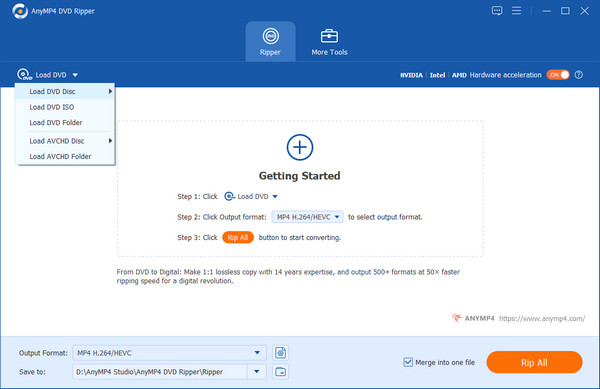
3 Choose MP4 as the Output Format
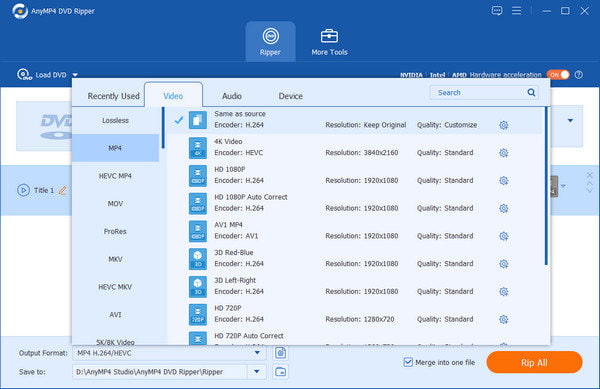
We can now select MP4 as our file output format using the format tab on the side. MP4 is a great way to get your DVD because it is a universal file format. This format is wonderful since it can keep the visual and audio quality of the original DVD file while being compatible with any device.
4 DVD Conversion
Finally, from the Output folder drop-down menu, choose a destination folder. Then, choose Rip All to convert your DVD to a more compatible format on your device.
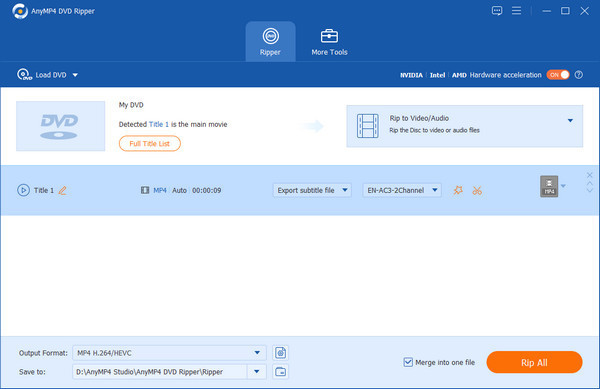
This is an excellent converting tool for making our DVD movies compatible with various consumer devices. This is doable by converting it to a different one using this program. As we can see, the technique is straightforward and feasible. As a result, you may use this converting tool confidently. After doing all these steps, you can now watch your DVD films.
Can we watch a DVD on my laptop if it doesn't have a built-in DVD drive?
You can still watch DVDs on a laptop without a built-in DVD drive. Several alternative methods are available, such as using an external DVD drive, leveraging media player applications, or utilizing other devices like game consoles or smart TVs.
Do we need additional hardware to watch DVDs on my laptop without a DVD player?
Answer: It depends on the method you choose. If you opt for an external DVD drive, you must purchase one if you don't already have one. However, some methods, like using media player applications or repurposing existing devices like game consoles or smart TVs, may not require additional hardware.
Are there any software requirements to watch DVDs on a laptop without a DVD player?
Generally, most laptops come with pre-installed media player software, such as Windows Media Player or QuickTime Player. However, if your laptop doesn't have a suitable media player, you may need to download and install one, such as VLC Media Player or other DVD playback software, to play DVDs on your laptop successfully. But, many users are suggesting AnyMP4 DVD Player for watching your files because it offers incredible playback.
Can we copy or rip a DVD to my laptop for playback without a DVD player?
It is possible to copy or rip a DVD to your laptop's hard drive for playback without a DVD player. Various software programs allow you to convert DVD content into digital files, such as MP4 or MKV, which can be played using media player applications on your laptop.
Are there any legal implications when watching DVDs on a laptop without a DVD player?
It's important to respect copyright laws and only watch DVDs you own or can access. Personal use of DVDs you own is generally allowed, but unauthorized reproduction, distribution, or sharing of copyrighted material is illegal. Ensure you are using DVDs and content in compliance with copyright laws and applicable licensing agreements.
In conclusion, the absence of a DVD player on your laptop doesn't have to prevent you from enjoying your favorite DVD content. Throughout this comprehensive guide, we have explored various methods and solutions that enable you to watch DVDs on your laptop, even without a dedicated DVD player. Therefore, if you want to ensure the success of your conversion process, you can use AnyMP4 DVD Ripper for high-quality outputs and a more easy conversion process.
Secure Download
Secure Download
 Updated by Ted Klarso to DVD, Player
More readings
 4 Efficient Ways to Convert DVD to MP4 on Windows and macOS
This post will present four tools for Windows and Mac, which you can use to rip DVDs to MP4. If you want to learn the process, you better click this post.
 DVD Player for iPad: Rip and Enjoy Your Movies On-the-Go
Find the solution to play DVDs to iPad here, providing the steps for the ripping and conversion methods and tips for seamless playback on your iPad.
 10 Best-Selling Blu-ray DVD Players of All Time
Upon opening this post, you will discover notable DVD Blu-ray players that can give you the most excellent viewing experience you could ever have.
 Best DVD Menu Maker to Structure DVD Menu
Discover the best DVD menu maker and make impressive menus for your DVDs. Also, learn the structures of DVD menus and their functions!
 Add your comments to join the discussion here