How to Create Your Personalized DVD (Easy & Fast)
Burning DVDs is a common method for creating backup copies of important data, sharing videos with friends and family, or creating custom compilations of movies or TV shows. There are several ways to burn DVDs, each with advantages and steps. This post will walk you through how to burn a DVD in five different methods, allowing you to choose the one that suits your needs best. Read on to learn more details!

Part 1. How to Burn DVDs from Digital Files with AnyMP4 DVD Creator
AnyMP4 DVD Creator is a professional yet straightforward DVD burner allowing you to create professional-quality DVDs from over 300 video formats. It lets you convert your video files into DVD format and customize the menu, chapters, and other settings. In addition, it supports both single-layer and dual-layer DVDs and provides options to select the DVD aspect ratio and quality settings.
1 Start by getting AnyMP4 DVD Creator; click the Free Download button below to download it. Launch the program after installation. Select DVD as your disc type.
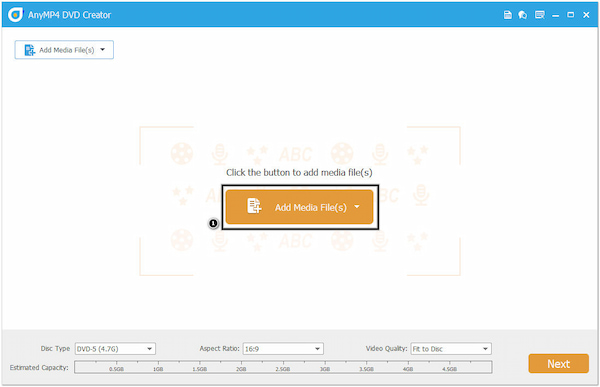
2 Click the Add Media File(s) button to import the digital files you want to burn to the DVD. AnyMP4 DVD Creator allows you to select multiple files or the entire folder containing the files.
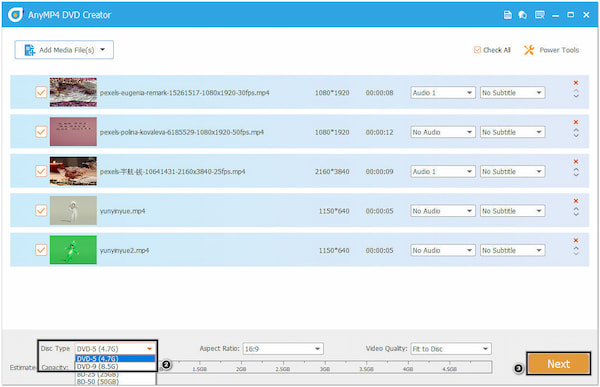
3 Once the digital files are loaded into the program, choose the desired Disc Type (DVD-5 or DVD-9). Then, click the Next button to proceed.
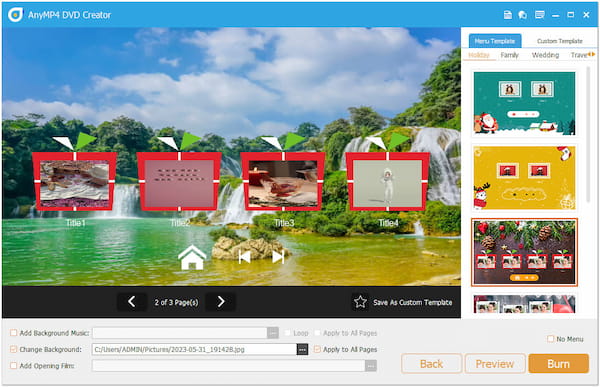
4 From the next window, customize various settings. You can choose a DVD menu template from the available options, add background music, change the background image, add an opening film, and more.
5 Alternatively, click the Preview button to preview the added files and make basic edits if needed.
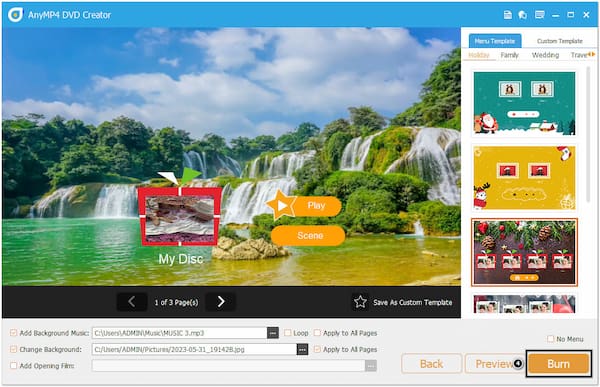
6 Once you have made all the necessary settings, click the Burn button to begin the DVD-burning process. AnyMP4 DVD Creator will start encoding and burning the files to the DVD.
AnyMP4 DVD Creator is a dedicated program to burn DVDs on Windows 10/11/8/7 and macOS. It provides essential features and customization options to make personalized DVDs for home videos, presentations, and more.
Part 2. How to Burn Video to DVD in iDVD
iDVD is a DVD-authoring software designed for Mac users. It allows users to create and burn DVDs on Mac by providing various templates, themes, and customizable menus. With it, you can import images, videos, and music and arrange them into your desired order.
Here’s how to burn DVDs on Mac.
1 Open iDVD on your Mac, and click the Create a New Project button to start a new DVD project. Name the project and pick a theme for the DVD menu.
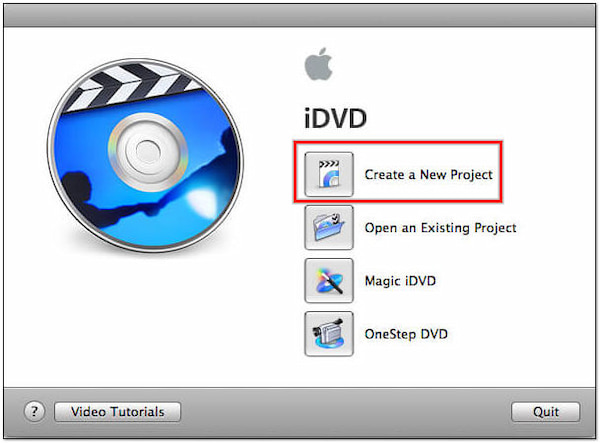
2 Drag and drop the videos into the iDVD window. Arrange the videos in order by dragging them within the project.
3 Insert a blank DVD into Mac’s optical drive. The program will detect the DVD and display it as the destination for burning.
4 Once done, click the Burn button to start the DVD-burning process. iDVD will encode the video and menu content and then burn it to the DVD.
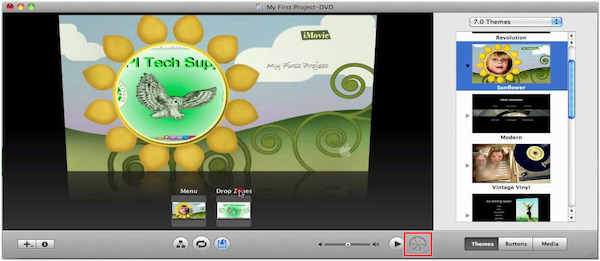
iDVD offered options to customize the appearance of menus, add text, and include background music. However, if you wish to use the program, iDVD was officially discontinued by Apple in 2011 and is no longer actively supported or available for download.
Part 3. How to Burn ISO to DVD using Windows Disc Image Burner
Windows Disc Image Burner is a built-in program in the Windows OS that allows users to burn ISO to DVD, CD, and Blu-ray discs. This process allows you to create a replica of the original disc, including its file structure, data, and bootable capabilities.
1 Place a blank DVD into your computer’s DVD drive, then locate the ISO file on your local file. Right-click the ISO image file and select Burn disc image from the context menu.
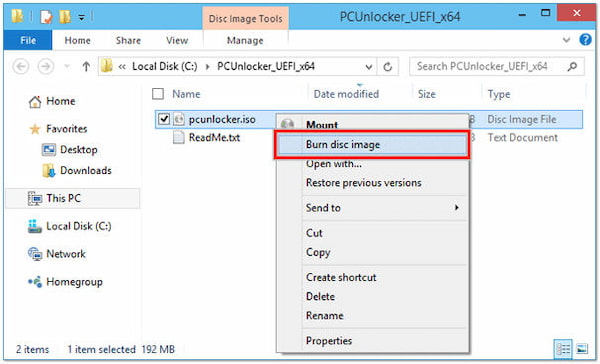
2 The program will open automatically after doing the first step. Otherwise, search Windows Disc Image Burner in the Start menu if it doesn’t open.
3 Select the appropriate DVD burner from the Disc Burner dropdown menu. Ensure that the Verify disc after burning option is checked.
4 Click the Burn button to initiate the burning process. The program will begin writing the ISO file to the DVD.
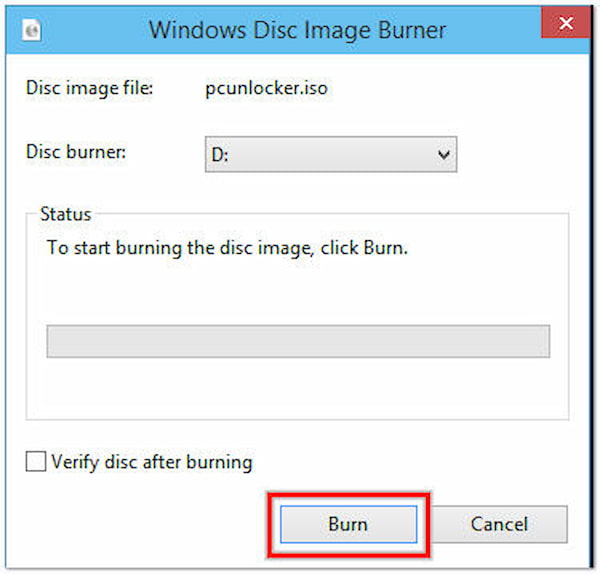
Windows Disc Image Burner provides a reliable burning process, ensuring the ISO file is accurately burned onto the DVD disc without any data loss. While it can handle ISO files, it does not support other disc images formats, such as BIN, IMG, or NRG. It is specifically designed for burning ISO files only.
Part 4. How to Burn Movies to DVD on Nero Burning ROM
Nero Burning ROM is a complete CD, DVD, and Blu-ray disc-burning software. It allows you to create, copy, rip, and burn discs. In addition, Nero Burning ROM lets you burn movies, audio, data, and mix-mode discs, making it suitable for various purposes.
Here’s how to burn movies to DVD in Nero Burning ROM.
1 Run Nero Burning ROM on your computer. Choose DVD-Video from the compilation type options. It will create a DVD that is compatible with DVD players.
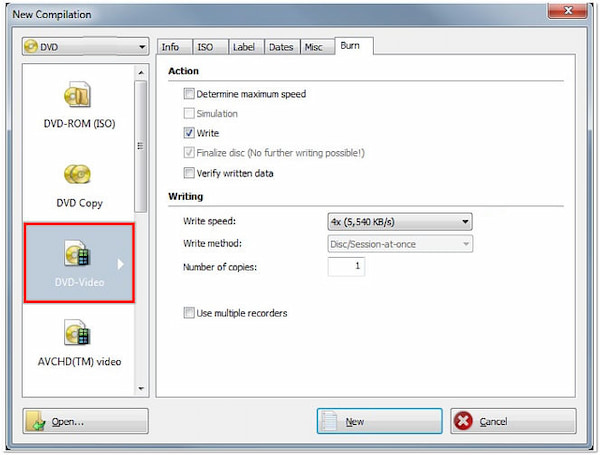
2 Click the Add button to import the movie files you want to burn into the compilation window. Ensure the files are in a supported video format, such as MPEG-2 or MPEG-4.
3 Click the More button to access additional settings. Here, you can specify the target DVD recorder, set the burning speed, and choose other options according to your preferences.
4 Once satisfied with the settings and content, click the Burn button to execute the burning process. Nero Burning ROM will begin encoding and writing the video files to the DVD.
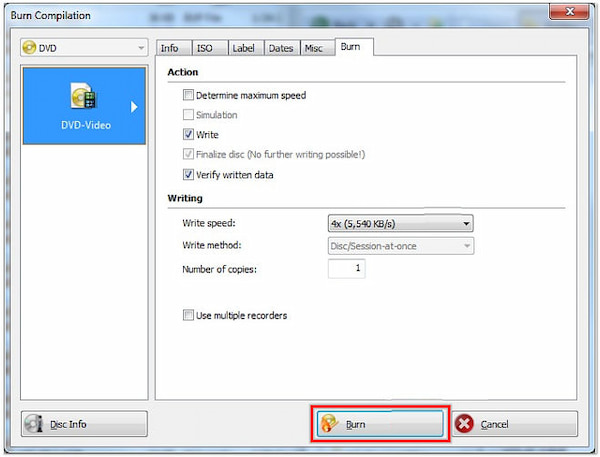
Nero Burning ROM supports various disc formats, allowing you to work with different media types. However, it requires a significant amount of system resources, including CPU and memory, which can affect the performance of your computer during burning processes.
Part 5. How to Make Mine Music DVD with DVDStyler
DVDStyler is a program that allows you to make music DVDs with interactive menus. It provides a simple interface and various features to customize your DVD projects. With it, you can add audio files, create chapters, design personalized DVD menus, and burn your projects to DVDs.
1 Launch DVDStyler on your computer. Click the File and select New to create a new DVD project.
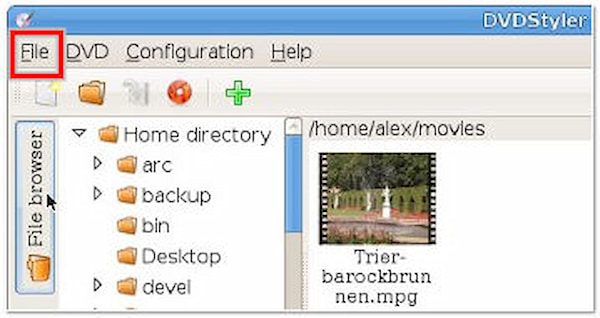
2 Click the Plus button in the Title Set section to add a new title. Enter the title name and specify the video file you want to add. Repeat the step to add multiple titles to your DVD.
Tip
To create chapters within a title, select the title and click the Plus button in the Chapters section.
3 Click the Menu tab to customize the DVD menu. You can select from various templates or create a custom menu by adding background images, buttons, and text. Customize the menu layout, font, colors, and other settings according to your preferences.
4 Once the DVD project is finished, click the Burn button to start the burning process. DVDStyler will ask you to specify the output format. Choose a DVD and insert a blank DVD into your computer’s DVD burner.
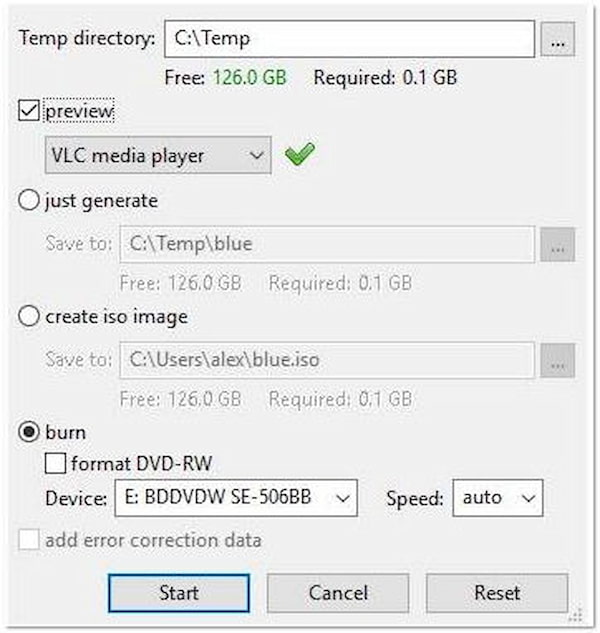
DVDStyler supports various audio and video formats, allowing you to work with different media files during DVD authoring. However, you may experience occasional stability issues like crashes or freezing.
Part 6. FAQs about Burning DVDs
Can VLC burn DVDs?
Unfortunately NO! VLC does not have built-in DVD-burning features. It primarily functions as a media player playing various video and audio file formats.
How long does it take to burn a DVD?
The time required when burning a DVD depends on the speed of the DVD burner, the size of the files being burned, and the selected burning speed. Burning time can take only a few minutes if you use AnyMP4 DVD Creator. You can also guarantee that it can deliver high-quality output, maintaining the original quality.
Can I erase or rewrite data on a burned DVD?
It depends on the type of DVD you are using. DVD-R discs are write-once and cannot be erased or rewritten. However, DVD-RW and DVD+RW discs are rewritable and can be erased and rewritten multiple times.
Why can’t I play the burned DVD?
If the DVD was not burned properly, it may not be playable. Ensure you follow the correct burning process, including selecting the appropriate burn speed and verifying the data afterward. Try burning the DVD again at a lower burn speed.
Can I burn MKV to DVD?
Definitely YES! You can burn MKV files to a DVD by using AnyMP4 DVD Creator. MKV is one of the supported inputs of AnyMP4 DVD Creator, aside from MP4, MTS, MOV, AVI, WMV, and more.
Conclusion
Burning DVDs is a straightforward process that allows you to create physical copies of your favorite videos, movies, and other multimedia content. Throughout this guide, we have explored different methods to burn DVDs. Each method offers its features, options, and level of customization. Remember to follow the step-by-step instructions provided for each method and ensure compatibility with the DVD players you intend to use. With these skills, you can effortlessly preserve memories, share videos, and create personalized DVD collections.



 Add your comments to join the discussion here