
AVI videos are always in large file sizes. Thus, it takes longer time to share or upload AVI files. Sometimes you may fail due to the maximum file size limit. To stream video and make your file size smaller, you can convert AVI to SWF format. SWF is a good video format that can keep video in small size and good quality. Here're 6 ways to convert AVI to SWF video online and offline you can follow.

If you are looking for an AVI to SWF batch converter, you should not miss AnyMP4 Video Converter Ultimate. The 70x faster speed allows users to convert large AVI files to SWF in batch quickly. If the converted SWF video still in a large file size, you can use the built-in video compressor to make the video file size smaller. Moreover, you can crop, clip, merge, rotate, flip, add watermark and apply other video effects before the AVI to SWF conversion.
Secure Download
Secure Download
Step 1: Run AnyMP4 Video Converter Ultimate. Click Add Files on the top. Then browse and import your AVI files.

Step 2: To change AVI to SWF, unfold the Convert All to list on the top right corner. Set SWF as the output format.
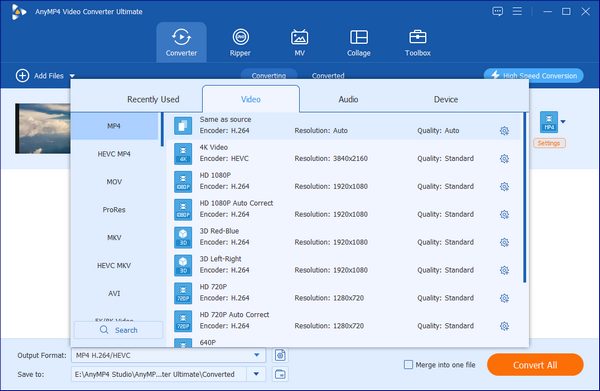
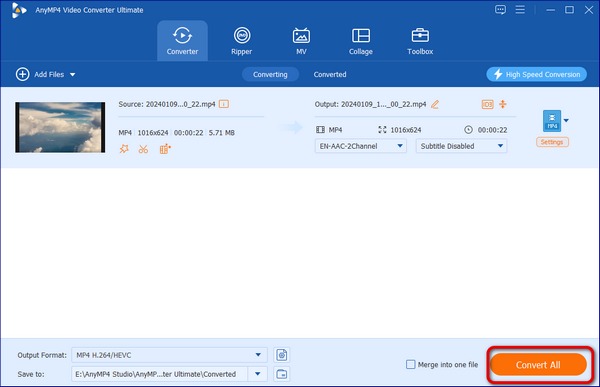
Step 3: Select a path in the Save to section. At last, click Convert All to convert all AVI files to SWF in bulk.
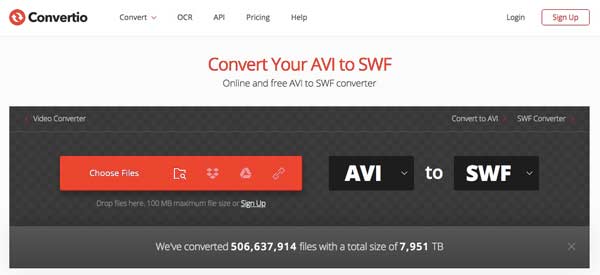
If you don't want to install anything on your mobile phone or computer, you can convert AVI to SWF online as well. Most online AVI video converters have the maximum file size limit. To convert AVI video to SWF for free, your AVI file should not be overlarge.
You can convert AVI to SWF and other 37 formats from multiple sources, including Dropbox, Google Drive or URL. Before exporting the converted SWF file, you can adjust video resolution, quality, aspect ratio and other settings.
Pros:
Cons:
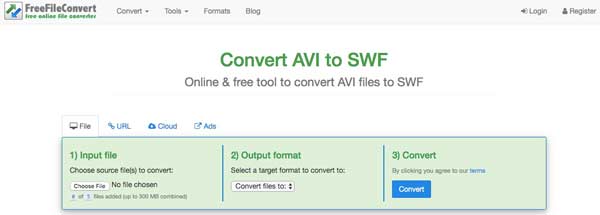
You can use FreeFileConvert to convert AVI to SWF files from online and cloud sources as well. The user interface is intuitive and easy to understand.
Pros:
Cons:
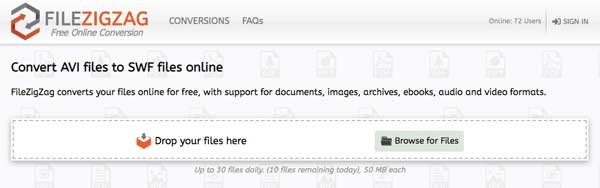
FileZigZag allows users to convert no more than 10 AVI to SWF files online per day. The online AVI to SWF file converter is compatible with all devices and browsers.
Pros:
Cons:
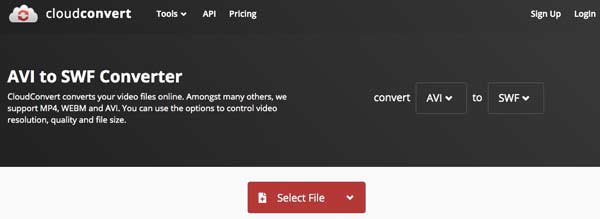
Compared with common online video converters, you can convert AVI to SWF videos from more sources, such as OneDrive, Dropbox, Google Drive and more. It is supported to convert video, audio, document, ebook, archive, image, spreadsheet or presentation up to 200 formats.
Pros:
Cons:
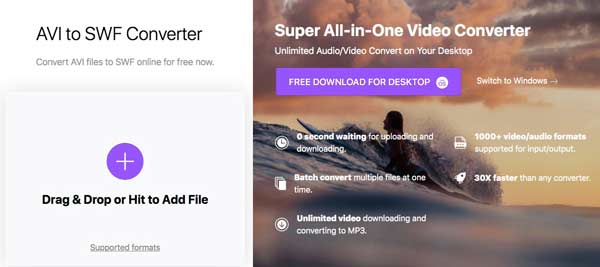
It is an online AVI to SWF converter that allows users to convert 2 AVI files in one conversion. Since it is free to use, the video conversion speed is slow.
Pros:
Cons:
AVI VS SWF
AVI is a popular container file format developed by Microsoft. You can get AVI playback on PC and mobile devices. As for SWF, it is an animation created with Adobe Flash. You can convert AVI to SWF to stream video online. SWF is the standard format of publishing compressed flash content online.
How to open SWF files?
SWF files are not compatible with Apple iOS and Android devices. To play Adobe Flash SWF outside web browsers, you can use SWF player app. Be aware that VLC does not support SWF.
Can I upload SWF video to YouTube?
Though YouTube uses Adobe Flash Video and HTML 5 technology, it is not supported to upload an SWF video to YouTube directly. You need to convert SWF to FLV format for YouTube sharing.
If your Internet connection is not fast, and you really need to batch convert AVI to SWF files in bulk, definitely AnyMP4 Video Converter Ultimate is your first choice. You can free download the program and have a try right now.
 Posted by John Malcolm to Convert Video
Related Articles
 Top 6 Best Ways to Convert SWF to MOV With Ease
This post shows you multiple best approaches to convert SWF to MOV on Windows and Mac computers and enjoy your favorite videos with the original quality.
 Convert SWF to AVI Video – Here Are 5 Easy Ways You Can Follow
Get 5 easy ways to convert SWF to AVI step by step. Here are both online and offline video converters that you can change the video format. Wanna know detailed steps? Just read and check.
 SWF Player – Play SWF Files with Smooth and Impressive Visual Effects
Have no idea which SWF player to choose? Here you can get the detailed information about 5 popular SWF players. Just read and get your best SWF player for Windows or Mac.
 Top 7 SWF Editors to Efficiently Modify and Edit Flash Videos
SWF Editor as the name suggests is the editing software which can process flash files. Here are top 7 SWF editing software for you to efficient edit flash animated files.
 Add your comments to join the discussion here
