
Due to the change in time and technology, media files like videos can be digitized and watched on mobile devices, while DVDs have become less convenient to play owing to the limitations of non-portable playback devices and compatibility. However, DVD lovers still want to rip their DVDs to compatible digital formats for better backup and collection or for watching on iPad and other devices at any time. Nowadays, there are also many DVD rippers and converters that can rip DVDs to playable videos on iPad, and today, we will use one of the best DVD-to-iPad rippers to show you how to rip DVDs to iPad. Keep reading if you are interested!

iPad is a series of tablet computers designed and released by Apple that supports video and audio playback, but unfortunately, it doesn't directly support DVD-related formats by itself. The common encoding of the DVD is MPEG-2, which is not included in the video formats supported by iPad, and it doesn't have a built-in DVD-ROM or DVD player. Therefore, you need to rip DVDs to iPad-supported formats and then transfer them to iPad to watch DVD movies indirectly.
So, what formats does iPad support? Below, we will list some major formats it supports, including video and audio.
| Formats Supported by iPad | |
|---|---|
| Video | MP4, MOV, AVI, W4V, etc. |
| Audio | MP3, WAV, AAC, AIFF, AAX, Audible, Apple Lossless, etc. |
There are many DVD rippers and converters on the market, but there is an essential point to consider: how to bypass the copy protection of some DVDs when ripping. With a professional and powerful DVD ripper, it will be easier to rip DVDs to an iPad with this software. In this section, we highly recommend one of the best DVD rippers, AnyMP4 DVD Ripper.
AnyMP4 DVD Ripper is a good software for ripping DVDs to iPads. It has over 500 formats to convert DVDs and can losslessly rip any DVD into a format more compatible with iPad, such as MP4, MOV, AVI, etc. By extracting DVD movies in this lossless way, you can get perfect high-quality 4K MP4 videos for a better iPad-watching experience.
Whether it is homemade or commercial DVDs, it can bypass the encryption protection to help you easily rip them into the format to your desired format for better playback on iPad. Besides, this DVD ripper has preset format profiles for various devices. This feature lets you directly digitize DVDs to iPad, thus enjoying watching DVDs on iPad and many other devices at any time. You can download it through the Free Download button below and follow our step-by-step instructions to rip the DVD.
Secure Download
Secure Download
1. Launch it after the download and installation are complete. Then, insert the DVD into the computer's DVD drive and click Load DVD to select the DVD you want to rip to the iPad.
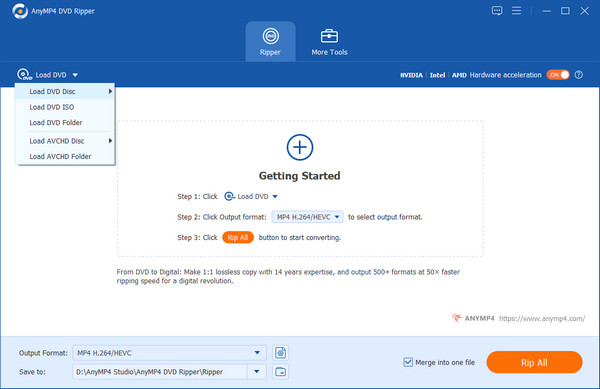
Tip: It will load the main title of the DVD files automatically. You can also load the selected titles by clicking Full Title List.
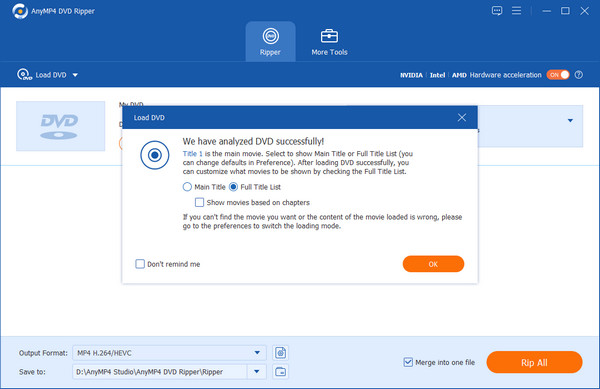
2. Click the Output Format option below to set the output format to the formats supported by the iPad, such as MP4, MOV, AVI, W4V, etc., as listed in the table above.
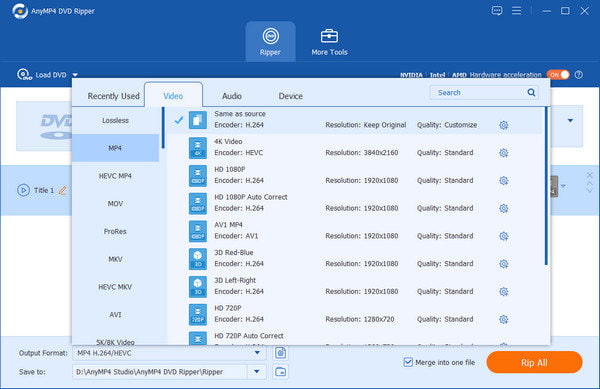
Tip: You can convert DVDs to MP4 because MP4 is the most popular video format. You can also click Apple under the Device tab in the Output Format option to select your corresponding iPad device as the output profile of the DVD. AnyMP4 DVD Ripper supports multiple iPad models, including the iPad Air, iPad Pro, and iPad touch.

3. When the output file is customized, choose the output destination and click the Rip All button to start ripping. Then, wait for the ripping to complete, and you can find the ripped video compatible with the iPad in the file location.
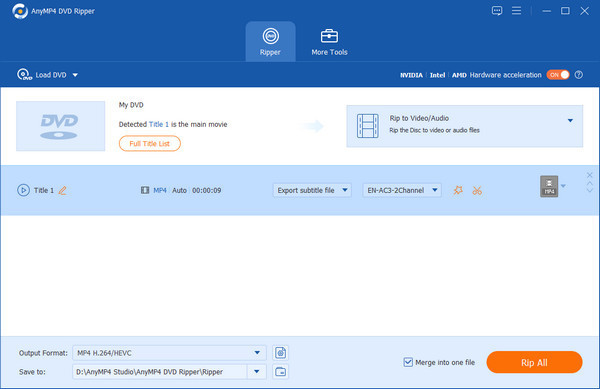
The DVD has been successfully ripped to the format supported by AnyMP4 DVD Ripper. Now, we need to transfer it to the iPad using third-party software so you can watch it on the iPad. In this part, we will show you how to transfer the DVD to your iPad and watch it.
AnyMP4 iPhone Transfer Pro is one of the best iOS transfer software, through which you can easily put ripped DVD videos onto an iPad. Here are the simple steps for it:
1. Download it by clicking the Free Download button on your Windows or Mac computer, and launch it after installation.
Secure Download
Secure Download
2. Connect your iPad to the computer with a USB cable, and the iPhone Transfer Pro will detect your iPad automatically. Select your source iPad device.
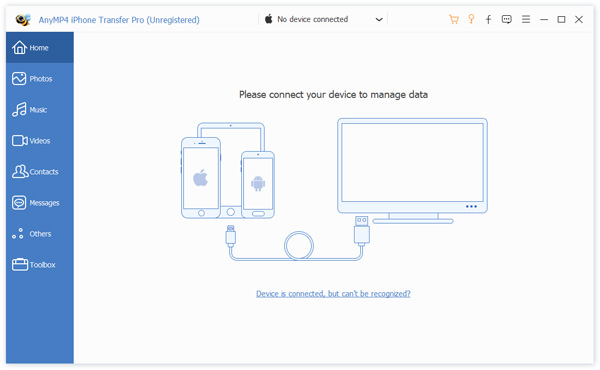
3. Wait a few seconds for the software to scan the data on your iPad. When all the data is scanned, you will see all your media files, including music, photos, videos and more, in the right window.
Click Videos > Add Files or Add Folders to add the ripped DVD to the iPad in this software.
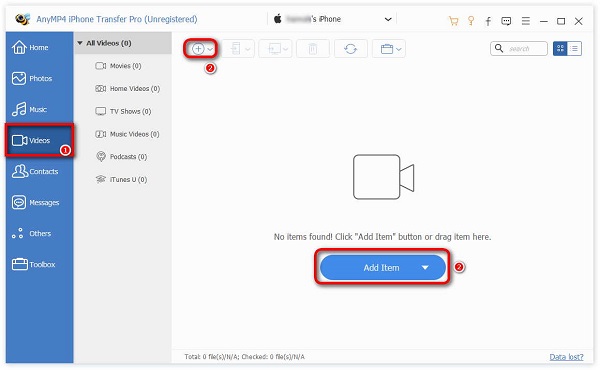
4. Then, a window will pop up to find and open the ripped DVD video you want to add to your iPad according to the file path. Click the Open button, and then the window will show Add videos to device successfully!
This article mainly introduces how to rip DVDs to iPad-supported formats and transfer them to the iPad for users who encounter this problem. AnyMP4 DVD Ripper is undoubtedly the best way to rip DVDs to an iPad. It is free to install, easy to operate, and only needs a few steps to rip DVDs to an iPad. If you have difficulties with it, you can try using it and follow the steps above. If this article is helpful to you, welcome to leave a message in the comment section and share it with others who need it!
 Updated by Ted Klarso to Rip DVD
More readings
 How to Transfer Photos from iPhone to iPhone [Solved]
How to transfer photos from iPhone to a new iPhone without computer? How to transfer iPhone photos without iCloud? All questions will be answered in this post.
 Transfer PDF to iPad from iPhone/iPad/Windows/Mac without iTunes
If you want to transfer PDF to iPad from your iOS device or computer, here’re 3 quick ways to transfer PDF files to iPad without iTunes.
 4 Workable Methods to Rip Blu-ray on Mac [Free Option Included]
This guide shares 4 ways to rip Blu-rays to your Mac, including protected ones, so that you can enjoy the Blu-ray content on various devices.
 How to Rip DVD to iPhone Easily by Using 5 Useful Tools
This article will introduce 5 DVD rippers and how to rip DVD to iPhone. Discover how to easily convert DVDs for playback on your iPhone with our detailed guide.
 Add your comments to join the discussion here