
MTS is a file extension for AVCHD, which is based on the MPEG-4 codec. An MTS file is captured by Sony, Panasonic and other HD camcorders. You can open MTS files with VLC, Windows Media Player, Final Cut Pro X and more. However, there are still some media players that compatible with AVI instead of MTS. During this time, you can convert MTS to AVI to solve the problem.
This article introduces 2 ways to convert MTS video to AVI. If you want to convert large MTS video files to AVI, you can use AnyMP4 Video Converter Ultimate to save time. As for converting MTS to AVI video no more than 200MB, an online video converter also helps. Just read and choose the MTS to AVI conversion method you need.
If you want to convert all MTS files to AVI, AnyMP4 Video Converter Ultimate is your fastest solution. You can batch convert MTS to AVI files on Windows and Mac with 70x faster speed. Being equipped with the advanced hardware-accelerated technology, you can make a lossless AVCHD MTS to AVI conversion quickly. Moreover, you can convert MTS files to 500+ formats, including 4K/1080p HD video formats. The built-in video editor allows users to edit MTS videos before converting to AVI. In a word, you can convert MTS to AVI without losing quality quickly and easily.
Secure Download
Secure Download
Step 1: Free download, install and launch AnyMP4 Video Converter Ultimate. Click Add Files on the top left corner. Browse and add MTS files into the MTS video converter software.

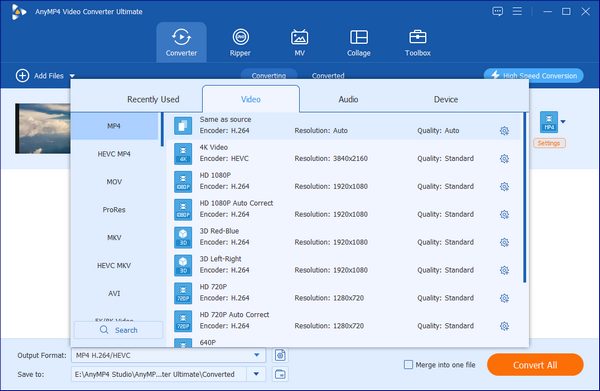
Step 2: Find Convert All to list on the top right corner. Choose AVI in the left panel. In the AVI section, you can get all AVI presets with different resolution and quality. Choose one to set AVI as the output video format.
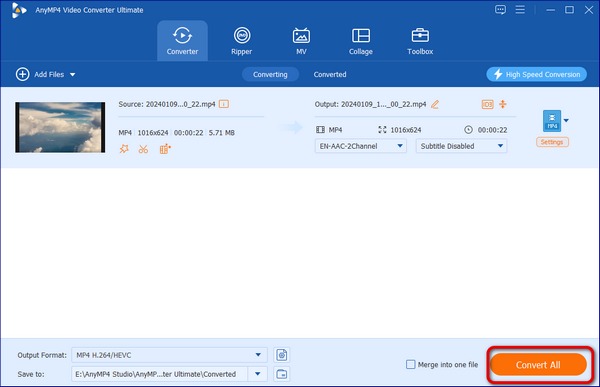
Step 3: You can change the destination folder in the Save to section near the bottom. At last, click Convert All to convert MTS to AVI files without losing quality.
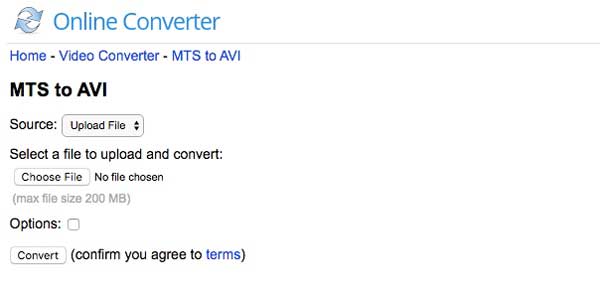
Using an online MTS to AVI converter is also a good idea. If your MTS file size is small, and your Wi-Fi speed is fast, you can convert MTS to AVI for free online as well. It is a good choice for mobile phone users. You can convert MTS to AVI on iPhone and Android without installing anything.
Step 1: Open an MTS to AVI online converter in your browser.
Step 2: Click Choose File to add an MTS video file. The maximum file size is 200MB.
Step 3: Enable Options to access hidden features. Here you can cut video clip and adjust frame size.
Step 4: Click Convert to convert MTS to AVI for free online.
Are MTS and M2TS the same?
Yes. Both MTS and M2TS are high definition files associated with AVCHD format. If you really want to find the difference, you can check its source video. If an AVCHD video is recorded with a camcorder, it will be saved with MTS file extension. Once the AVCHD video is imported into your computer, the file extension will change from MTS to M2TS. But you can still change the file extension of the AVCHD MTS or M2TS directly.
How to play MTS video on Android and iPhone?
MTS/M2TS are not natively supported by mobile phones. You can use an MTS player app or convert MTS to Android or iPhone compatible format. The most recommended MTS video player and converter app is VLC Media Player for Mobile. You can play and convert Sony MTS files for free.
How to convert MTS to AVI using VLC?
VLC can also be your open source and free converter to convert MTS to AVI on multiplatform. Here will show you the tutorial to convert MTS to AVI on Windows with VLC. Choose Convert/Save from the Media list on the top. Click Add to import your MTS video. Click Convert/Save below to move into the Convert window. Unfold the Profile list and select AVI preset. Then click Start to change video format from MTS to AVI using VLC.
By using the above tools, you can convert MTS to AVI on Windows, Mac and online successfully. The converted Sony MTS files can get better compatibility. Thus, you can get MTS playback and editing on other programs that are not compatible with MTS.
 Posted by John Malcolm to Convert Video
Related Articles
 Free Online GIF Converters | Convert GIF to AVI Simply
Want to play GIF files on other players or software? The first step would be to convert GIF to AVI. In this post, we will show you top 5 FREE GIF Converters to help you convert GIF to AVI.
 Top 3 Methods to Convert MOV Video Files to AVI Format
This is a comprehensive guide of 3 100% working methods to convert your MOV video files to AVI format, so that you can watch them on Windows 10/8/7 smoothly.
 Top 7 Methods to Convert MTS to MP4 Video
Get the best solution to convert MTS to MP4 in HD quality. After that, just feel free to edit and play converted MTS videos to any video editor or portable device.
 10 Best AVI Players That Bring You the Real Home Cinema Experience
Can't play AVI files in Windows Media Player? It is time to change a reliable
AVI player. Here are 10 AVI video players for Windows and Mac with smooth visual experience. Just read and check.
 Add your comments to join the discussion here
