
MPEG is short for Moving Picture Experts Group, which is a working group of experts that was formed by ISO and IEC to set standards for audio and video compression and transmission. The MPEG standards consist of different Parts mainly including MPEG-1, MPEG-2, MPEG-3 and MPEG-4. Superior to MPEG1 352×288, the highest image clarity of MPEG4 is 768×576, and it can reach close to the DVD picture effect, which makes its high image clarity very good. Each part of the MPEG covers a certain aspect of the whole specification.
M2TS is a high definition digital video camera recorder format, which is recorded by Panasonic, Canon and AVCHD camcorders, and you can not import M2TS video files to some other media devices easily, but you can convert M2TS to MPEG firstly and then play it on the portable device. AnyMP4 M2TS Converter is the right software you are looking for, and it can be also called M2TS to MPEG converter, which can help you convert M2TS to any popular video format such as MPEG, AVI, WMV, FLV, MP4, etc. And you can play it on the portable devices like the new iPad, iPhone 4S, iPhone 5, Galaxy Tab, Google Nexus 7, and HTC, etc. And this guide will show you how to convert M2TS to MPEG in the following.
Secure Download
Secure Download
Firstly, you need to download this M2TS to MPEG Converter from our site and then install it on your computer.
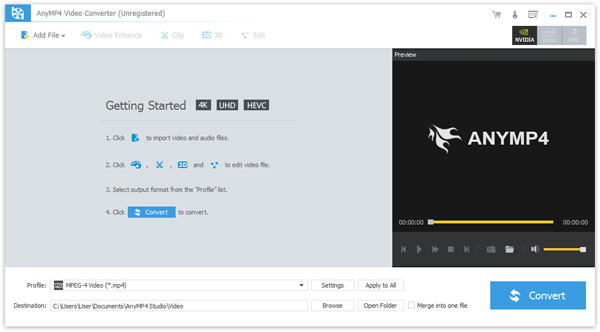
You can click "Add Video" button on the main interface to add several M2TS video files from local computer. And the added files will be listed in the file list. You can check it out.
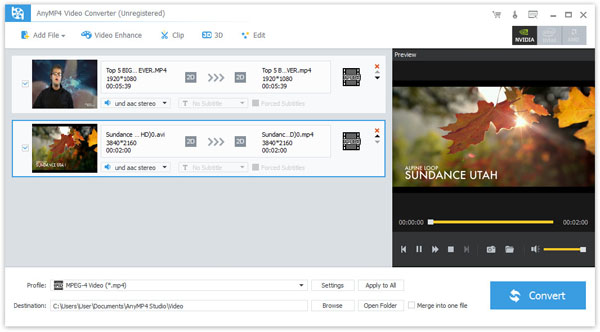
With this M2TS to MPEG Converter, just select more than one M2TS video in the file list at the same time, then click "Merge" button, you can merge several M2TS files into one single file.
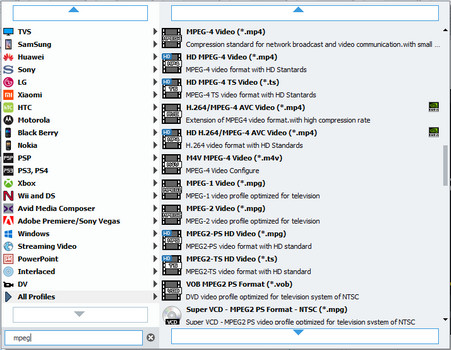
Click "Profile" drop-down list in the main interface, you can input "MPEG" in the quick-search box, and then you can look for your wanted format at right of the list.
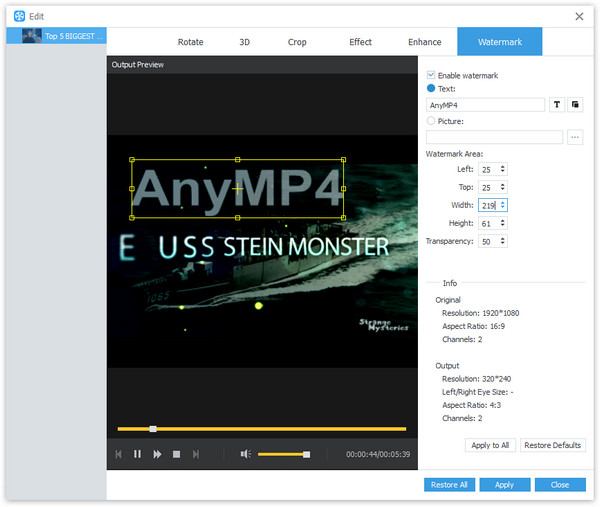
With it, you can click "Edit" button to reach the "Edit" window, where you can add text or picture watermark on the screen of the video according to your needs. Certainly, you can also move its position as you like.
After all above, you can click "Convert" button to start to convert M2TS to MPEG with this professional M2TS to MPEG Converter.
 Updated by Joan Aimee to Convert Video
Related Articles
 Top 10 FLV to MP4 Converters You Should Know
Would like to find a useful converter for FLV to MP4? just check out from the article.
 Top 7 Methods to Convert MP4 to FLV
You can use professional MP4 to FLV Converters to manage video conversion easily.
 Top 4 Methods to convert M2TS to MP4
Come and get 4 different types of M2TS to MP4 Converters to edit and convert M2TS files.
 How to Turn MP4 into GIF With Top 5 Methods
Ever wonder how to turn your MP4 videos into GIF images? Don't worry. Read on and learn, this article will introduce 5 methods for you to achieve it.
 Add your comments to join the discussion here
