
"I just download some movies from blog, but I cannot play them on my Windows tablet. What should I do? It seems that my tablet cannot play AVI files. How to convert AVI to Windows tablet compatible formats?"
If you have the same problem, you should convert AVI to WMV for the Windows tablets. In the article, you can find the 5 best methods to convert AVI to WMV. What is more, you can also access to free solutions from the article with ease. Now read on the article to get the desired result.
If you need a professional level video converter, we will recommend AnyMP4 Video Converter Ultimate, because it has more powerful features.
Secure Download
Secure Download
Step 1. Download and install Video Converter
First, you must download AnyMP4 Video Converter by clicking the "Free Download" button. Then you must install it to your PC. If the installation is successful, you can open the software and check out the interface.
Step 2. Load the original AVI video
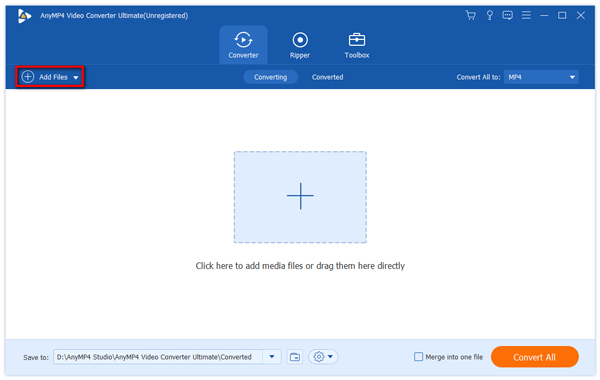
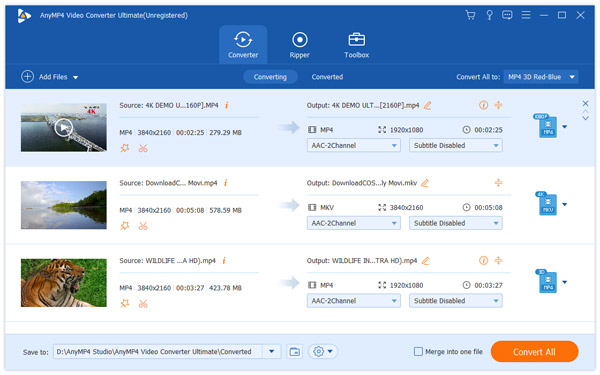
You must load your AVI file to the software by clicking the "Add Files" button on the toolbar. If you need to convert more than one video file, you can select "Add Files > Add Folder" to load multiple files.
Step 3. Select WMV format
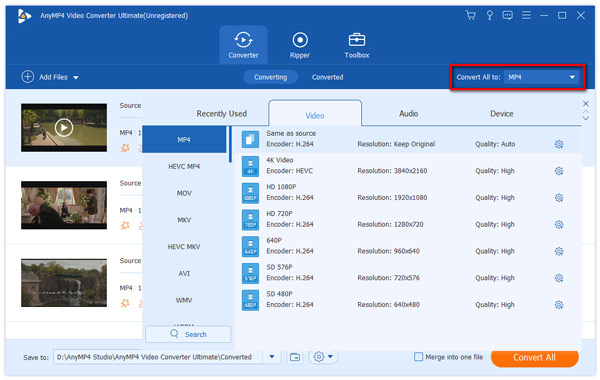
Click the "Profile" drop-down list to select WMV format. Cannot find your needed profile? You can input "WMV" in the text area below and the software will automatically find it for you.
Step 4. Conduct video effect customization
AnyMP4 AVI to WMV converter is designed to help users conduct video effect customization with its powerful editing tools. You are allowed to trim video for your needed length, crop video frame to get rid of unwanted black edge, merge video clips together to get a single file and add text/image watermarks to the video. If you think the video is too dark or color is too light, you can also adjust Video Brightness, Hue, Contrast and Saturation.
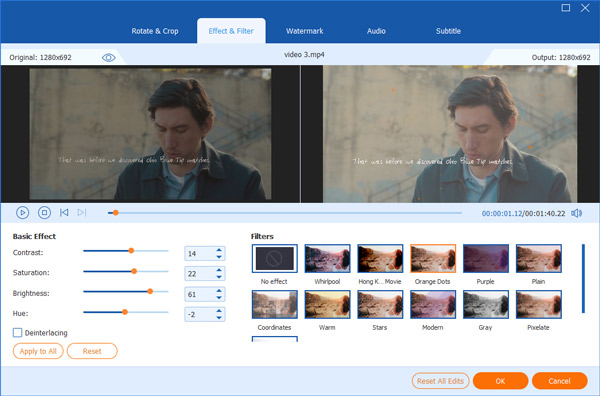
AnyMP4 Video Converter also allows you to adjust output settings and audio parameters including Video Encoder, Resolution, Bitrate, Frame Rate, Aspect Ratio, and Audio Encoder, Channels, Sample Rate and Bitrate are also adjustable.
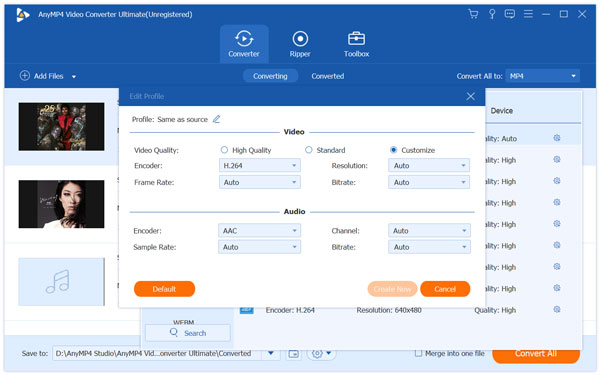
Step 5. Choose audio track and subtitle
Some video files contain multiple audio tracks for you to choose. With AnyMP4 Video Converter, you are allowed to choose your preferred audio track and add downloaded subtitle files to the video file.

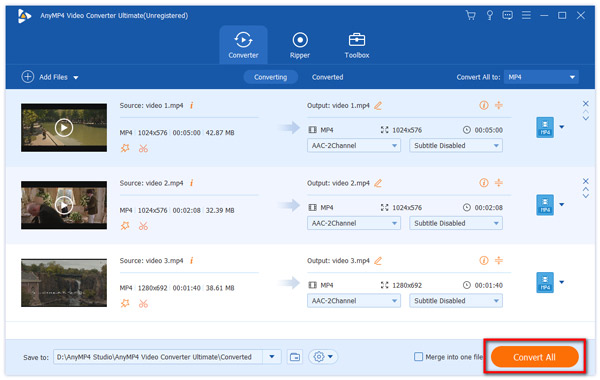
Step 6. Convert video to WMV format
You can start the conversion by clicking the "Convert All" button.
Then you'll get your need WMV video, which possesses small video size and negligible quality loss.
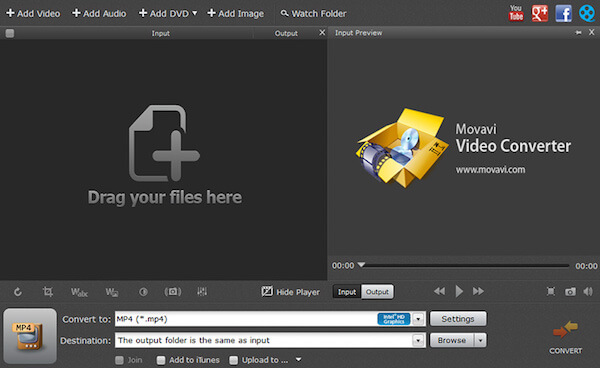
To convert AVI to WMV free in an easy but professional way, you can choose to use Movavi Video Converter. Both Windows and Mac users can enjoy lightning-fast conversion without quality loss.
Step 1: To convert AVI to WMV free in an easy but professional way, you can choose to use Movavi Video Converter. Both Windows and Mac users can enjoy lightning-fast conversion without quality loss.
Step 2: Add the AVI file you want to convert by clicking Add Video.
Step 3: Go to Video tab and then click AVI category as your output format.
Step 4: Choose the destination folder where you want to save it. Then click on Convert button to begin AVI to WMV conversion.
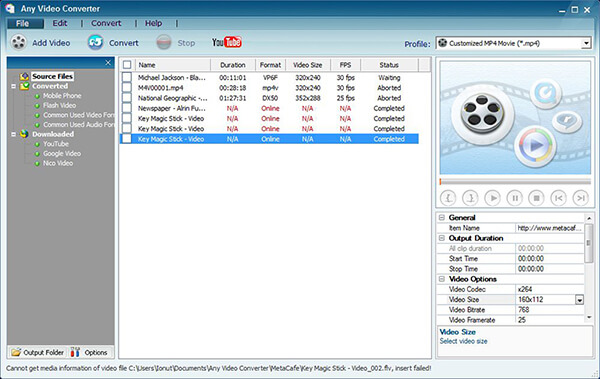
Any Video Converter is a free video converter that converts your videos into any format you may like, such as convert AVI to WMV. It has a first speed in burning files and gives a high output quality. You can follow the next steps.
Step 1: Download Any Video Converter on your computer and launch it.
Step 2: Click on Add Video(s) button to add the AVI files you want to convert.
Step 3: Select WMV as the output format from the drop-down list.
Step 4: Click on Convert Now to begin this conversion.
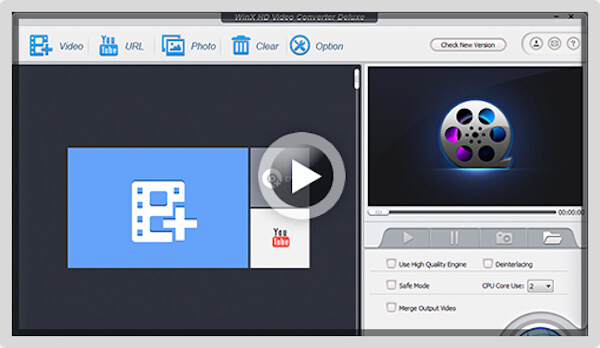
You can use WinX Free WMV Converter to convert AVI to WMV. It is a totally free software you can download and use safely. And it produces effective results on conversion with good quality output.
Step 1: Download this software on your computer and launch it.
Step 2: Download this software on your computer and launch it.
Step 3: Now choose WMV as your output format.
Step 4: Click on Run button to begin convert AVI to WMV free.
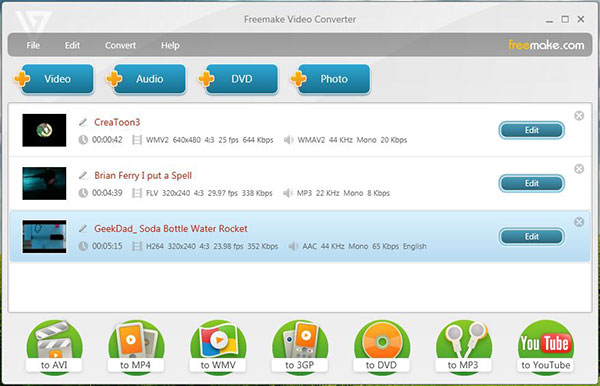
Freemake Video Converter is also a free converter you can use to convert AVI to WMV. It is safe to download and use, you can simply get WMV files with this free software.
Step 1: Download Freemake Video Converter and then launch it.
Step 2: Import your AVI video by clicking +Video button or draping and dropping.
Step 3: Select WMV as your output format.
Step 4: You can use the default conversion preset (recommended) or change it. Click "Convert" to get the work done.
AVI video format is known for its compelling video quality, which is favored by lots of video fans, but it cannot be directly played with some portable devices. In order to solve this problem, you can consider using AnyMP4 Video Converter to convert the AVI video to other video formats such as WMV, MP4, FLV, WebM, VOB, 3GP and ASF.
Windows Media Video, also known as WMV, is a video compression format developed by Microsoft. The newest WMV 9 introduced several important features including native support for interlaced video, non-square pixels, and frame interpolation, which makes it one of the most popular video formats around the world.
You will feel it so easy to convert AVI to WMV with these methods we recommend to you. All of these ways are really useful to use. You can choose AnyMP4 Video Converter to convert AVI to WMV in an easy yet professional way. Or select other good ways to finish your job. Hope you can gain something helpful in this article.
 Updated by Ted Klarso to Convert Video
Related Articles
 10 Best AVI to MP4 Converters to Convert AVI
All best AVI to MP4 Converters are here in the post. And you can get one to use.
 Top 15 AVI to MP4 Free Converters You Really Want
This article introduces top 15 Free AVI to MP4 Converters for users to convert AVI.
 Easy to Change WMV to MP4 on Windows and Mac
The easiest ways to change your files from WMV to MP4 are all in this post.
 How to Convert MP4 to WMV on Windows and Mac
Create Microsoft WMV videos with MP4 in high quality on Windows, Mac or online.
 Add your comments to join the discussion here