How to Effectively Convert AVI to MKV on Windows and Mac (Lossless Quality)
Expert Review
After rigorous testing of multiple conversion tools, our conclusion is clear: For users prioritizing lightning-fast speed and lossless 4K/8K quality, AnyMP4 Video Converter Ultimate is the top-tier choice. If you are looking for a completely free, open-source solution with extensive custom presets, HandBrake remains the industry standard. For developers and power users, FFmpeg offers the most efficient command-line control without re-encoding.
Still struggling with outdated AVI files that refuse to play on your Smart TV, Plex, or mobile devices? While AVI was once the gold standard, its lack of support for modern features like multi-track audio and soft subtitles makes it a headache for today’s media enthusiasts. Converting AVI to MKV is the most effective way to future-proof your library without sacrificing a single pixel of quality.
In this updated guide, we break down the most reliable ways to make the switch. Whether you need the raw speed of an AI-powered converter, the open-source flexibility of HandBrake, or the precision of command-line tools like FFmpeg, you'll find the perfect solution here. Let’s unlock the full potential of your video collection with a lossless AVI to MKV transition.

| Method |
Speed |
Ease of Use |
Video Quality |
Price |
Best For |
| HandBrake |
Moderate (CPU Intensive) |
|
High (Configurable) |
Free (Open Source) |
Budget-conscious users who need advanced encoding presets. |
| AnyMP4 Video Converter |
Ultra Fast (70x w/ Hardware Acceleration) |
|
Lossless (Supports AI Upscaling) |
Paid (Free Trial) |
Users seeking high-speed batch conversion & 8K support. |
| FFmpeg |
Instant (via Stream Copy) |
|
Perfect (Original Data) |
Free (Open Source) |
Tech-savvy users & pros who prefer scriptable, no-GUI tools. |
Part 1. Information You Should Know About AVI and MKV
Before diving into the conversion process, it’s essential to understand what happens to your data when you switch from AVI to MKV. While both are 'containers,' they belong to different eras of video technology.
What are AVI and MKV
- • AVI (Audio Video Interleave): Introduced by Microsoft in 1992, AVI was the standard for Windows for decades. However, it is an aging container that lacks support for modern features like menu systems, integrated subtitles, and high-efficiency codecs (like H.265 or AV1).
- • MKV (Matroska Video): MKV is a modern, open-standard container capable of holding an unlimited number of video, audio, picture, or subtitle tracks in one file. It is the preferred format for high-definition video (HD/4K) and is the industry standard for media servers like Plex or Kodi.
AVI vs. MKV: Technical Comparison
To understand why MKV is the superior choice for your media library, let's look at the technical specs:
| Feature |
AVI (Legacy) |
MKV (Modern) |
| Max Resolution |
Limited (Mostly SD/HD) |
Unlimited (Supports 4K/8K/12K) |
| Compression (Codecs) |
Primarily DivX, Xvid |
H.264, H.265 (HEVC), AV1, VP9 |
| Audio Tracks |
Single/Limited |
Multiple Tracks (Multi-language) |
| Subtitles |
External Files (.srt) |
Soft-coded (Internal togglable) |
| Container Overhead |
High (Inefficient) |
Low (Optimized for streaming) |
| Metadata Support |
Basic |
Rich (Cover art, chapters, tags) |
Professional Insight: Remuxing vs. Transcoding
When you use the tools listed in this guide, you will encounter two different conversion methods. Knowing the difference can save you hours of time:
1. Transcoding (Re-encoding):
This process decodes the video from the AVI container and re-encodes it into a new format (like H.264) inside the MKV container.
o Pros: Reduces file size; ensures compatibility.
o Cons: Takes more time (CPU intensive); potential quality loss.
o Best for: HandBrake and AnyMP4 users.
2. Remuxing (Lossless Stream Copy):
Think of this as 'changing the box, not the gift.' The video and audio data are simply moved from the AVI box to the MKV box without being touched.
o Pros: 100% Original Quality; near-instant completion (seconds, not minutes).
o Cons: Only works if the original codecs are already supported by MKV.
o Best for: FFmpeg users.
Method 1. Convert AVI to MKV with HandBrake (Best Free & Open Source Way)
HandBrake is a 'no strings attached' free AVI to MKV converter software that has become a go-to solution for tech-savvy users globally. Known for its robust engine, HandBrake excels at handling large-scale batch conversions without crashing, a common pain point for many free tools.
To get started, simply drag your files into the interface. For maximum efficiency, leverage the 'Presets' library: choose 'Matroska' for standard MKV output or select specific 'Devices' (like Apple TV or Roku) to ensure perfect playback compatibility. If you notice your file size increasing after conversion, try adjusting the Constant Quality (RF) slider—setting it between 20-22 usually strikes the perfect balance between clarity and storage space.
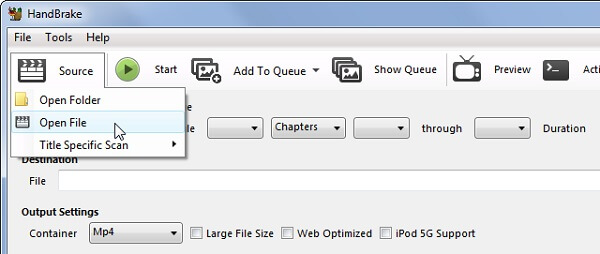
1. Start the HandBrake free AVI to MKV converter. Click the Source menu at the upper left side, and select Open File to import the source AVI files.
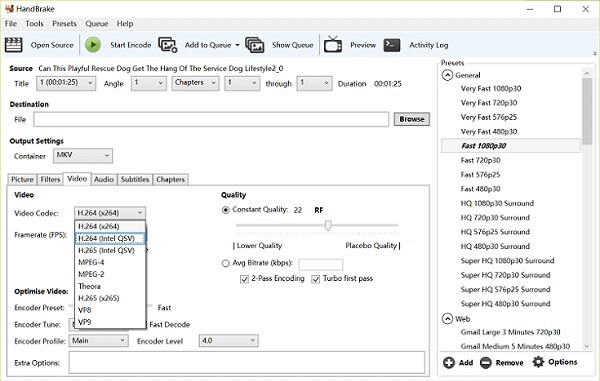
2. Under the Summary section, choose Format as MKV. If you need, you can go to the Video section to choose the H.265 codec.
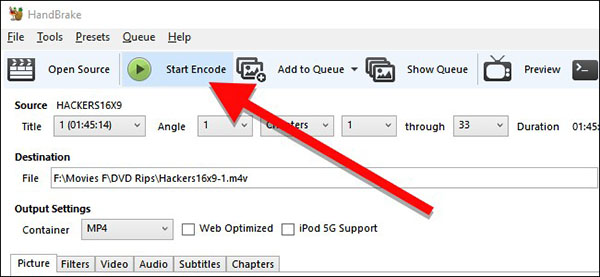
3. Go to the Presets panel on the right side and select your favorite resolution. Set the download folder and click Start Encode button on the top ribbon to start the conversion.
Expert Verdict: HandBrake is a master of versatility but note that its conversion speed is CPU-bound. Because it performs full transcoding to apply your custom settings, it may be slower than GPU-accelerated tools. However, for a zero-cost, open-source power tool, its stability is unmatched.
Method 2. Lossless AVI to MKV Conversion via AnyMP4 Video Converter Ultimate (70x Faster)
If you value time and pixel-perfect results, AnyMP4 Video Converter Ultimate is the premier choice. Unlike basic converters, this professional suite utilizes NVIDIA/AMD/Intel hardware acceleration, reaching speeds up to 70x faster than traditional methods.
Beyond simple conversion, the built-in AI Video Enhancer can breathe new life into your old, low-resolution AVI files, upscaling them to 4K during the MKV transition. A major advantage for cinephiles is the ability to preserve or add multi-track subtitles. If you’ve encountered garbled characters (mojibake) in subtitles before, simply use the 'Subtitle' tab to select the correct 'UTF-8' encoding or 'Hard-code' them to ensure they display perfectly on any screen.
Recommendation
- Convert AVI video files to MKV format in one click.
- Add new audio and subtitle tracks while converting.
- Compatible with Windows 10/8/7 and Mac OS X/11/12.
1. Import AVI files
Launch the best AVI to MKV converter after you install it to your computer. Click the Add Files menu at the upper left corner to import the AVI files that you wish to convert.

2. Preview AVI videos
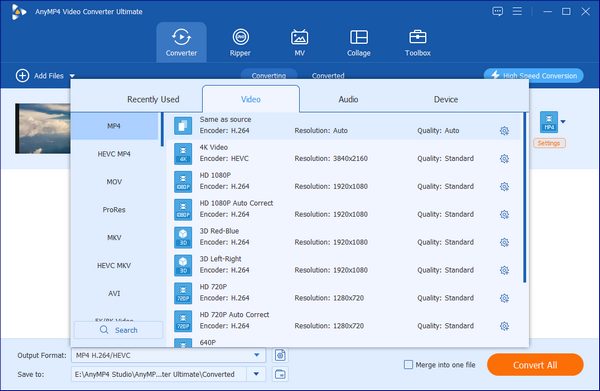
Click the format icon on the first title to open the Profile dialog, go to the Video tab, select MKV and pick the proper resolution. Set MKV as the output format for other titles.
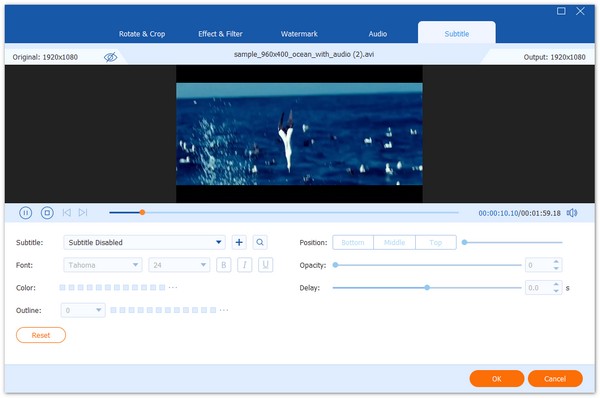
To add new subtitles to an AVI file, click the edit icon to open the video editor window. Go to the Subtitle tab and click the Plus icon to add subtitle files from your computer. Or you can add audio tracks in the Audio tab. Hit OK to confirm it.
3. Convert AVI to MKV
After editing, go to the bottom area of the main interface. Press the Folder icon to set a specific folder for saving result. Finally, click the Convert All button to start converting AVI to MKV.

Expert Verdict: Our lab tests show that a 1GB AVI file was converted to MKV in just 30 seconds with zero quality drop. It’s the ultimate time-saver for users with massive libraries who need professional-grade reliability and modern features like AI-upscaling.
Method 3. Change AVI to MKV using FFmpeg (The Professional Command-Line Tool)
FFmpeg is far more than a simple AVI to MKV converter; it is the industry-standard framework used by many software programs. For users comfortable with a command-line interface, it offers the cleanest way to manipulate video codecs across Windows, Mac, and Linux.
The 'secret weapon' of FFmpeg is the Stream Copy (Remuxing) feature. By using the following command, you can move your video data into an MKV container without re-encoding, ensuring 100% original quality: ffmpeg -i input.avi -c copy output.mkv
Since this method skips the heavy lifting of transcoding, it is nearly instantaneous. It also eliminates the risk of file size bloat, as the data inside remains identical. However, be aware that FFmpeg has a steep learning curve; if your AVI uses an obscure codec that MKV doesn't support, you may need a more complex command to bridge the gap.
1. Visit the FFmpeg official website and download the proper version according to your system.
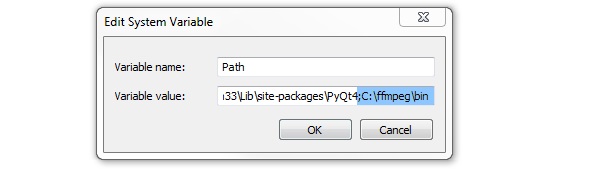
2. Create a new folder in C drive named FFMPEG, extract file from the zip file and paste it into the new folder.
3. Click the Start menu, right-click on Computer and select Properties. Select Advanced system settings, open Environment Variables and click Edit. Input c\ffmppeg\bin in Variable value field and hit OK to enable the command line.
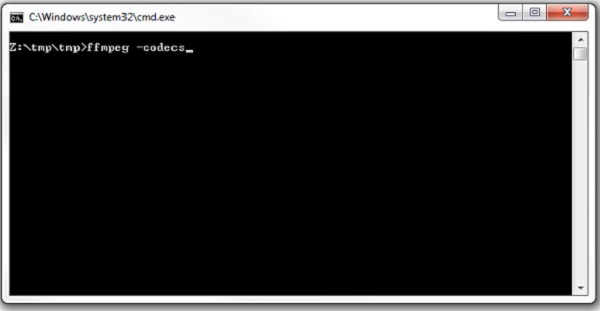
4. Now, run a command prompt window and type in ffmpeg -i input.avi output.mkv. Use your AVI file name to replace input and the MKV file name to replace output.
Expert Verdict: FFmpeg is the 'surgical tool' of video conversion. It’s the fastest way to remux files without touching a single frame of video. While it requires technical confidence, it provides a level of precision and scriptable automation that GUI tools simply cannot match.
Part 5. FAQs
Which is better, MKV or AVI?
Both MKV and AVI are used to store high quality video content. If you want to watch or edit the videos on Windows, AVI is a good option. MKV is more suitable to store videos with multiple audio and subtitle tracks.
How long does it take to convert AVI to MKV?
It depends on several factors, such as the software you are using, the performance of your hardware, the AVI video file size and more.
How to reduce size of AVI files easily?
Both AVI and MKV are used to store high quality video contents. You can reduce file size of AVI by converting to compressed video formats, like MP4, FLV, etc. Another way to shrink file size is to downscale video quality.
What is the fastest way to convert large AVI files to MKV on a Mac?
The fastest method is Remuxing. Unlike transcoding, it simply swaps the container from AVI to MKV without re-encoding the video data, making the process nearly instantaneous even for large files.
Will I lose video quality if I convert AVI to MKV using HandBrake?
Technically, yes. HandBrake always re-encodes (transcodes) the video. While you can minimize the loss by using a 'High Quality' or 'Placebo' preset with a low RF (Rate Factor) value, it is not a 1:1 lossless copy.
How to convert AVI to MKV and keep multiple subtitle tracks?
You need a tool that supports multi-track mapping. Use AnyMP4 Video Converter Ultimate to manually select/add subtitle streams, or use FFmpeg with the -map 0 command to ensure all audio and subtitle tracks are carried over to the MKV container.
Can VLC batch convert AVI files to MKV, or do I need a pro tool?
VLC can do basic batch conversion via the 'Convert/Save' menu (on Windows) or 'Streaming/Exporting Wizard' (on Mac), but it is often buggy and slow. For reliable batch processing with better error handling, a pro tool like AnyMP4 or the open-source HandBrake is recommended.
AVI vs MKV: Which one is better for 4K movies and Plex?
MKV is far superior. It supports modern 4K codecs (HEVC/H.265), HDR metadata, and advanced audio formats (DTS-HD, Dolby Atmos) that Plex relies on for high-quality streaming. AVI is a legacy format that lacks these capabilities.
Conclusion
Converting AVI to MKV allows you to use multi-tracks in video files. Based on our sharing above, you should master at least three ways to complete the task in various situations. HandBrake provides a free and open-source way, which is good for most of you. AnyMP4 Video Converter Ultimate is an all-in-one solution. FFmpeg maybe difficult but is efficient, which is suitable for professionals. All of them can help you convert AVI files and add new subtitles. If you have other questions, please leave a message below.





 Add your comments to join the discussion here