
iPhone grants users incredible video playing capabilities, and can play video with high quality. By using AnyMP4 iPhone Converter, users can convert all kinds of BD/DVD/video to iPhone compatible M4V, MP4 and MOV format without making any mistake.
AVI (Audio Video Interleave) is a multimedia container format, which can contain both audio and video data in a file container that allows synchronous audio-with-video playback. Like the DVD video format, AVI files support multiple popular audio and video, although these features are seldom used. Most AVI files also use the file format extensions developed by the Matrox OpenDML group in February 1996. AVI does not provide a standardized way to encode aspect ratio information, with the result that players cannot select the right one automatically.
Secure Download
Secure Download
The first thing you need to do is download and install AnyMP4 iPhone Converter. If you don't want to use the default path, you can choose your preferred installing path instead. Then open the software and see if it's successfully installed.
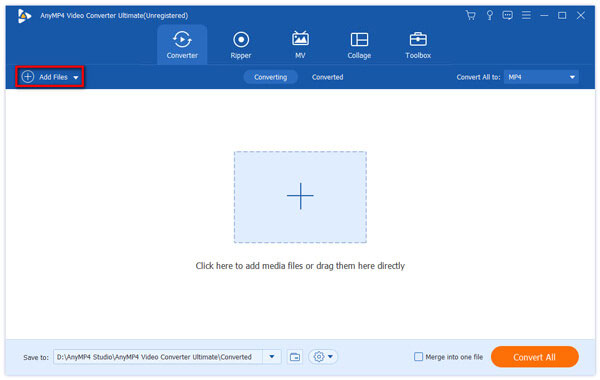
Click the "Add Files" button on the toolbar of the software to load your original AVI video to the software. You are also allowed to select "File > Add Folder" to load multiple video files to the software at one time.
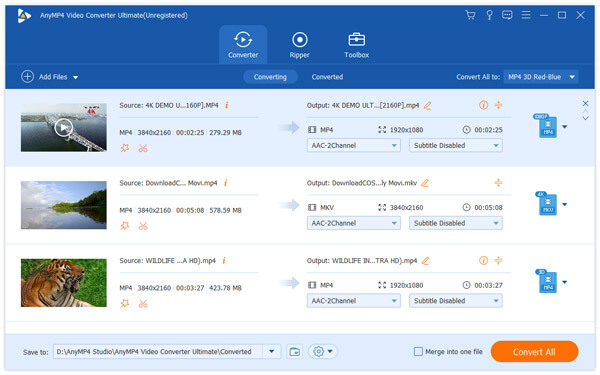
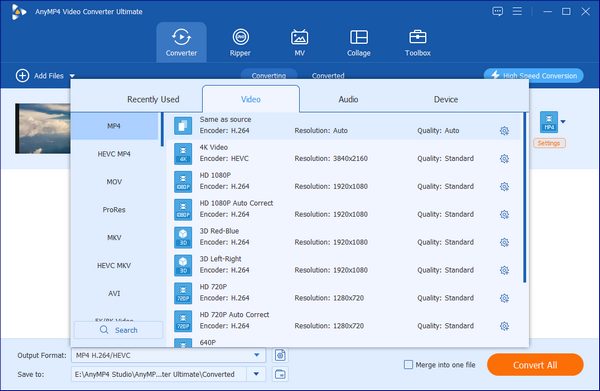
Then you should select your needed MP4 video format from the "Profile" drop-down list. This list contains all the supported output formats. Cannot find your needed profile? Input it in the text area, then the software will automatically find it for you.
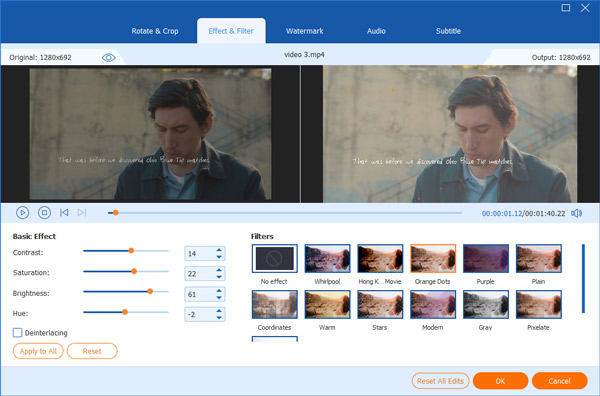
Dedicated for iPhone fans to customize video effect, AnyMP4 iPhone Converter is designed with a collection of powerful editing tools. These versatile tools can help trim video for your needed length, crop video frame to get rid of unwanted video black edges, merge video clips into one single file, add watermark to the video, and adjust Video Saturation, Brightness, Contrast, Hue and Volume for better video quality.
You are also allowed to click the "Settings" button to further optimize video effect. Output parameters such as Video Encoder, Frame Rate, Bitrate, Resolution, Aspect Ratio, and Audio Encoder, Channels, Bitrate and Sample Rate can all be adjusted.
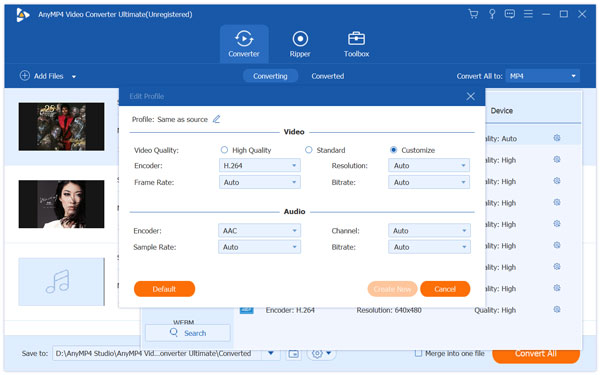
If you are not content with the original audio track of the video, use AnyMP4 iPhone Converter to select your preferred audio track, and add downloaded subtitle to the video for better enjoyment.

When you've done all the customizations, click the "Convert All" button to start converting AVI video to MP4 format. AnyMP4 iPhone Converter can achieve any conversion task with fast speed and high quality.
When the progress bar reaches 100%, you can enjoy your MP4 video with your iPhone.
 Updated by Joan Aimee to Convert Video
Related Articles
 10 Best AVI to MP4 Converters to Convert AVI
All best AVI to MP4 Converters are here in the post. And you can get one to use.
 Top 15 AVI to MP4 Free Converters You Really Want
This article introduces top 15 Free AVI to MP4 Converters for users to convert AVI.
 10 Best Methods to Convert AVI to MP4 on Mac
You can learn about multiple free methods to encode AVI video to MP4 format on Mac.
 7 Best Methods to Convert MP4 to AVI
What should you do to convert MP4 to AVI? Learn more details about the process.
 Add your comments to join the discussion here
