
iPhone possesses excellent video playing capabilities and professional applications, which makes it one of the most popular smartphones in the world. AnyMP4 iPhone Converter is the best choice for iPhone users to convert all kinds of video and audio formats, even BD/DVD to iPhone compatible H.264 coded MP4 format, which has better video quality than the original MP4 format.
H.264 is a standard for video compression, and is currently one of the most commonly used formats for the recording, compression, and distribution of high definition video. H.264 is perhaps best known as being one of the codec standards for Blu-ray Discs; all Blu-ray players must be able to decode H.264.
Secure Download
Secure Download
In order to use AnyMP4 iPhone Converter, you must at first install the software to the selected path of your PC. You can just use the default installing path as well.
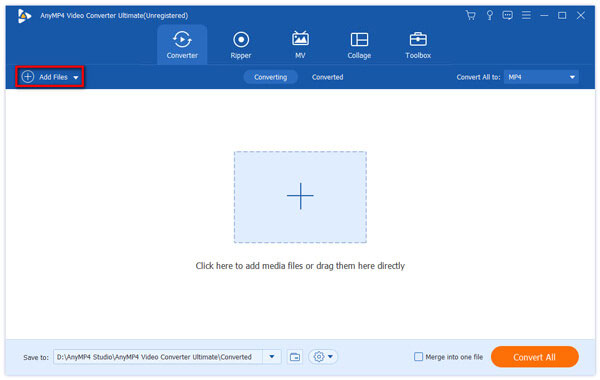
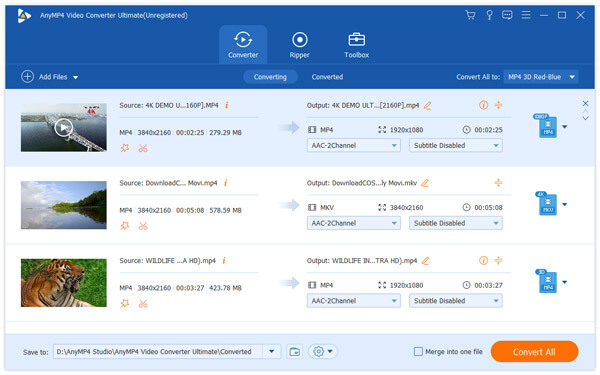
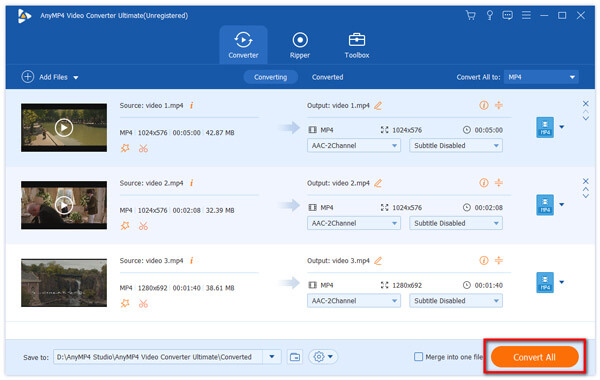
Click the "Add Files" button on the toolbar of the software to load your AVI video to the software. If you need to load more than one video files to the software, select "File > Add Folder". Then you can arrange the order of the video files in the "File Name" list to decide which file to convert first.
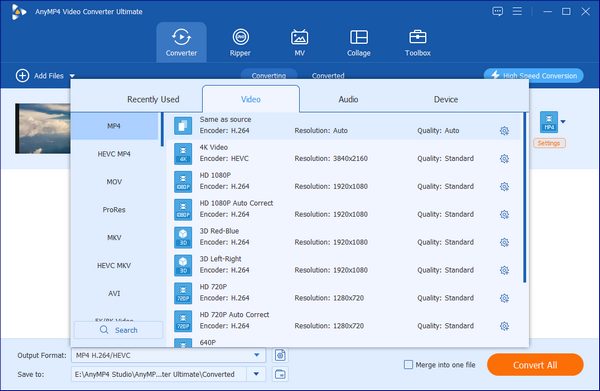
Click the "Profile" drop-down list to select your needed H.264 coded MP4 format, or input it in the text area, then the software will automatically find it for you. The "Profile" drop-down list contains all the output video and audio formats the software supports.
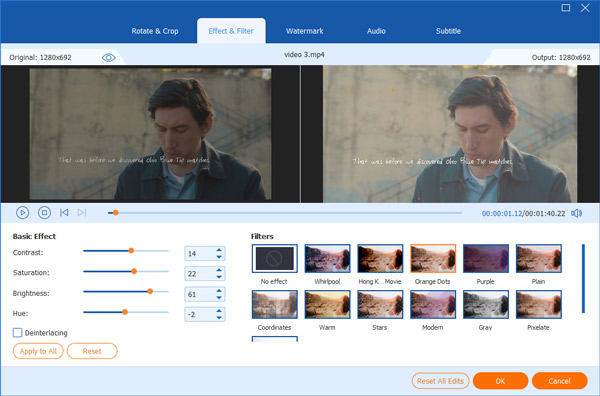
AnyMP4 iPhone Converter grants you a collection of powerful editing tools to help you conduct specific video effect customizations according to your preferences. You can use these tools to trim video for your preferred length, crop video frame to get rid of video black edges, join several video clips together, add watermark to the video, and adjust Video Brightness, Saturation, Contrast, Hue and Volume for better video quality.
AnyMP4 iPhone Converter also helps you adjust output parameters to conduct further video effect customization. Video Encoder, Bitrate, Frame Rate, Resolution, Aspect Ratio and Audio Bitrate, Encoder, Channels and Sample Rate are all adjustable.
AnyMP4 iPhone Converter enables you to select your preferred audio track for the video file and add subtitle to the file for better enjoyment.

The last step you need to do is click the "Convert All" button, then the conversion task will be started with incredible speed and precision. When the progress bar reaches 100%, you can get your H.264 coded MP4 video, which possesses better quality than the ordinary MP4 video.
 Updated by Joan Aimee to Convert Video
Related Articles
 Top 10 MKV to MP4 Converters Online and Offline
Here we recommend the 10 best MKV to MP4 Converters to achieve your goal.
 10 Best Free Ways to Convert VOB to MP4
This tutorial will introduce top 10 methods for you to convert VOB to MP4 video.
 Convert Video to MP4 Free With Top 10 Methods
Here are the details about video to MP4 Converter. Read and discover favorite tool.
 5 Easiest Methods to turn GIF into MP4
Are you worry about how to turn GIF into MP4? The article explains the top 5 methods.
 Add your comments to join the discussion here
